
Signing In to Leapfrog Energy
To use Leapfrog Energy, you need either a Bentley account or a Seequent ID with the correct permissions. Once you have received your Leapfrog Energy credentials, launch Leapfrog Energy.
If you have installed Leapfrog Energy on a computer that has not run Leapfrog Energy before, you may be prompted to enter your email address and then choose the type of licence you will be signing in with. If you are prompted to do this:
- Enter the email address to which your Leapfrog Energy licence has been assigned, then click Get Started.
- Choose the type of licence you will be signing in with, a Bentley account licence or a Seequent ID licence. If you will always be signing in with that licence type, enable Remember my choice.
Each sign-in method is described below:
If you are working with Seequent Evo, you need to sign in with a Bentley account.
Signing In With a Bentley Account
Signing in to Leapfrog Energy with a Bentley account uses the Bentley Connection Client. If you do not already have this installed when you launch Leapfrog Energy, a message will be displayed that includes a link for downloading the Connection Client:
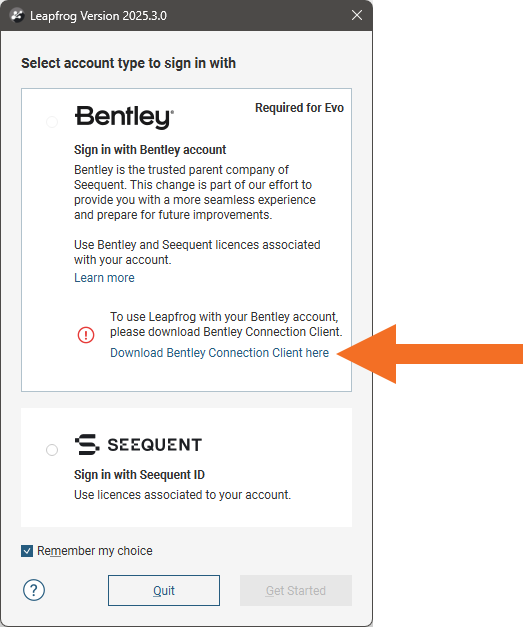
Once the Connection Client is installed, you will be able to sign in to Leapfrog Energy using your Bentley account.
Selecting Entitlements
Once you have signed in using the Connection Client, you will be prompted to choose your product and extensions in Leapfrog Energy. You can:
- Select your group, if your organisation has a number of different groups.
- Select what extensions you wish to use. Some Leapfrog Energy features are only available with an extension.
- Select how long you wish to check out a seat, if your organisation is set up to check out seats on a day-by-day basis.
If you do not see the products and/or extensions you expect to see, contact your organisation’s license administrator to check that the email address you are using to sign in is the one associated with your Leapfrog Energy entitlements.
The Leapfrog Viewer product allows you to open Leapfrog scene files without having entitlements for Leapfrog Energy.
Seequent Connector and Signing In With a Bentley Account
When you sign in to Leapfrog Energy using a Bentley account, Seequent Connector will still be used to manage your connection to some Seequent services. Seequent Connector will use your Bentley account credentials, but your browser may prompt you to allow Seequent Connector to run.
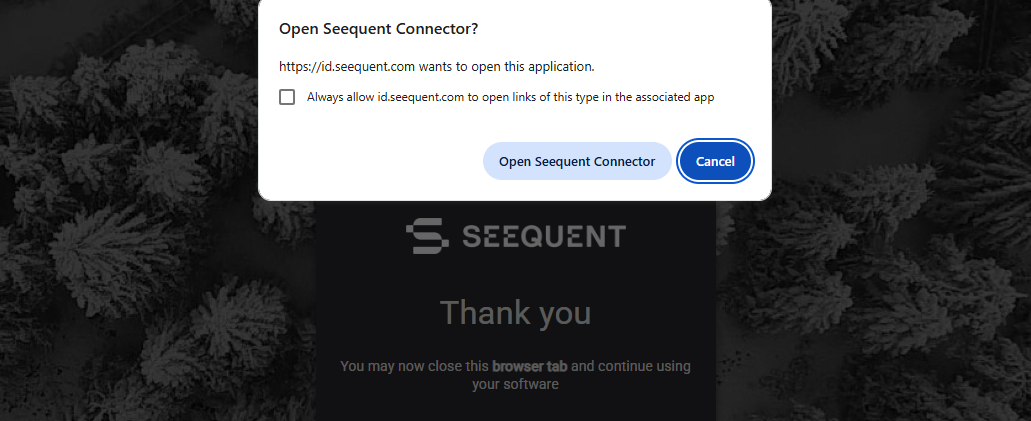
We recommend ticking the box to always allow id.seequent.com to open links.
Changing Permissions
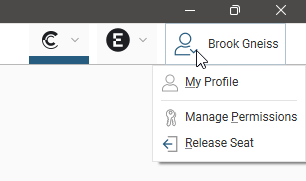
Once you have signed in using your Bentley account, you can change your permissions via the user ID menu in the upper right-hand corner of the main window:
Closing Leapfrog Energy
When you close Leapfrog Energy, if you need to release your licence, choose the Release Seat option. The next time you launch Leapfrog Energy, you will need to sign in and select your permissions.
Choosing Quit closes Leapfrog Energy without releasing your licence.
Signing In With Seequent ID
Signing in with a Seequent ID uses Seequent Connector, a system tray application that handles the authentication and authorisation required to run Leapfrog Energy. Seequent Connector is installed when Leapfrog Energy is installed.
When you launch Leapfrog Energy and sign in using a Seequent ID, a window will launch in your computer’s default browser prompting you to enter your Leapfrog Energy credentials. Follow the prompts and once you have signed in, you will be prompted to launch Seequent Connector.
Selecting Entitlements
Leapfrog Energy will then open a window in which you can select your entitlements. You can:
- Select your group, if your organisation has a number of different groups.
- Select what extensions you wish to use. Some Leapfrog Energy features are only available with an extension.
- Select how long you wish to check out a seat, if your organisation is set up to check out seats on a day-by-day basis.
If you do not have a Leapfrog Energy licence, you can use Leapfrog Viewer to open scene files. Select your own user name for the Organisation.
Select your options, then click the Get Started button to start working in Leapfrog Energy.
Managing Your Profile and Permissions
Once you have signed in to Leapfrog Energy using your Seequent ID, the user ID menu in the upper right-hand corner of the main window is used to manage your MySeequent profile and your permissions:
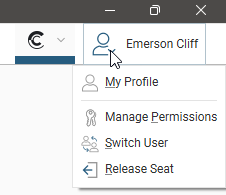
If you are offline, options that require an internet connection will be greyed out. You can continue working in Leapfrog Energy while you are offline until your session expires. To see when this is, click on the user ID menu and select Manage Permissions. The window that appears will display the time and date when your session will expire.
Closing Leapfrog Energy
If your organisation shares Leapfrog Energy seats between users, you can release your seat for other Leapfrog Energy users in your organisation when you have finished working with Leapfrog Energy. To release your seat, you can either:
- Select the Release Seat option from the user ID menu.
- Close Leapfrog Energy and choose the Release Seat option when you are prompted.
When you close Leapfrog Energy, the Quit option retains your seat and the next time you launch Leapfrog Energy, you will not have to sign in, nor will you have to select your entitlements.