
User Interface Settings
The User Interface tab in the Settings window contains settings related to the project tree, the scene toolbar and how tabs are displayed in the Leapfrog Energy main window. There is also an option related to warnings displayed when publishing to Seequent Evo.
The Revert button at the bottom of the Settings window reverts settings to those in place when the Settings window was first opened. This includes changes made in other tabs, not just the tab you are currently in.
To apply any changes made, click Close.
Show Project Tree Lines
Ticking the box for Show Tree Lines displays objects in the project tree with lines:
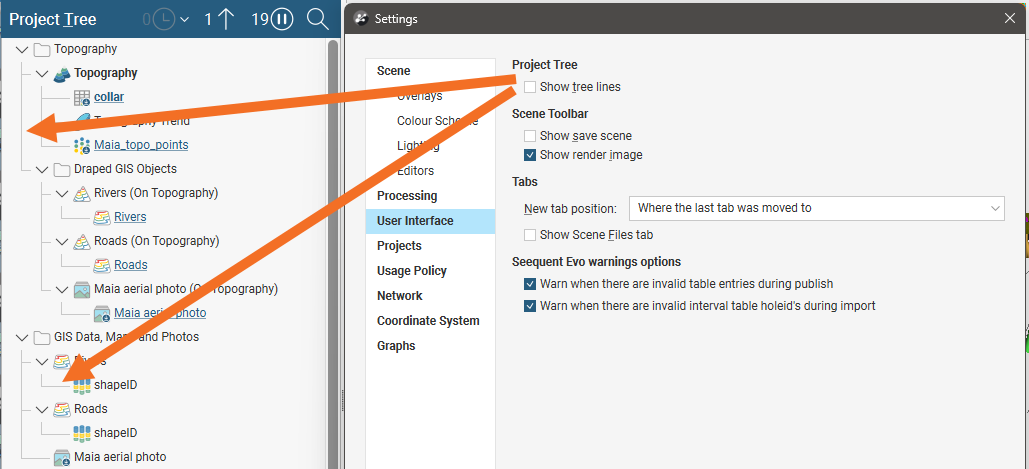
Enable this option if you find it useful for displaying relationships between objects in the project tree.
Scene Toolbar Settings
There are two buttons that can be added to or removed from the scene toolbar, the Save Scene button and the Render Image button.
You can also change these settings by right-clicking on the scene toolbar and selecting Customise.
Show Save Scene Button
Ticking the Show Save Scene box adds an extra button to the scene toolbar for saving scenes to the Saved Scenes, Movies and Markers folder:
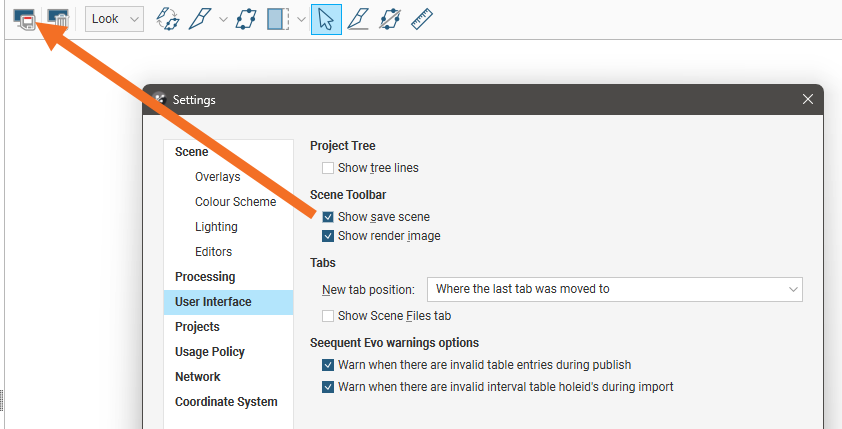
See Saved Scenes for more information.
Show Render Image Button
Ticking the Show Render Image box adds a button to the right-hand end of the scene toolbar for rendering an image of the current scene:
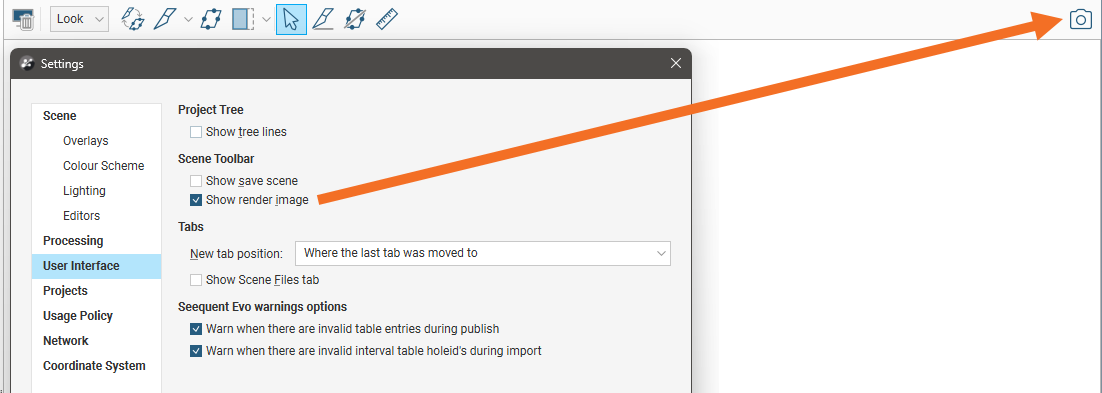
Clicking the button opens the Render Image tab. See Rendered Images for more information.
Tab Settings
There are two tab-related settings in the User Interface tab.
Show Scene Files Tab
When the Show Scene Files tab option is enabled, a Scene Files tab will be displayed in the main window:
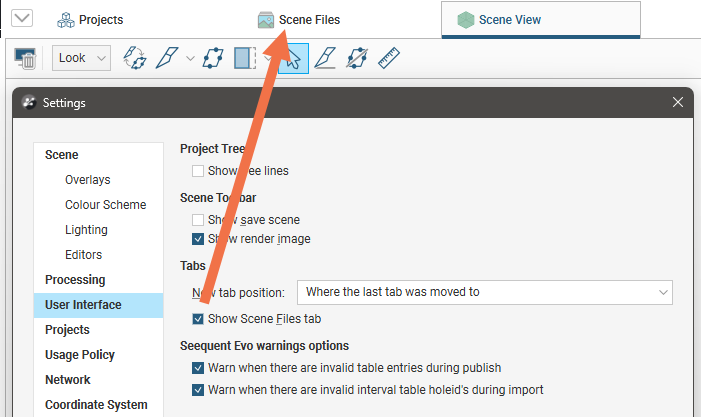
This tab will display scene files, which you can then open as described in Leapfrog Viewer.
If you do not work with scene files, disable this option.
New Tab Position
Some Leapfrog Energy windows open in separate tabs that can be used either docked or detached. The position in which tabs open is determined by the New tab position setting:
- Open all tabs in the main window.
- Open all tabs in separate windows.
- Tabs can open where the last tab was moved to. This setting can be used for creating a window in which all tables and dockable windows open, with the scene window, project tree and shape list in another window.
Seequent Evo Warnings
When publishing data to or importing data from Seequent Evo, warning messages can be displayed when there are invalid entries. These messages can be disabled on a project-by-project basis; the option to do so is provided when publishing or importing data that has invalid entries.
If you wish to re-enable warning messages, you can do so in the User Interface tab in the Settings window. There are two warning messages that can be enabled or disabled in this tab:
- The warning displayed when publishing a data table that contains invalid entries
- The warning displayed when importing interval tables that have invalid hole IDs
These warning settings apply only to the project that is currently open.