
Mapping Models and Calculations to BlockSync Columns
When a BlockSync model is first imported into a Leapfrog Energy project, the imported columns contain the values from the selected version of the BlockSyn model, unlinked to any models or calculations. In order to make changes to the values in those columns, you need to map local models and calculations to the columns imported from the BlockSync model.
The mapping process overwrites the values in the local BlockSync columns in Leapfrog Energy, but the information is retained so the BlockSync version can be compared with the local version as you make changes in the project. The Comparing Local Columns and BlockSync Columns topic describes how to visualise the differences between the local columns and BlockSync columns.
The values in the columns mapped to the BlockSync columns remain local until you choose to publish a new version of the model that includes those columns. At that point, the published version will match the local columns.
This topic describes how to map local models and calculations to BlockSync columns in order to make updates to the BlockSync model. It is divided into:
- Adding Calculations to the Local Copy
- Mapped Versus Unmapped Local Copies
- Mapping in the Columns and Evaluations Tab
- Adding New Columns to the BlockSync Model
- Removing Imported BlockSync Columns
Adding Calculations to the Local Copy
Calculations are an important part of making updates to BlockSync models but are not imported from BlockSync, nor are they published to BlockSync.
Once you have imported a BlockSync block model, you can add calculations to it by right-clicking on it in the project tree and choosing Calculations and Filters. The imported columns can be referenced in calculations.
See the following topics for information on adding calculations to the local copy:
- Defining Calculations and Filters describes how to work in the Calculations window.
- Catalogue of Metadata, Syntax and Functions describes each of the items in the pinnable Insert list.
Your team may have a set of standard calculations that are used on specific block models, in which case the calculations on one block model can be copied to other block models in the same Leapfrog Energy project or exported for use in other Leapfrog Energy projects. See Copying, Importing and Exporting Calculations and Filters in the Defining Calculations and Filters topic.
Note that importing or copying a set of calculations onto a newly-imported BlockSync model will likely result in duplicate name errors when the imported calculations have the same names as the BlockSync columns they will be mapped to. Mapping will resolve such errors.
Mapped Versus Unmapped Local Copies
Before we describe the column-mapping process, it’s important to understand how mapping local models and calculations to imported BlockSync columns changes how the BlockSync model is represented in the project tree. Here we have a newly-imported local copy that has not been mapped. There are three imported columns (A); two are category columns and one is a numeric column. Two calculations have been defined for the local copy, which appear in the Calculations list (B).
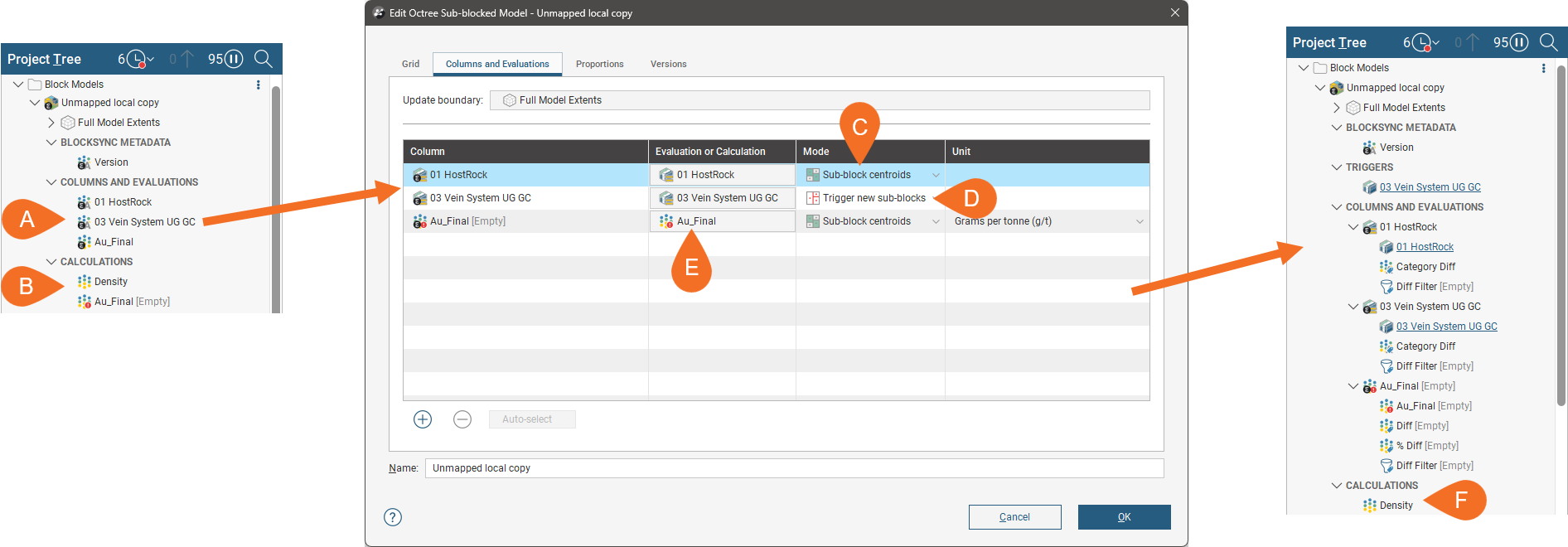
How we map the evaluations/calculations onto the imported columns in the Columns and Evaluations tab determines how they appear in the project tree post-mapping:
- A geological model is mapped to one of the category columns on the sub-block centroids (C). It appears in the project tree under Columns and Evaluations.
- A geological model is mapped to the other category column as a sub-blocking trigger (D). It appears in the project tree under both Triggers and Columns and Evaluations.
- The numeric column is mapped to the Au_Final calculation (E). It is moved from the Calculations list into the Columns and Evaluations list.
- The unmapped Density calculation (F) remains in the Calculations list and remains local.
Each mapped model and calculation is marked with the Evo badge. Diff columns and filters appear in the project tree as part of each mapped evaluation; these are used for comparing the local version of the column against the BlockSync version. See the Comparing Local Columns and BlockSync Columns topic.
Mapping in the Columns and Evaluations Tab
Once you have the local models, cand calculations you need for mapping the imported columns, double-click on the model in the project tree and click on the Columns and Evaluations tab. You can also right-click on the model in the project tree and choose Columns and Evaluations.
In the Columns and Evaluations tab, you can map objects one-by-one or let Leapfrog Energy try to match objects in the project with the BlockSync columns with the same name. If Auto-select cannot match any of the columns, you can set them individually.
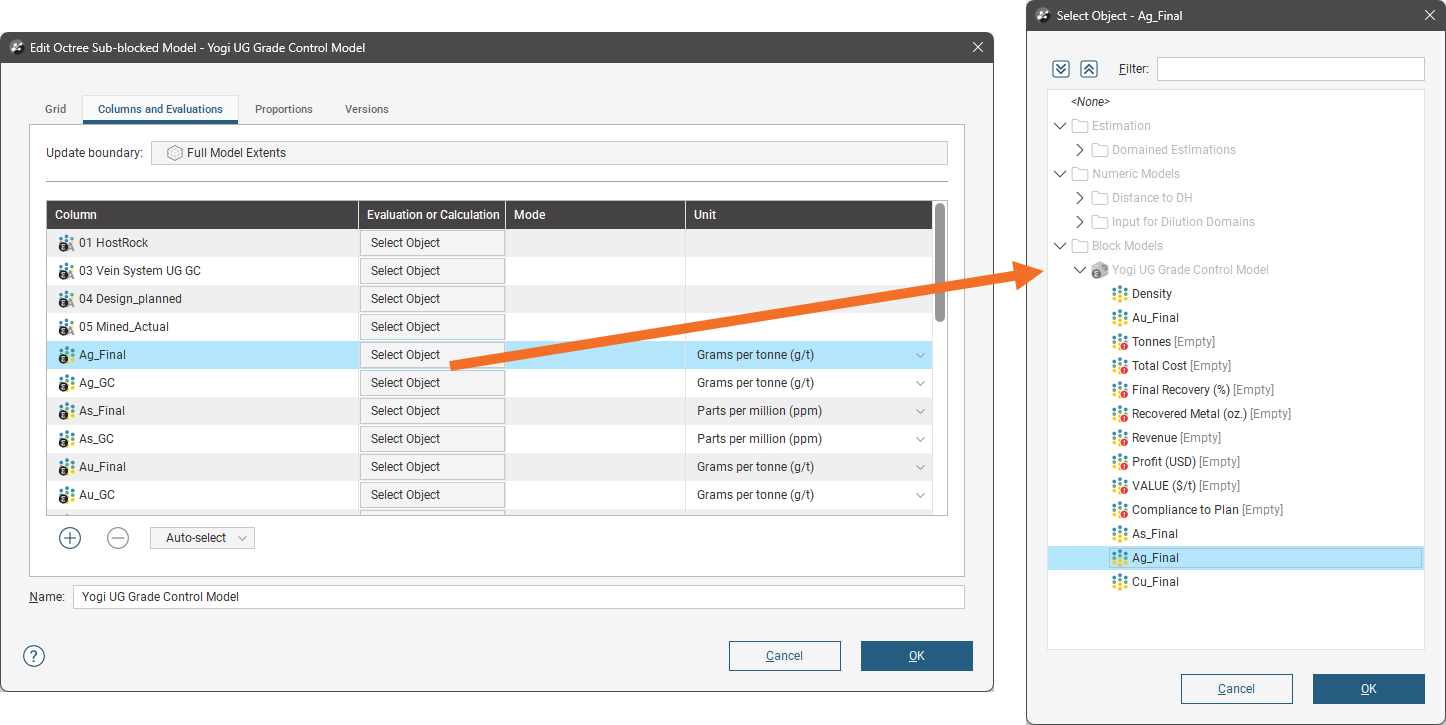
To map evaluations or calculations to imported columns manually, click the Select Object button for the column you are mapping. The list of objects will include calculations defined for the block model:
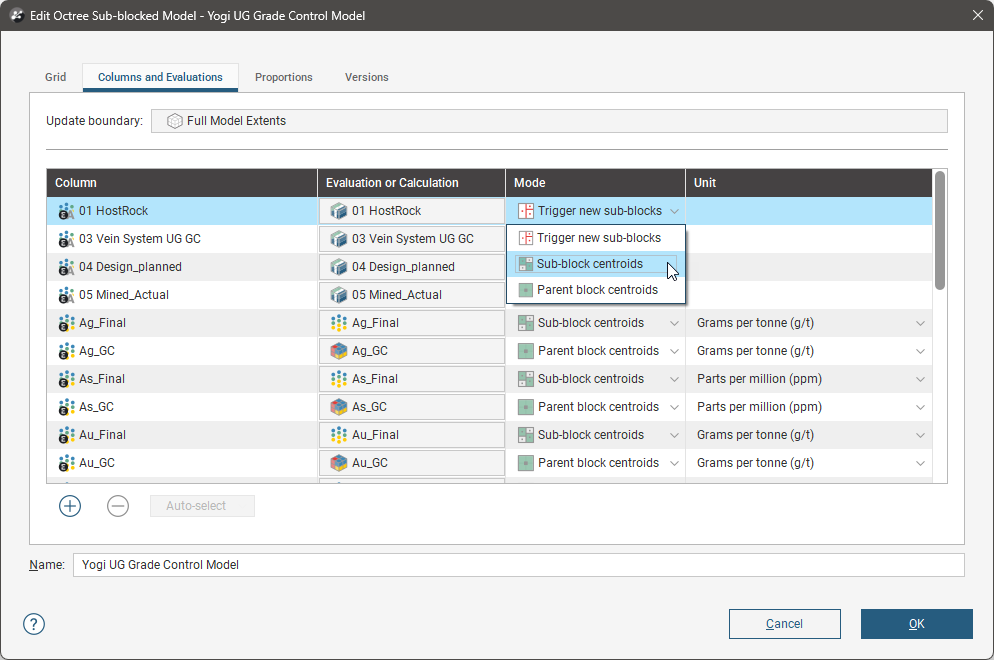
The Mode determines how the local information is evaluated onto the BlockSync column:
- Category evaluations can be used as a sub-blocking trigger or can be evaluated at the parent block or sub-block centroids.
- Numeric evaluations can be evaluated at the centroids of sub-blocks or parent blocks.
- Calculations are sampled at the sub-block centroids.
Leapfrog Energy automatically assigns a mode to each evaluation or calculation; check that each mapped column is set to the mode you wish to use.
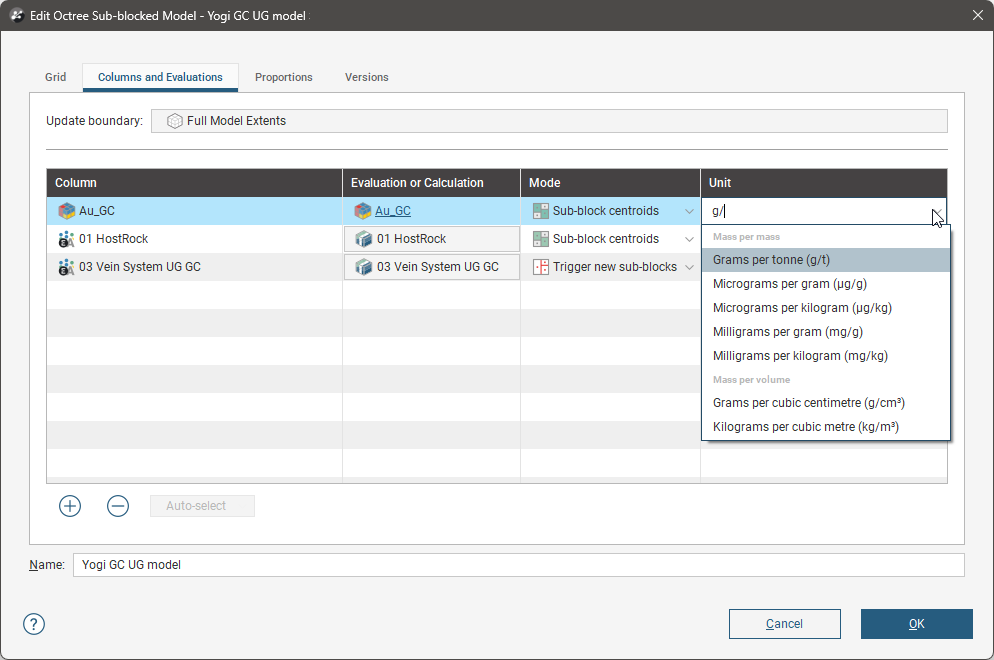
Setting units for numeric data is optional at this stage, but units must be set before new columns can be published to BlockSync. To set units, click the dropdown list for the undefined unit and choose from those available. You can also start typing to narrow down the list of units until you find the one you want:
You can select multiple rows and set their mode or unit in bulk. To do this, hold down the Shift key or the Ctrl key while clicking rows.
Unmapping a Column
If you decide you do not want to map a column, you can do so in the Columns and Evaluations tab. Click on the evaluation you wish to remove and choose the <None> option at the top of the objects list:
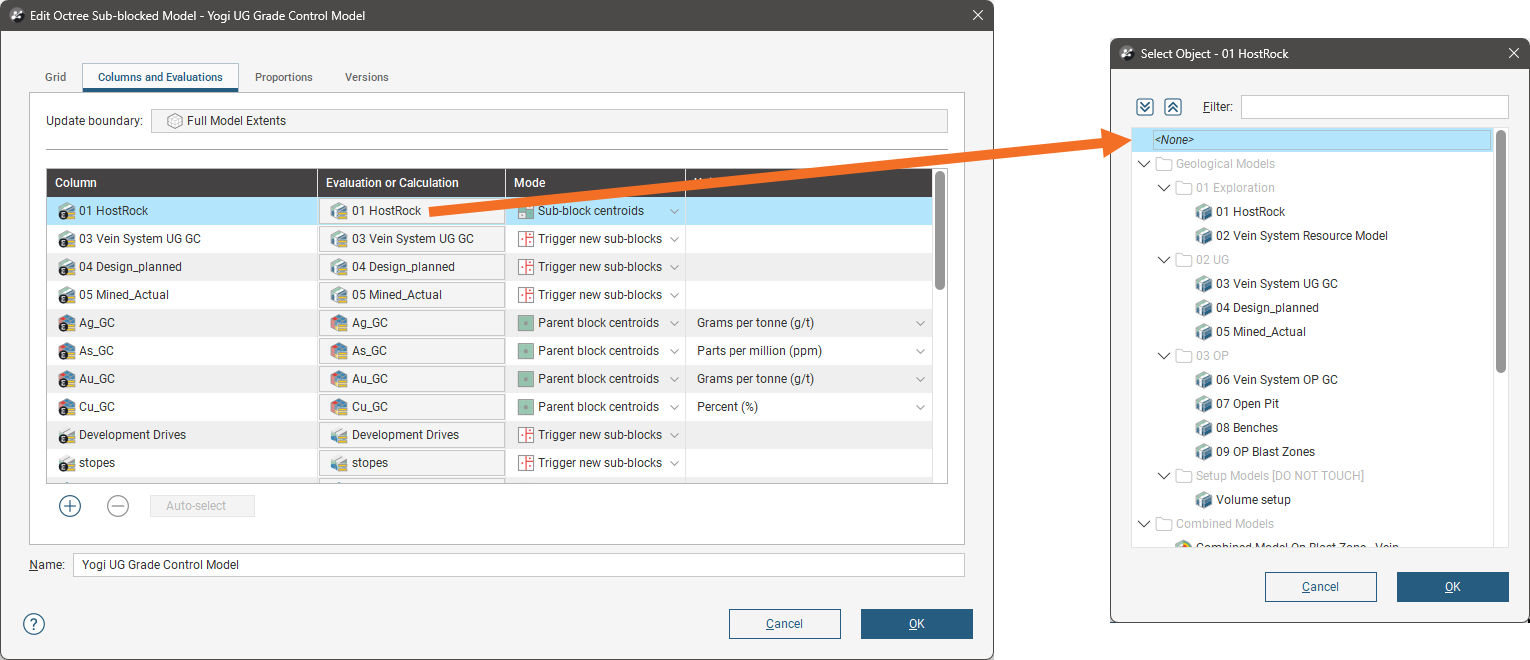
In the Columns and Evaluations tab, the local column will still appear in the list, alongside the unmapped imported column, which is the case here for the geological model columns:
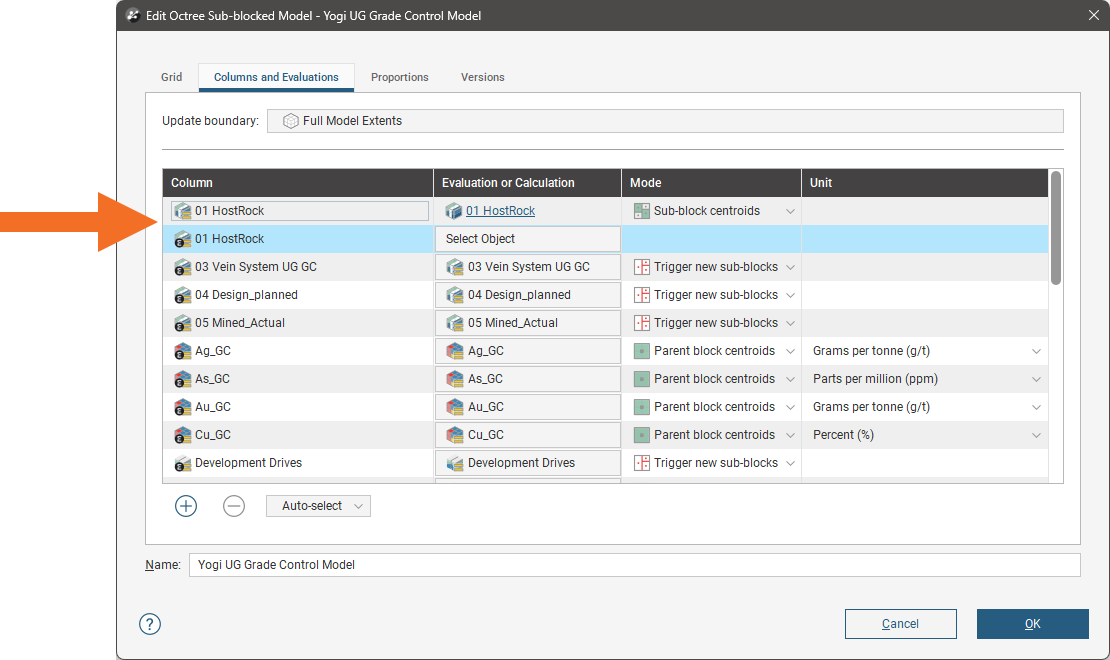
The column imported from BlockSync remains but is unmapped. You can choose a different local evaluation or calculation or leave it unmapped.
The geological model is still evaluated. If you wish to remove it, click on it in the list, then click the remove button ( ).
Imported columns cannot be removed from the local copy in the Columns and Evaluations tab. If you wish to remove an imported column, see Removing Imported BlockSync Columns later in this topic.
Adding New Columns to the BlockSync Model
Adding new columns to the BlockSync model involves evaluating local models and estimators and/or defining new calculations.
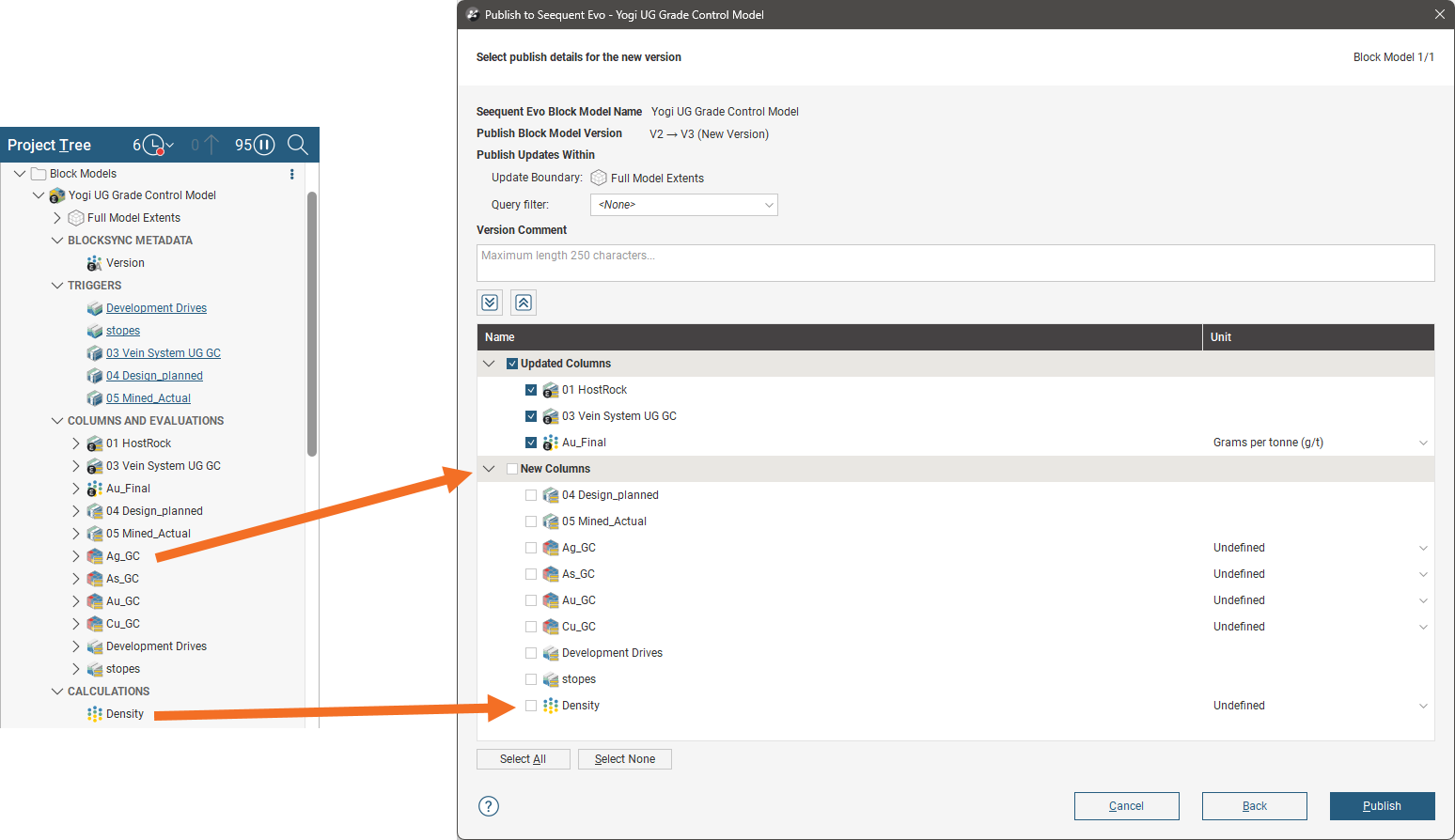
- Evaluate new columns in the Columns and Evaluations tab. They will appear in the project tree as non-Evo evaluations.
- Add new calculations in the Calculations window.
When you publish the model, these local columns can be published as new BlockSync columns. Here, for example, we have a number of non-Evo evaluations in the project tree that can be published as new columns, along with the unmapped Density calculation:
Removing Imported BlockSync Columns
There are two ways to remove imported BlockSync columns:
- Reload the model and remove the column from the local copy.
- Right-click on the imported column in the project tree and choose Delete.
In both cases, you will be prompted to confirm your choice.
Removing a column from a local copy does not delete it from the BlockSync model. If you later wish to re-import the column, you can do so by reloading the model and then remapping it in the Columns and Evaluations tab.
If the column was mapped to a local model or calculation:
- The local evaluation will be removed from the local copy, but the model itself remains in the project.
- The calculation will be moved from the Columns and Evaluations list to the Calculations list.