
Publishing to BlockSync for the First Time
With the Leapfrog Energy/BlockSync integration, you can publish a local block model from Leapfrog Energy to Evo for use as a BlockSync model. Once published, team members can perform targeted updates on specific spatial or attribute subsets without duplicating files.
This topic describes the process of publishing a local-only Leapfrog Energy block model to BlockSync, thereby creating a new BlockSync model. It is divided into:
Regular block models, octree sub-blocked models and fully sub-blocked models can be published to BlockSync. Variable Z sub-blocked models cannot be published.
Pre-Publishing Considerations
Before publishing a block model for the first time, it is important to consider the grid definition and the workspace it will be published to.
- The grid definition. With BlockSync models, the grid size and rotation and the parent block size and count are set when the BlockSync model is first created. For sub-blocked models, adding local triggers can result in changes in sub-block geometry and values; however, the underlying parent blocks cannot be changed.
- Linking the block model to an Evo workspace. Once a block model in a Leapfrog Energy project has been published to Evo, it is linked to the workspace it was published to. The block model cannot be published to a different workspace, even if it is removed from the workspace it belongs to.
Because you cannot change the grid definition of a published model and cannot link to a different workspace, it is a good idea to make a copy of your local model before publishing to BlockSync for the first time.
Publishing the Block Model
Once you are ready to publish the local model, right-click on it in the project tree and choose Publish to Seequent Evo. In the window that appears, the block model will be pre-selected. Choose the workspace the model should be published to, remembering that once the model has been published, you cannot:
- Publish the model to a different workspace
- Make a copy of the published model and publish that copy to a different workspace
Click Next to move on to the next part of the publishing process, which involves:
- Entering the name that will be used in BlockSync, which can be different from that used in the Leapfrog Energy project
- Adding a version comment
- Choosing what columns you will include
- Setting units for any new columns you wish to publish
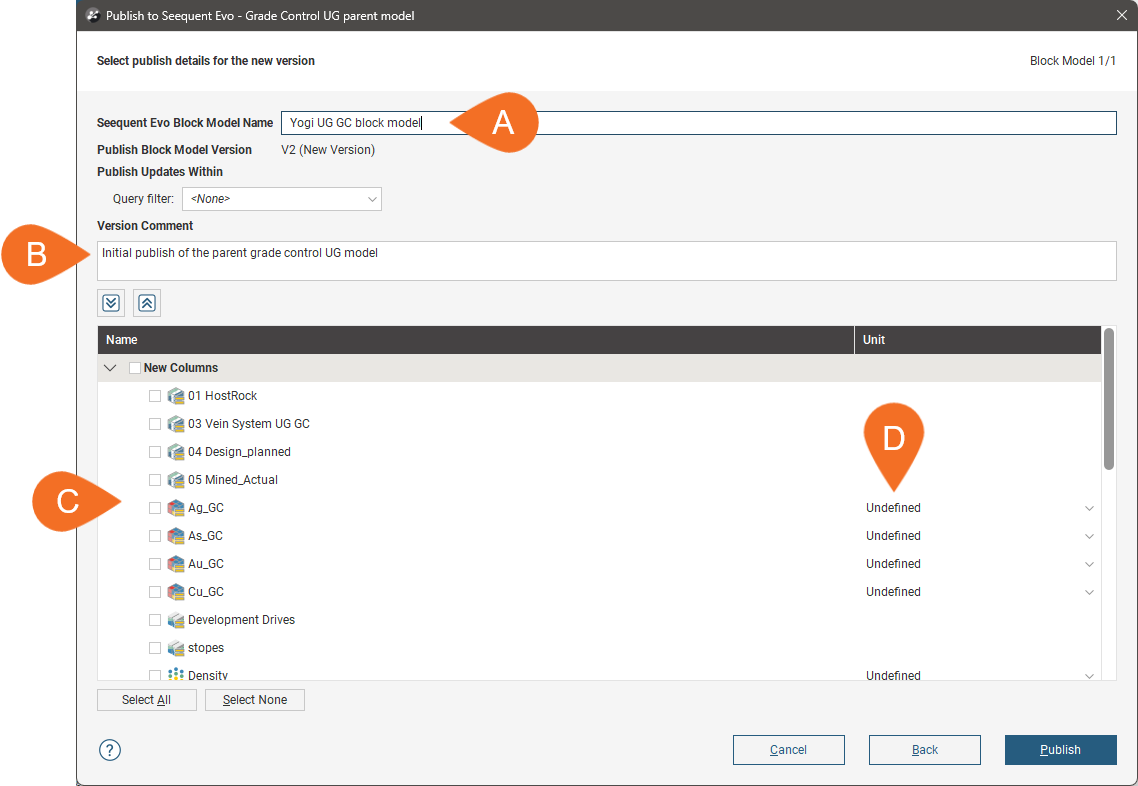
If you only want to publish only some of the data, you can use a query filter. The full extents of the block model will still be published.
Note that the Publish Block Model Version will be V2, although this model has not been published previously. This is because when a new block model is added to BlockSync, two versions are created:
- Version 1 is the empty model based on the grid definition.
- Version 2 populates the model definition with data, i.e. data columns.
Next, choose the columns you wish to publish. These are the columns team members will be able to choose from when they import and work with the BlockSync model. Unpublished columns remain local to the Leapfrog Energy project.
Numeric columns must have units set before they can be published. To do this, click the dropdown list for the undefined unit and choose from those available. You can also start typing to narrow down the list of units until you find the one you want:
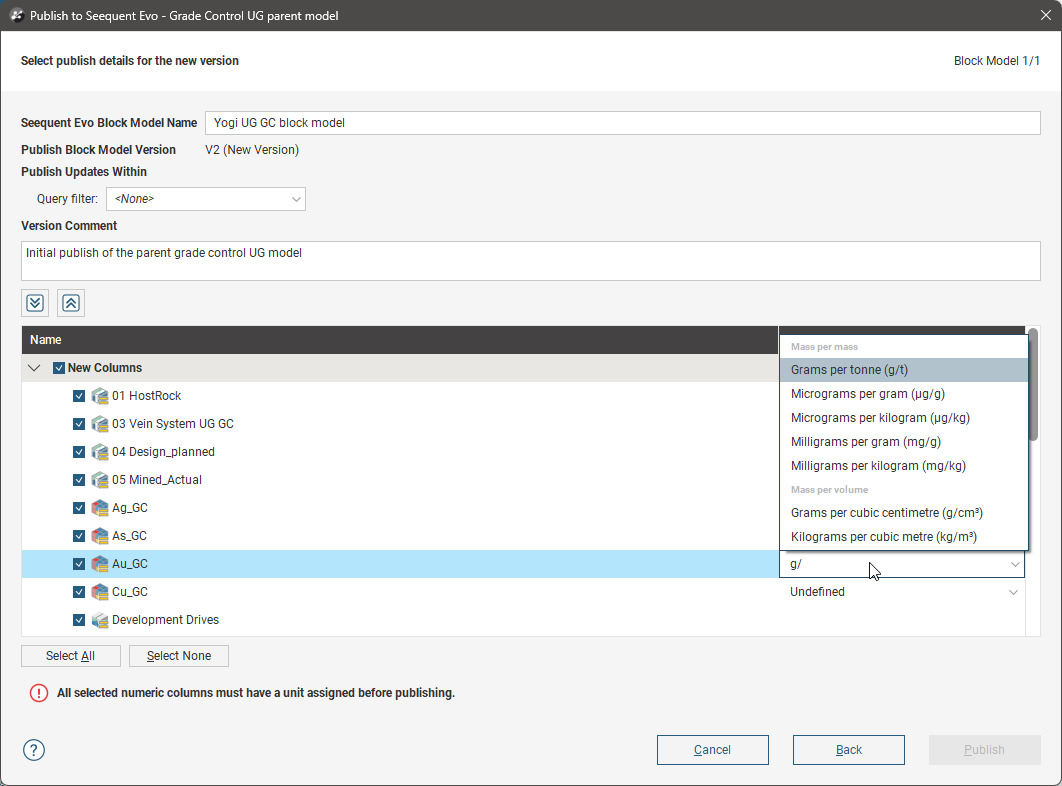
Click Publish to start publishing the model to Seequent Evo. Progress will be indicated in the Leapfrog Energy processing panel.
See the BlockSync Integration topic for an overview of the differences between local block models and BlockSync blocks models.