
Exporting and Importing Vein Edits
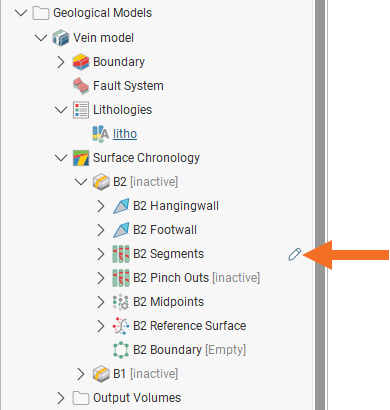
Vein segments, pinch-outs and midpoints can be manually edited. In the project tree, objects with edits are indicated using the edit icon ( ):
If you have made edits to vein pinch outs, segments, and midpoints, you can export them for use in other veins and models in the current project or in other projects. The edits are exported in a text file.
To export a list of vein edits, right-click on the vein in the project tree and select Edits > Export:
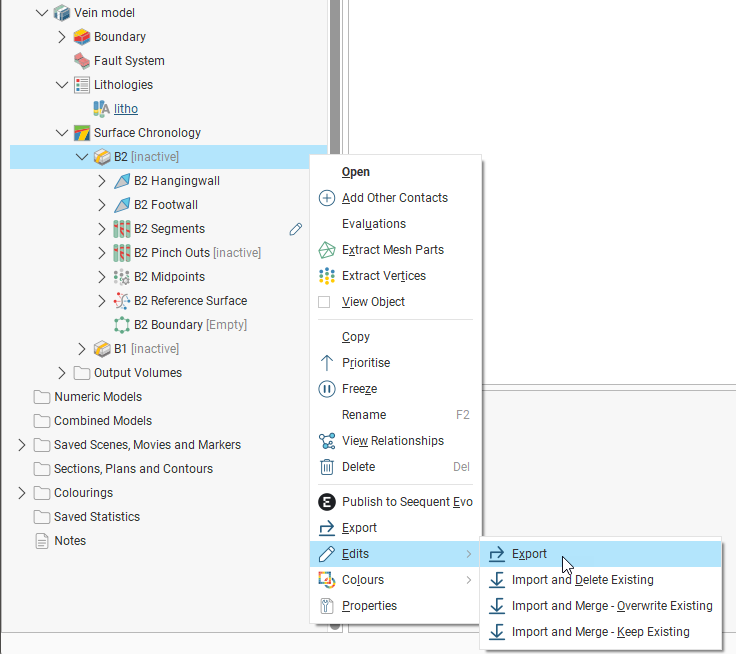
You will be prompted to save the file on your local hard drive.
Although the file containing the edits is a text file, editing it is not recommended.
To import the vein edits to a different vein, right-click on that vein in the project tree and select Edit. Each of the Import options handles vein edits in the file and vein edits in the project in different ways.
- Import and Delete Existing. This option discards any edits made in the project and uses those in the file, even if the file does not contain edits that match those in the project. If you do not wish to keep any of your existing vein edits and will rely solely on those made in the file, choose this option.
- Import and Merge - Overwrite Existing. This option prioritises edits in the file over those in the project. Edits that are in the project but not in the file will be retained.
- Import and Merge - Keep Existing. This option prioritises edits in the project over those in the file. Edits that are in the file but not in the project will be added to the project.
For each option, if there are edits in the file that do not match the vein in the project, a message will be displayed. A text file listing the errors will be saved on your local hard drive.