Setting Up the Legend Group
The Legend Group and the individual legends underneath it control how the legend is displayed on the page. Click on the Legend Group object to change the layout of the legend as a whole. The Visible tick box is used to show or hide the whole legend. Show title is used to show or hide the title, which can be customised from "Legend" to something else as required. Three sets of style controls set the appearance of the Group title style, Legend title style and the Legend entry style for different parts of the legend as indicated . Use the Edit Styles buttons to customise the styles used.
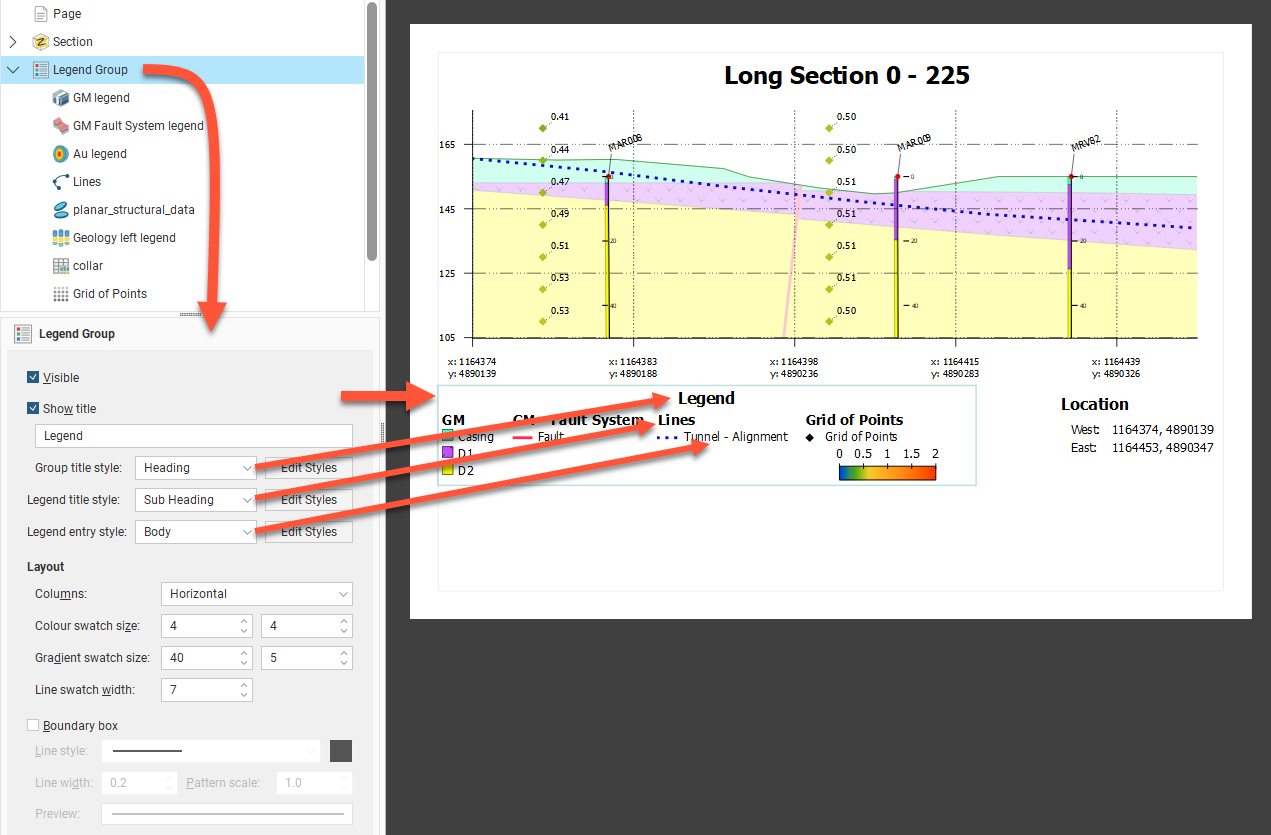
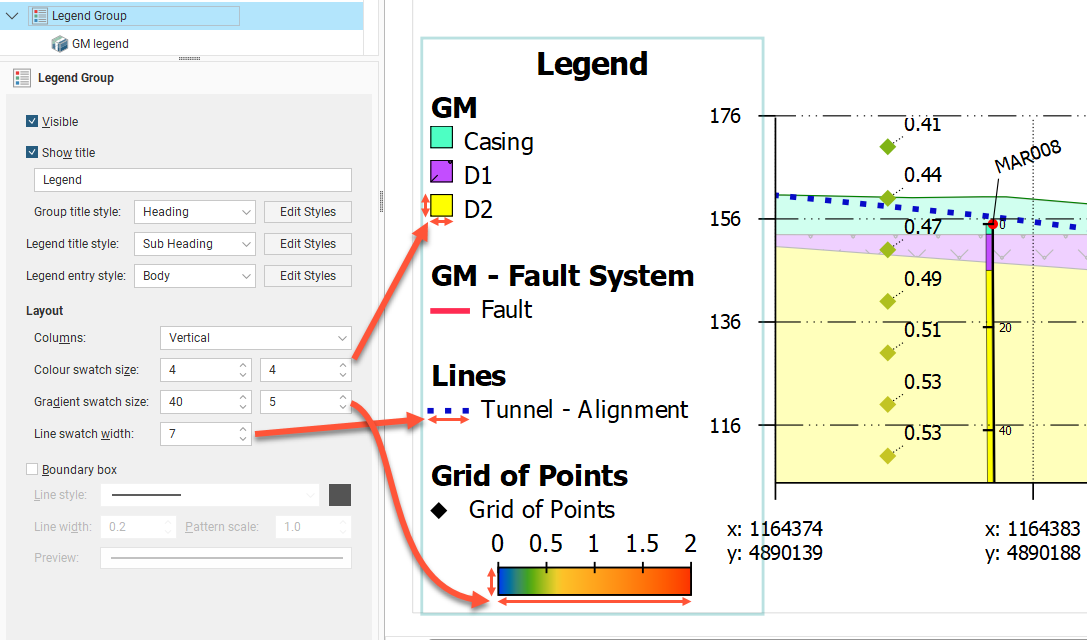
The legend has a series of legend elements for different objects. Under Layout, these can be arranged as Horizontal (as above) or Vertical (as below) Columns. Each of the component legend elements will also inherit the same Colour swatch size, Gradient swatch size and Line swatch width for overall consistency of appearance.
The legend may optionally be surrounded by a Boundary box, and the line style for that box can be set using the Line style, Line width, Pattern scale and colour tile controls.
When you have multiple models, surfaces, lines and wells on the section layout, you can end up with a large number of entries in the Legend Group. You can control which legend entries are included in the Legend Group.
Depending on the object type, there are different ways for objects to be managed in the legend:
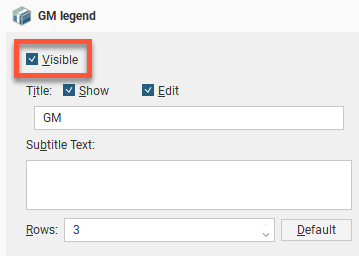
- Each entry under the Legend Group in the layout tree has a Visible tickbox. You can also Show or hide the Title for the object type, and the title can be customised by clicking the Edit tickbox and changing the title text. Enter text in the Subtitle Text box to add more to explain the entry, as required. Change the number of Rows to rearrange how multiple swatches are organised.
- Instead of there being a single Well entry in the Layout Group, each data column colouring for each Well object is automatically added to the Layout Group. Each can be customised as above.
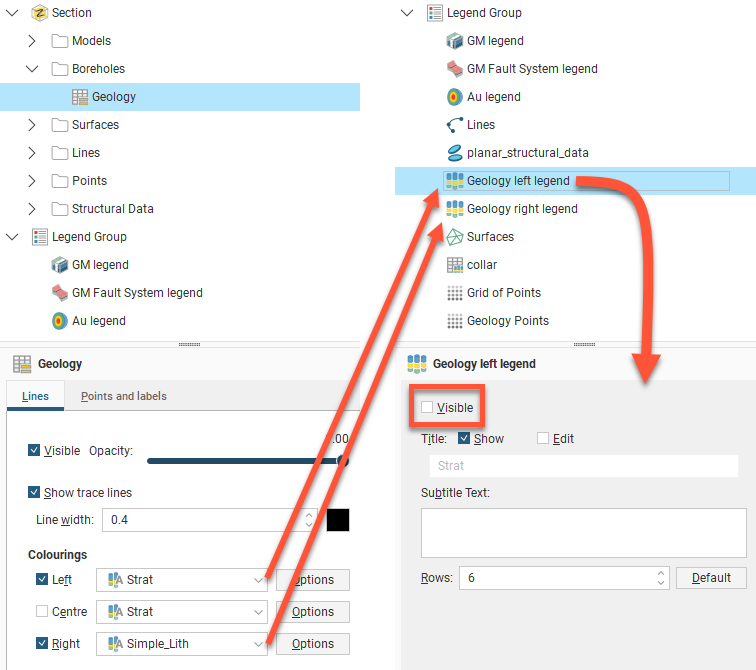
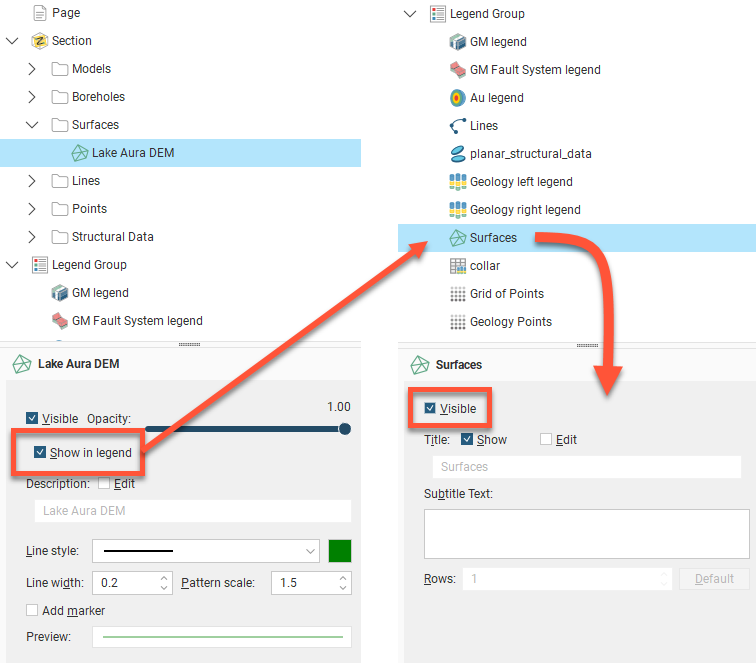
- Model surfaces, surfaces, and lines each have a Show in legend tickbox that needs to be enabled before an item will appear in the Legend Group. Once ticked, it can still be optionally hidden or shown in the legend by changing the Visible tickbox for the entry that will have appeared in the Legend Group.
- Planned wells do not appear in the legend. This is not customised from within the Legend Group.
The order in which legends appear in the Legend Group is the order in which they appear in the layout tree. To change the order in which the legends appear, right-click on them and select a Move option.
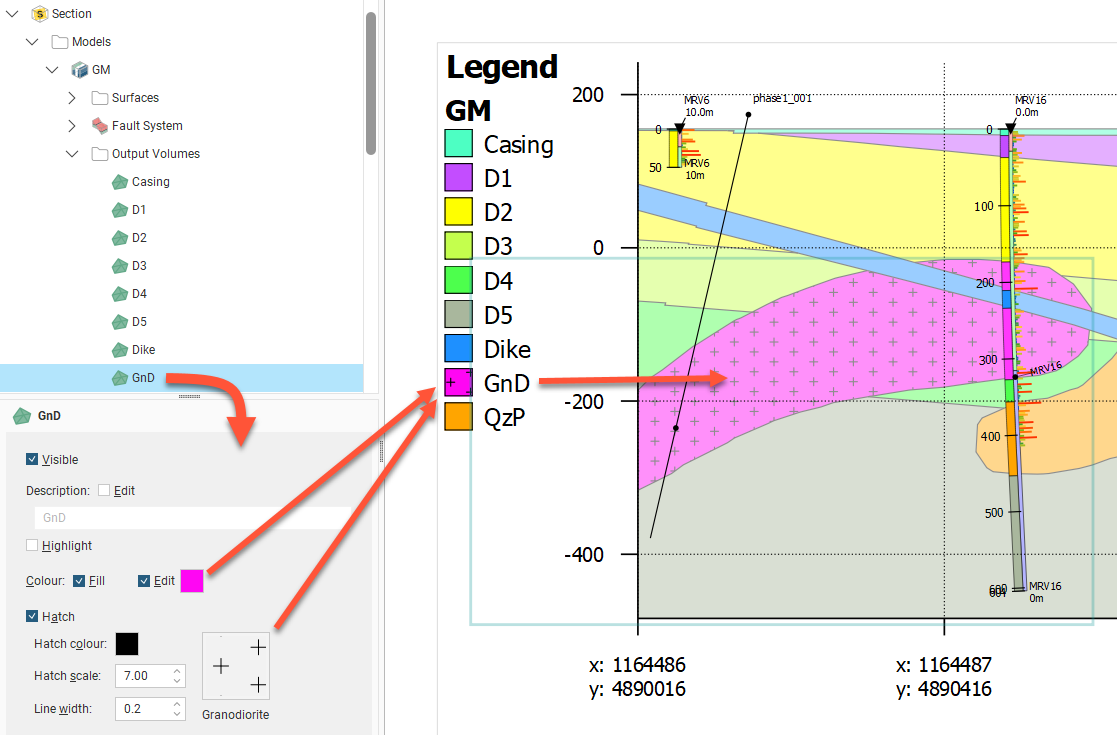
The colours, line widths, fills and hatches displayed in the Legend Group are controlled by the objects themselves.
For example, to change how a volume for a model is displayed, click on the output volume under the Models object: