
Long Sections
A long section is one section or a series of sections that deviates from straight line. In Leapfrog Energy, a long section can be created from a polyline drawn in the scene or from any line object in the project.
This topic is divided into:
- Creating a Long Section
- Section Layouts for Long Sections
- Displaying Long Sections
- Exporting Long Sections
Creating a Long Section
To create a long section, right-click on the Sections, Plans and Contours folder and select New Long Section. The New Long Section window will be displayed:
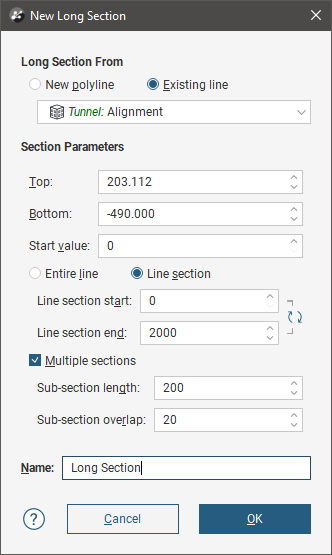
You can draw the polyline in the scene directly by selecting the New polyline option. You can also use any polyline in the project by selecting the Existing line option and selecting from the lines available in the dropdown list.
The Top and Bottom parameters set the measurements for the top and bottom boundaries of the section. Start value defines the measurement for the start of the reference line. If that is considered the zero point, use 0. If another point is the origin for the line, you might wish to set the Start value for the section as being the offset distance to that origin point. The Line section start and Line section end points make use of this Start value.
Choose Entire line if the long section should span the entire reference line. If only a portion of the line is to be represented by the long section, choose Line section and set the Line section start and Line section end points to choose the portion of the line that is to appear on the long section. Note that these distances along the line include the Start value. For example, if the Start value is 40 and the Line section start is 100, the section will begin 60 units along the reference line.
If the long section is to be a single section along the reference line, untick Multiple sections. For longer lines, it is often useful to tick Multiple sections and divide the line into multiple sections. Use Sub-section length to control how much of the line appears in each section, and Sub-section overlap to specify the amount (if any) on each section that is duplicated on the adjacent section.
Click OK to create the long section. If you chose to create a New polyline, the polyline editor will open and you can begin drawing, as described in Using the Polyline Editor.
The long section will appear under the Sections, Plans and Contours folder and you can edit it by double-clicking on it.
Section Layouts for Long Sections
Right-click on a section segment in the project tree and select New Layout. Use the section layout editor to design the section layout and communicate the information you need to convey. For a full description on using the section editor, see the Section Layout Editor topic. Once you have a layout designed, you can copy the layout to other segments in the long section. Right-click on the section layout in the project tree and select Copy Layout To from the menu. To apply the section layout design onto the other segments, move the long section segments from the Available Sections to the Selected Sections list, and click OK.
Alternatively, you can create a section layout template for a long section by right-clicking on the Sections, Plans and Contours folder in the project tree and selecting New Layout Template. Design your section layout template using the section editor tools. Then right-click on the newly-created layout template in the project tree and select Copy Layout Template To, move the long section from the Available Sections list to the Selected Sections list, and click OK.
Individual section layouts can then be tweaked, adjusting the location of labels and objects to present each section optimally. Note that changing child section layouts will break the relationship with the layout template and modifications to the layout template will not affect the modified child section layout.
Displaying Long Sections
Adding the top-level long section object to the scene will display the section evaluation area, with the specific evaluation being selectable from the view list. This object cannot be displayed in the scene using the section layout.
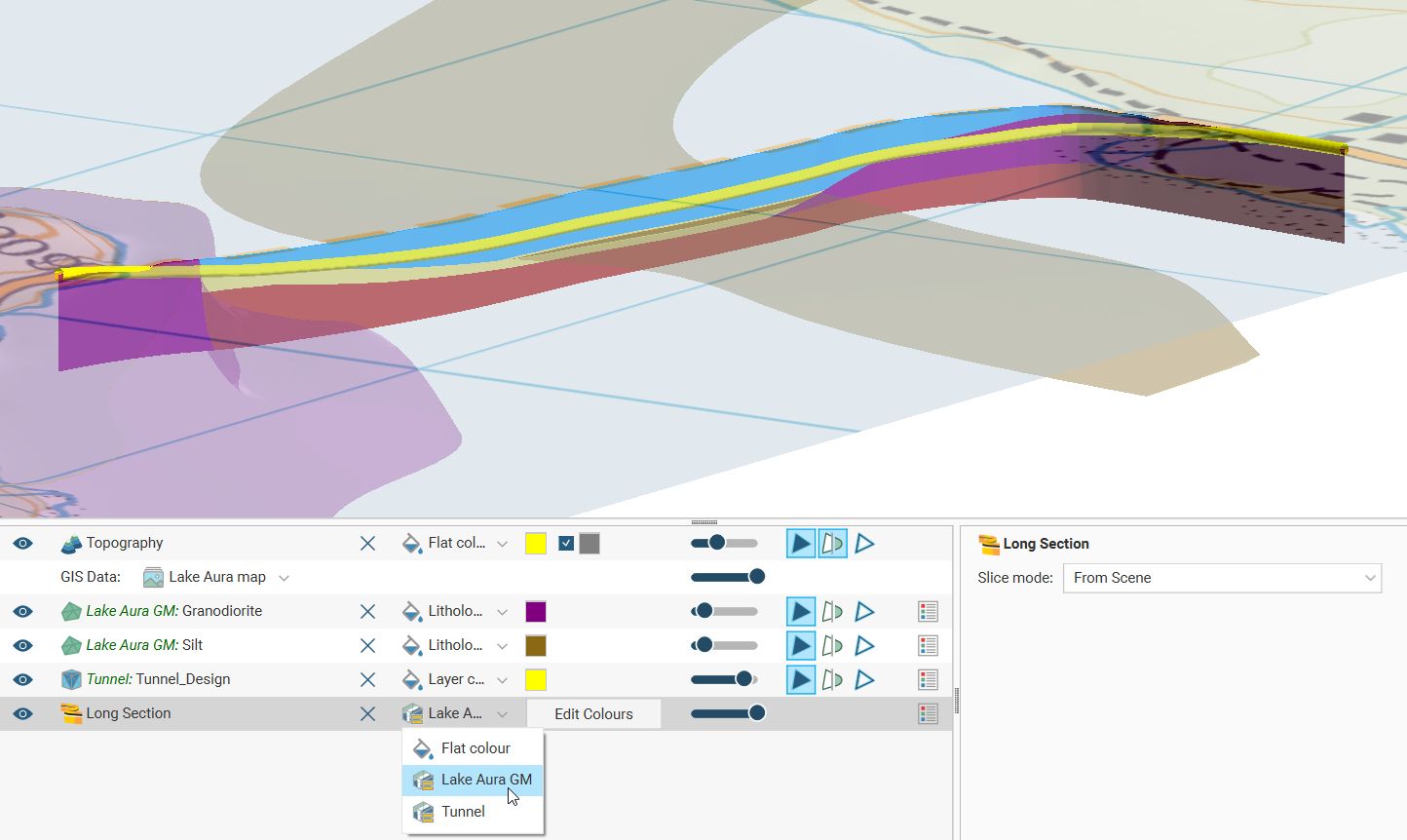
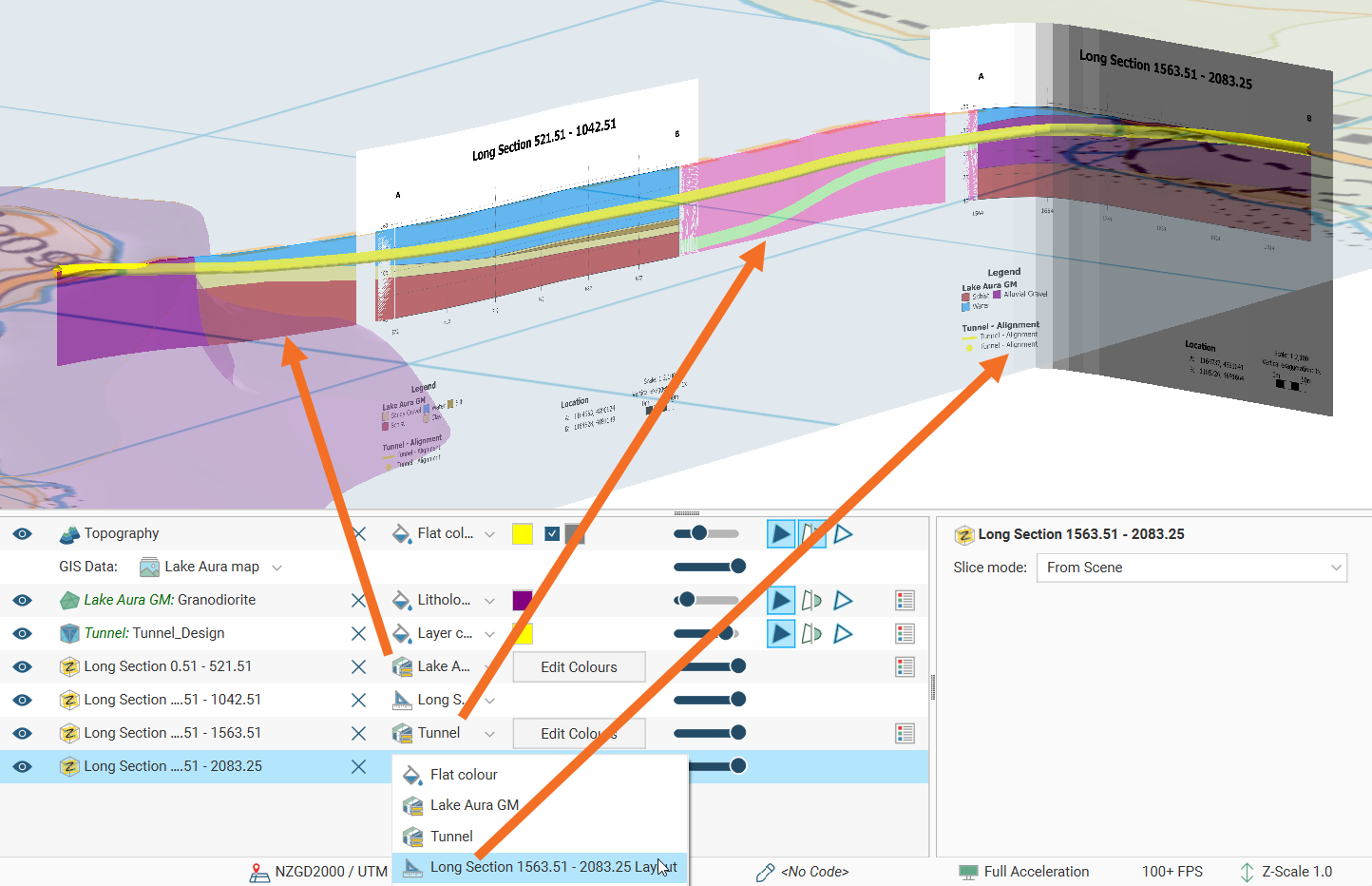
You can, however, add individual sub-sections to the scene from the project tree. By default the section layout will be displayed in the scene, but you can also select specific evaluations from the view list.
Exporting Long Sections
Once you have completed the long section designs, sections can be exported in various forms for sharing with other stakeholders. This includes:
- DXF Files (11/12 [AC1009]) (*.dxf)
- AutoCAD Drawing Files (2013/LT2013) (*.dwg)
- Bentley Drawing Files (v8) )*.dgn)
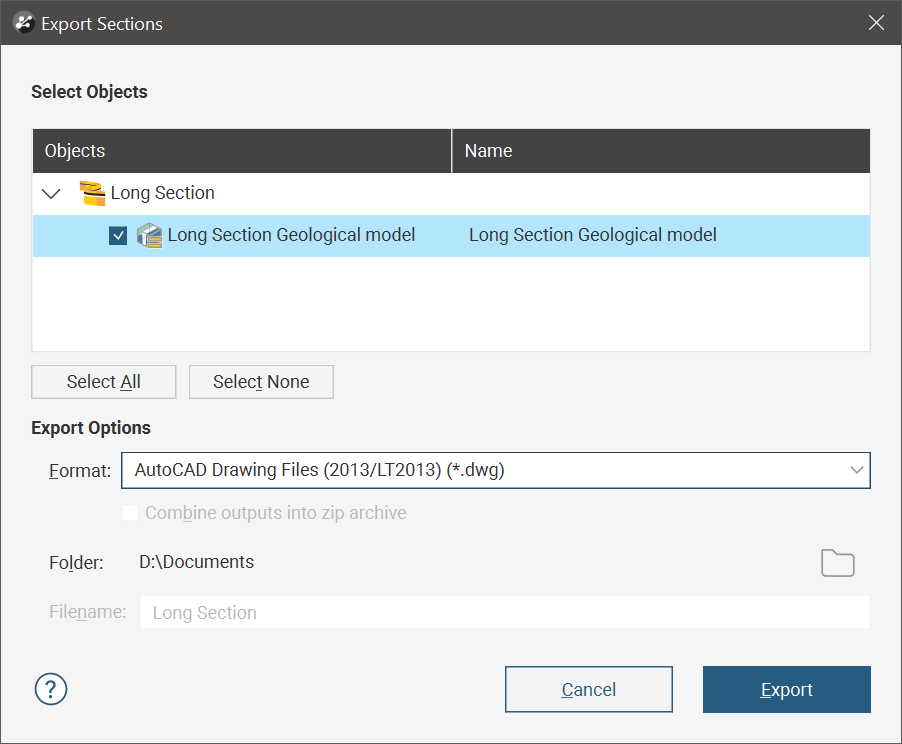
For more information on exporting sections, see Exporting Sections.
For more information on exporting a section layout, which exports not just the section but also the page designed around it, see Exporting Section Layouts in the Section Layout Editor topic.