Adding and Styling Markers
The Markers folder contains all marker tables that have been added to the section layout. To add another marker table, right-click on the Markers folder and select Add Markers. Select from those available and click OK.
Click on the markers table in the layout tree to view marker styling options. Visibility can be turned on or off and the Opacity of the points can be set.
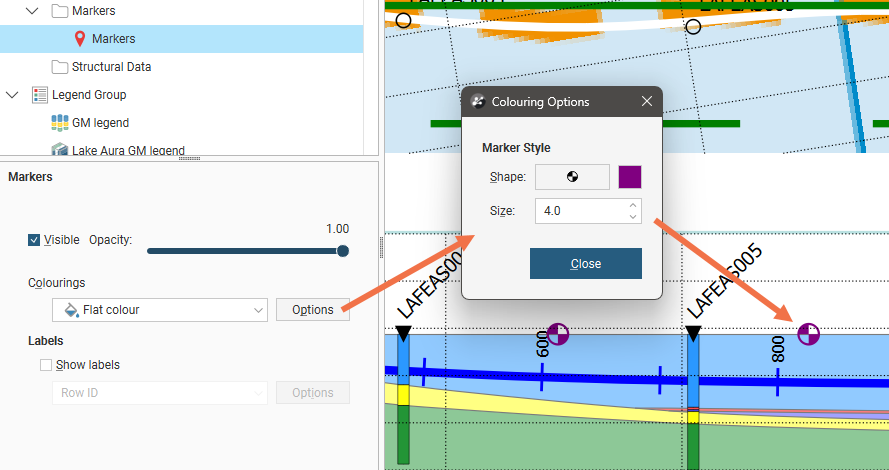
The Colourings selection lets you choose the basis on which the points are coloured. If you choose Flat colour and click Options you can pick a Shape from 60 symbols, set the Size of the points on the section, and click the colour tile to make a new colour selection.
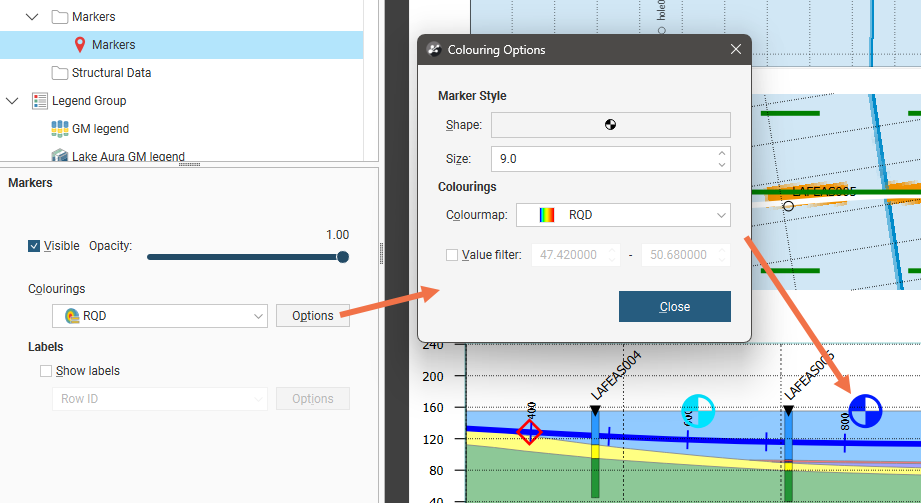
If you choose a numeric value column associated with the markers and click Options you can pick a Shape from 60 symbols and set the Size of the markers on the section. You may also be able to select from available Colourmaps if more than one is available, and enable a Value filter to only show points between a specified minimum and maximum value.
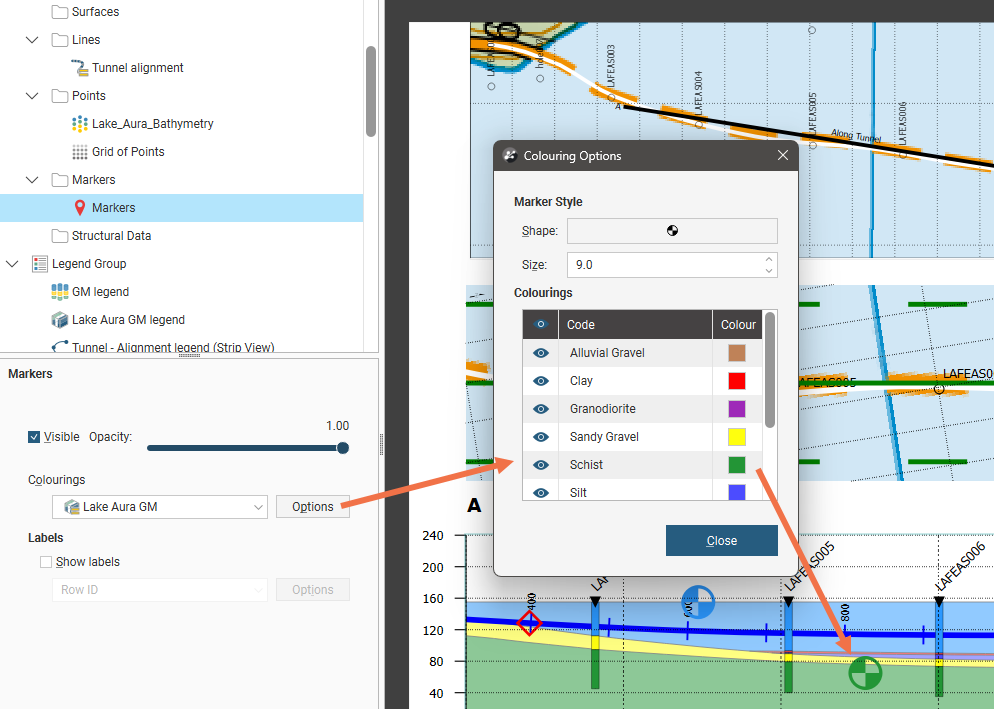
If you choose a category column associated with the markers and click Options you can pick a Shape from 60 symbols and set the Size of the markers on the section. You can also set the visibility for the markers by category. The Code and Colour cannot be customised in this window.
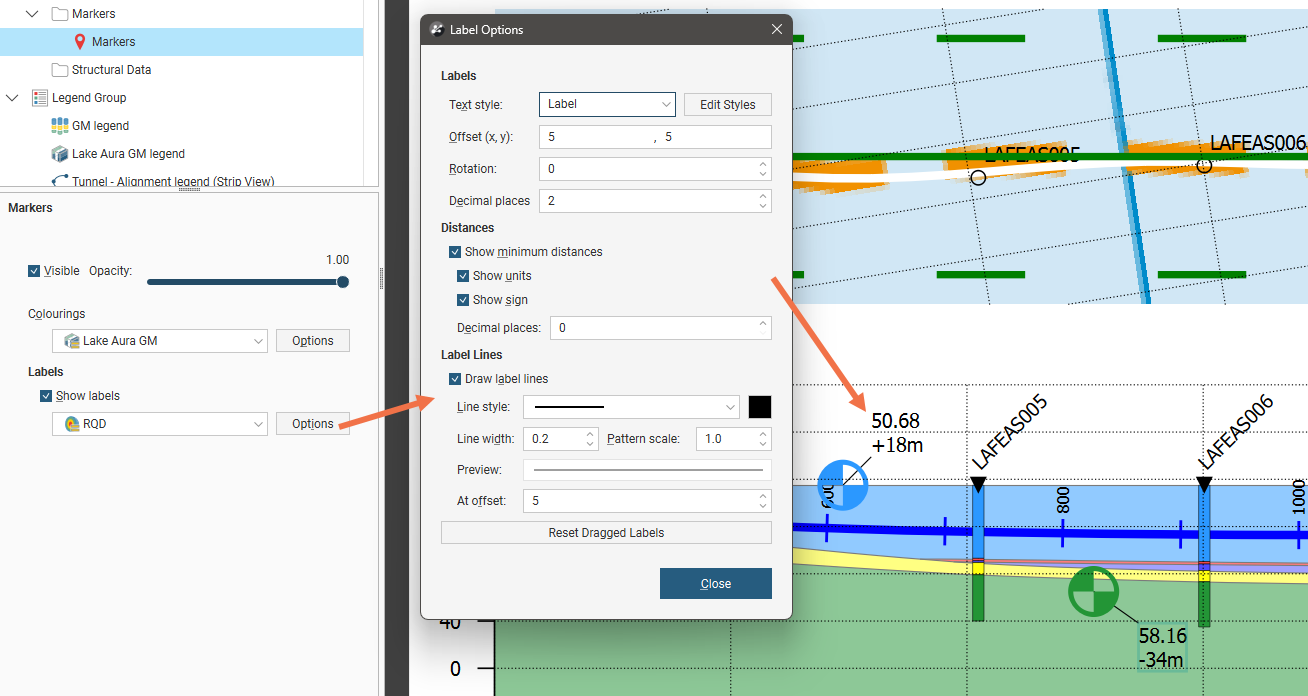
You can choose to Show labels or hide them. From the selector you can choose the same option as used for Colourings or a different option. Click the Options button to customise the labelling. Text style provides a list of available styles, or you can click Edit Styles to customise the style. Offset (x, y) positions the label a specified distance away from the marker it is referencing. Rotation will put an angle on the label, useful when labels are close together. You can choose whether or not to Show minimum distances for the marker from the section plane and you can also choose to Show units and specify the number of Decimal places to show.
When enabled, Show sign will add a + in front of the minimum distance if the marker is behind the section, and a - in front of the minimum distance if the marker is in front of the section. Markers that pass through a section will have a minimum distance of 0 and no sign will be shown.
Labels can have a line connecting them to the marker they refer to, if Draw label lines is ticked and once the label is more than the At offset length away from the marker. The Line style, Line width, Pattern scale and colour can be customised. A Preview shows what the line will look like on the section.
Labels on sections can be selected and dragged into a new position to avoid overlapping with adjacent items on the section. Click the Reset Dragged Labels button to restore them to the default position.