
Modelling
This part of the help describes how to build models in Leapfrog Geo.
- It is not necessary to define a topography to model in Leapfrog Geo, but a defined topography can be used as an upper boundary for all models built in the project. A key advantage of defining a topography is that it provides consistent elevation data for objects imported to and created in the project. The quality of elevation information can be poor compared to X- and Y-coordinates, which can create problems when using objects to build a model. A topography can be created from the most reliable elevation data, and other objects can have elevation set from this topography.
- Geological models can be built from lithology data or from any other suitable data in the project. Visualising data in the scene is an important step in determining the model that will be built, and the tools for doing this are described in Visualising Data. Once this has been determined, the next step is to define a basic geological model and refine its boundaries. Modelling contact surfaces and setting their cutting relationships determine how the basic model volume is divided into lithologies. Models can also have a fault system that, once activated, will subdivide the model into fault blocks.
- With the Numeric Models folder, you can interpolate downhole numeric data, composited drilling data and points data.
- Combined models use information from up to four geological models, interpolants and distance functions in order to visualise relationships between different types of data in the project.
-
-
Assigning Attributes to Volumes
For geological models, numeric models and combined models, you can assign attributes to the model volumes. To do this, right-click on the model in the project tree and select Volume Attributes. In the window that appears, click the Add Attribute button ( ) to add a new column.
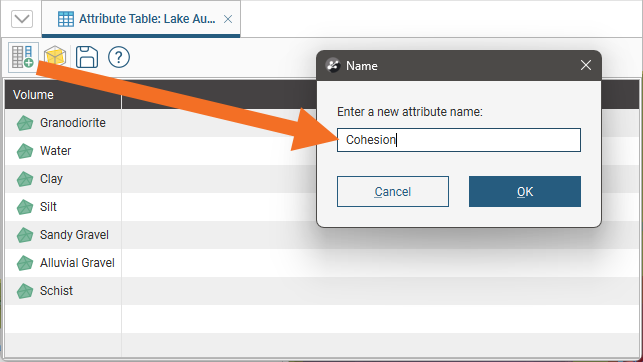
Enter a name for the column and click OK.
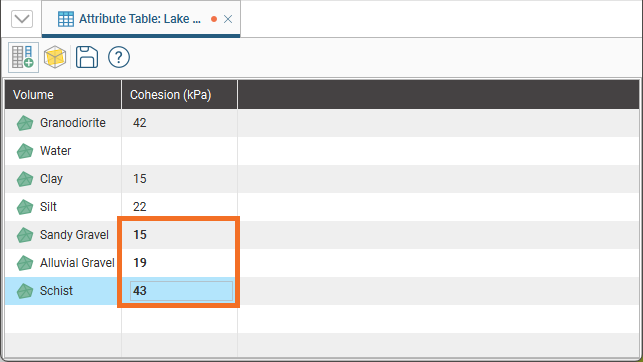
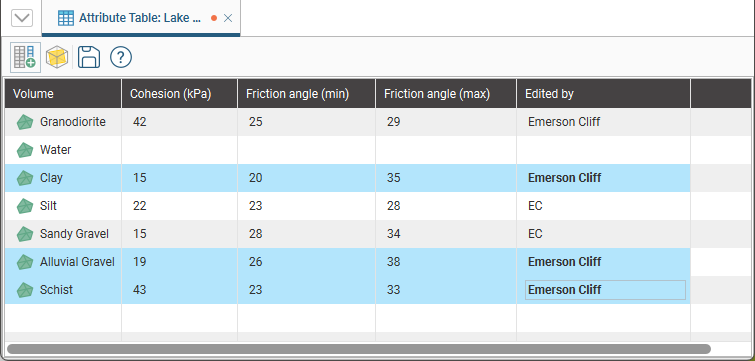
You can then add values for each cell in the new column; click in a cell to edit its content. Recently edited cells are highlighted in bold until you save the changes to the table. For example, here the last three values have been added since the attribute table was last saved:
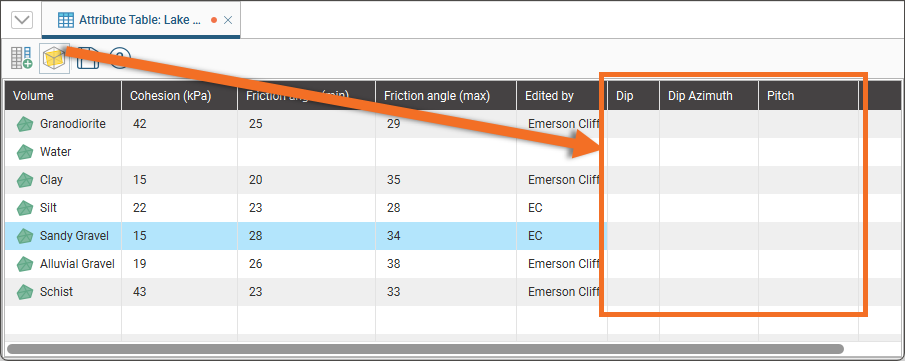
Click the Add Directions button ( ) to add Dip, Dip Azimuth and Pitch columns:
You can use the moving plane to set direction attributes to populate these columns. Add the model to the scene, then add the moving plane (A) to the scene. Adjust the moving plane to reflect the directions you wish to use. Next, click on the part you wish to set directions for, then in the Scene Details window, click Set Direction from Plane (B):
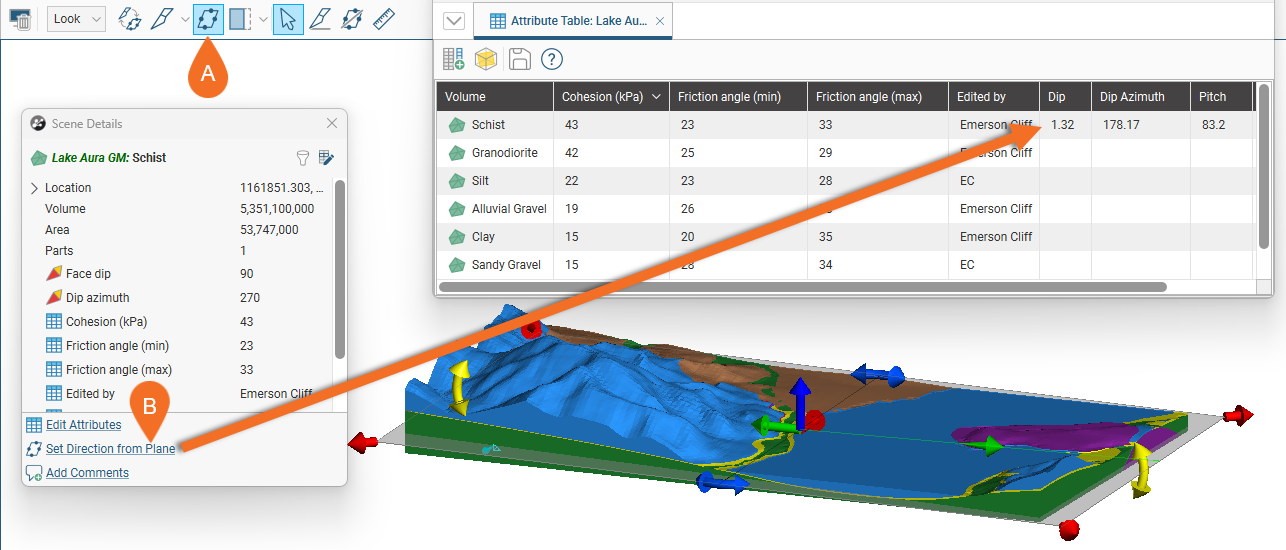
The volume attributes will be updated to use the directions from the plane.
You can multi-select lines to make bulk edits. Click and drag across rows down a column, or hold down the Ctrl key while clicking rows to select rows that are not contiguous. Click in one of the selected cells to make the change required to all selected cells.
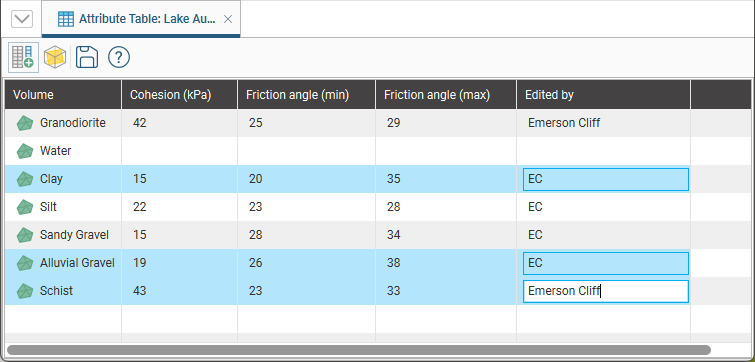
The edit will be applied to the same column in all the selected rows:
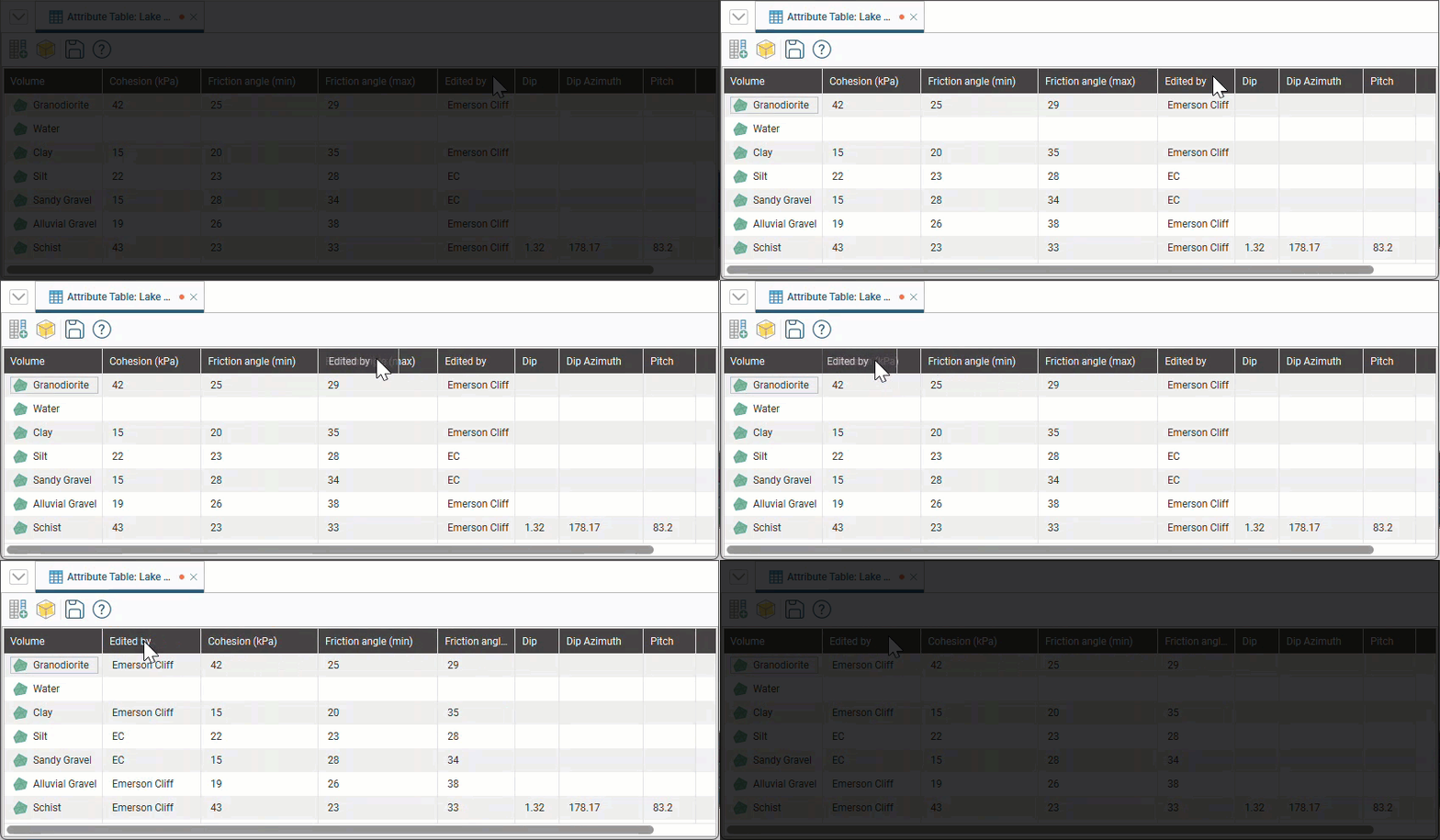
You can reposition the columns by clicking-and-dragging a column header to the required location and dropping it there.
When you click in the scene, the values will be included in the information displayed about the selected volume:
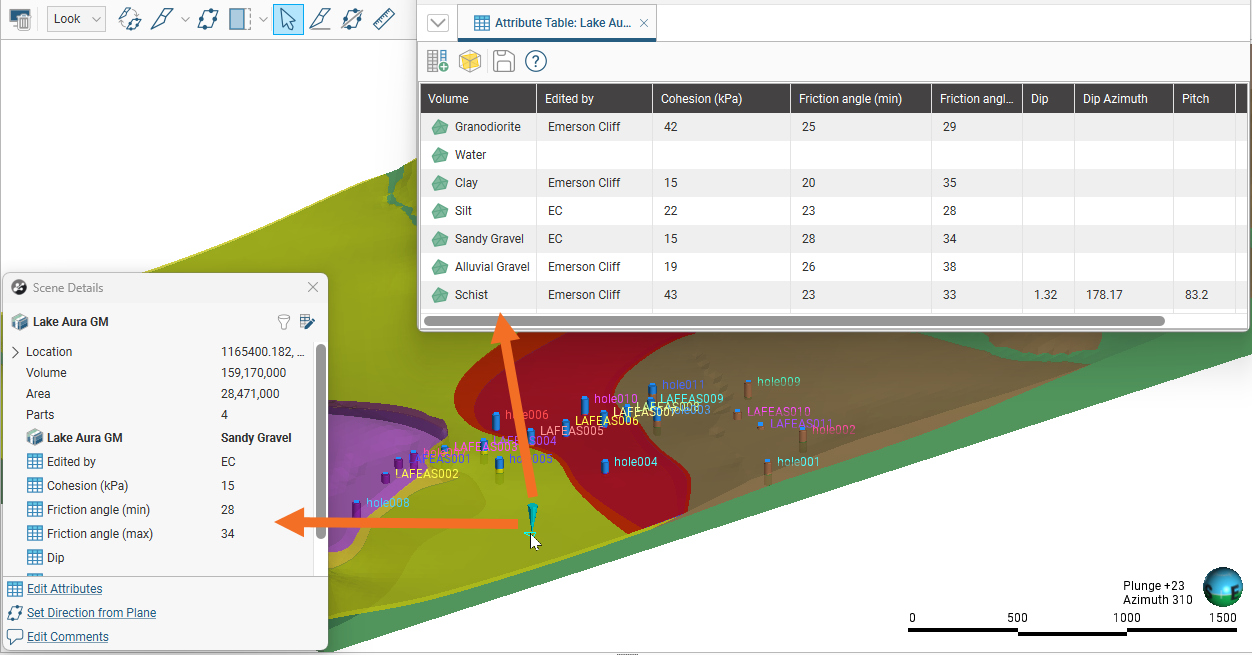
When you save scenes for viewing in Leapfrog Viewer, manually entered attributes will be displayed when volume information is displayed.