
Swath Plots
The features described in this topic are only available if you have the Leapfrog Edge extension.
Swath plots are an important validation tool for providing comparisons between sample points (composited or uncomposited) and estimated values to identify any bias towards under-estimation or over-estimation or any smoothing in the results. The effect of different estimation methods and parameters can also be compared.
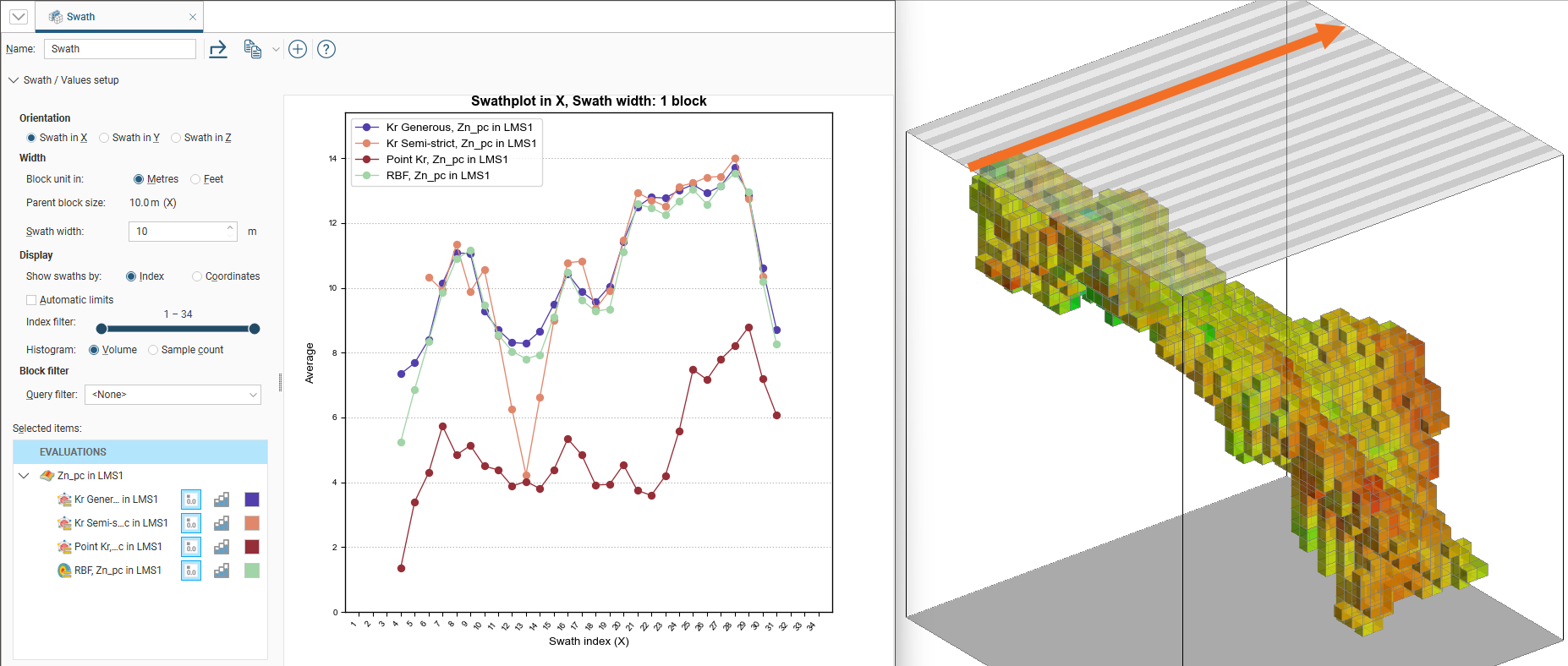
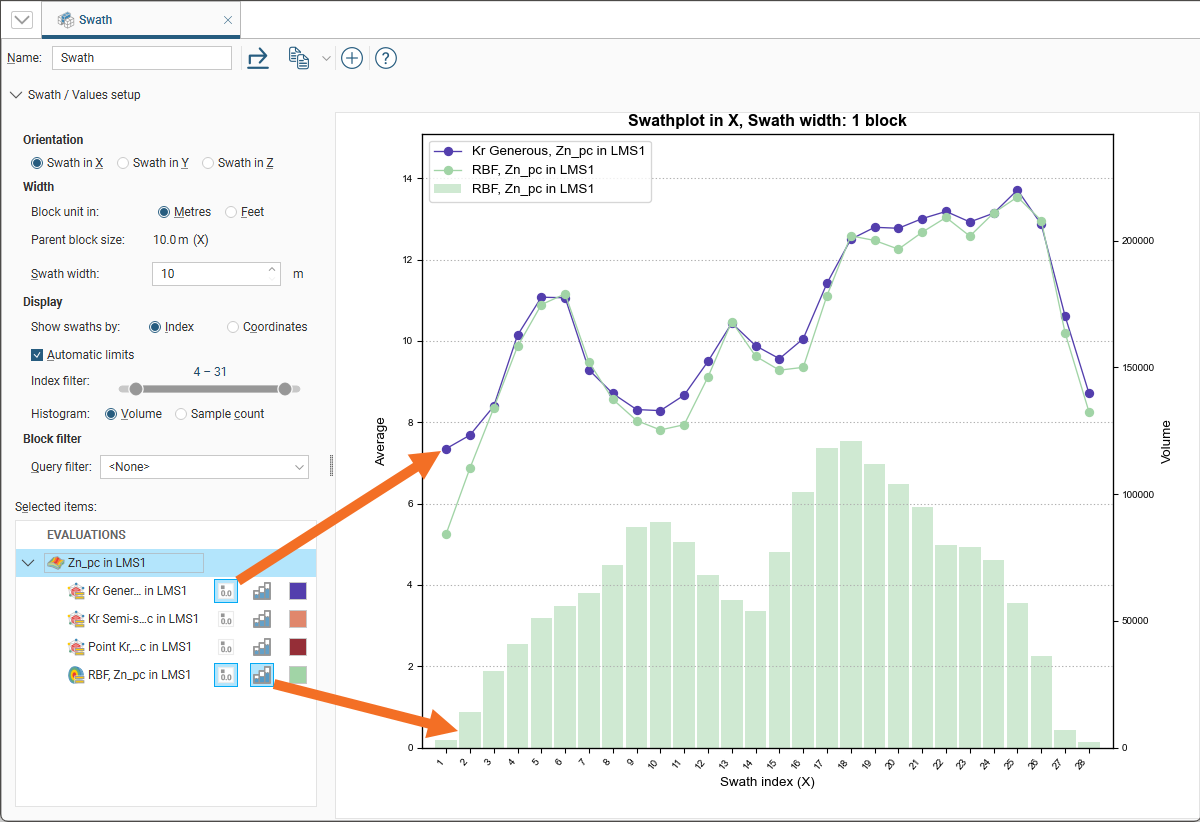
The swath plot is a one-dimensional graph in a specific direction of interest. A swath is a sectional slice through the block model with a specified thickness. The swath plot shows the average values for the blocks in the swath. You can also view the volume and the averaged sample values in the swath.
To create a swath plot, right-click on a block model and select New Swath Plot:
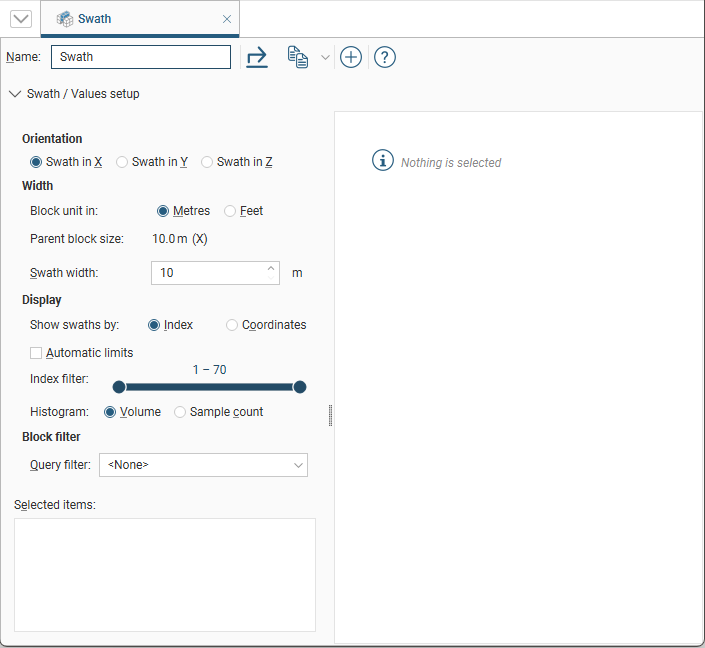
A new Swath window will open:
Click the add button ( ) to add datasets to the plot. You can select individual items from the list of Available Numeric Items or you can select a parent object to select all the child items within it. Click the right arrow button to move the selected items into the Selected Numeric Items list:
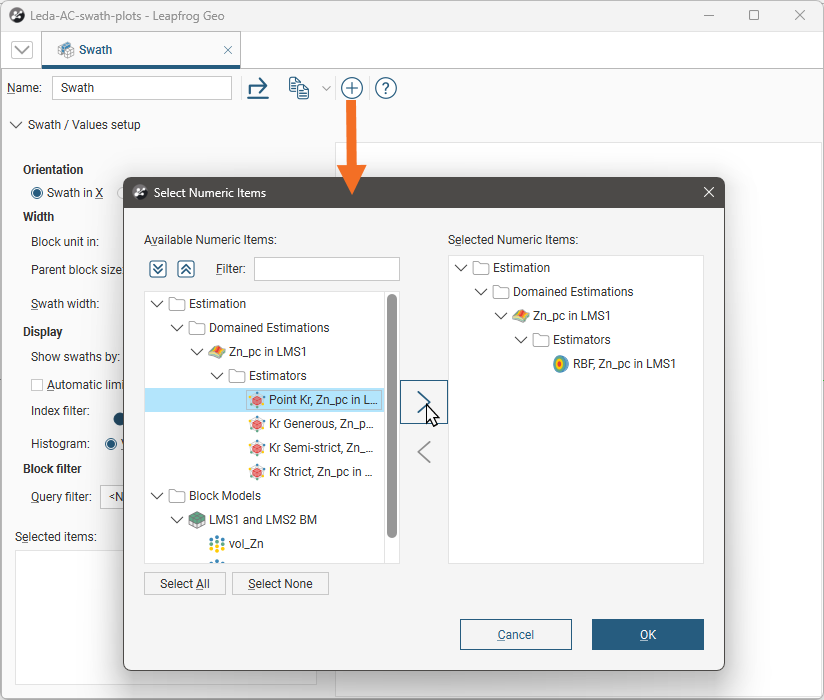
You can also filter the list of Available Numeric Items to limit the number of objects displayed.
The graph plots the averaged block values for a series of swaths slicing through the block model in a selected direction. The block size can be displayed as Metres or Feet and the Swath width can be altered for finer or coarser slices. The Scene view overlays a bounding cuboid that shows the Swath width and direction:
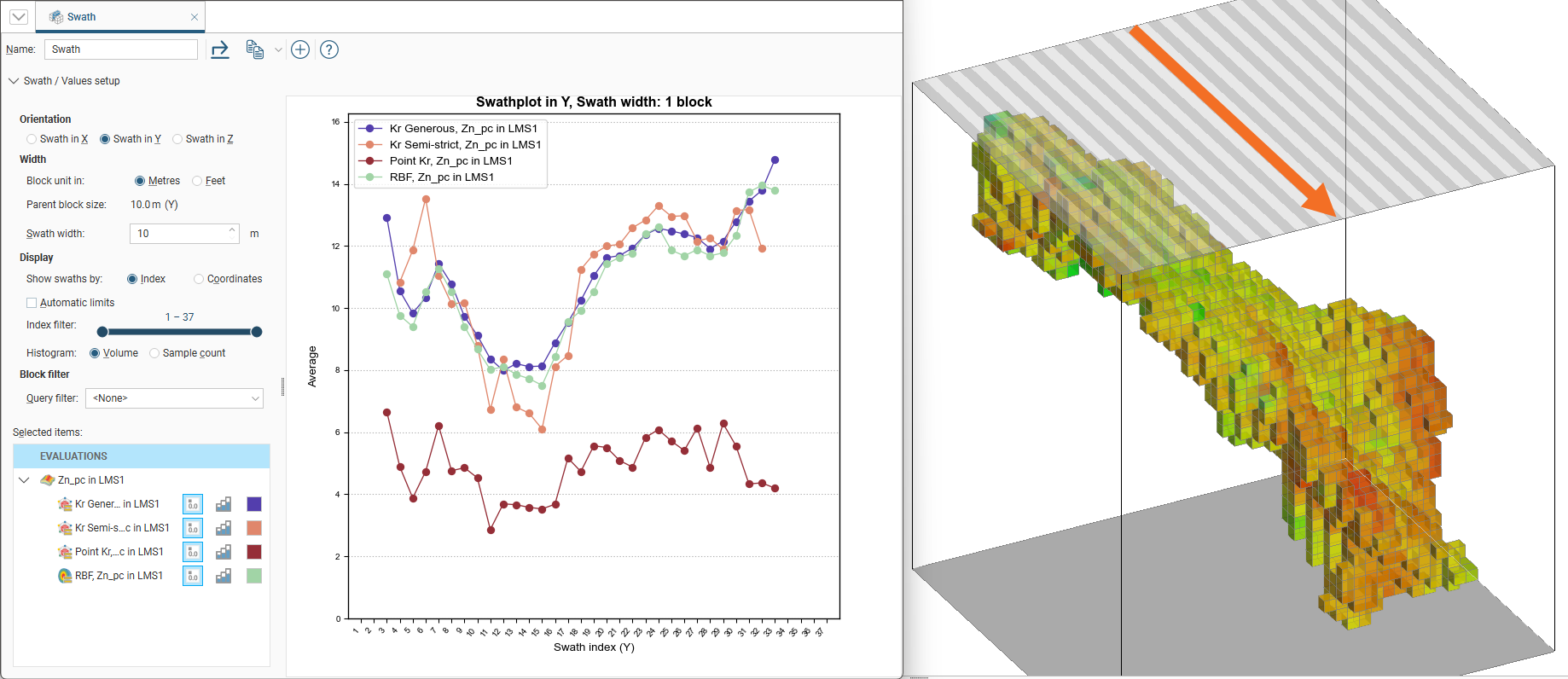
Changing the swath direction to Swath in Y is reflected in the scene.
In Swath/Values setup, the Parent block size will change to suit the block dimensions in the newly selected direction.
There are a number of Display options for the swath:
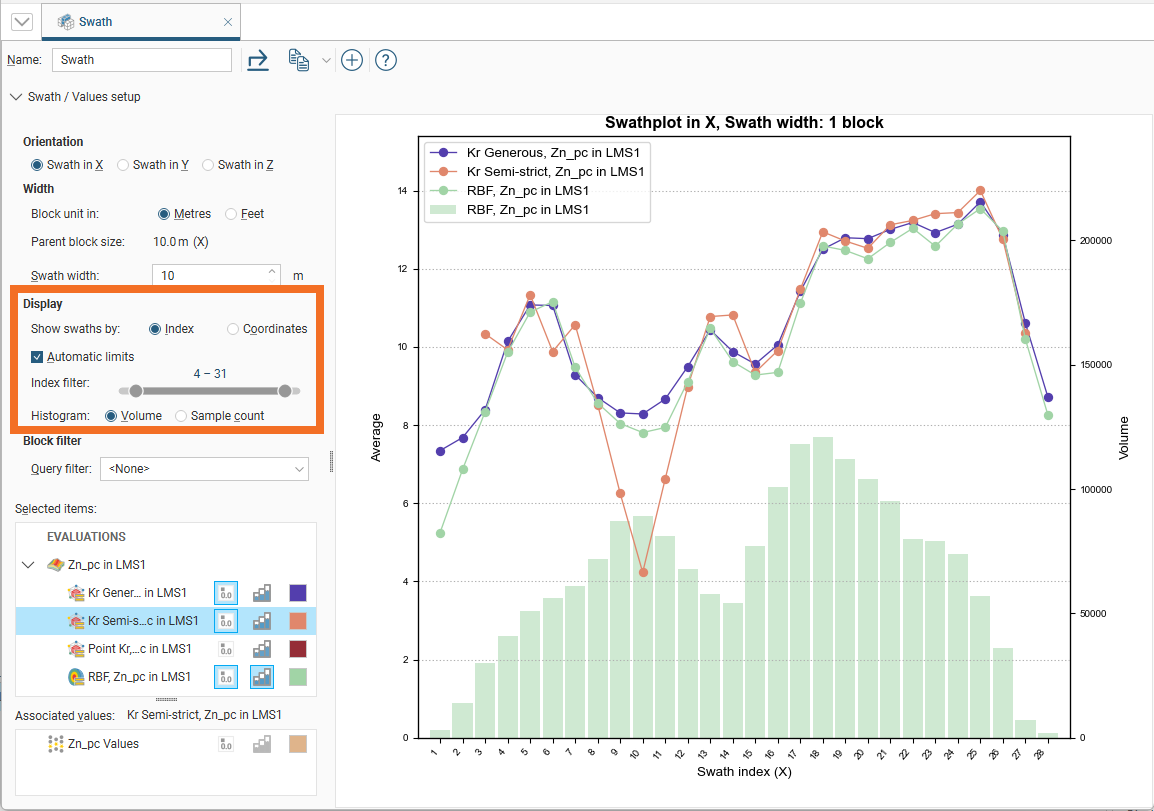
- Select Index to show the swath by the number of blocks or it can be displayed by Coordinates
- When Automatic limits is selected, the limits will equal the first and last associated value within the estimations that are projected onto the block model, this will reduce the white space on either side of the swath
- The Index filter uses a range slider that can be used for graphing a reduced set of the swaths. Either the minimum or maximum threshold for the Index filter can be dragged to change the width of the filter, and the selected portion can be changed by sliding the inner bar.The range slider works in the same way as in the display filter for the 3D scene. See Using the Display Filter in the Filtering Data in the 3D Scene topic.
- When a histogram is displayed you can swap the histogram to view the Volume or the Sample count
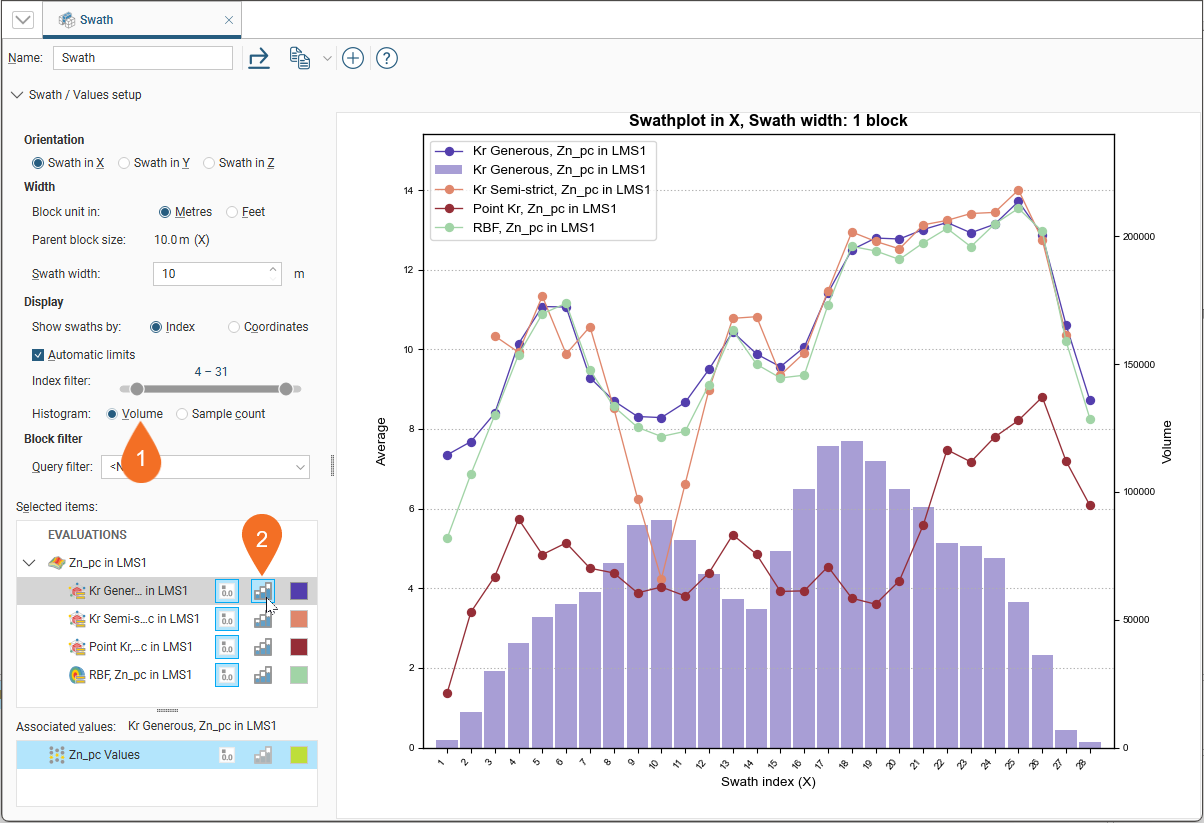
To view the histogram for the block volume, select the Volume (1), then the histogram visibility button ( ) (2) for the evaluation you want to see.
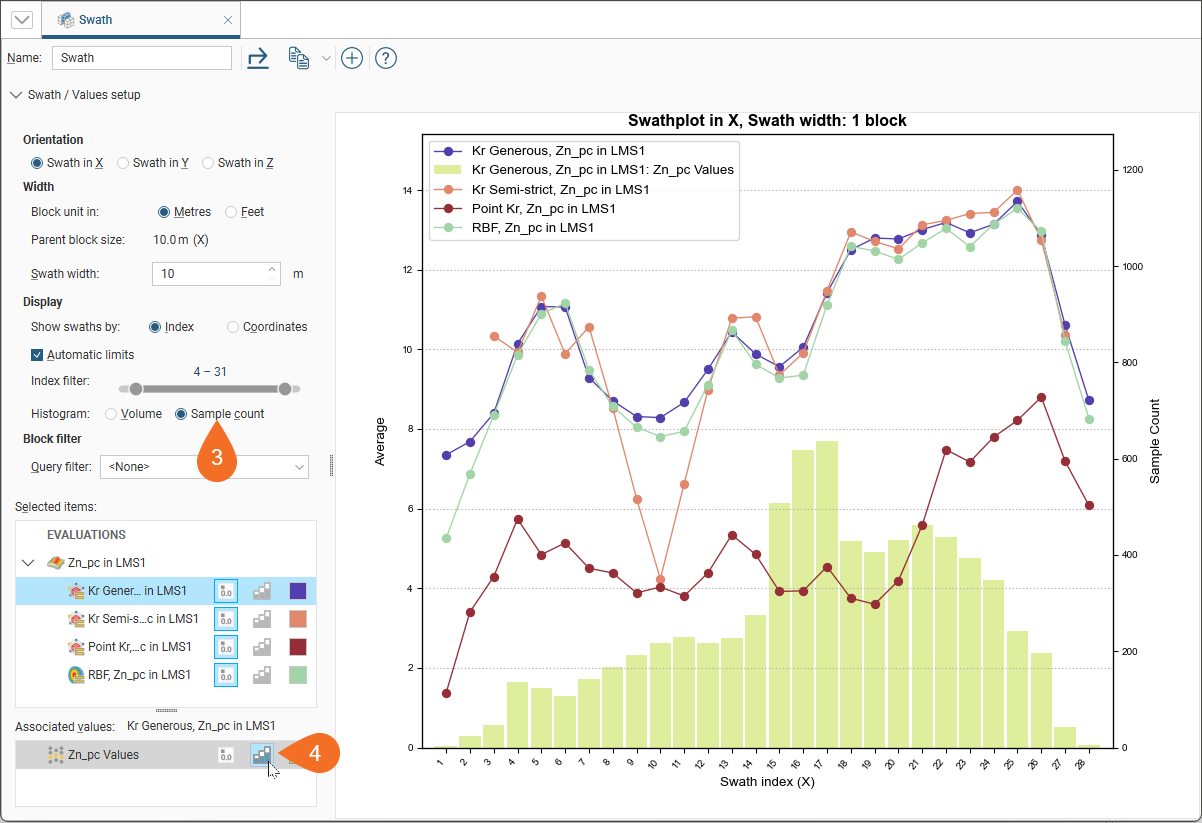
To view the histogram for the sample count, select the Sample count (3), then the histogram visibility button () (4) for the associated values you want to see.
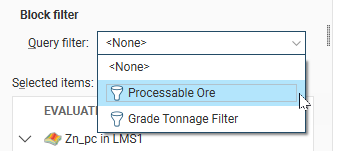
For a Block filter you can use a pre-defined Query filter to limit the data included in the swath plot.
Selected datasets in the chart can be hidden or revealed by clicking the line segment visibility button ( ) next to the dataset. The histogram visibility button () will reveal or hide a histogram showing the volume of blocks used in the swath calculation. The block volume may not be identical for all estimators.
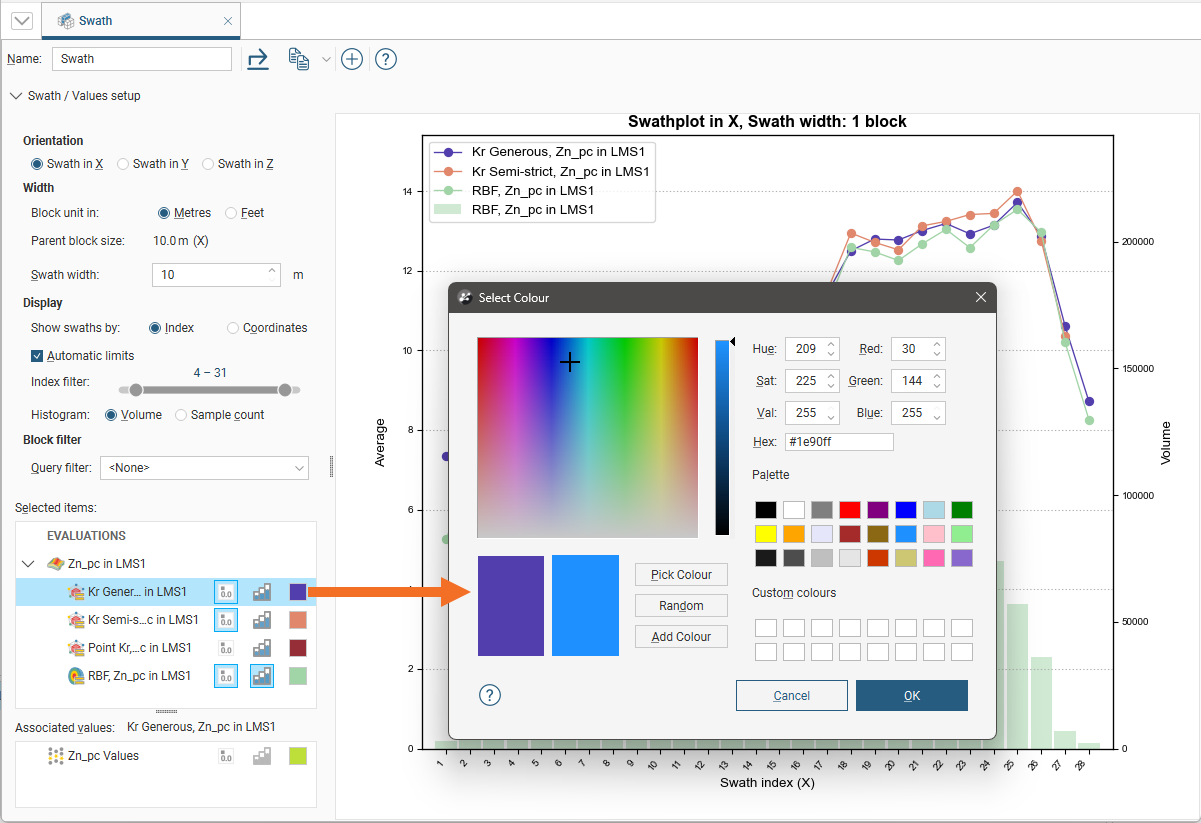
The colour for the line segment plots and histograms can be changed for each dataset by clicking the colour chip, and selecting a new colour from the colour picker:
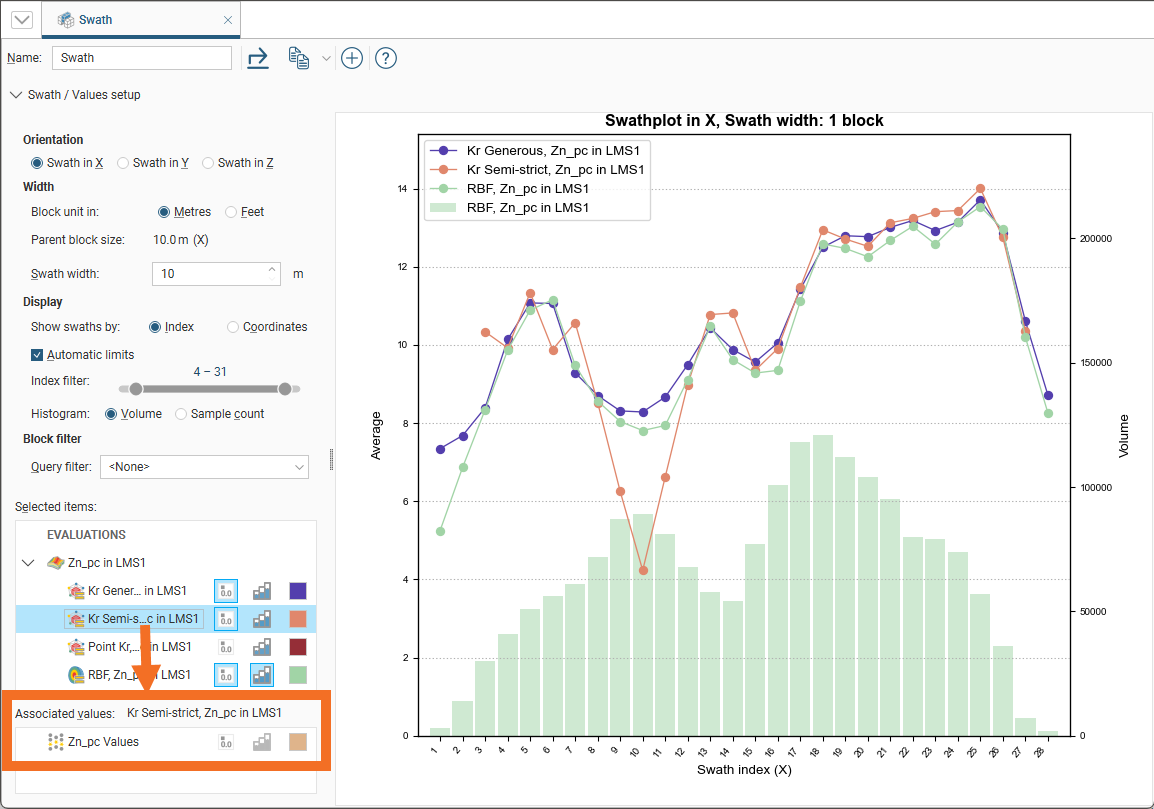
Selecting an evaluation will show an Associated Values panel. This provides options to set the visibility and colour preference for the evaluation’s raw data values.
To view the swath in full screen, click the  button collapse the Swath / Values setup.
Changes you make to swath plots are preserved. Multiple swath plots can be created to show different points for analysis and reference.
You can export the graph for use in external reports and other documents. There are three options:
- The Export button saves a PDF, SVG or PNG file of the graph.
- The Copy button opens a menu to offer the options of copying a image of the graph to the Windows clipboard, or copying the graph data as CSV data to the Windows clipboard, where they can be pasted into another application. It also allows you to select the resolution of a copied image: a low resolution Screen Image, a Medium Quality, 300 dpi image, or a High Quality, 600 dpi image. Choose your preferred resolution before selecting Copy Graph Image.