
Understanding Subsets and Update Boundaries
When working with BlockSync block models in Leapfrog Geo, it is important to understand how to control what you are importing from BlockSync and what you are uploading to BlockSync.
Two project tree objects are used in controlling what you import and what you publish and also assist in reducing the processing time required as you work:
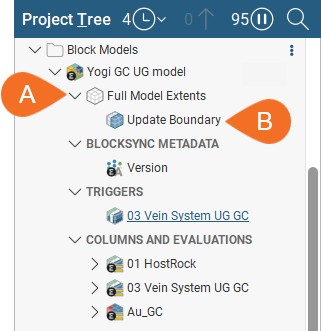
- The block model’s Extents (A) represents how much of the BlockSync model has been imported into the Leapfrog Geo project. This will be called Full Model Extents if the entire model was imported from BlockSync or Spatial Subset Extents if only part of the model was imported. These extents can only be changed by reloading the model from BlockSync.
- The Update Boundary (B) represents where local processing for non-triggering evaluations and calculations takes place and what part of the local version will be published to BlockSync. The update boundary can be constrained in various ways, including setting the boundary in the scene or choosing volumes in the project.
Importing a spatial subset of a BlockSync model allows you to work with sufficient context to make updates to the model without the overhead of processing the whole model. Setting the update boundary can further reduce the processing time required as you work. For example, if you are updating domains one-by-one, you can set the update boundary to reduce overall processing as you work on each domain. Later, when you are ready to publish, you can visualise changes in the scene and set the update boundary to the specific area where your work has changed the model.
This topic describes how to control what you are importing from BlockSync and what you are uploading to BlockSync. It is divided into:
- Choosing How Much of the Model to Import
- Setting the Update Boundary
- Filtering Methods for Spatial Subsets Based on Volumes
Choosing How Much of the Model to Import
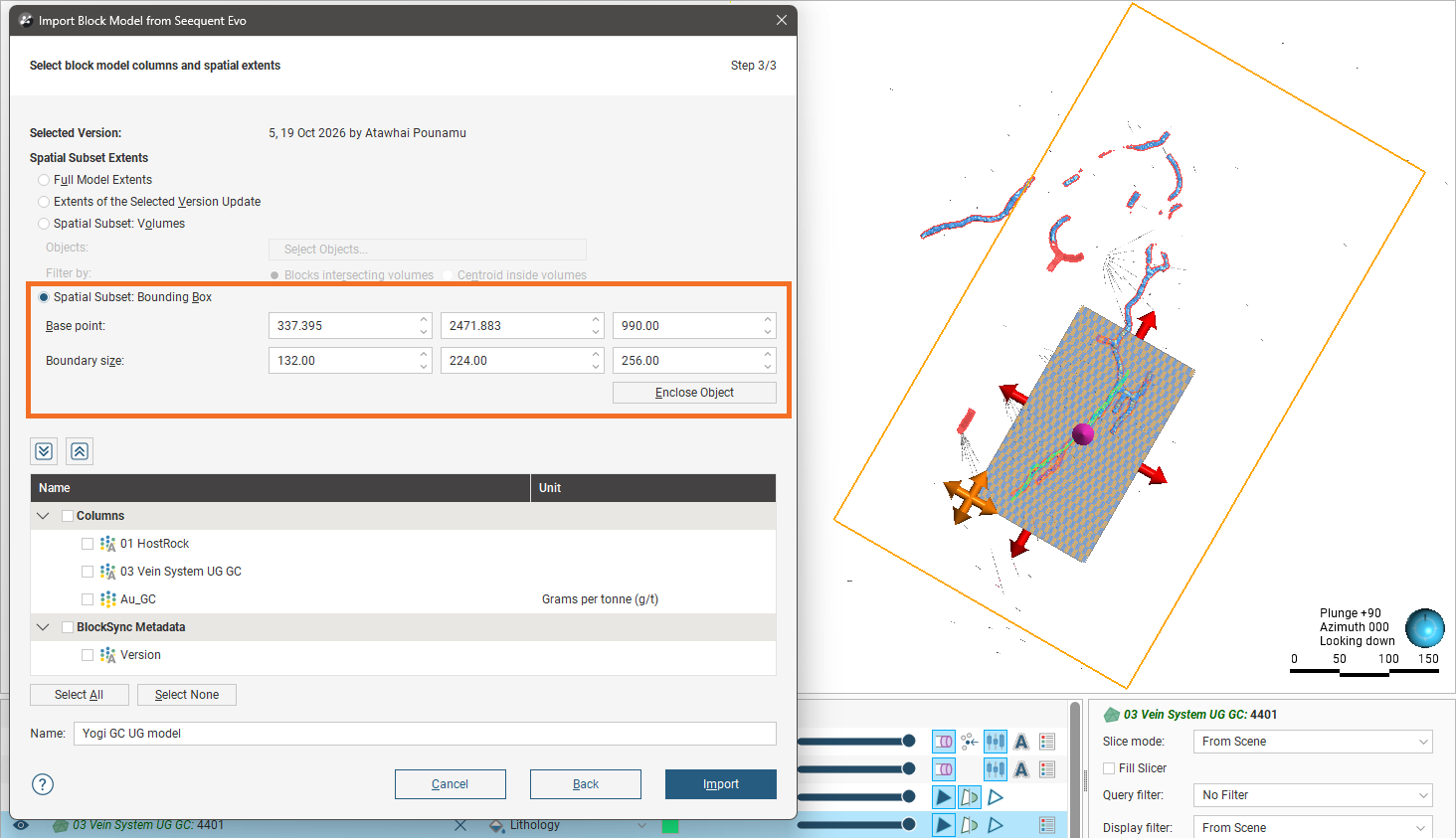
When importing a model, its extents are displayed in the scene, which can be helpful in deciding whether you wish to import the whole model or only part of it. Here the window for importing the block model is shown alongside the scene, where some existing objects have been added for context:
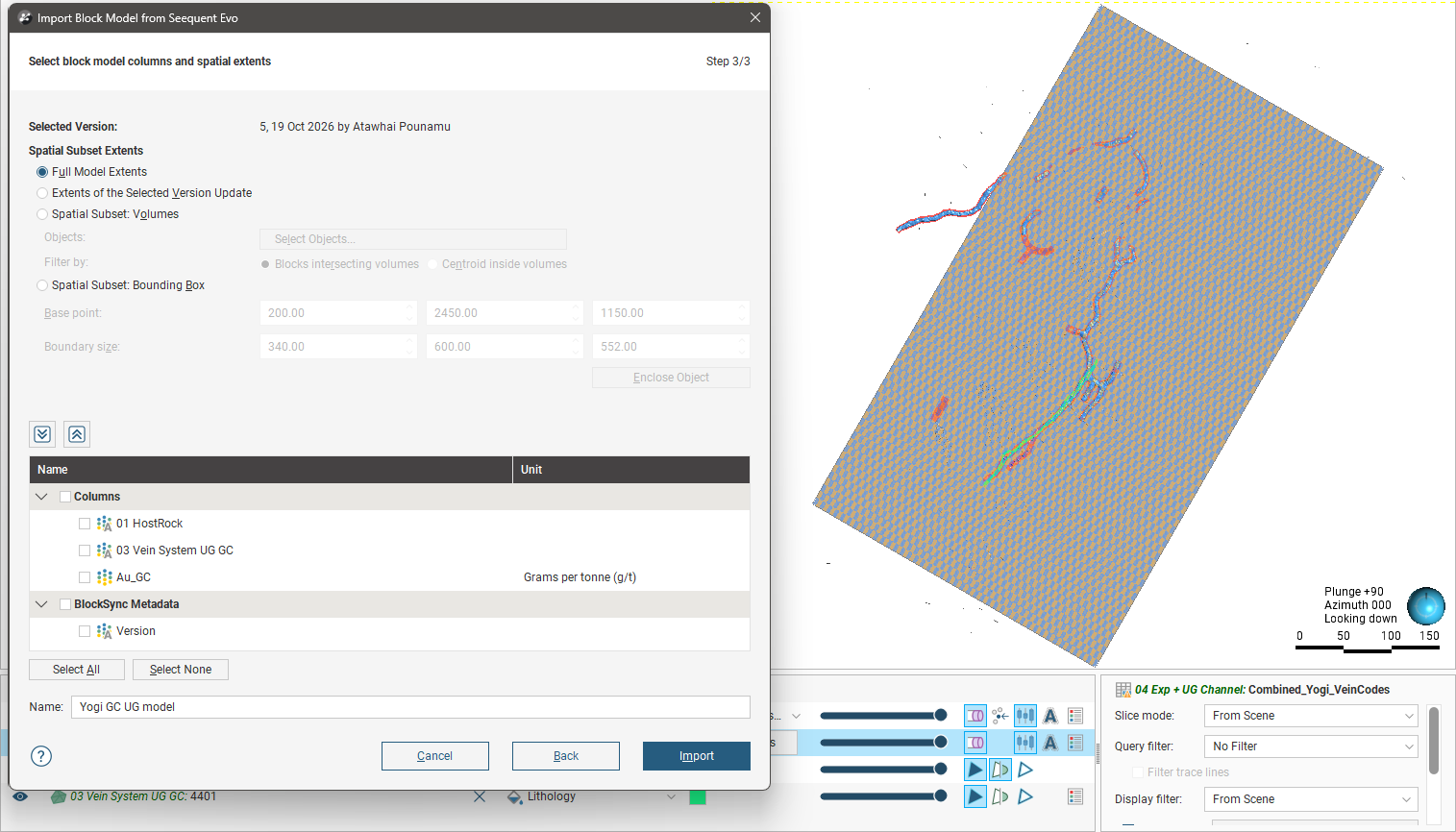
The Full Model Extents option is selected, which imports all blocks stored in BlockSync.
For large models, it may not be practical to import the full extents, especially if others in your team will be working on different areas of the block model. In that case, there are different methods for defining what part of the model you wish to import.
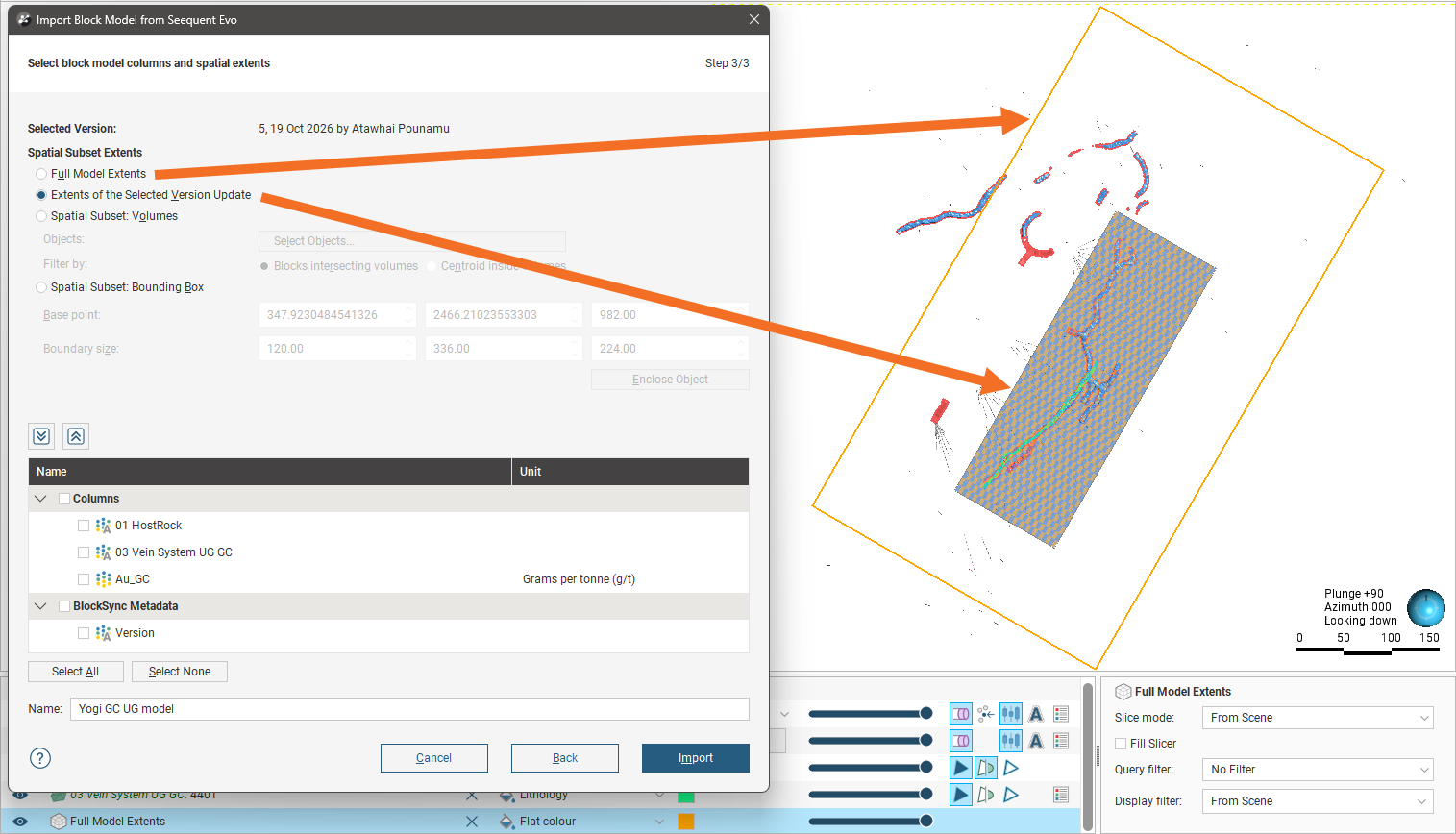
Extents of the Selected Version Update imports only the blocks updated in the version you have selected. In this scene, the orange box is used to illustrate the Full Model Extents.
Spatial Subset: Volumes imports blocks that fall within the specified volumes, and multiple objects in the project can be used to define the subset:
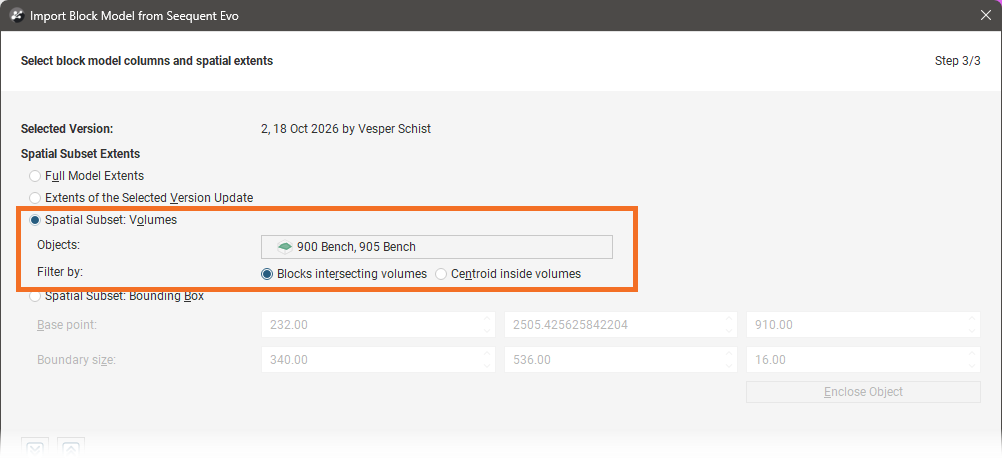
There are two methods for filtering which blocks in the specified volume are included when the block model is imported, which are discussed in Filtering Methods for Spatial Subsets Based on Volumes later in this topic.
Spatial Subset: Bounding Box imports a subset of blocks defined by a bounding box you define. You can use the handles in the scene to set the subset’s extents or you can use the Enclose Objects list to set the extents based on objects in the project.
Setting the Update Boundary
To set the update boundary, double-click on the Update Boundary in the project tree or click on the Extents button (C) in the Columns and Evaluations window:
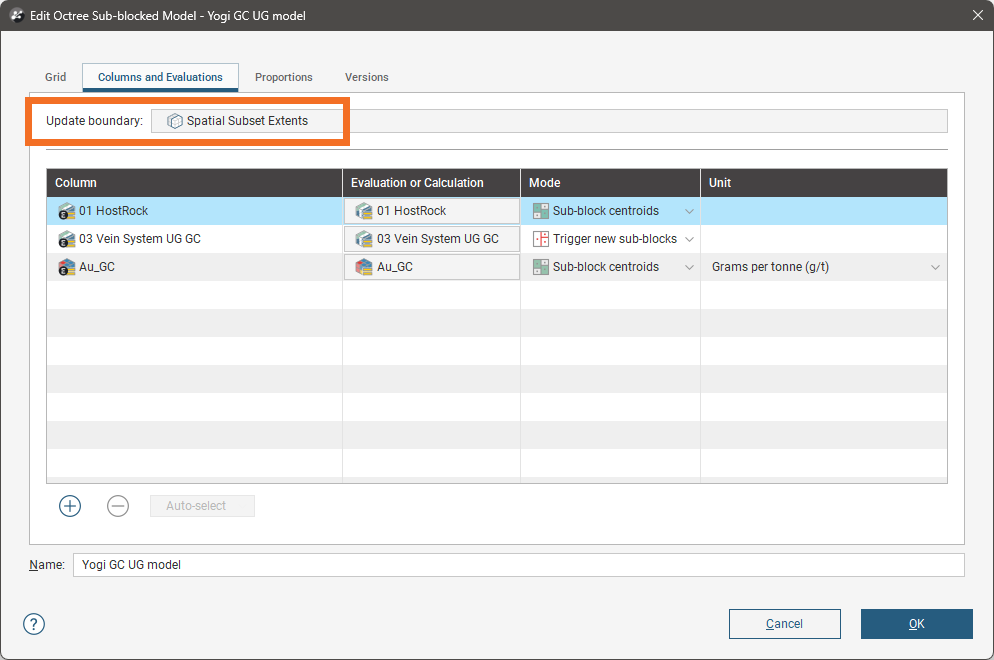
In the window that appears, choose how you will constrain the update boundary. There are three options:
- The model Extents. The update boundary is equivalent to the imported extents.
- Custom: Volumes. The update boundary is constrained by the selected volumes. There are two options for filtering blocks that lie along the subset’s boundary that are explained in Filtering Methods for Spatial Subsets Based on Volumes later in this topic.
- Custom: Bounding Box. The update boundary is defined by a bounding box you define. You can use the handles in the scene to set the update boundary or you can use the Enclose Objects list to set the boundary based on objects in the project.
Filtering Methods for Spatial Subsets Based on Volumes
When importing a BlockSync model using a spatial subset defined by volumes or setting the update boundary before publishing, there are two methods for filtering which blocks in the specified volume are included in the spatial subset:
- Blocks intersecting volumes results in all blocks being included as long as they fall within the selected volumes.
- Centroid inside volumes results in a smaller set of blocks being imported as only those whose centroids fall within the selected volumes will be included.
Here we have copies of the same BlockSync model displayed in the scene in order to illustrate the difference between the two spatial subset filtering methods. The grid shows all blocks from the Full Model Extents for reference.
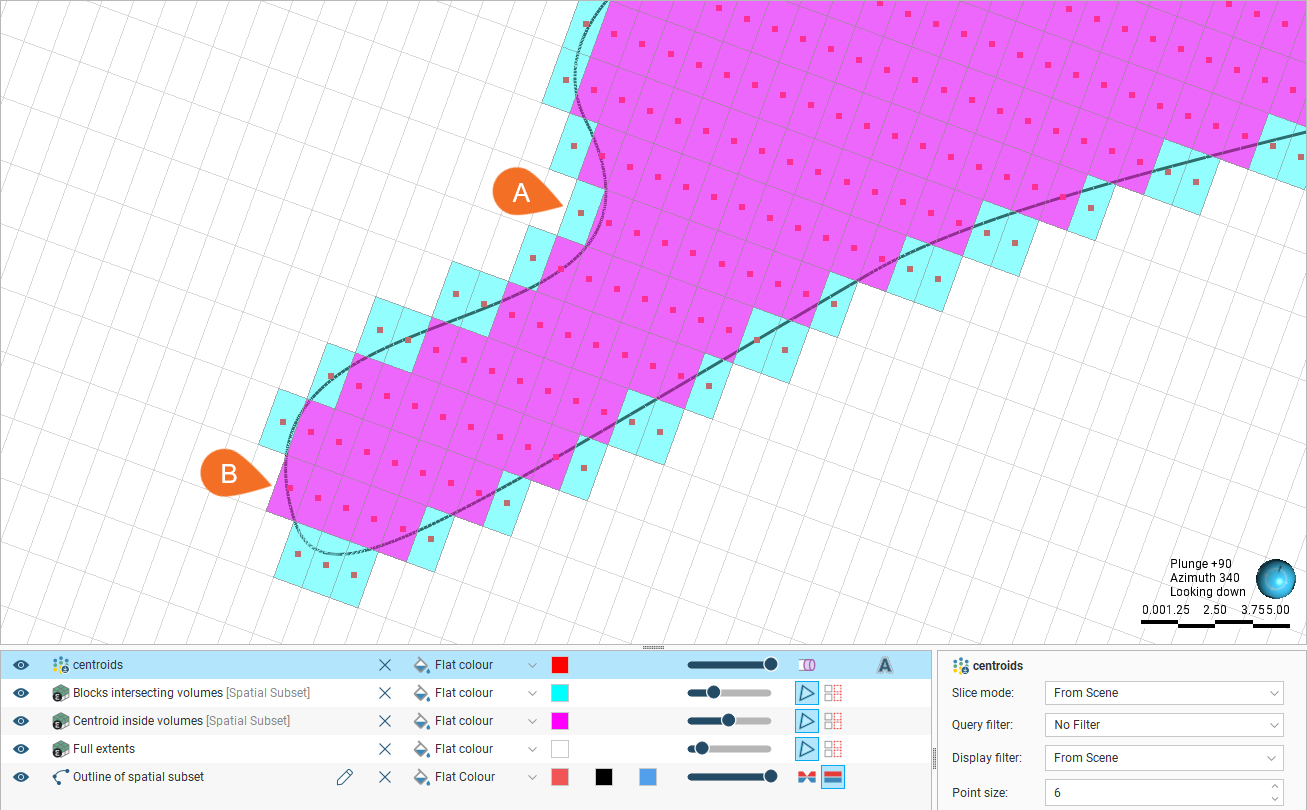
The polyline represents the outline of the volume that has been used to define the spatial subset, and the points in the scene represent the block model centroids that are included when the Blocks intersecting volumes filter is applied.
- The pink blocks are those included when a spatial subset is imported using the Centroid inside volumes filter.
- The cyan blocks are the extra blocks included when the model is imported using the Blocks intersecting volumes filter instead.
Block A largely falls outside the spatial subset boundary, but because the boundary crosses into the block, it is included when Blocks intersecting volumes is used. The centroid for block B is within the boundary and so included for both filtering methods.