Combining Drilling Datasets
A combined drilling dataset is built from other drilling datasets in the project. You can create a combined drilling dataset from interval values, downhole points, downhole structural data and screens data already imported into the project. Data from merged tables, evaluation tables, composite tables and interpretation tables can also be used in a combined drilling dataset.
As with imported drilling datasets, a combined drilling dataset is made up of a collar file, a survey file and at least one other table. Information in each type of table is built up from the source datasets, which are linked to from the combined dataset. In this example, a combined dataset has been created from two lithology tables. The combined collar table and the combined survey table have been created from the corresponding tables in the source datasets.
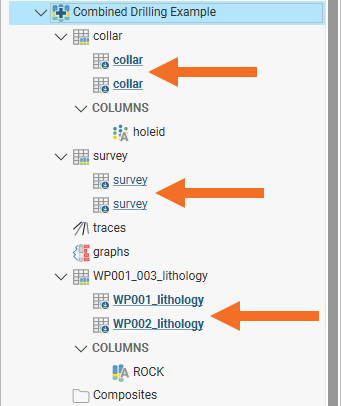
Data from the source tables is used in the combined dataset as follows:
- When the same data appears in more than one source table, all instances of the data are included in the combined dataset but the rows from lower priority tables are marked in the combined table as ignored.
- Where data in a source table is marked as ignored, it is included in the combined dataset marked as ignored.
- If a row in the source tables is in error, that row will be included in the combined dataset but the combined table will be marked as having an error (
 ). The error can only be corrected in the source table.
- When special value handling rules have been applied to the data in the source table, the results of the rule being applied will be used in the combined table.
This example shows how the data from two drilling datasets is used in a combined drilling dataset. Each source drilling dataset has two drillholes, an assay table and a lithology table. The first set has WP001 and WP002 drillholes and the second has WP002 and WP003 drillholes:
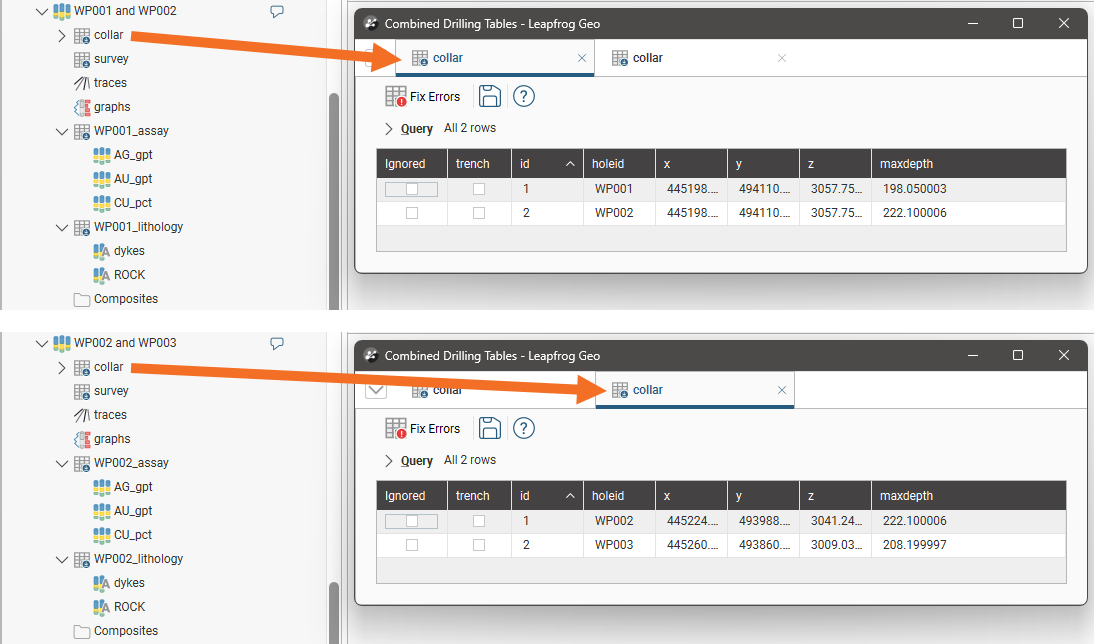
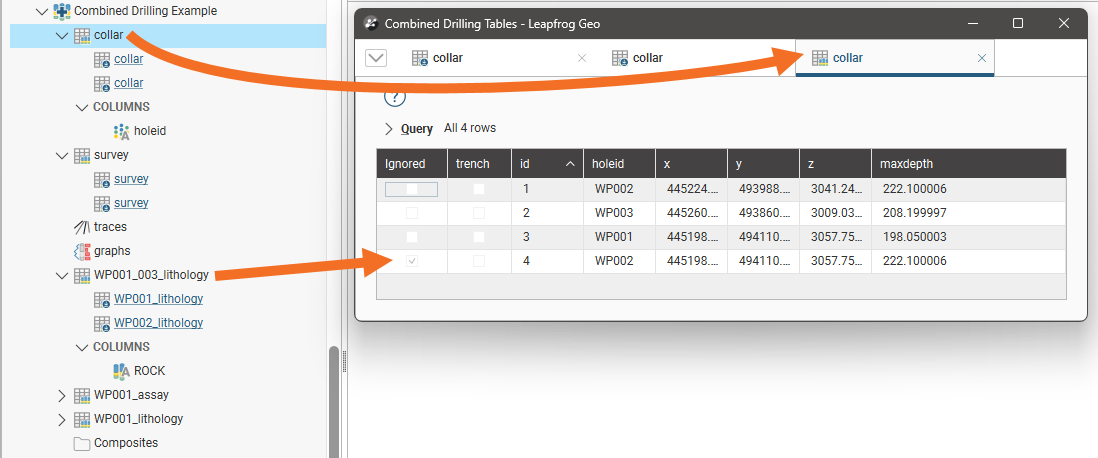
The collar information from each dataset is used to build the combined collar table, with duplicate data rows marked as ignored. Both WP002 rows are included in the combined collar table; note that the second WP002 row (id 3) is marked as ignored:
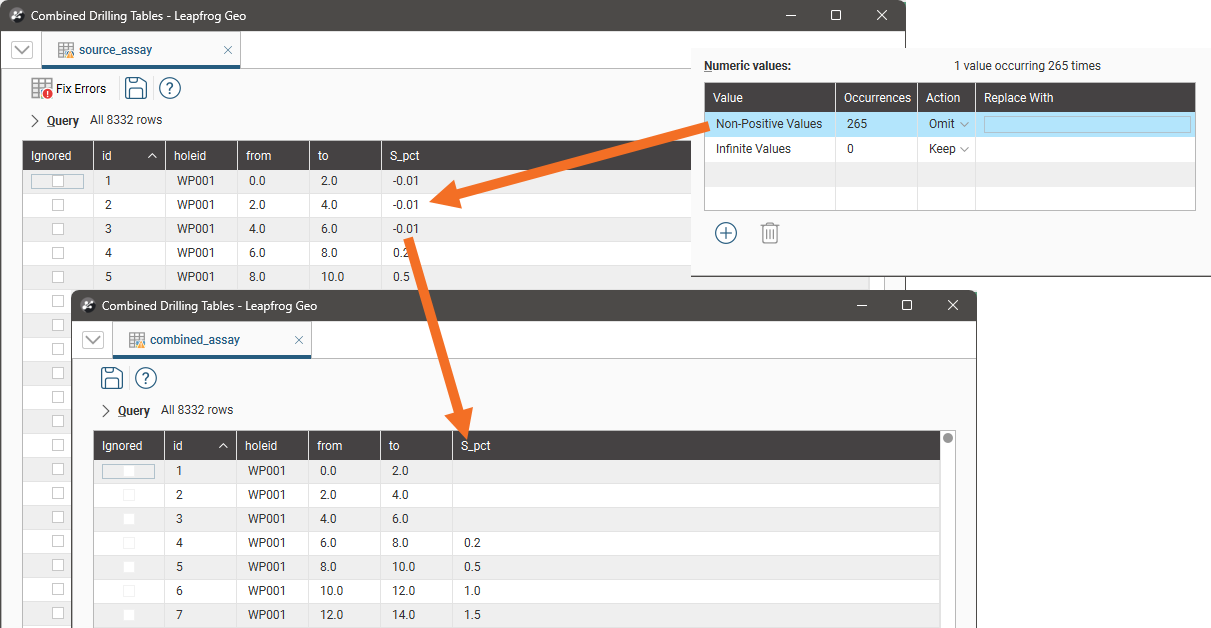
The same is true for the combined lithology table, where the duplicate rows for the WP002 drillhole are marked as ignored:
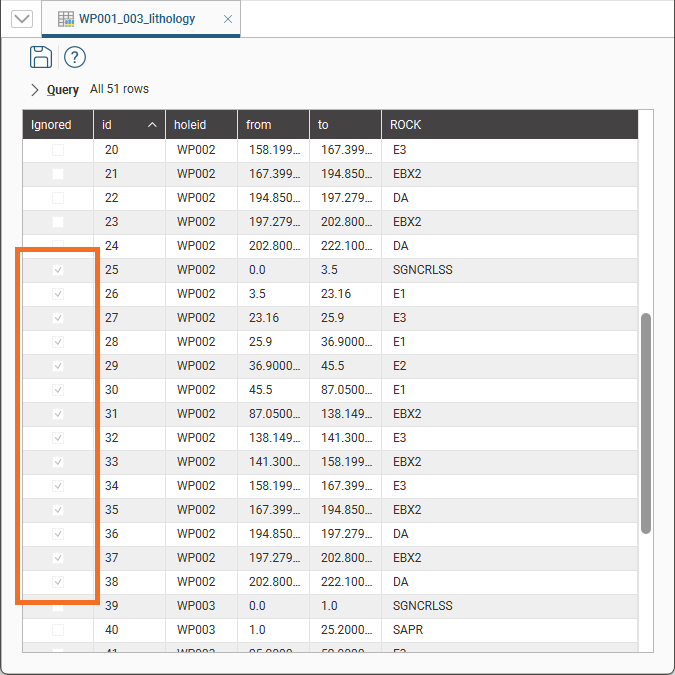
This example shows how special value handling rules in the source table are used in creating the combined table. The source table has negative values in the first three rows and the special values handling rules specify that non-positive values are replaced with 0.0 for the S_pct column. In the combined table, the Replace With value of 0.0 is used:
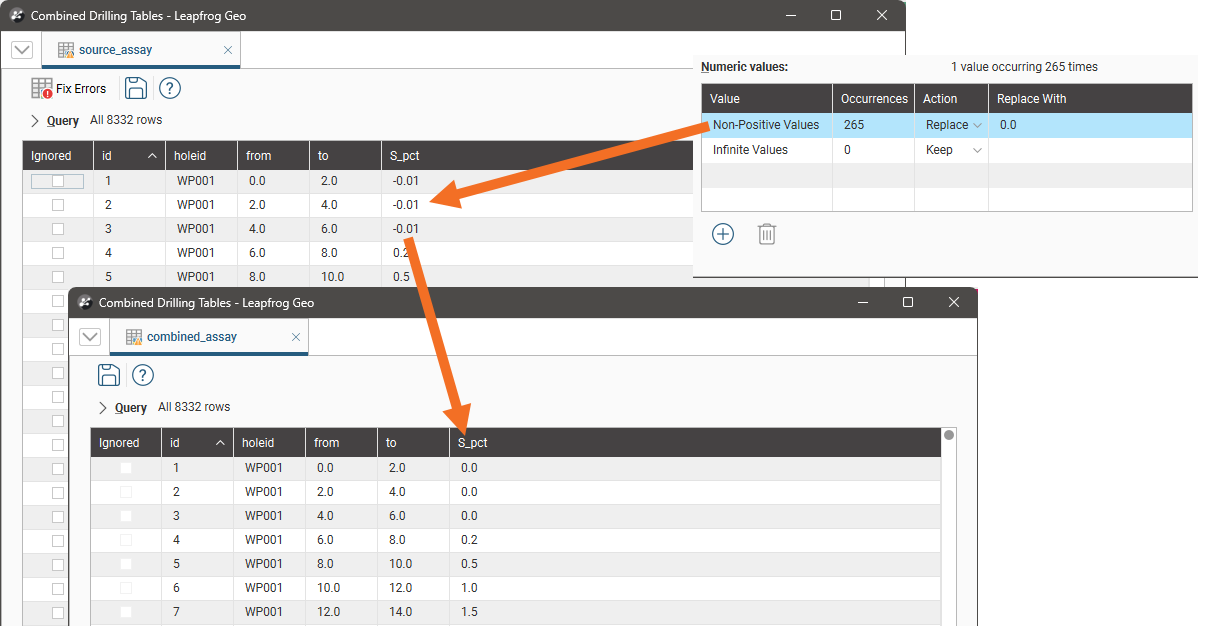
When the rule for the source table is changed so that non-positive values are omitted, the S_pct column is blank for the three rows in the combined table:
The process for creating a combined drilling dataset involves creating an initial set of base tables from existing data:
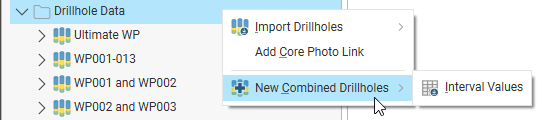
The options available will depend on the drilling data that is already in the project. In the example shown above, Interval Values is the only available option, but if there are downhole points or downhole structural data in a project, options for these data types will also be shown.
If you have the Hydrogeology extension, you can also create an initial set of base tables from screens data. See Importing Drilling Data in the Importing Drilling Data topic for more information.
Once you have created the initial combined dataset, you can add edit it and add more tables.
The rest of this topic describes the steps involved in building a combined drilling dataset. It is divided into:
- Creating the Base Tables
- Changing Table Priority
- Editing a Combined Drilling Dataset
- Adding More Tables
Options for exporting a combined drilling dataset are the same as those for other drilling datasets except that errors cannot be exported, as they should be corrected in the drilling datasets used to build the combined dataset. See the Exporting Drilling Data topic.
Creating the Base Tables
The first step in creating a combined drilling dataset is to create the base tables, along with one of the following:
- An interval table
- A table of points values
- A planar structural data table
- A screens table
To start, right-click on the Drillhole Data folder and select one of the New Combined Drillholes options.
In the window that appears, enter a name for the new drilling dataset, then click OK.
Next select the tables you will use for the new table. Here the Interval Values option has been chosen and lithology tables from two datasets will be used:
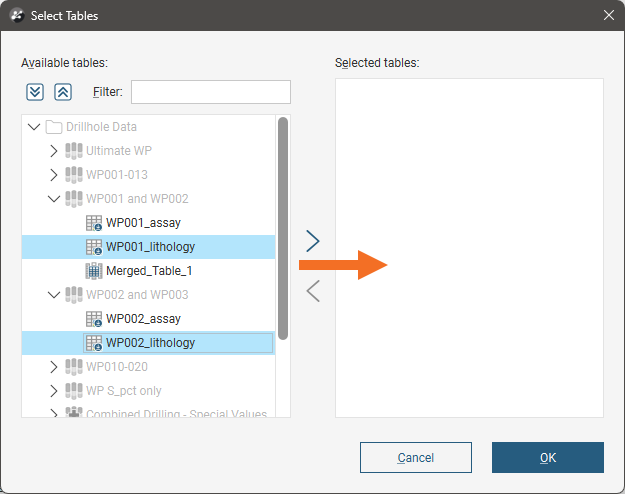
You can only select one table from each drilling dataset, but you can create additional tables once you have created the combined drilling dataset. See Adding More Tables.
Click OK. In the New Combined Drillhole Table window, the selected tables are displayed. The Combined Columns list shows the columns that will result:
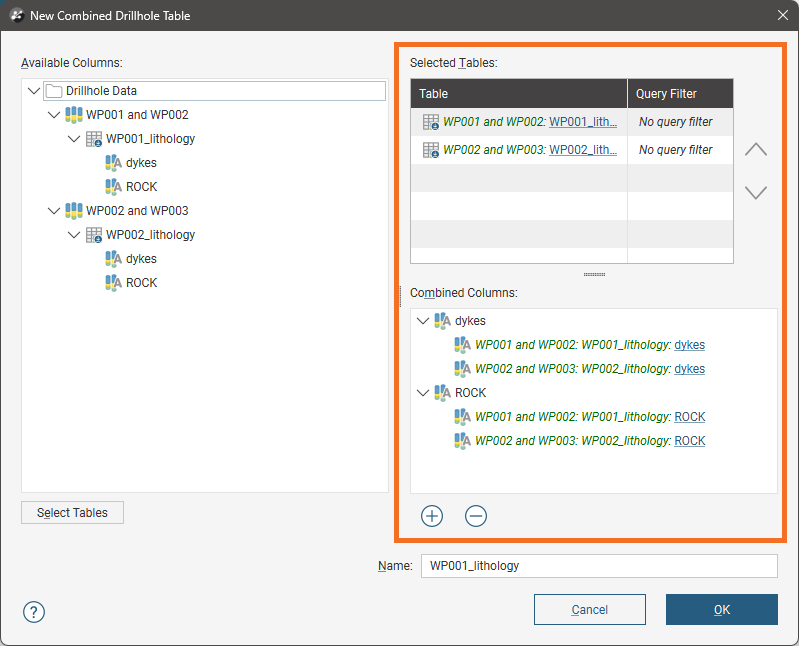
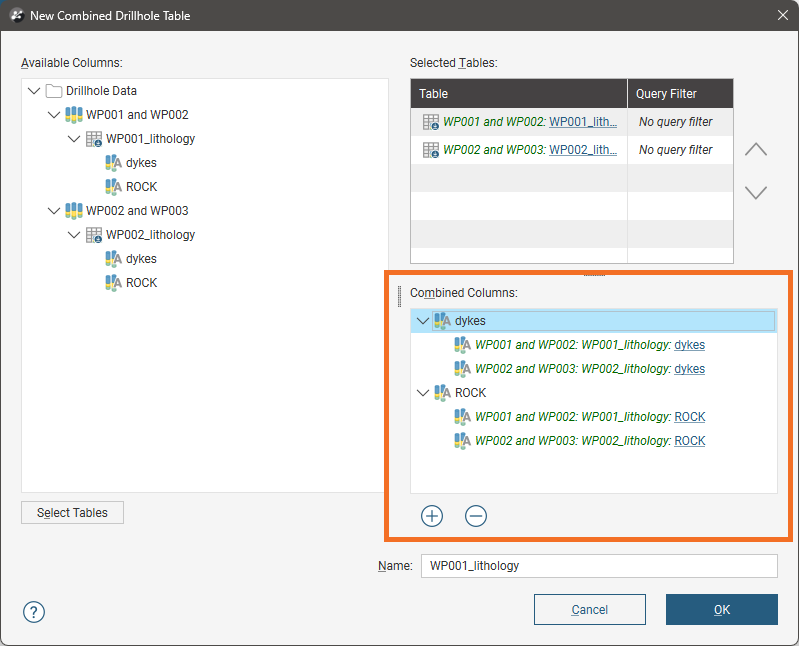
All columns in the selected tables are automatically added to the Combined Columns list. For example, here both the dykes and ROCK columns have been added to the Combined Columns list:
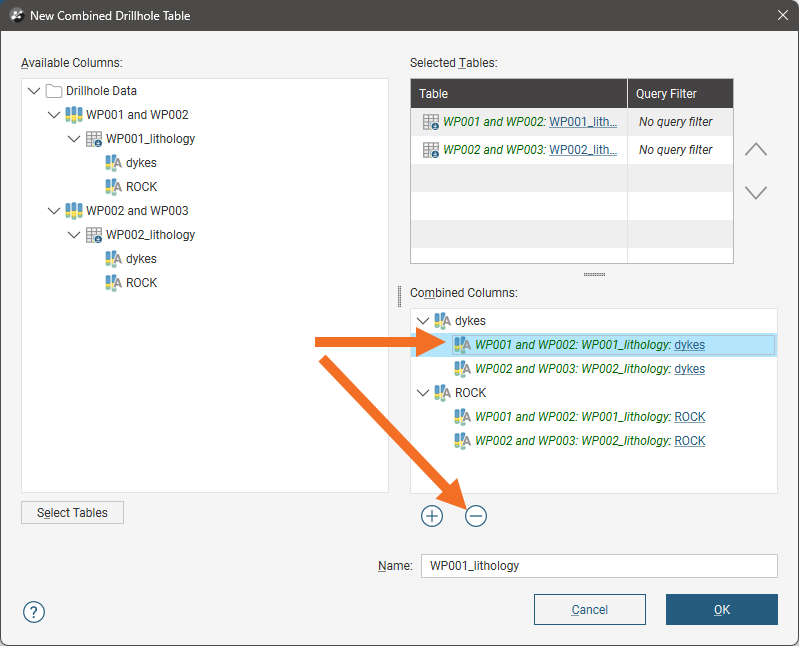
If, however, you do not wish one of these source columns to appear at all in the combined table, click on that column in the Combined Columns list, then click the Remove button ( ). For example, here clicking the Remove button will result in no dykes column appearing in the combined table:
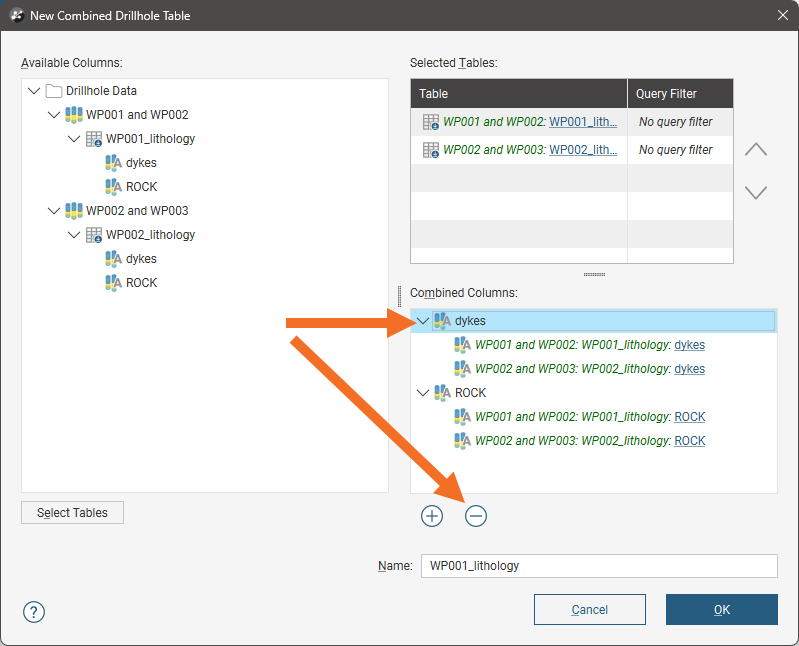
If you do not want to use one of the source table columns in the combined table, click on the column you wish to remove in the Combined Columns list, then click the Remove button. For example, here removing the WP001 and WP002 dykes column will result in only the WP002 and WP003 dykes column being used in the combined table:
You can also:
- Use the arrows in the Selected Tables list to change the priority of the tables. This is discussed further in Changing Table Priority.
- Add more tables to the Selected Tables list. To do this, click the Select Tables button, then choose from those in the project.
- Add more columns to the combined dataset. Drag a column from the Available columns list into the Combined Columns list or click the Add button (
 ) to open the Select Columns window.
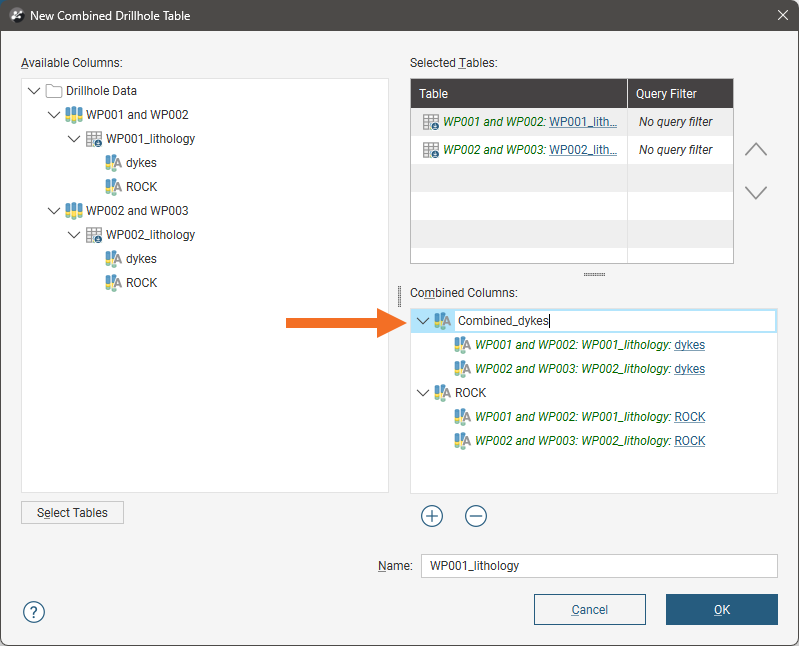
- Rename a combined column. Double-click on it and enter the new name:
 Removing one table and adding another to a combined
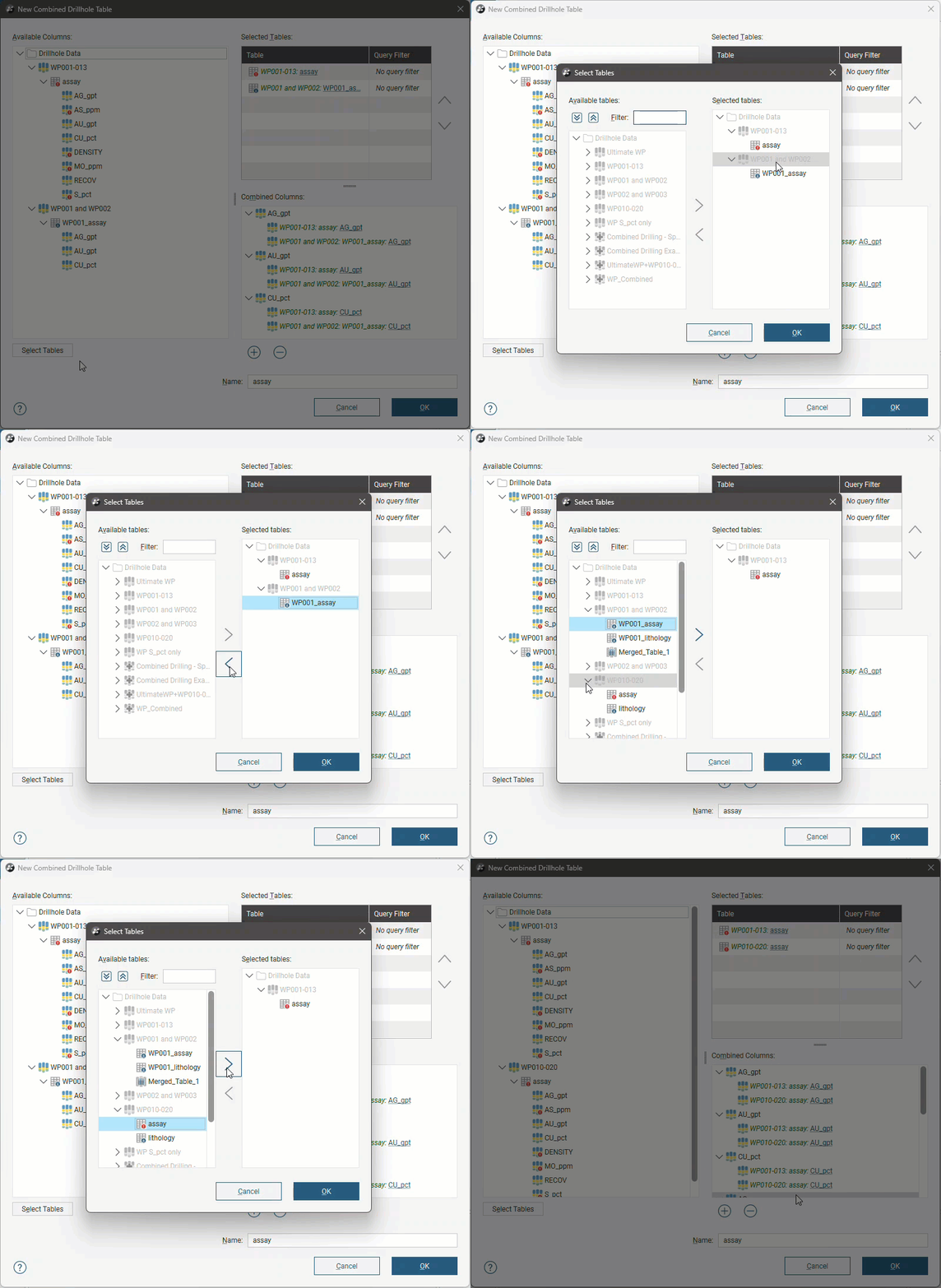
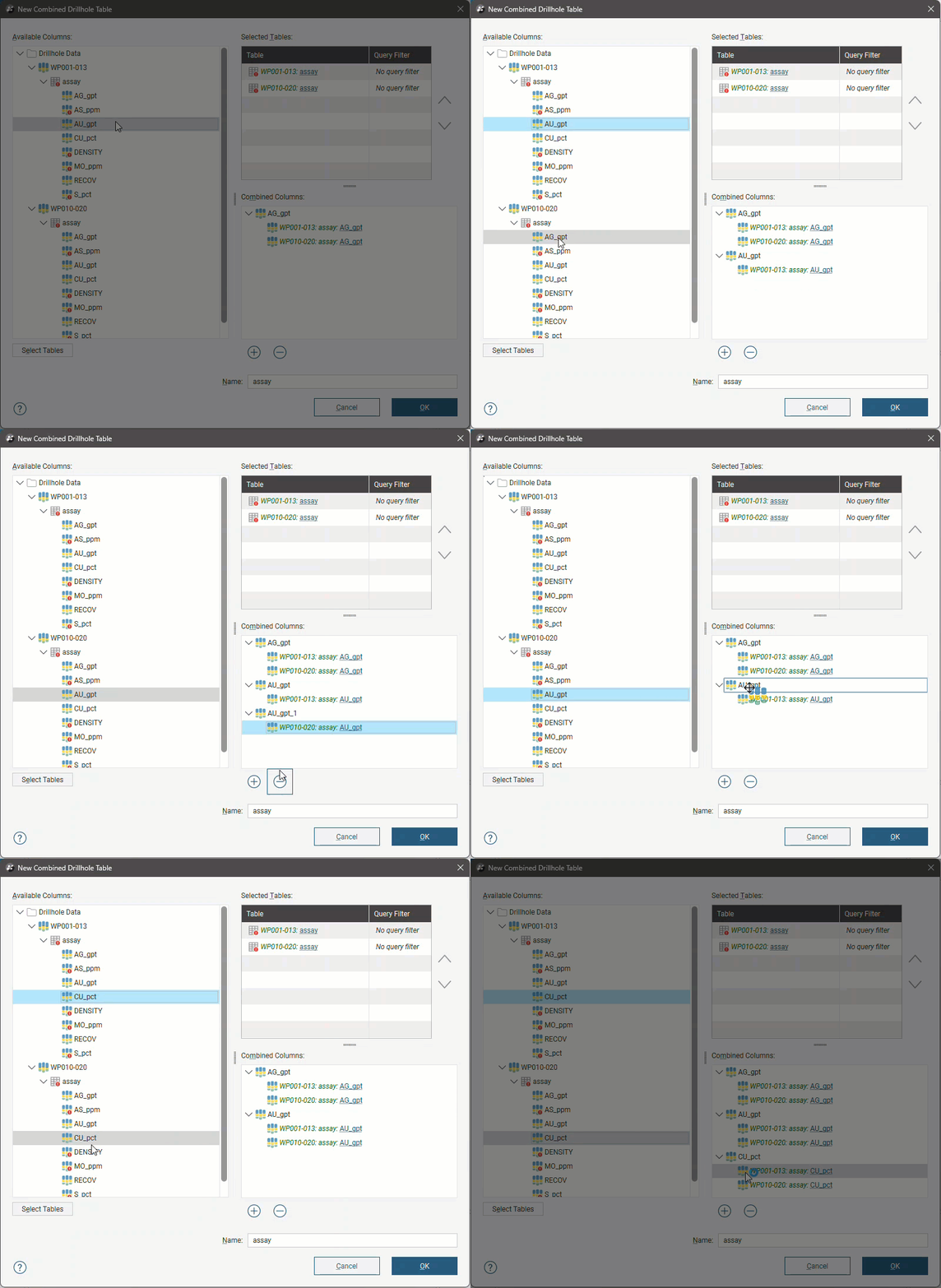
Once you have added the data columns you wish to include, set a Name for the new interval table, then click OK. The new combined drilling dataset will be created and added to the project tree.
Changing Table Priority
The priority of each table in the Combined Drillhole Table window determines which information is used when there is duplicate information. For example, here the WP002 and WP003 table is higher in the list and so has higher priority than the WP001 and WP002 table:
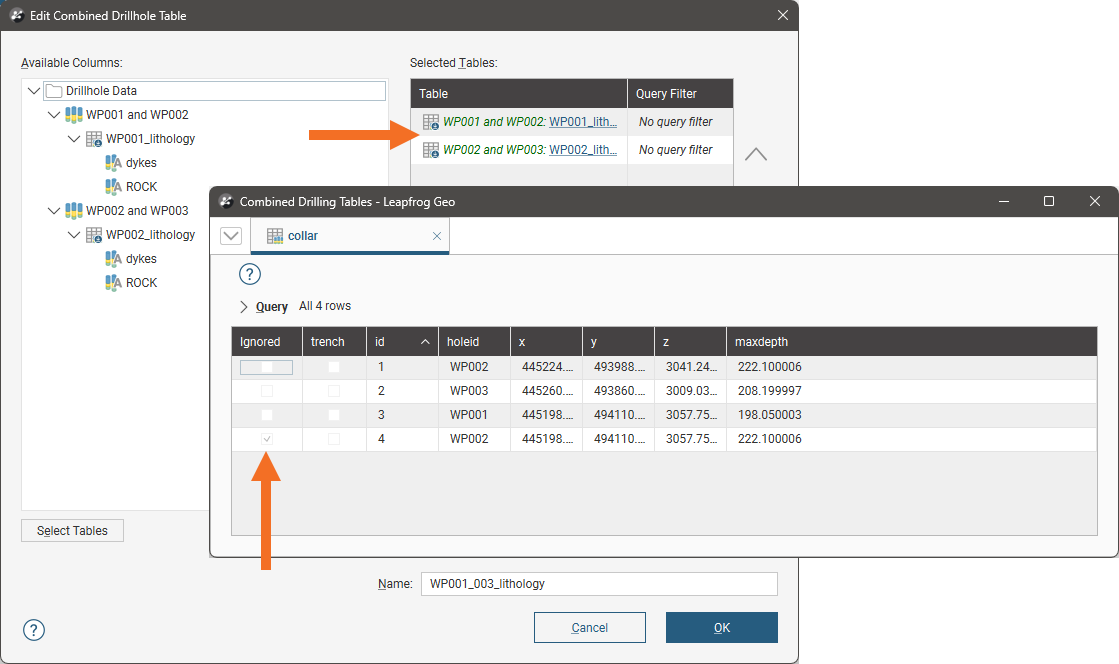
Because the same holeid is used in each source table, one is marked as ignored in the combined dataset.
Use the arrows to change the priority of selected tables:
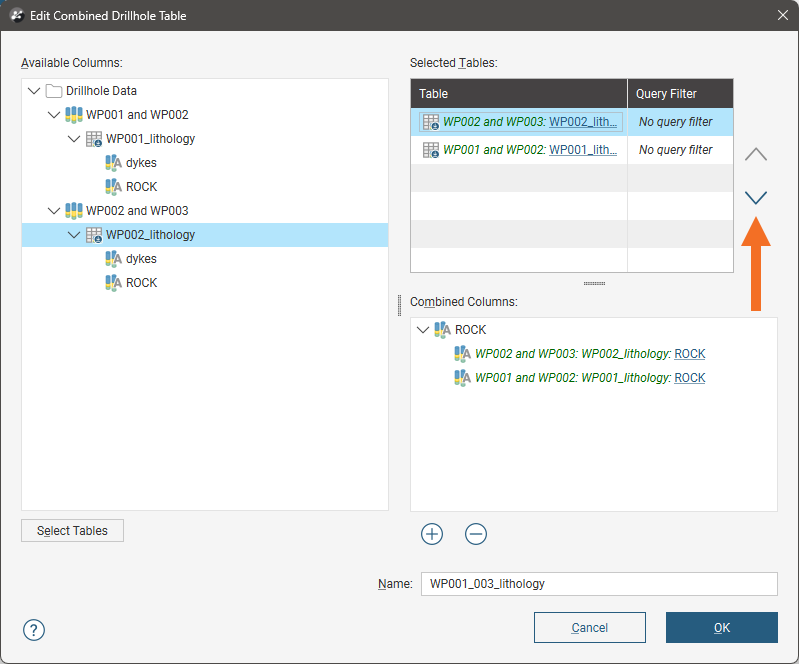
Click OK to close the window and make the changes.
Editing a Combined Drilling Dataset
To edit a combined drilling dataset, right-click on one of the tables in the combined dataset and select Edit Combined Table:
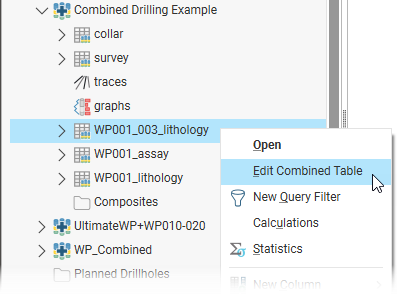
This opens the Edit Combined Drillhole Table window, which is similar to the New Combined Drillhole Table window. In this window, you can:
- Change the priority of the source tables. Click on a table in the Selected Tables list and use the arrows to change its priority.
- Add more tables to the Selected Tables list. To do this, click the Select Tables button, then choose from those in the project.
- Add more columns to the combined dataset. Drag a column from the Available columns list into the Combined Columns list or click the Add button () to open the Select Columns window.
If a table you wish to use is not in the Available columns list, click Cancel to go back to the Edit Combined Drillhole Table and click the Select Tables button.
- Rename a combined column. Double-click on it and enter the new name.
To remove a column from the combined table, click on it in the Combined Columns list, then click the Remove button ().
To remove a data source column from the combined table, click on it in the Combined Columns list, then click the Remove button ().
When you open the combined collar table or combined survey table to edit them, the options available are limited, as these tables are built up by adding other tables to the dataset.
Adding More Tables
To add another table to the combined drilling dataset, right-click on it and select one of the New Combined Table options:
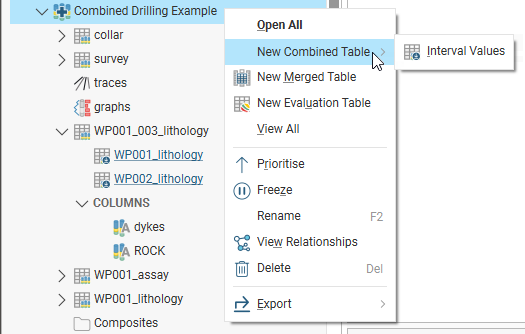
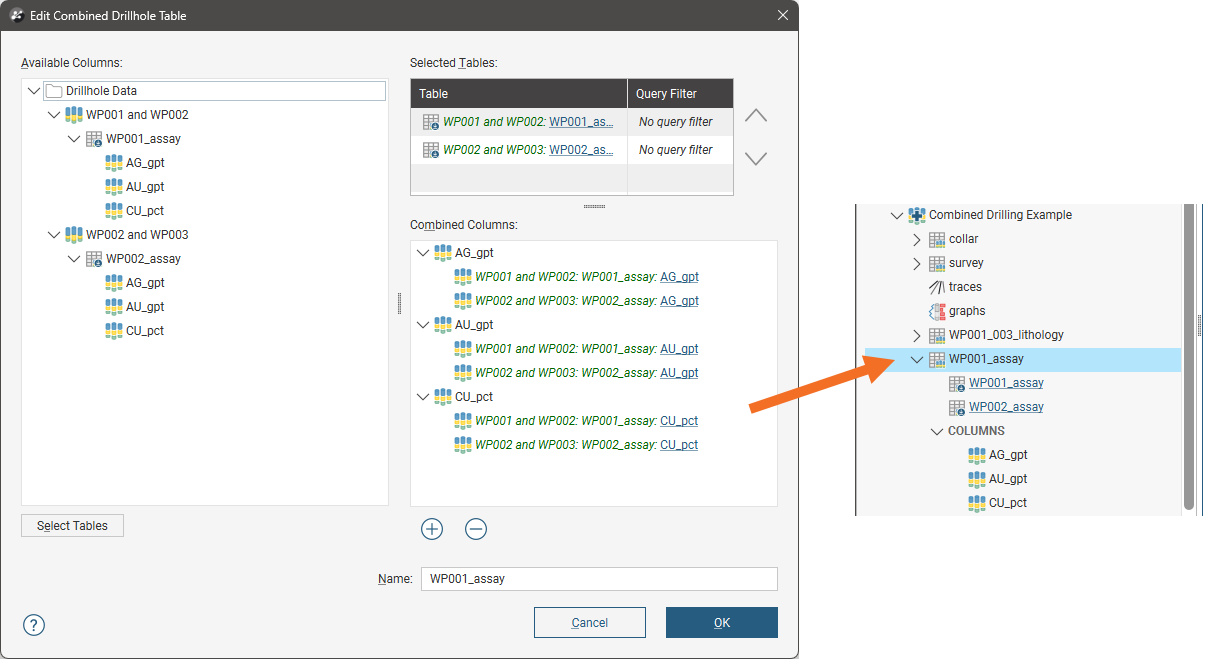
Here the assay tables from the two source drilling datasets have been used to create a new combined assay table with three columns in the combined drilling dataset: