Adding and Styling Surfaces
The Surfaces folder contains all surfaces that have been added to the section layout. To add another surface, first make sure it has been evaluated on the section, then right-click on the Surfaces folder and select Add Surface. Select from those available and click OK.
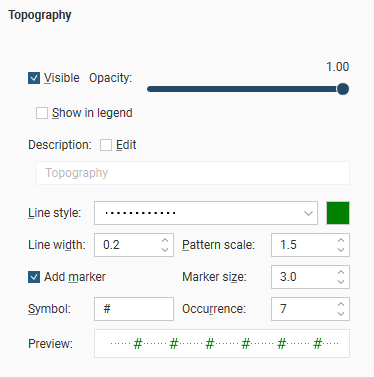
Click on the surface in the layout tree to view styling options:
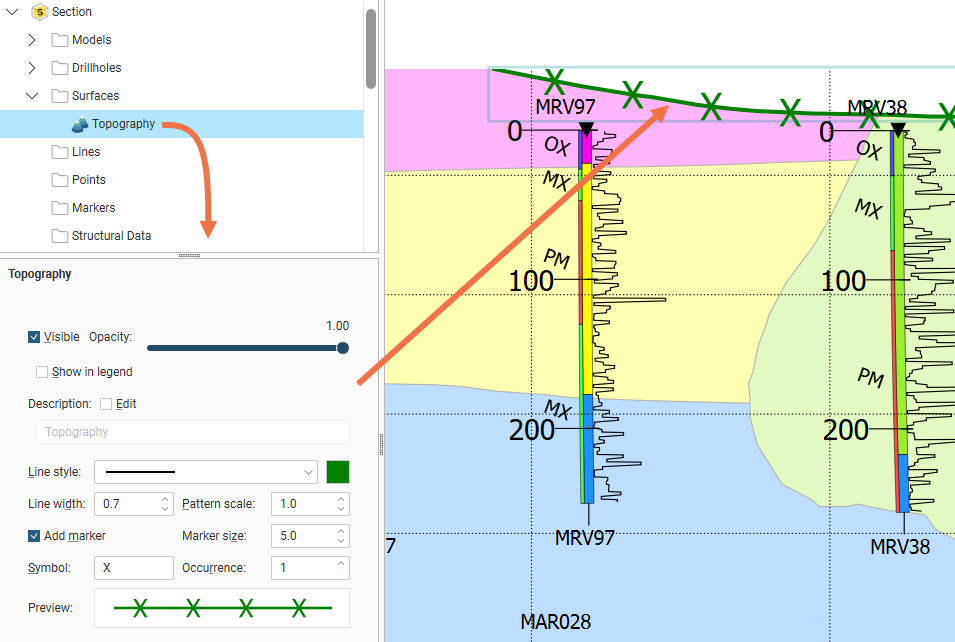
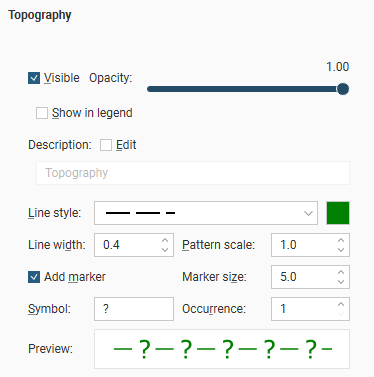
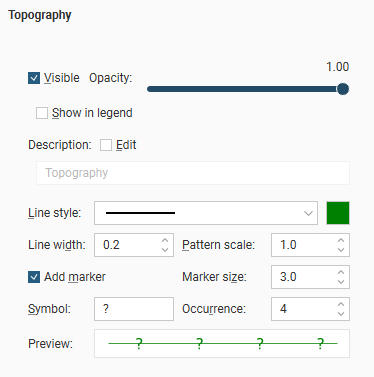
Visibility can be turned on or off and the Opacity of the projection of the surface onto the section can be set. Edit the text used to display the surface by enabling the Edit box and then changing the text. You can change the Line style, Line width, Pattern scale and colour. You can also define a marker to display along the line by enabling Add marker and then specifying a Symbol to use. Increasing the Occurrence number increases the gap between symbols. A Preview is displayed and the surface will be updated in the section preview.
You can see below how changes to the Line style, Symbol and Occurrence can be used to indicate different conditions:
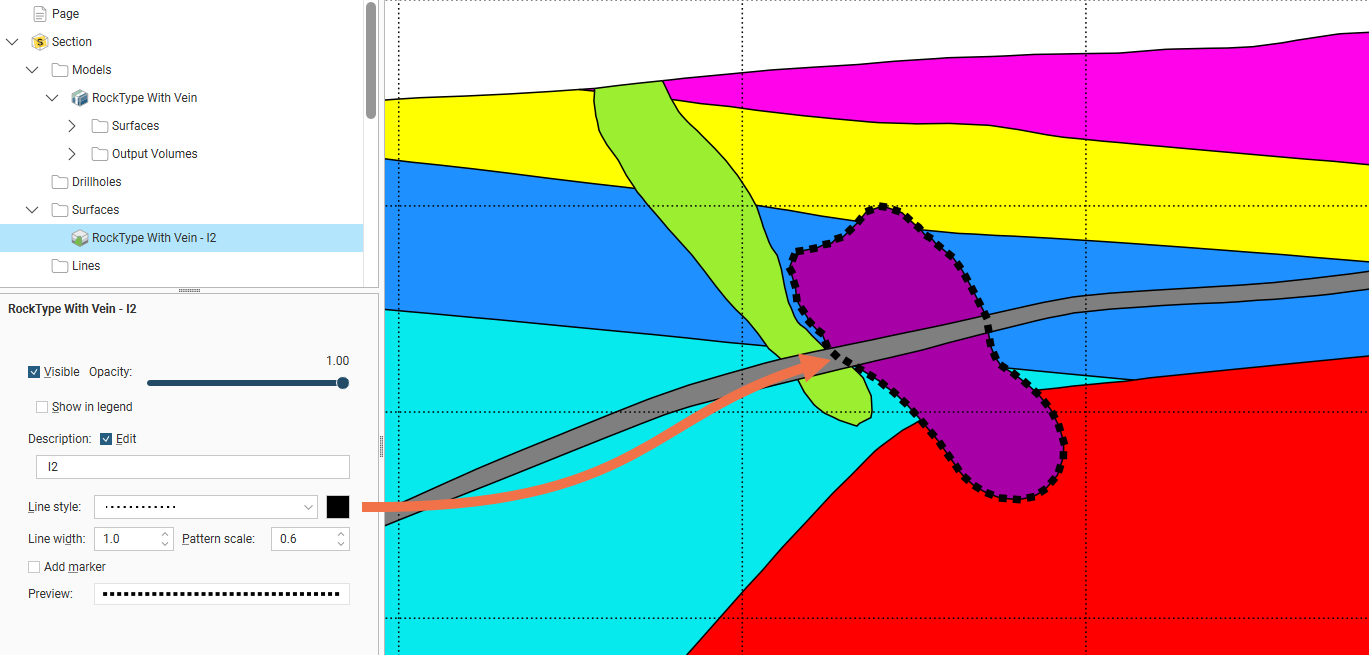
You can set the line style for a volume surface as a surface evaluation, but note that the whole outline is treated the same. If, for example, in the section below you wanted to hide the surface line style where it is intersected by the dike, setting the surface line style as a surface evaluation only provides one line style and you don’t have control over what parts of the surface are displayed. To achieve what is wanted in this case, use the individual contact surface line styles provided in the Models folder. For more information on how to do this, see Adding and Styling Models.