Overlay Settings
The settings in the Overlays tab of the Settings window are for changing what objects are included in the scene. These are:
Changes you make to these settings are previewed in the scene so you can easily experiment to see what overlays you prefer. To confirm changes, click the Close button. Click Revert to return to the settings in place when the Settings window was first opened.
Screen Grid Settings
The Show screen grid setting determines whether or not the screen grid is displayed.
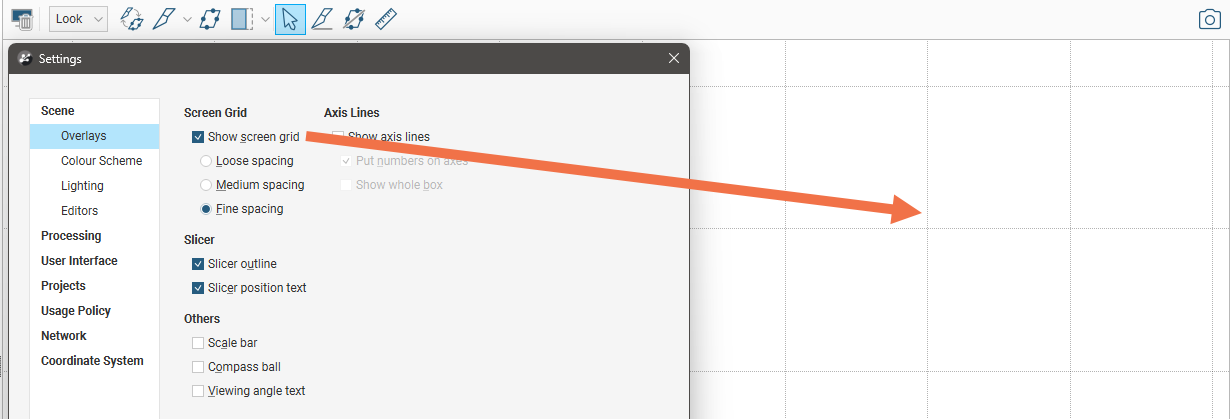
Select the option you prefer. The Loose Spacing, Normal Spacing and Fine Spacing options determine the spacing of the grid.
Axis Lines Settings
The Axis Lines settings determine how X-Y-Z coordinates are displayed in the scene. When axis lines are enabled, the axes indicate the extent of data currently displayed in the scene.
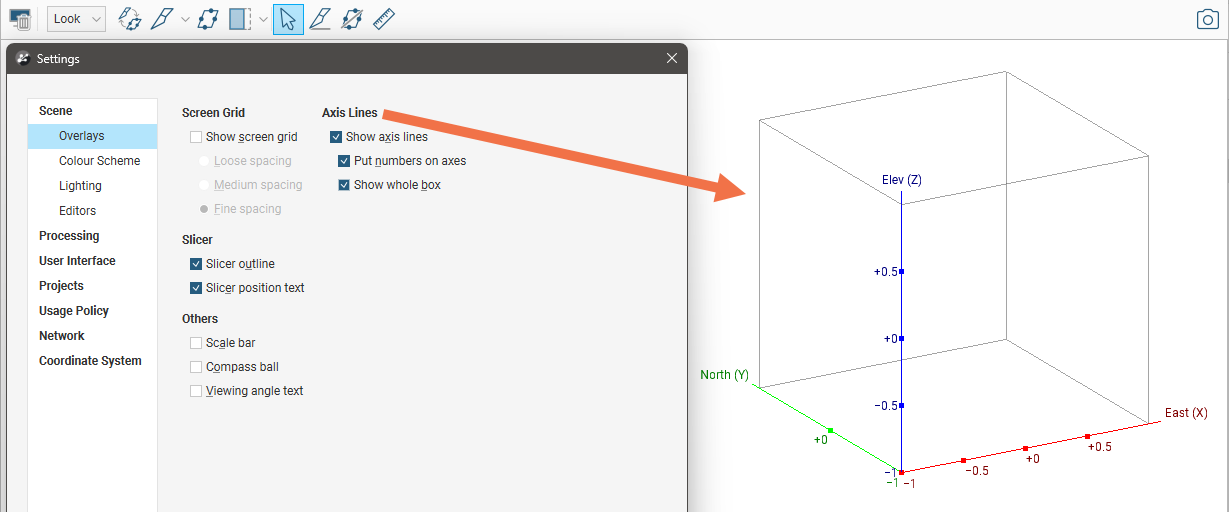
- Enable Show axis lines to display the east (red), north (green) and elevation (blue) axis lines.
- Enable Put numbers on axes to display scale ticks along the grid. These are automatically adjusted to fit the extent of the data and the current zoom setting.
- Enable Show whole box to display the axis lines as a box that encloses the current dataset.
Slicer Settings
The Slicer settings determine whether or not additional information about the slicer is displayed when it is in the scene.
The Slicer outline setting determines whether or not the edges of the slicer are displayed in the scene:
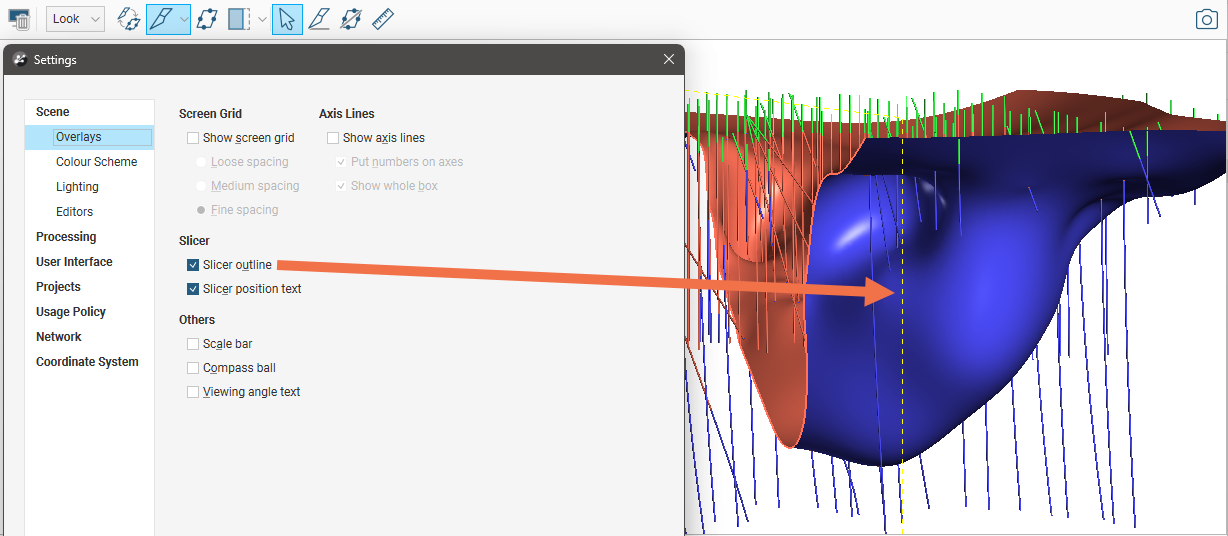
When the slicer is in the scene and the slice is aligned with the x-, y- or z-axis, text describing the slicer position can be displayed in the lower left-hand corner of the scene:
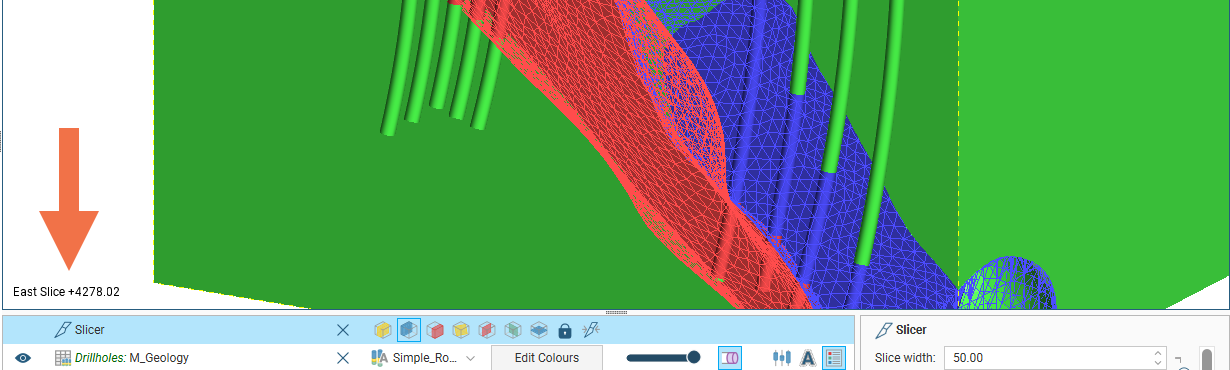
To do this, enable the Slicer position text option.
Other Overlay Settings
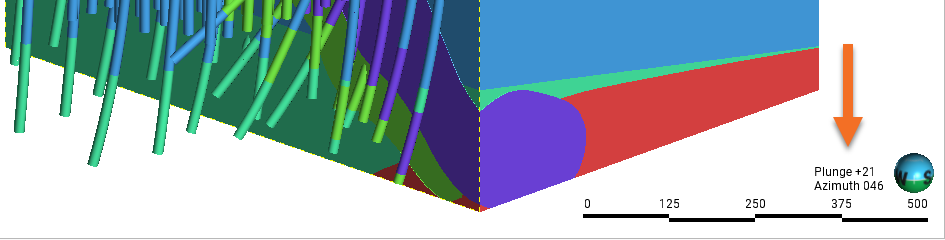
The scale bar, compass ball and viewing angle text are the navigation aids in the lower right-hand corner of the scene window: