Processing Tasks
The processing queue button shows how many tasks are currently being processed:
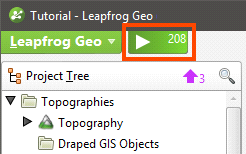
Objects will be added to the processing queue when you make changes to them via the project tree.
- To view the queue and progress on processing, click the queue button or press Alt + P.
- To pause processing, press Ctrl + P. To resume processing, press Ctrl + P again.
The button will turn grey when all processing is complete.
You can close a project while is still running tasks. When you next open the project, the remainder of the tasks in the processing queue will be processed.
Prioritising Tasks
Tasks can be prioritised and their inputs processed before other objects. To prioritise a task, right-click on an object in the project tree and select Prioritise. Prioritised tasks are marked in the project tree with an arrow:
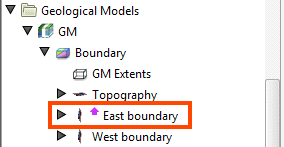
Prioritising an object is useful when you are editing it and wish to view the effect of changes without reprocessing all objects in the project. For example, you may be modifying a boundary or contact surface for a geological model. You can prioritise the surface, then run it each time you make changes.
To run only prioritised tasks, click the processing queue button, then click Priority Only:
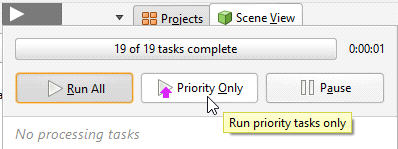
The processing queue button will change to show that only priority tasks will be run:
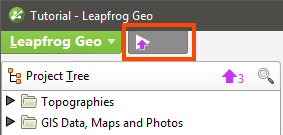
The number of objects that have been prioritised is indicated by the button at the top of the project tree ( ). To view prioritised tasks, click the button. All prioritised objects will be selected and displayed in the project tree.
To reset a priority object, right-click on it and select Clear Priority.
Click the processing queue button, then click Run All to resume normal processing.
Correcting Errors
If processing of an object fails, all other objects dependent on that object will also fail. Click the processing queue button to view the errors. To inspect the source of error, right-click on the object in the task queue and select Go to Project Tree > Show Error:
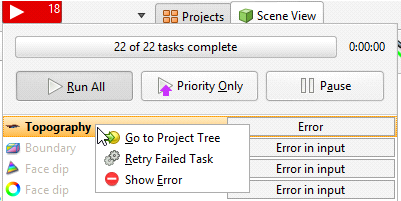
The object’s Properties window will be opened with the Errors tab displayed. The information in this tab may be helpful in fixing the error.