Estimation Parameters Report
The features described in this topic are only available if you have the Leapfrog Edge extension.
The Estimation Parameters Report provides a tabulated overview of estimation configuration settings. This can be used to easily check consistency of settings across domained estimations where required, but also can be used as a shortcut to adjust settings.
To view the Estimation Parameters Report, right-click on the Estimation folder and select Parameter Report.
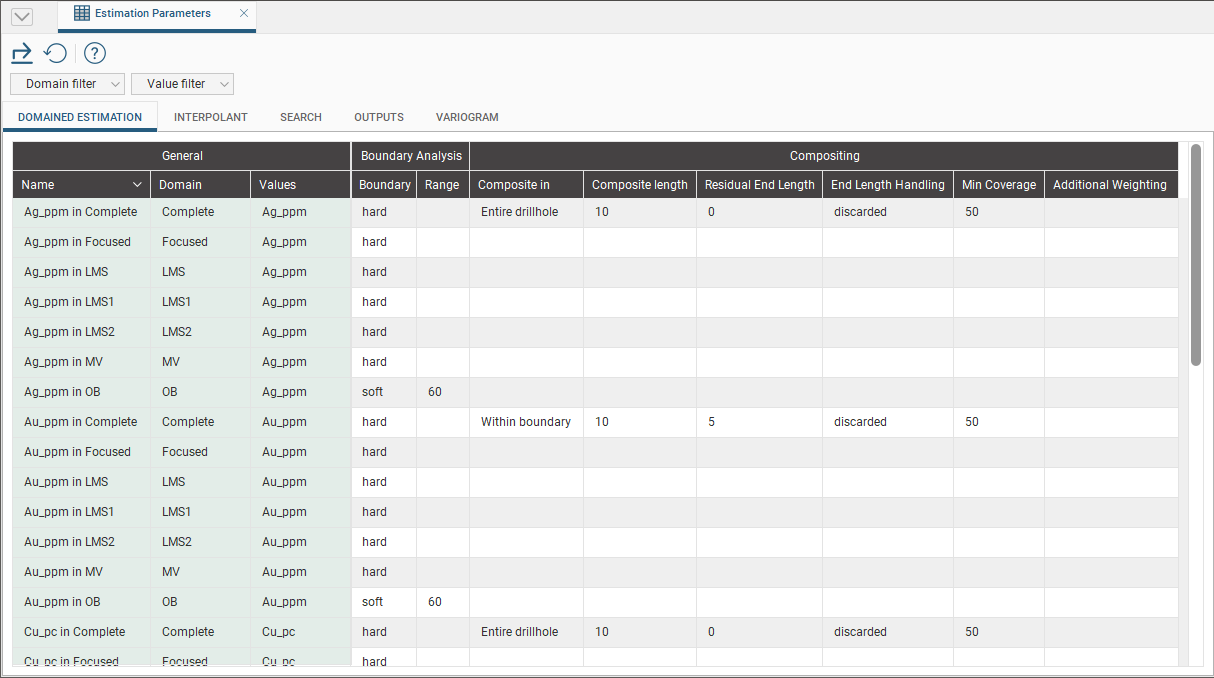
Tab Selection
Five tabs organise the estimation parameters into related parameter sets: Domained Estimation, Interpolant, Search, Outputs and Variogram.
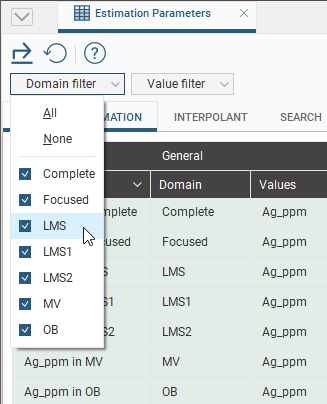
Domain Filter
Use the Domain filter to filter the table to only the required set of domains. Besides the options All and None, each of the domains used in the domained estimations can be selected or deselected to create any combination that is needed.
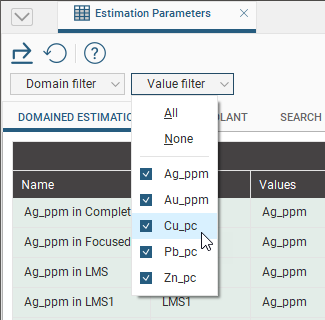
Value Filter
Use the Value filter to filter the table to only the desired variable values. Besides the options All and None, each of the variable values used in the domained estimations can be selected or deselected to create any combination that is needed.
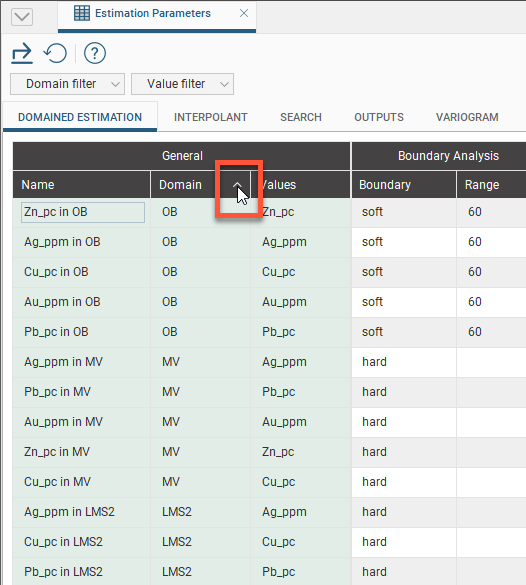
Sorting
Click any of the column headers to sort the current table by that column. The column that is currently being used as the sort column is marked with a chevron that also indicates the sort order. Clicking this chevron will invert the sort order. If the chevron looks like a caret the current sort order is descending and clicking the chevron will change the order to ascending. If the chevron looks like a v, the current sort order is ascending and a click will change it to descending.
Modifying Parameters
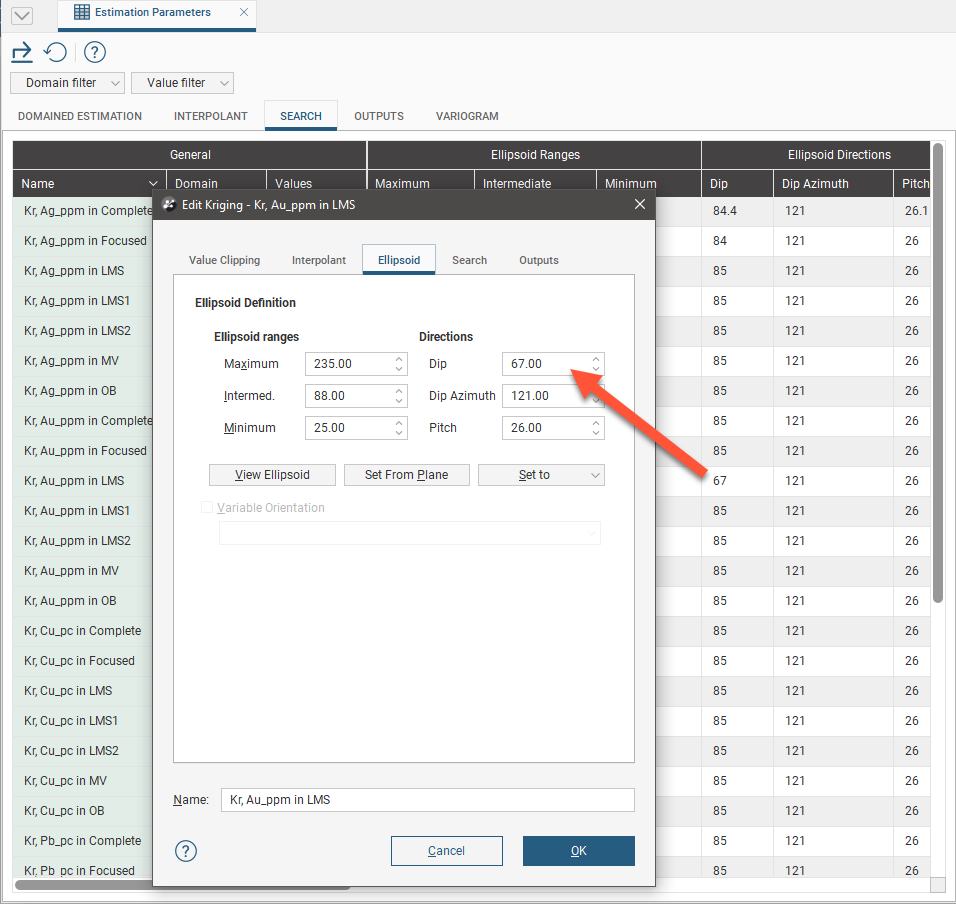
The Parameters Report also makes it easy to modify values by creating a shortcut to the window where the value can be adjusted. Double-click on any cell in the table and the associated dialog window will open.
Export Parameters
Select the Export button ( ) to create an Excel spreadsheet containing the estimation parameters for use in another application. Each of the estimation parameter tabs in the Parameters Report will appear as worksheets within the Excel spreadsheet.
Refresh Parameters in Table
When parameters are amended in any of the estimation windows, the values in the Parameters Report are not automatically updated. Click the Refresh button ( ) to trigger an update to the values in the table.
Got a question? Visit the Seequent forums or Seequent support