
Define a Map Projection for a New Map
The first step is to create a new map using the coordinates from an existing database or grid.
In your current project, open the database to scan. On the Map Tools menu, select New Map from > X,Y. The Data Range to Map dialog is displayed.
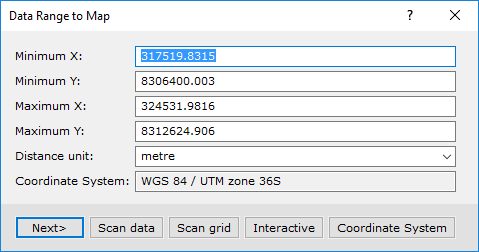
The dialog shows the data range (coordinate extents), units and coordinate system information from the last projection that was used. To change the coordinate system information, you will need to scan an existing database or grid for the coordinate system and coordinate information.
To scan a database for a data range and projection information:
-
Click the Scan Data button. The system will scan the selected database for the data range and projection information and populate the Data Range to Map dialog with this information.
-
Click the Next> button and the Create a New Map dialog will be displayed. Specify a Map name and select a Map template using the drop-down list.
-
Click the Scale button to calculate a scale based on the coordinates and the map template.
-
Click the Finish button to create the new projected map.
To scan a grid for a data range and projection information:
-
Click the Scan Grid button. The system will prompt you to specify a grid file that contains the projection information.
-
Select a file and click OK.The system will display the Data Range to Map dialog showing the new data range and projection information obtained from the grid.
To view the projection information, click the Coordinate System button. The Coordinate System dialog showing the known projection information is displayed.
This dialog can be used to modify the projection or to copy a projection from a file.
Got a question? Visit the Seequent forums or Seequent support
© 2024 Seequent, The Bentley Subsurface Company
Privacy | Terms of Use