Highlight Rows/Cells

The Highlight Rows/Cells feature improves visibility and navigation within databases by visually emphasizing the active row or cell. This is especially useful when working with large datasets that require frequent horizontal and vertical scrolling.

Go to Database > Settings > Highlight Rows/Cells to access and customize highlighting preferences across all databases in your projects.

Highlight Rows/Cells dialog options

Highlight mode

Select from the following modes:

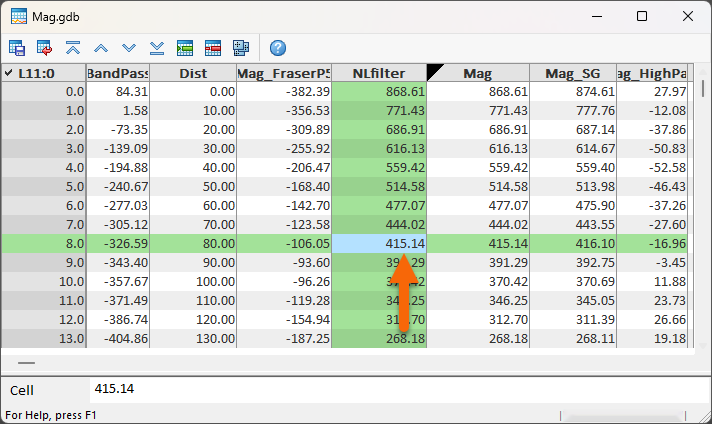
Crosshair:

  • Highlights the fiducial column (typically the first column) using the Row/Fids index colour setting.
  • Highlights both the row and the column of the selected cell using the colour specified in the Highlight colour box.
  • The active cell remains highlighted in the default selection colour (typically blue), making it distinct from the surrounding highlight.

    See the Colour Settings section below to change the default highlight colours.

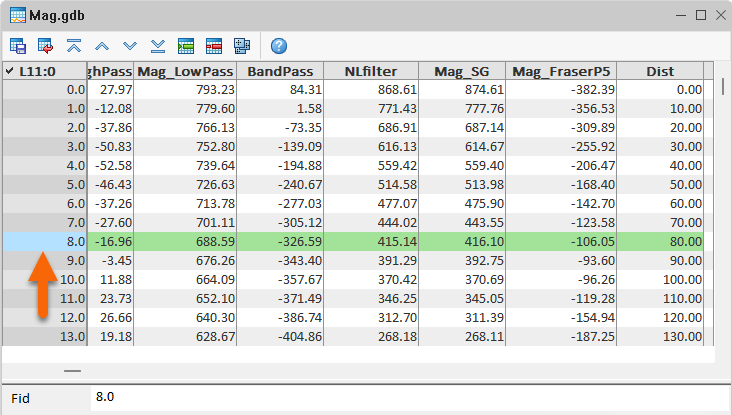
Row/Fid Index (Default):

  • Uses the Row/Fids index colour setting to highlight the fiducial column, typically the first column.
  • The fiducial cell in the active row is marked with the colour specified in the Highlight colour box.
  • Clicking the fiducial cell highlights the entire row in the selected Highlight colour, providing a clear visual indicator for row selection.
  • The active cell remains highlighted in the default selection colour (typically blue), distinguishing it from the surrounding highlight.

    Refer to the Colour Settings section below to change the default colours.

Off: Disables all row and cell highlighting.

Colour Settings

Row/Fids index colour

Change de default colour of the fiducial column using the built-in colour selection tool:

  • Click the colour box to open the Colour dialog.

  • Choose from predefined basic colours or define a custom colour using the Define Custom Colours option.

  • Your selection will instantly appear in the Row/Fids index colour box.

Highlight colour

Change the default colour for the highlighted row/cells using the built-in colour selection tool:

  • Click the colour box to open the Colour dialog.

  • Select a colour from the basic palette or create a custom one using Define Custom Colours.

  • The selected colour will automatically update in the Highlight colour box.

[Restore Defaults]

Click this button to revert all settings to their original default values.

Application Notes

The Highlight Rows/Cells feature provides tailored visual cues to enhance navigation and readability within your project databases.

  • It’s especially useful when working with large databases that require frequent scrolling, helping you stay oriented and focused.

  • Crosshair mode is ideal for visualizing the intersection of a row and a channel (e.g., a DEM channel), making it easier to pinpoint specific data points.

  • In Row/Fid Index mode, selecting a fiducial cell highlights the entire row, providing a clear visual reference for the current index/fiducial.

  • Overall, this feature improves visibility, reduces errors, and enhances data readability by clearly emphasizing the active row and cells.

If the highlight colours become visually distracting or clash, you can either restore the default settings using the Restore Defaults button or disable the feature entirely by selecting the Off option from the Highlight mode list.