
Manage Menus
The Manage Menus interface in Oasis montaj or Target helps you identify which features are available based on your subscription and entitlements. It also allows you to customize menus and workflows on a per-project basis (GPF), reflecting the product naming and structure associated with your license.
You can access the Manage Menus dialog using either of the following methods:
-
Click the Manage Menus button on the Project Explorer toolbar
Manage Menus dialog options
|
Base Menus |
The Base Menus node displays all menus included with your product offering.
|
|
Extensions |
Any additional extensions added to your subscription will appear under the Extensions node. |
|
Custom Tools |
Custom solutions developed and licensed specifically for your organization are listed under the Custom Tools node. |
|
User Menus |
The User Menus node appears when menu files (
These are your personal menus. To create them, refer to Create Custom Menus. |
|
[Select All] |
Selects all available menus. |
|
[Restore Defaults] |
Clears current selections and resets Base Menus items to their default state. |
Application Notes
Base Menus by Product
Expand each section below to view the menus included with your product offering:
-
 Oasis montaj
Supports a wide range of geophysical workflows and data formats, including gravity, magnetic, and electromagnetic survey data processing and filtering.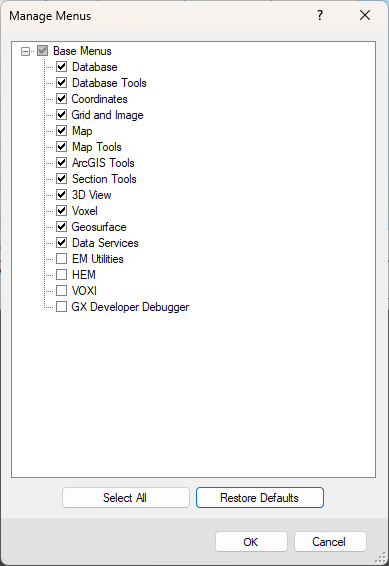
-
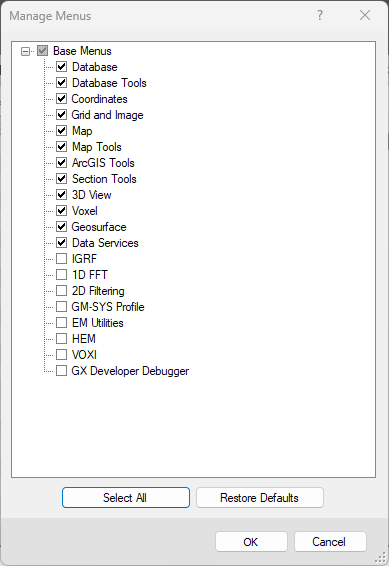
Oasis montaj Basin Modelling
Includes all Oasis montaj features, plus additional packages for energy exploration.Menus for Geophysics (1D FFT and IGRF), 2D Filtering, and GM-SYS Advanced Profile Modelling are included under Base Menus.
-
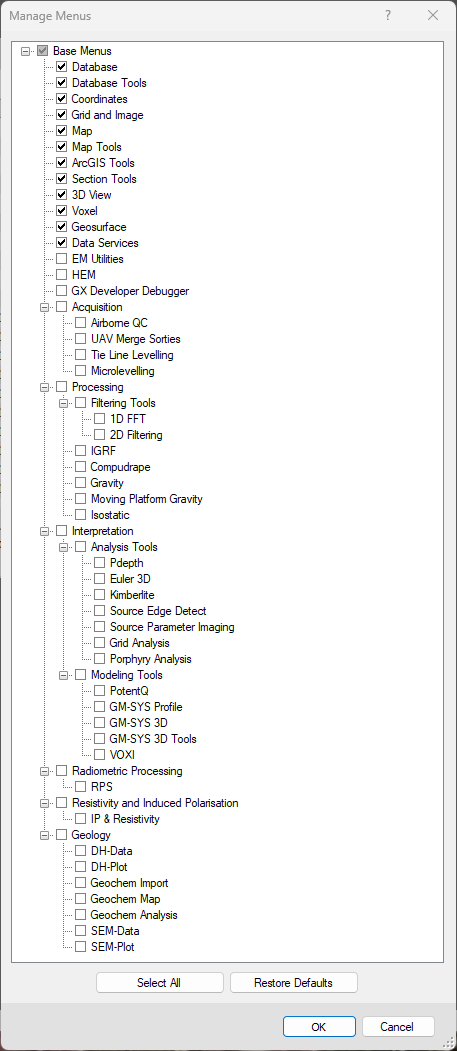
Oasis montaj Ultimate
Provides full exploration domain extension packages.Some packages—such as Acquisition, Interpretation, Processing, and Geology—contain multiple extensions, while others—like Radiometric Processing and Resistivity & Induced Polarisation—include a single extension.
-
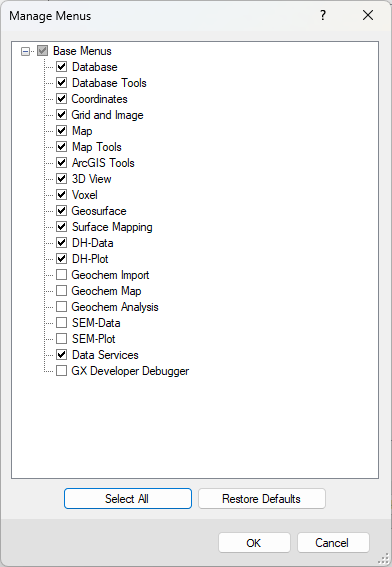
Target Essentials
Integrates geological and geochemical data into geophysical models. The Geology package includes Surface Mapping, Drillhole Plotting, and Geochemistry extensions.Checked menus are automatically loaded into new projects.
Menus for Extensions and Custom Tools
Your subscription may include additional extensions or custom-developed tools.
-
Example
Unexploded Ordnance (UXO) extensions and custom software added to Oasis montaj Ultimate.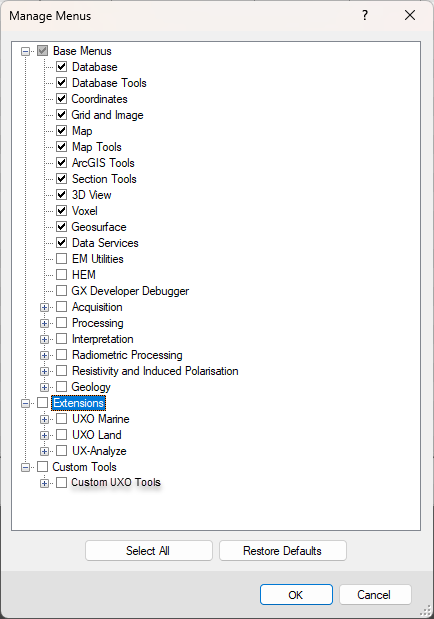
Branch Behaviour
-
Base Menus: Open by default; checked menus auto-load in new projects.
-
Extensions & Custom Tools: Collapsed by default; menus must be manually enabled.
-
User Menus: Collapsed by default; appears only if personal menus exist.
Checkbox States
Expanding an extension/menu node reveals its associated menus.
Each extension or menu node includes a checkbox indicating its selection status:
 Unchecked – No menus selected
 Checked – All menus selected
 Partially Checked – Some menus selected
Checkboxes act as toggles for all associated menus.
Adding and Removing Menus
Menus can be added or removed at any time—for example, when activating a new subscription.
To add menus:
-
Check the desired items and click OK.
-
Selected menus will appear on the main menu bar in your current project.
To remove menus:
-
Uncheck the items and click OK.
-
Menus will be removed from the main menu bar.
User Preferences
Oasis montaj remembers your previous menu configuration, including:
-
Selected menus
-
Branch states (open or collapsed)
See Also:
Got a question? Visit the Seequent forums or Seequent support
Copyright (c) 2025 Bentley Systems, Incorporated. All rights reserved.
Privacy | Terms of Use