Importing a MODFLOW Model
This feature is only available with the Hydrogeology extension. See Flow Models for more information.
Leapfrog Works imports .nam files and .mfi and .mfn variations of .nam files.
To import a MODFLOW model, right-click on the Flow Models folder and select MODFLOW > Import Model. Leapfrog Works will ask you to specify the file location, and then will display the data in the file in the Import MODFLOW Model window:
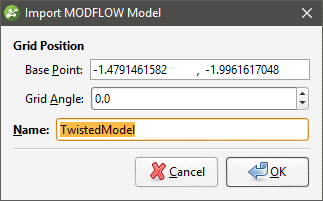
If the world origin is available, the Grid Position will be displayed but cannot be edited.
Click OK to import the grid. The new MODFLOW model will appear in the project tree in the Flow Models folder. See MODFLOW Model Display for information on displaying the model.
If the world origin was not available when the model was imported, you can change the Grid Position. To do this, expand the imported model in the project tree and double-click on its grid object ( ).
).
To associate lithologies with the grid, see MODFLOW Evaluations.
Got a question? Visit the Seequent forums or Seequent support