
Updating Out-of-Date Seequent Evo Objects
This topic describes how to find out what Seequent Evo objects in a project have changed and how to update changed objects. This topic is divided into:
- Out-of-Date Indicators
- Manually Checking for Updates
- Refreshing Out-of-Date Objects
- Objects Deleted in Evo
See the Leapfrog Works/Seequent Evo Data Flow topic for an overview of importing, publishing and reloading Evo data.
Out-of-Date Indicators
When an object imported from Evo is updated in Evo, a status indicator will appear in the Leapfrog Works project tree alongside the object that has changed. For example, here a drilling dataset is out-of date:
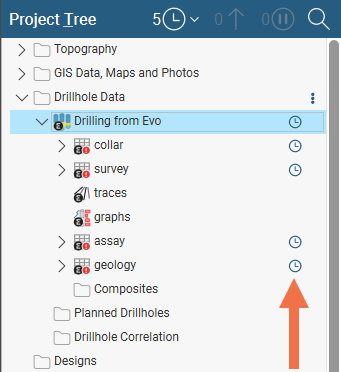
See Object Status Indicators for more information on the different status indicators.
Manually Checking for Updates
You can also check for updates by clicking the button at the top of the project tree and selecting Check For Updates:
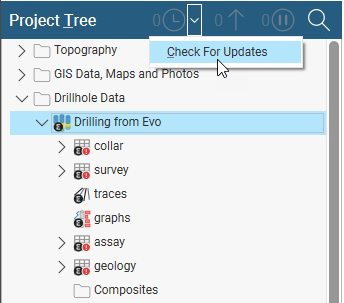
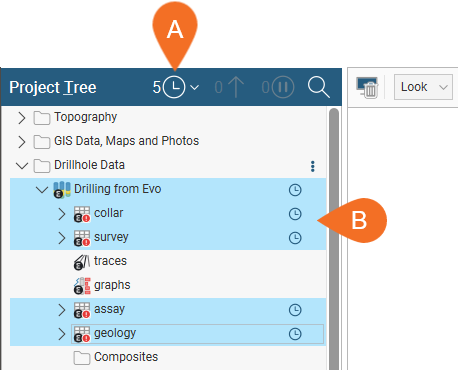
Once the check is complete, the number of objects that are available for update is indicated in the project tree title bar (A). Click on the button to select all of the out-of-date objects in the project tree (B):
Refreshing Out-of-Date Objects
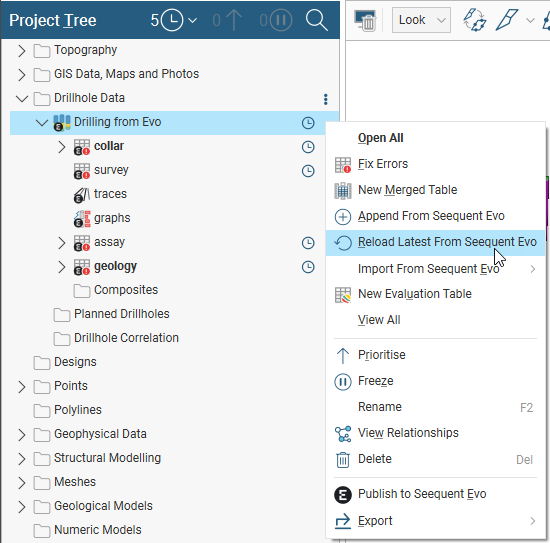
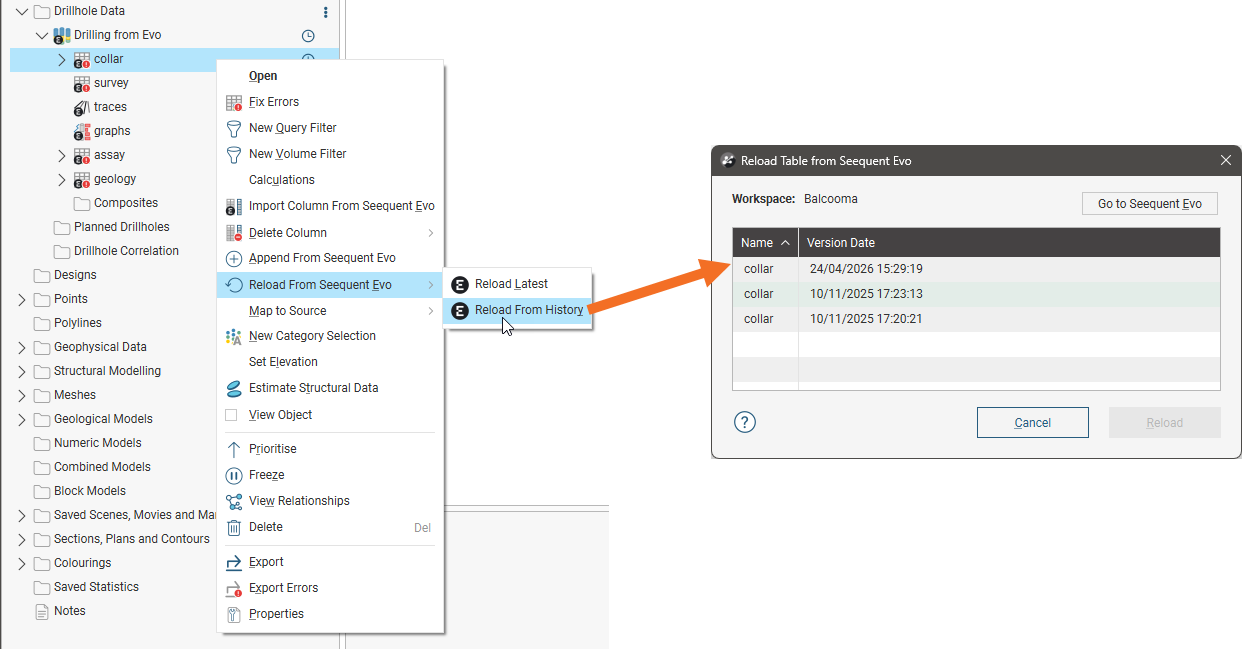
To refresh a single out-of-date object, right-click on it in the project tree and choose Reload Latest From Seequent Evo:
In some cases, you will be given the choice between reloading the latest object or choosing a version from the project history:
To refresh multiple objects at once, select them in the project tree. Then, right-click on them and choose the Reload Latest From Seequent Evo option:
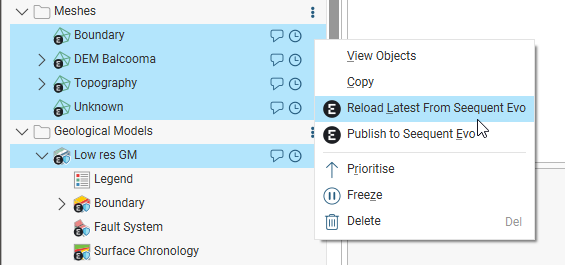
Some objects imported from Evo will include an associated colourmap. When these objects are reloaded, the colourmap will also be reloaded, if it has changed.
In some cases, reloading simply makes new data available in the form of additional rows or columns. At times, reloading can also result in name changes to existing data objects. In these cases, a message will be displayed indicating the changes that will result.
Some source data modifications can result in significant changes to the project:
- When a column is removed in Seequent Evo, on reloading in Leapfrog Works the column is deleted and any downstream objects associated with the deleted column are also deleted.
- When a column type is changed in Seequent Evo, on reloading in Leapfrog Works the old column is deleted and a new column with the new name is added to the table.
In these cases, a message will be displayed that identifies the differences between the current local version and the remote version, along with what objects in the project will be affected by reloading the data. In this example, the selected version of a table of points in Evo is missing a data column that the current local object contains. The validation warning message indicates that if the reload process is completed, the data column will be removed from the local Leapfrog Works project.
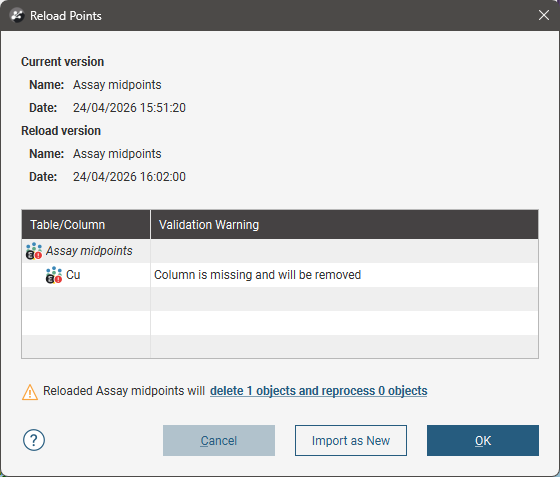
If you do not wish to lose any downstream data, click the Import as New button to import the object as a new object. This will result in two different versions of the object in the project tree; you can then compare versions and decide which one to use.
There is also a Cancel button in case you prefer not to reload the data from Evo at this time.
Objects Deleted in Evo
When objects are deleted from an Evo workspace, they will appear as out-of-date in the Leapfrog Works project. When you update that object in Leapfrog Works, a message will be displayed saying the object has been deleted from Evo. Click OK to dismiss the message.
If you wish to republish the object to Evo, then publish it to Evo as a new object. You can then choose whether to publish it to the workspace it was deleted from or to a different workspace.