
Editing the Vein Boundary
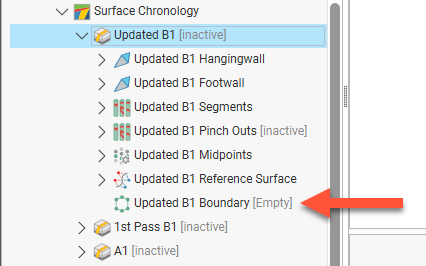
When a vein is first created, its boundary ( ) is empty:
Once a vein has been created, you can change its boundary by:
Editing the Boundary with a Polyline
To edit the boundary using a polyline, right-click on it in the project tree and select Edit With Polyline. The current vein boundary will appear in the scene and the polyline editor will open. Begin drawing the new boundary, as described in Using the Polyline Editor, ensuring that the polyline drawn closes and does not intersect itself.
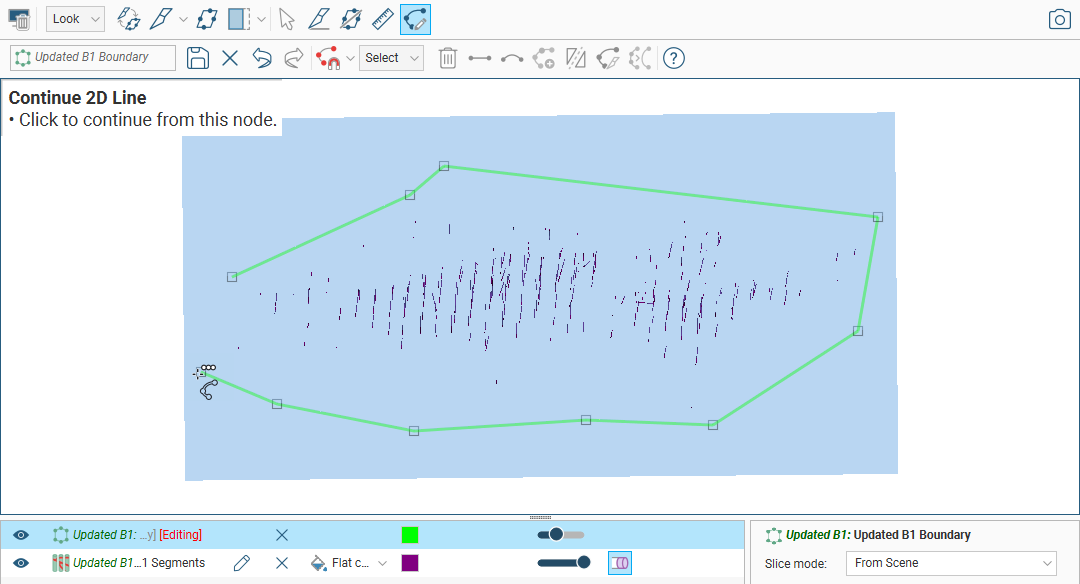
When you save the boundary, the vein will be updated to reflect the changes made. If you want to revert to the original boundary, right-click on the boundary object () and select Delete Polyline.
If you have edited a vein’s boundary with a polyline and want to use the polyline for other veins’ boundaries, right-click on the polyline in the project tree and select Share. A copy will be saved to the Polylines folder which will be linked to from the vein. You can then use the polyline for other vein boundaries using the Add Polyline option. Edits made to the shared polyline in the Polylines folder will be updated wherever it is used.
Adding a Polyline to the Boundary
You can also add an existing polyline to the vein boundary. To do this, right-click on the vein’s boundary in the project tree and select Add Polyline. In the window that appears, select the polyline you wish to use:
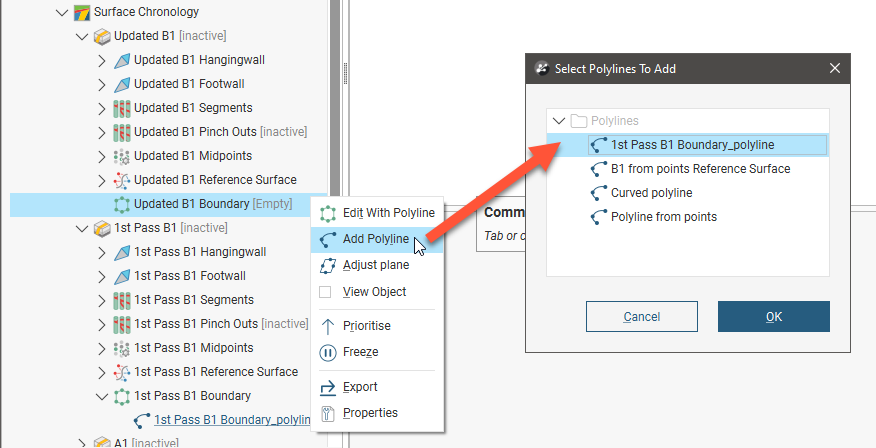
If you have edited a vein’s boundary with a polyline, you can use that polyline for other vein boundaries. To do this, right-click on the vein that has been edited and share the polyline; a copy will be saved to the Polylines folder which will be linked to from the vein. You can then use the polyline for other vein boundaries using the Add Polyline option.
Adjusting the Boundary Plane
Another option for editing a vein boundary is to adjust the boundary plane. To do this, right-click on the boundary in the project tree and select Adjust Plane. The plane will be displayed in the scene, along with the Adjust Boundary Plane window. You can use the handles on the plane to adjust its position or you can enter the information in the Adjust Boundary Plane window.
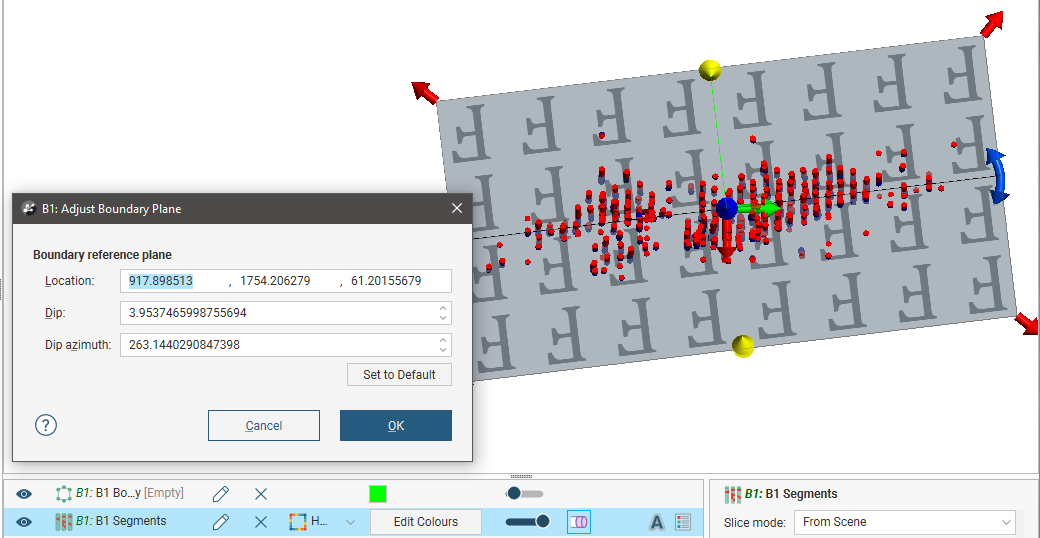
Click OK to apply the changes to the vein.
To revert to the original boundary plane, right-click on the boundary object and select Adjust Plane. In the Adjust Boundary Plane window, click on the Set to Default button and click OK.