
Adding Other Contacts to Veins
When a vein has been created from drilling data and new drilling data is available that is not part of the dataset used to create the vein, the new data can be added to the vein. An Auto classify internal segments setting is available for adding contacts to existing veins created from boreholes which results in some segments being automatically classified as internal segments. Internal segments force the hangingwall and footwall surfaces away from these segments.
To add other contacts to an existing vein, right-click on the vein in the project tree and select Add Other Contacts.
In the window that appears, choose the dataset that contains the new contacts and click OK. Next, set the Vein lithology and the Outside lithology. The lithologies you can choose from are those defined for the geological model in the Lithologies object.
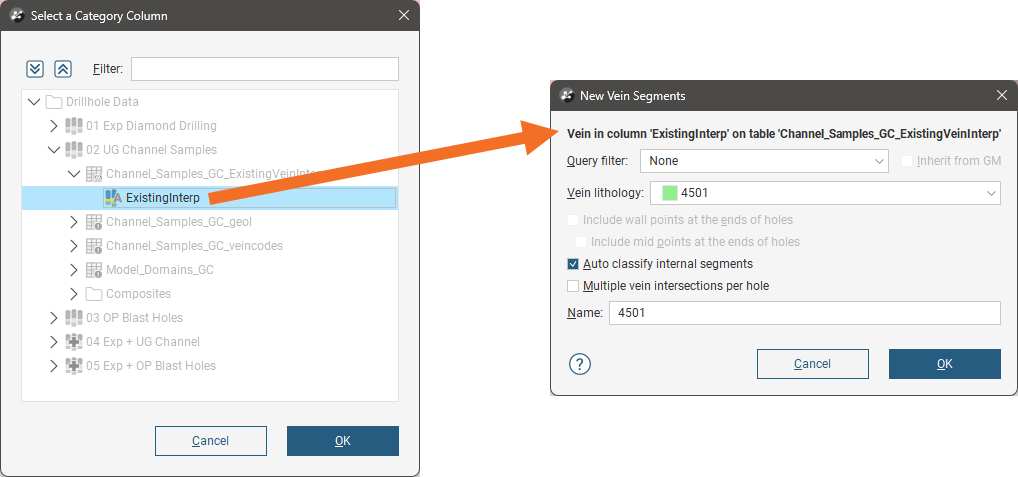
The Include wall points at the ends of holes, Include mid points at the ends of holes and Multiple vein intersections per hole settings are discussed in the separate Editing Vein Segments topic.
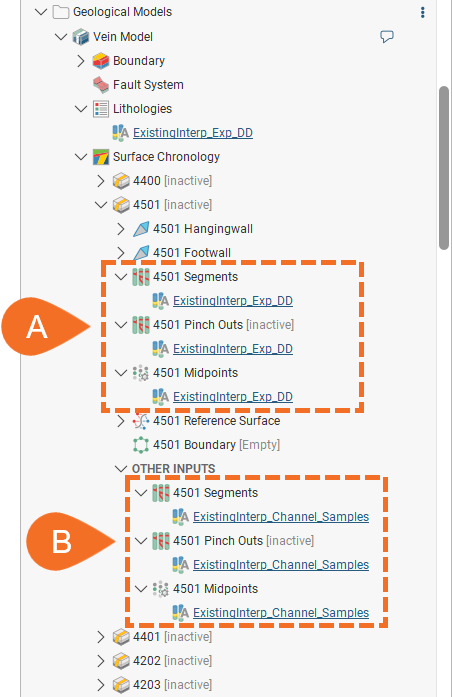
When a vein is created from drilling data, the segments, pinch-outs and midpoints appear in the project tree underneath the hangingwall and footwall surfaces. In this example, exploration drilling has been used to create the vein and so the vein’s segments, pinch-outs and midpoints (A) are linked to that data. Adding other contacts results in a separate set of segments, pinch-outs and midpoints being added as Other Inputs (B). In this example, these other inputs are channel samples.
When adding other contacts to veins, the Auto classify internal segments option is useful in scenarios where the vein boundary does not intersect the sample area, such as when the vein lithology flows in and around the sample area. This illustration indicates how sparse data used to create a vein can result in few vein segments (the narrow red and blue segments). With fewer segments, the resulting hangingwall (C) and footwall (D) surfaces have less detail.
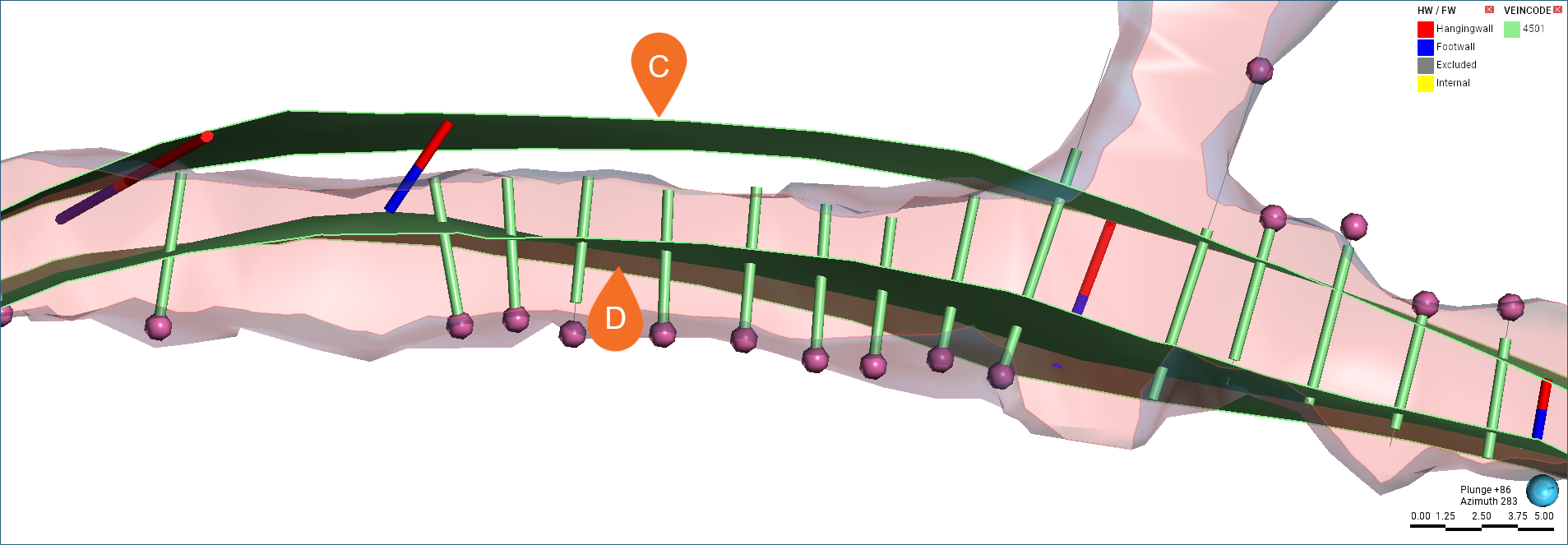
The pink collars are channel sample collars and the narrow pale green segments are channel sample intervals in the vein’s lithology. These channel samples suggest that the footwall surface, especially, is running through the vein lithology.
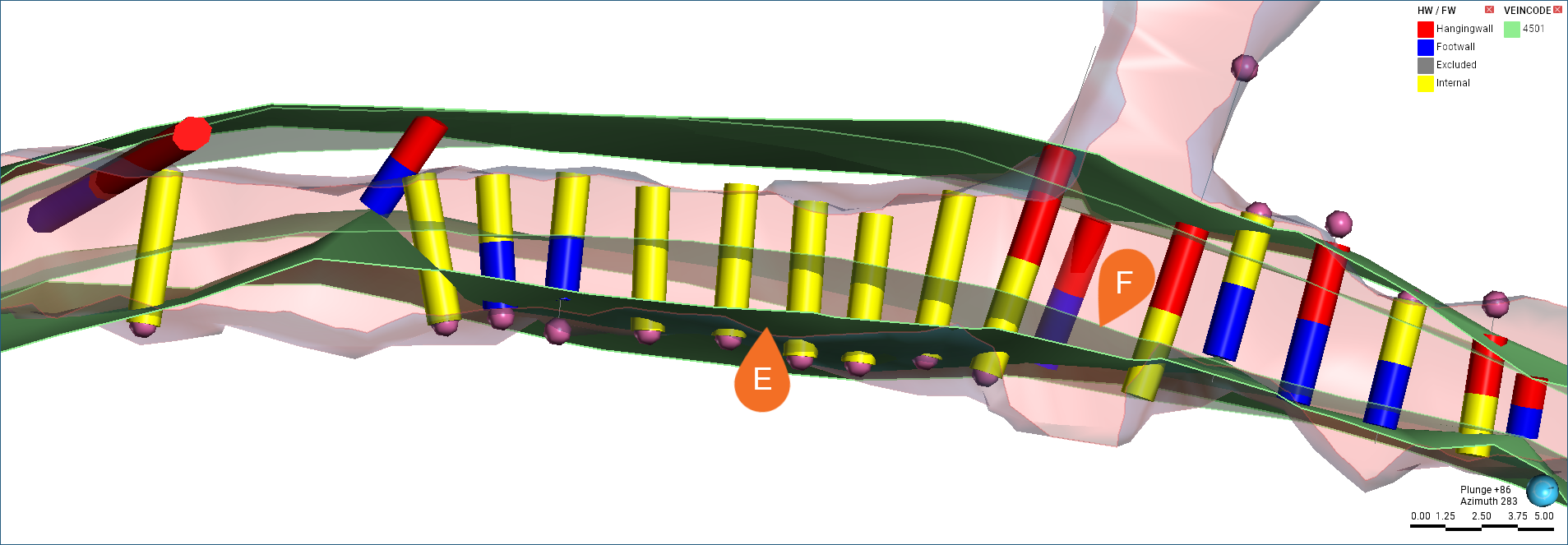
Here channel samples have been added to the vein as other contacts, which are displayed as wider cylinders. In this example, Auto classify internal segments was enabled, resulting in many of the vein segments being classified as internal (yellow). This has resulted in an updated footwall surface (E), compared to the original (F) without channel samples added:
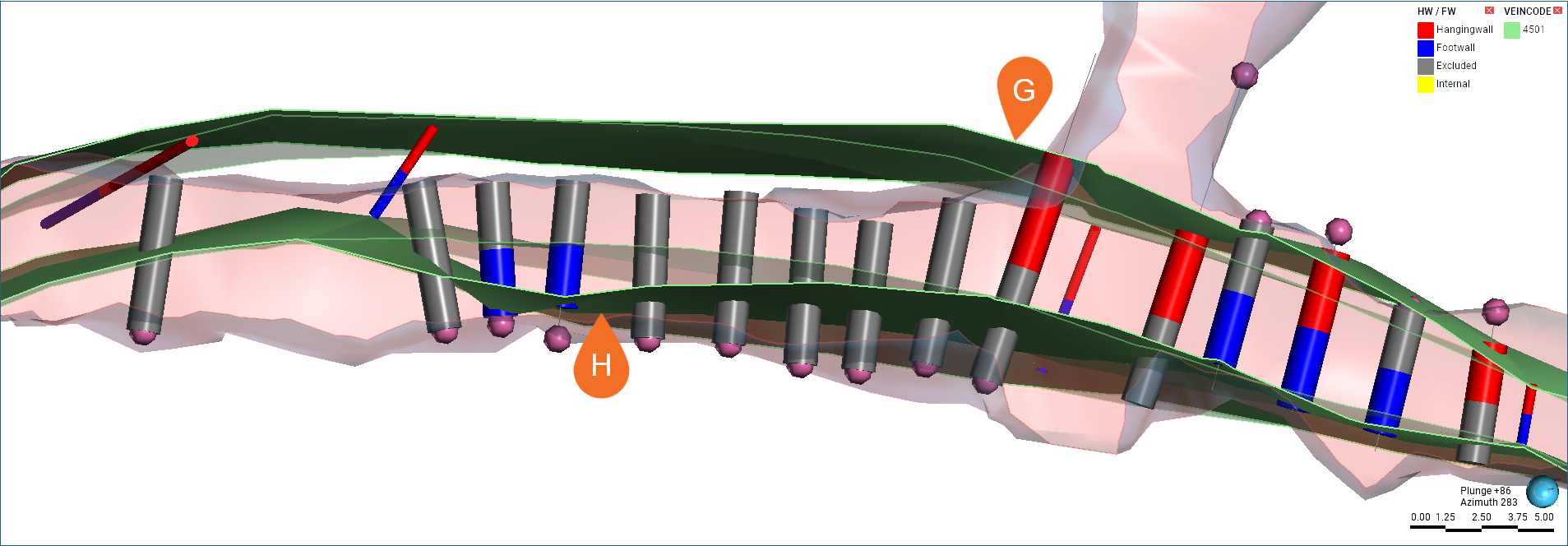
When the Auto classify internal segments is disabled, other contacts will only be categorised into hangingwall, footwall and excluded points. That is the case here, where adding the channel samples has resulted in a only a few new hangingwall and footwall segments and although the updated hangingwall (G) and footwall(H) surfaces show the influence of the channel samples, most of the segments have been classified as excluded, shown in grey, and the footwall surface still runs through the vein lithology.
The Auto classify internal segments setting is not required when adding other contacts to an existing vein; manually editing vein segments to change how they are classified is described in the Editing Vein Segments topic.