Adding a Title Block
Title blocks are tabular parts of a section layout intended to hold metadata about the section.
Displaying a Standard Title Block
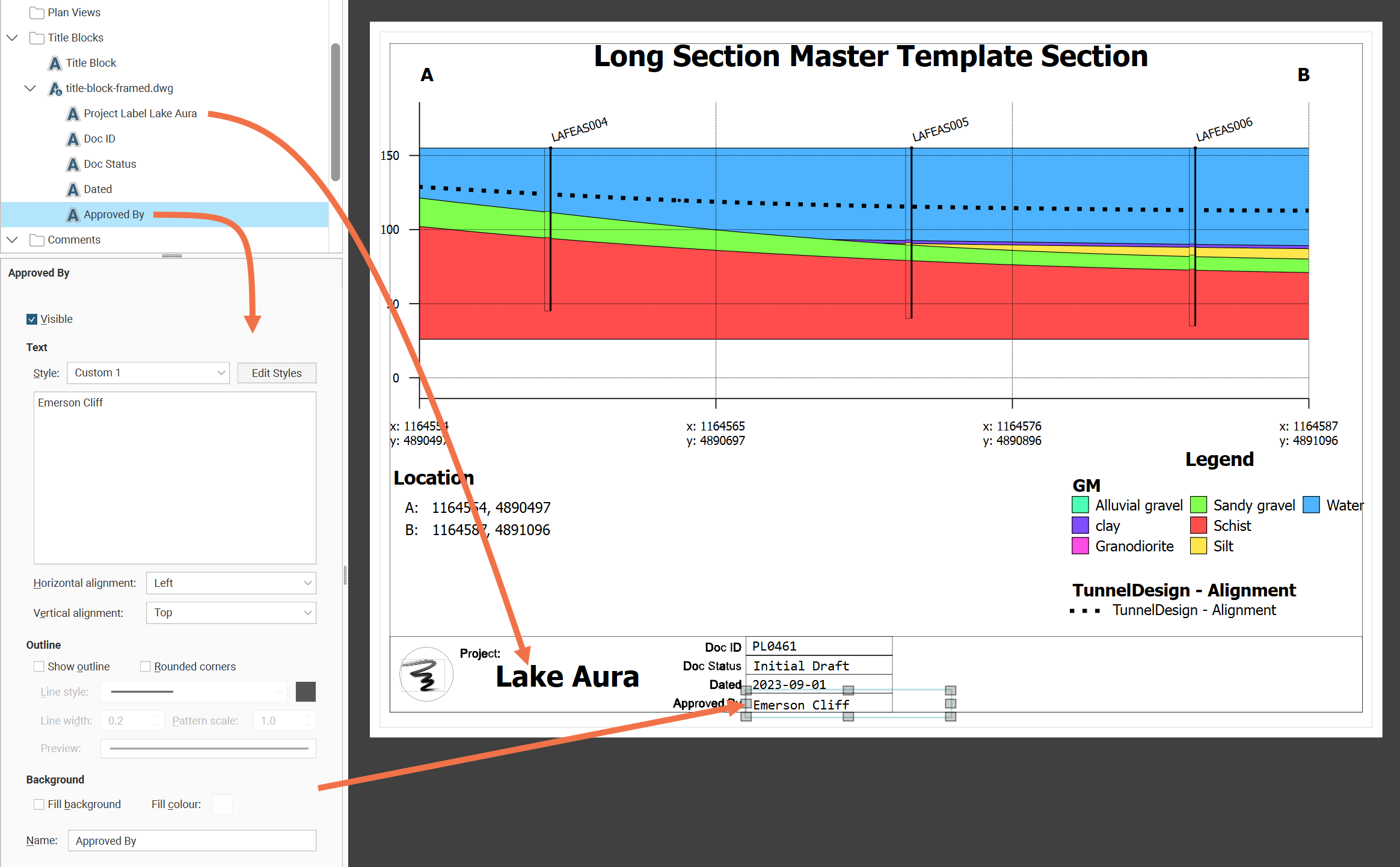
The Title Blocks folder in the layout tree has a built-in title block based on ISO 7200 available for use. When that Title Block is made Visible, a standard title block is displayed on the layout. Click and drag the title block into the desired position. You can select from the predefined styles for the title block's Heading style and Text style, and you can modify the styles by clicking the Edit Styles buttons.
Text can be entered for each of the title block fields:
- Responsible dept
- Technical reference
- Creator
- Approved by
- Legal owner
- Document type
- Title
- Document status
- Identification number
- Rev
- Date of issue
- Sheet
Importing and Using a Custom Title Block
Some organisations may prefer to use a title block that reflects their own preferences and needs. To support this, you can import a custom title block in either DWG or DXF formats.
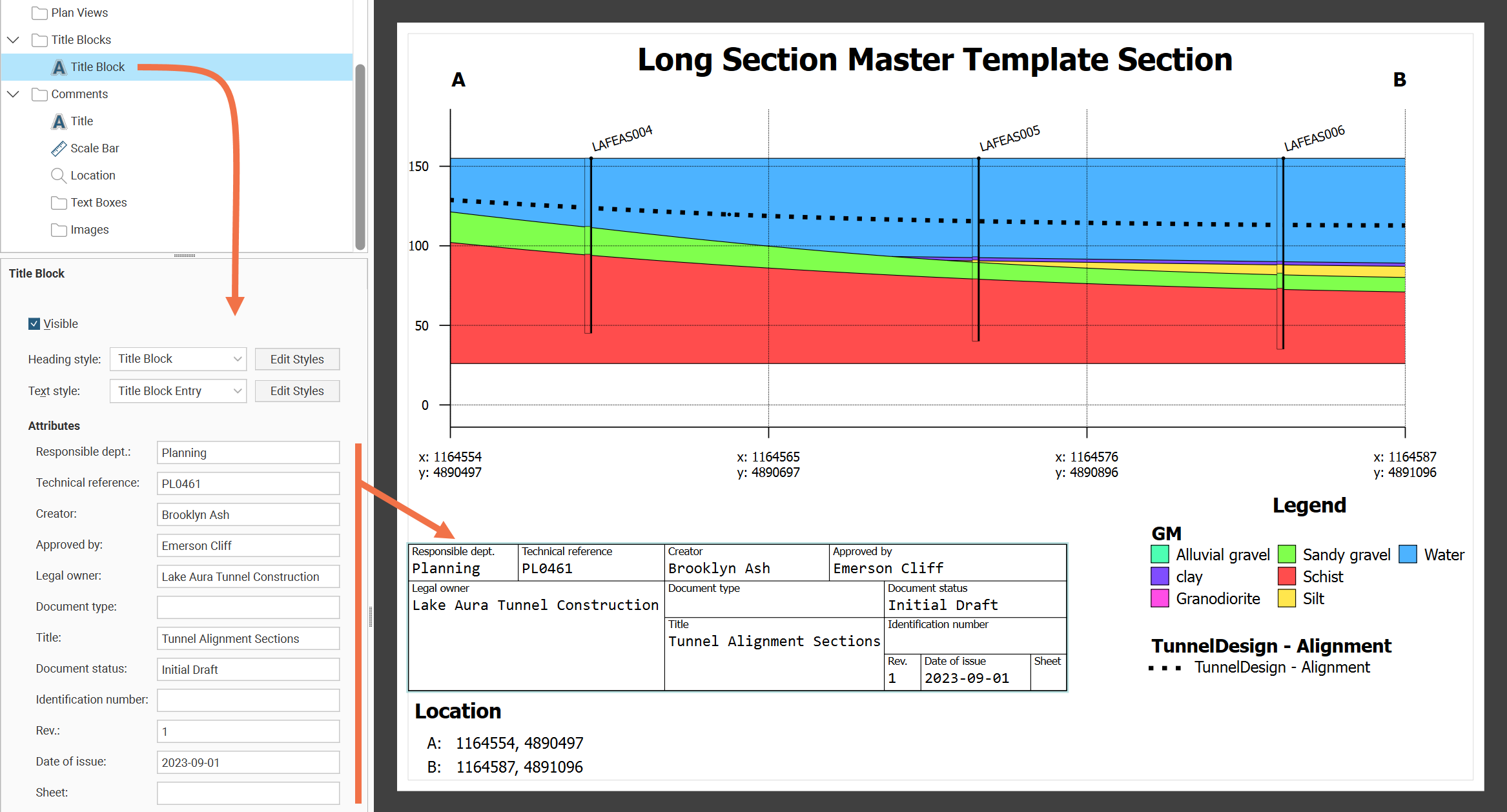
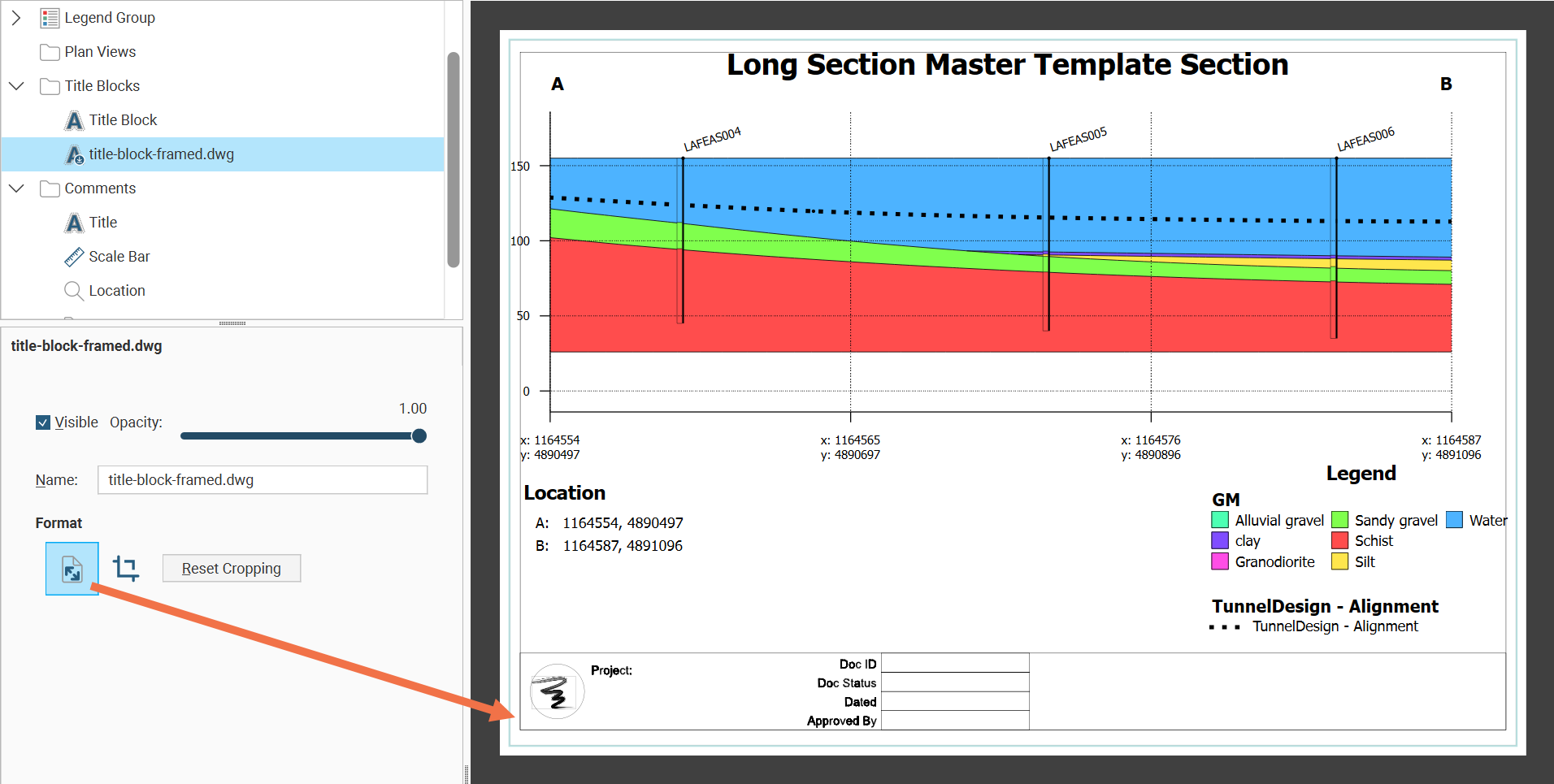
To import a title block design, right-click on the Title Blocks folder in the layout tree then select Import Title Block. Navigate to the location of your design file and open it. The imported design file will appear in the layout tree and in the section layout.
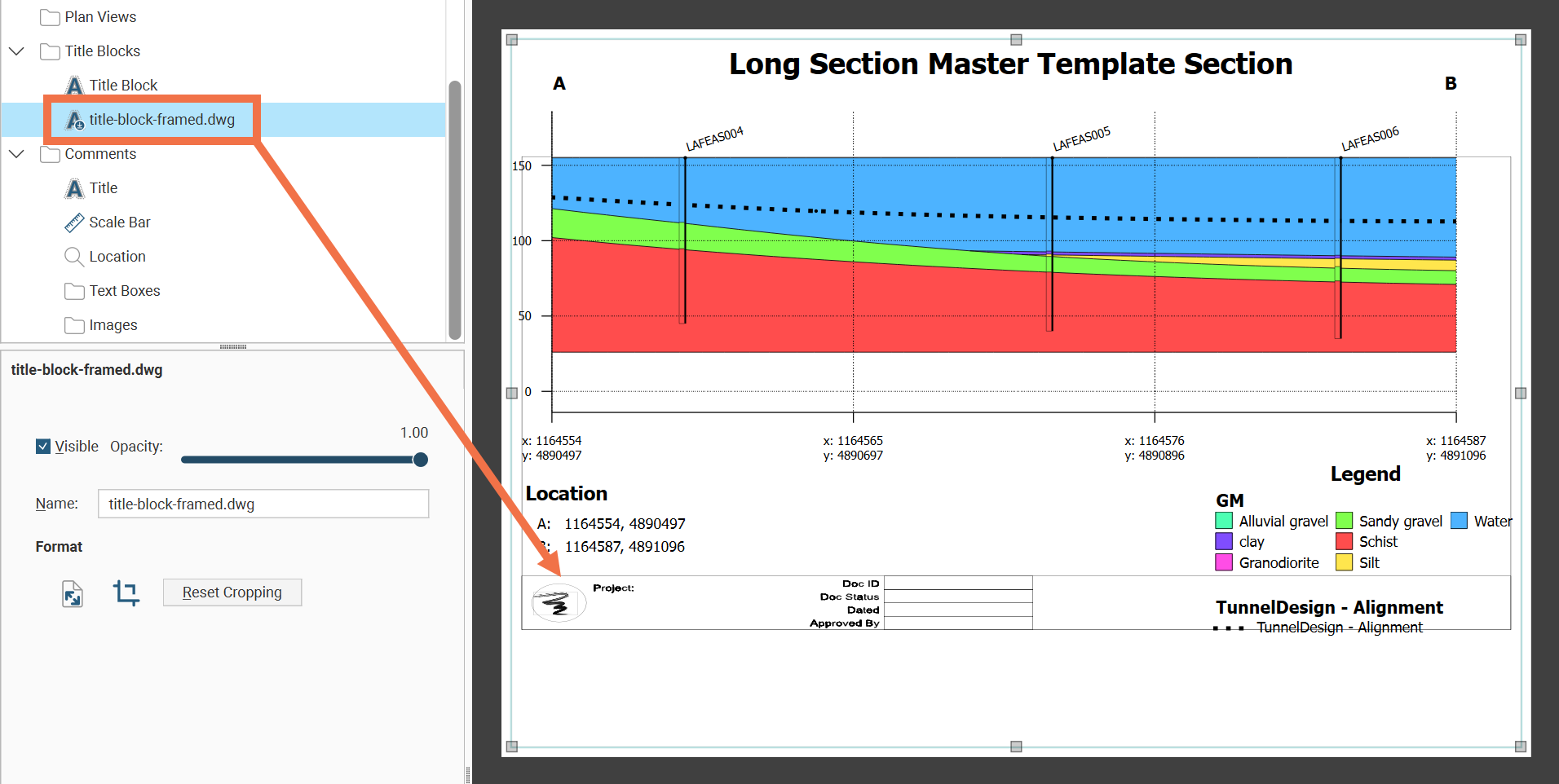
To adjust the framing and whitespace around the imported title block design, click the Crop title block button ( ) and drag the handles.
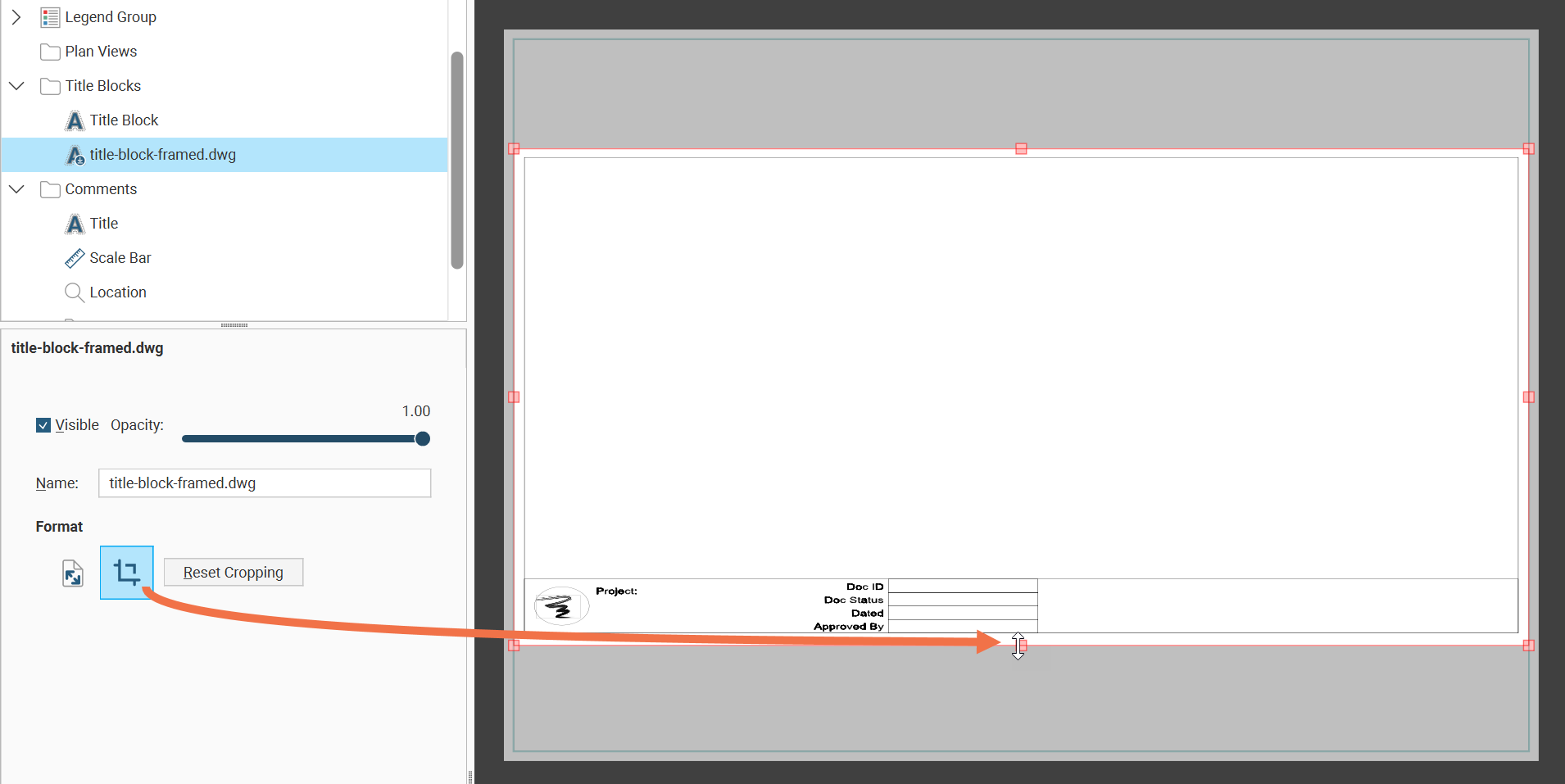
Stretch the design to the page margins using the Expand to fill page button.
To fill in labels on the title block and to add images that are not part of the title block design, you can add text boxes and images to the imported title block. These work the same as for the text boxes and images in the Comments folder, but they are nested under the title block they belong to. Right-click on the imported title block in the layout tree and select Add Textbox or Add Image.