
Visualising Sample Geometries and Estimators
Sample geometries and estimators can be visualised by evaluating them on block models. To evaluate an estimator on a block model, right-click on the block model in the project tree and select Evaluations. See Block Models on how to work with the different types of block models available in Leapfrog Energy.
When a geological model is evaluated onto a block model, each block will be assigned according to the geological model volume that is at the centroid of the block.
Calculations and filters further enhance the visualisation options, adding computational analysis and processing of data capabilities to create new types of data to visualise. To create calculations and filters, right-click on a block model in the project tree and select Calculations and Filters. See Defining Calculations and Filters for information on creating filters and building calculations.
When you select Evaluations, the block model’s main window will be opened with the Evaluations tab displayed:
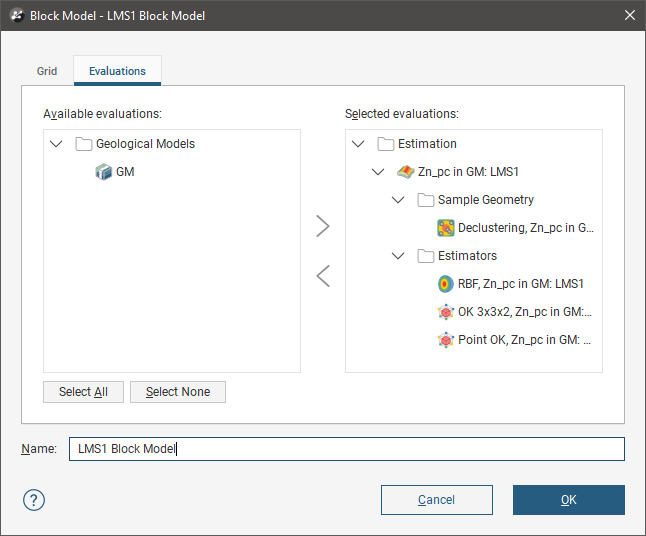
You can add all of, for example, a domained estimations sample geometries and estimators to the Selected evaluations list by double-clicking on the domained estimation itself.
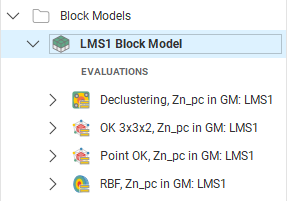
Click OK to process the evaluations, which will be added to the block model in the project tree:
When selecting evaluations on a sub-blocked model, you can evaluate onto the parent block centroids or the sub-block centroids:
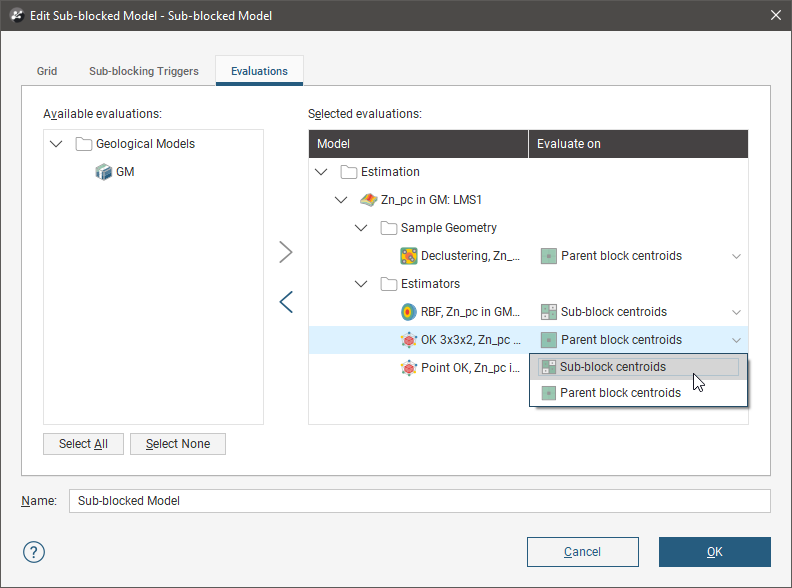
When discretisation is used to estimate onto sub-blocks, the relative discretisation point spacing for the parent block is used, recentred on the sub-block centroid. The block discretisation is not scaled down to the sub-block size, and some of the discretisation points used to compute the sub-block estimate may lie outside the sub-block.
Display an evaluation by dragging it into the scene or by right-clicking on it in the project tree and selecting View Object.
Each evaluation will appear in the list of block model evaluations:

Any Attributes generated along with the estimator can also be displayed evaluated on the blocks:
