Configure Dispatch Headers
Sample dispatch headers contain information for sample submittal, such as client information and instructions for the laboratory. In the sampling work flow, the sample dispatch header is the form that is completed when a new sample dispatch is created.
This topic describes how to define sample dispatch headers in MX Deposit. It is divided into:
Viewing Dispatch Headers
To view the sample dispatch headers in your MX Deposit account, go to the Site settings page and click Sampling > Dispatch Headers.

Your MX Deposit account is pre-loaded with MX Sample Dispatch Headers. These are a useful starting point for setting up your account.
Creating a Dispatch Header
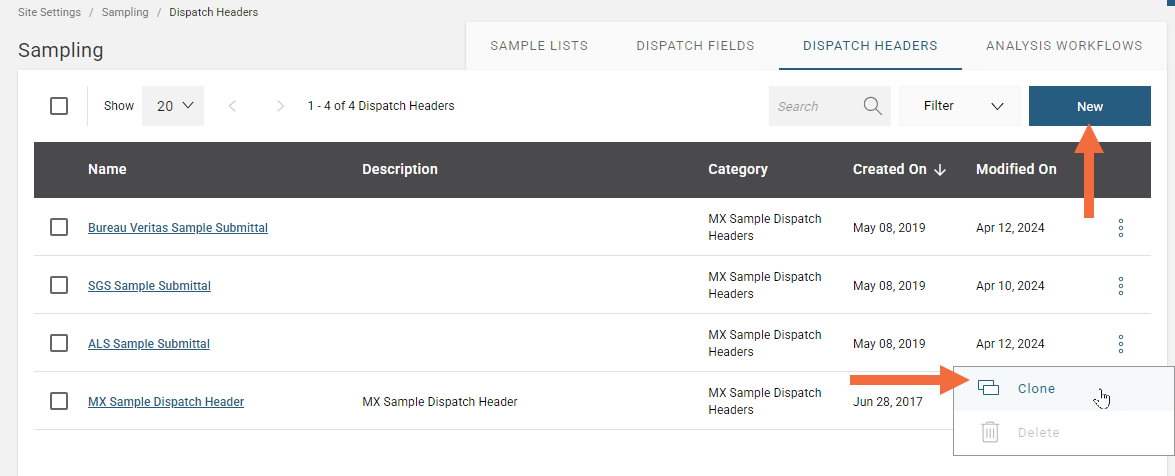
To create a dispatch header, select New in the Dispatch Headers collection or if there is a header you already have in your account that you want to create a copy of, you can select Clone from the overflow menu .
.
Name your header and choose what Category you want it to be in. You can provide a Description to help you to know at a quick glance what this header is for.
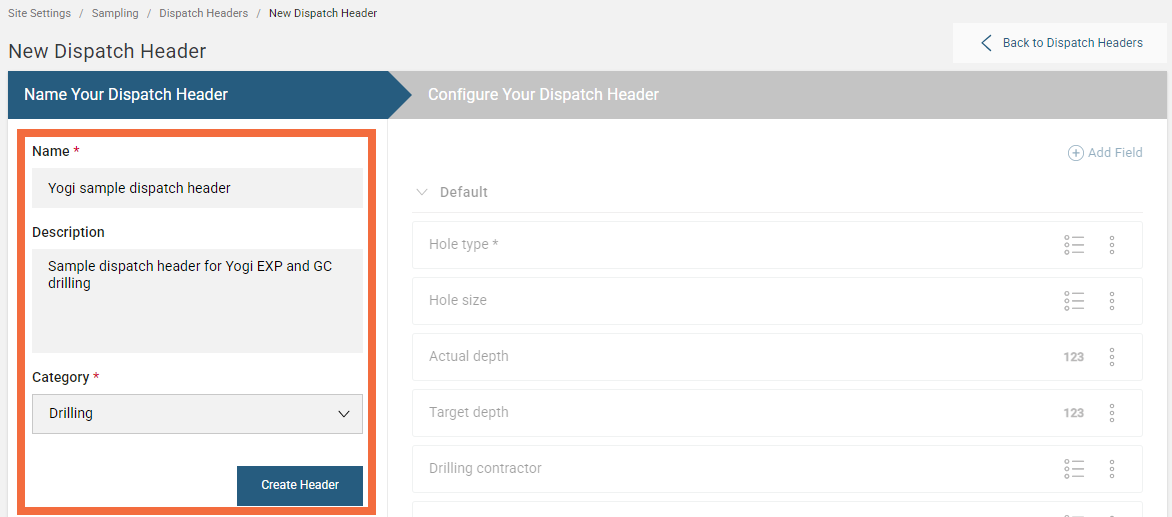
Click Create Header to Configure Your Dispatch Header.
The new sample dispatch header will come populated with some default fields.
If you are working in the new version of MX Deposit, there is no need to add a field for the Hole number and the Status as this information is automatically captured during logging.
To add a field, click Add Field and select from a list of existing fields, you can add multiple fields at once.
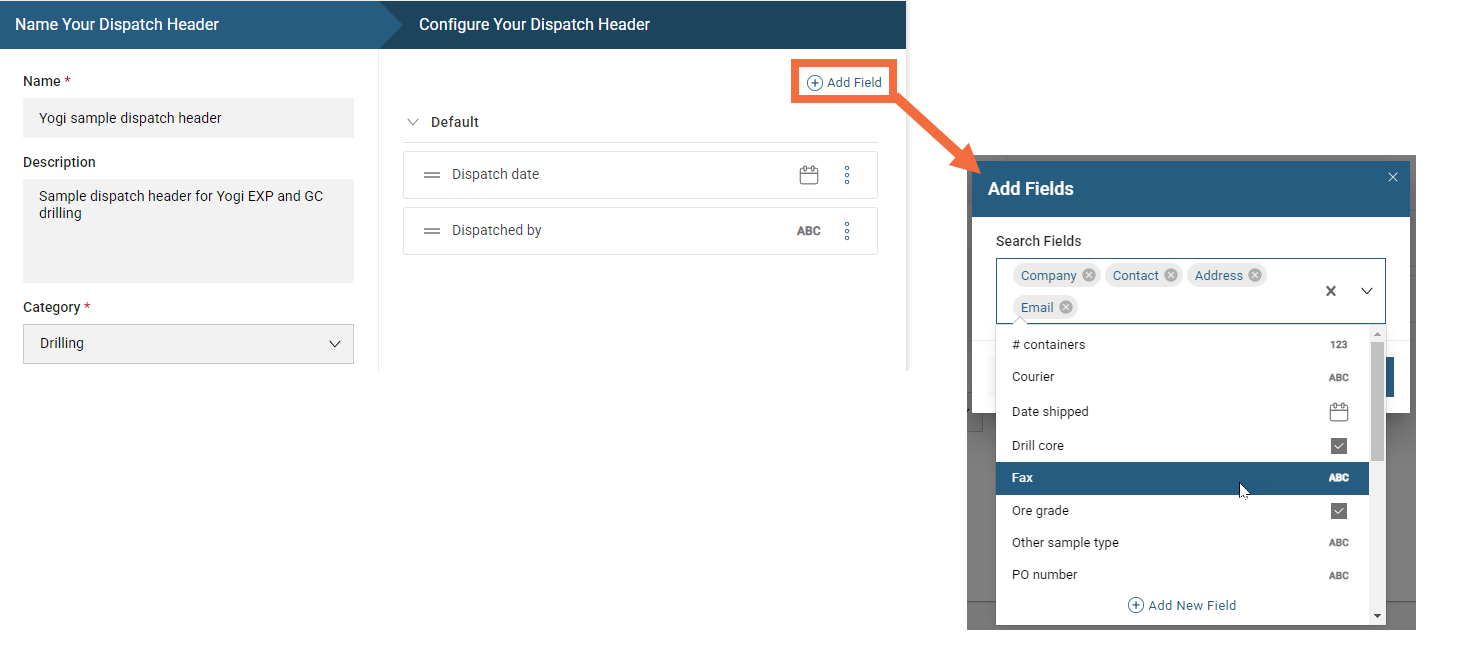
To add a new field that is not listed, click on Add New Field. A window will appear prompting you to name select a data type for the new field:
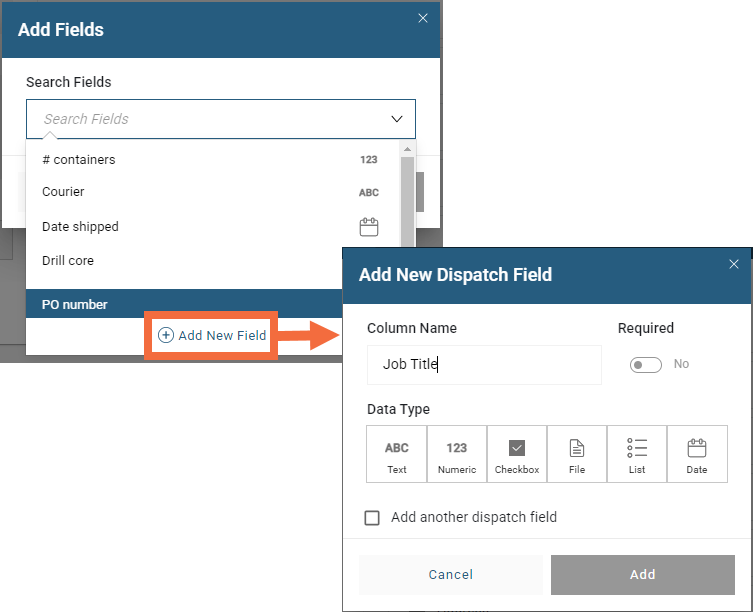
Name the dispatch field and choose the field’s data type in the window that appears. Options are:
- Text. The user will enter text. You can specify the Character length to allow for shorter or longer descriptions.
- Numeric. The user will enter a numeric value. You can specify a Min value and a Max value to constrain the numeric value that can be entered. Precision is for specifying how many decimals places you want to have displayed; the full value will be saved as the Precision setting only affects what is displayed.
- CheckBox. The user will tick or not tick a box. Make sure the field name describes what ticked and unticked means.
- File. This prompts the user to take a photo or upload a file.
- Date. This brings up the option to insert a date.
Setting Required to Yes for a dispatch field will ensure the logger cannot proceed with logging until that field is completed.
Click Add to save the dispatch field.
To view and edit all saved dispatch fields go to Site Settings > Sampling > Dispatch Fields.
If there is a field already in the dispatch header that you want to change, click on the overflow buttonfor the field and Edit or Remove it.
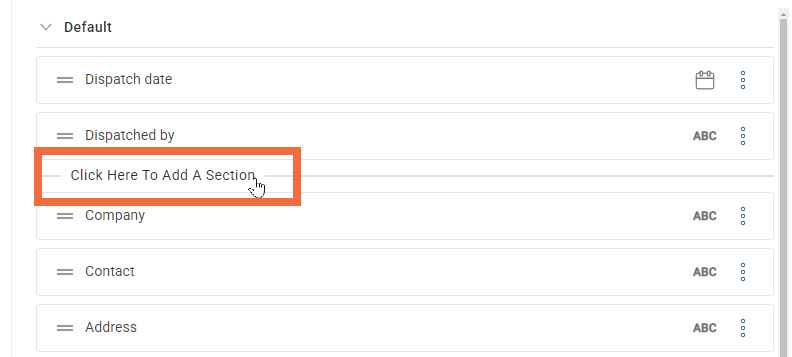
Create sections to organise dispatch header fields. To do this, hold the cursor over the area below an existing section. The option to add a new section will appear; click and give your new section a name.
Deleting a Dispatch Header
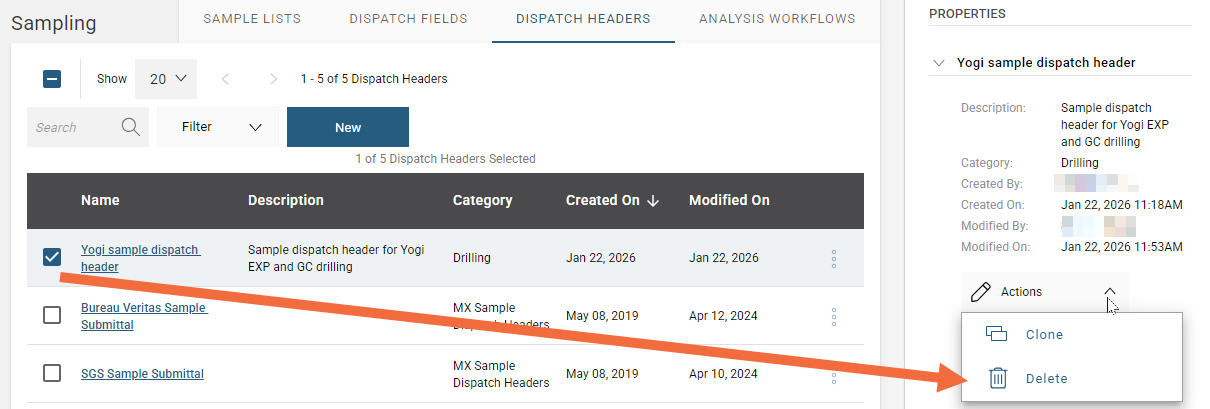
You can delete a sample dispatch header from the library only if it is not used in an analysis workflow. If this is the case, a Delete option will be available from the Actions menu in the Properties panel of the selected dispatch header. You will be asked to confirm your choice.