
Installation and Sign-In Workflows
With the transition to the Bentley CONNECTION Client, Geosoft Desktop applications now support three distinct installation and sign-in workflows. The appropriate workflow depends on your Bentley account status and license configuration.
Seequent Connector Only (No Bentley Account)
This workflow applies if you do not have a Bentley account.
-
Installation Method: Via Seequent Connector
-
Sign-In: Seequent Connector only
-
License Source: All licenses retrieved from XID
-
Bentley CONNECTION Client: Not required or used
Hybrid Workflow (Bentley Account Without Licenses)
This applies if you have a Bentley account but no licenses on Bentley IMS.
-
Installation Method:
- Bentley CONNECTION Client is required
- Seequent Connector installs automatically
-
Sign-In:
-
Bentley CONNECTION Client (mandatory)
-
Seequent Connector remains unsigned
-
-
License Source: All licenses still retrieved from XID
If your Bentley ID is linked to licenses on both XID and Bentley IMS, the XID licenses will be prioritized over the SES entitlements.
Bentley CONNECTION Client Only (Bentley Account With Licenses on Bentley IMS)
Use this workflow if you have a Bentley ID and licenses exclusively on Bentley IMS.
-
Installation Method:
-
Bentley CONNECTION Client only
-
Seequent Connector is not initially installed. However, it will be automatically installed after the main installation when the application is launched.
-
-
Sign-In: Bentley CONNECTION Client
-
License Source: Bentley IMS
If Seequent Connector is present, it remains inactive and does not interact with the application.
Signing In
When installing Oasis montaj or the stand-alone Target application, you may be prompted to enter your email address to verify whether your user account is domain-locked to Bentley Systems. Enter your credentials and click Get Started.
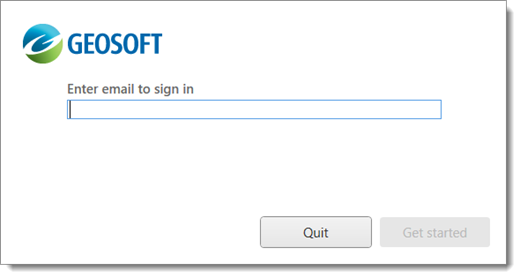
Subsequent installations of the Oasis montaj or Target application will no longer display the email sign-in prompt.
License Provider Selector
If your account is not domain-locked or you are not an existing Bentley Systems user (linked to a Bentley account on IMS), you will be prompted to choose between the two license providers (Seequent Connector or Bentley CONNECTION Client) and their respective sign-in options: Seequent ID or Bentley account.
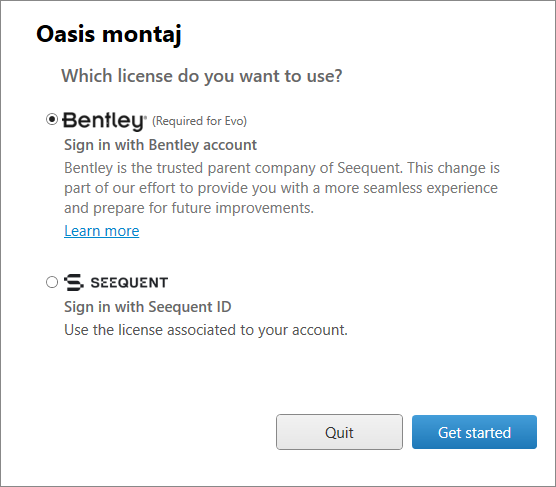
After selecting your provider, click Get Started to proceed with installation.
For guidance on signing in with your Seequent ID or Bentley Account, expand the sections below.
To sign in with a Seequent ID:
- If you are not already signed in to the Seequent Connector, you will be prompted to do so.
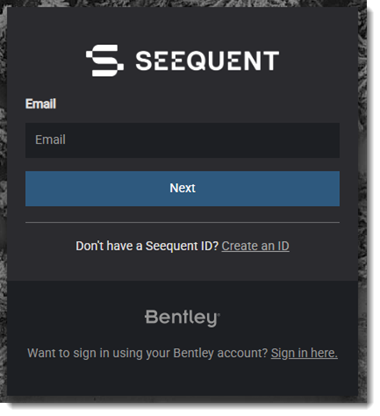
- Authentication will occur in your browser. Enter your email address and click Next.
For more information about the Seequent ID and the licensing service required to run Seequent applications, refer to the Seequent ID and Seequent Connector topic.
- If a Bentley account is detected, you may choose to sign in with your Bentley credentials instead. Either method grants access to the entitlements linked to your email.
- Click Get Started to complete sign-in.
Ensure the Bentley CONNECTION Client is installed. If it is not installed, you will be prompted to download it:
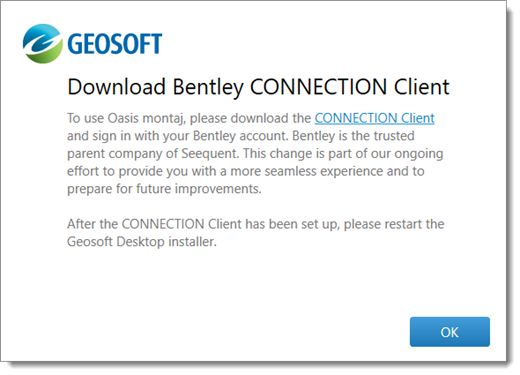
If the CONNECTION Client is installed but you are not signed in, you will be prompted to sign in:
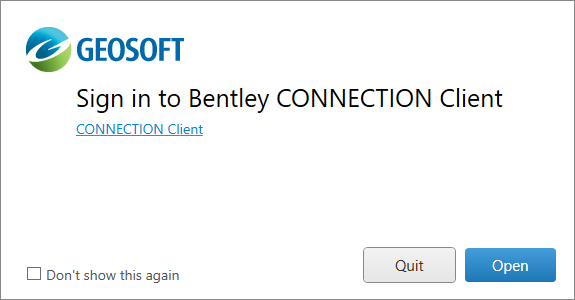
Click Open to launch the CONNECTION Client and enter your Bentley credentials:
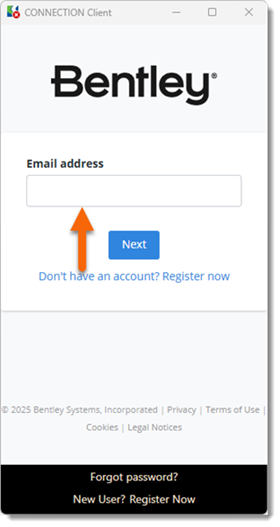
For more information, refer to the Bentley CONNECTION Client topic.
- License and Subscription Management
The Seequent Connector will appear in the system tray
and stays unsigned unless already installed and signed in.
Your identity is managed through the Bentley Connection Client.
- XID continues to manage Seequent subscriptions and license entitlements. See the linked Seequent Connector topics for features available in the system tray application.
If you signed in with an ID that has entitlements exclusively in Bentley IMS, SES entitlements will be applied.If the CONNECTION Client was installed and configured during the installation process, you will need to restart the Geosoft Desktop Applications installer to complete the installation.
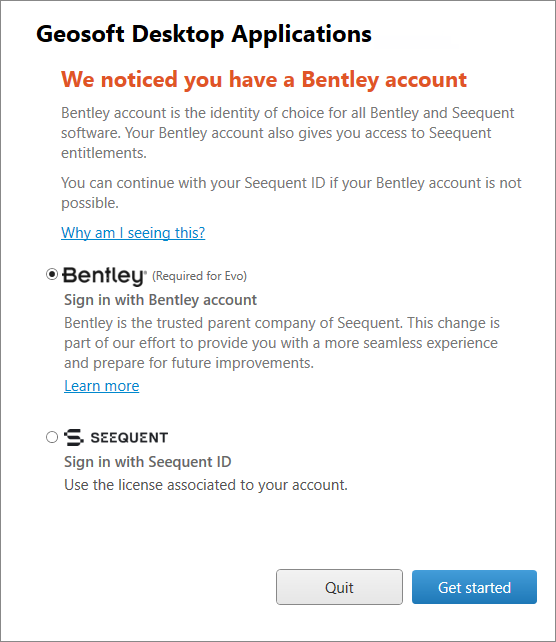
Future installations of the Oasis montaj or Target application will no longer display the license provider dialog.
Installing
During installation, the Select Applications to Install dialog will appear. Available applications and options depend on your entitlements.

-
Select the licensed applications and any additional options.
-
Click Next and follow the setup wizard to complete installation.
Launching and Running Oasis montaj
If you are not signed in or become disconnected, you will be prompted to either:
No Entitlements or Disconnected Usage
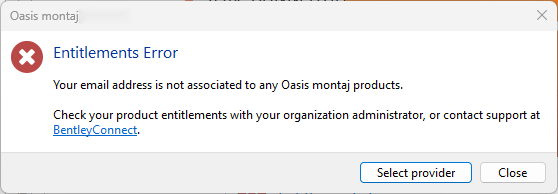
If you lack the required entitlements or cannot be validated, an error message will appear. An example is shown below.
-
Verify your product entitlements with your organization's administrator, or use the provided
-
Click Select Provider to relaunch the License Provider Selector as an alternative resolution path.
-
Click Close to exit the installer if it is currently running.
See Also:
Got a question? Visit the Seequent forums or Seequent support
Copyright (c) 2025 Bentley Systems, Incorporated. All rights reserved.
Privacy | Terms of Use