
Editing Vein Midpoints
Veins created from drilling data contain vein segments, pinch out segments and midpoints. This topic describes editing vein midpoints, which are used to create a first-pass reference surface.
You can manually select vein midpoints and set them to excluded from processing. To do this, right-click on the vein midpoints object ( ) in the project tree and selecting Edit In Scene.
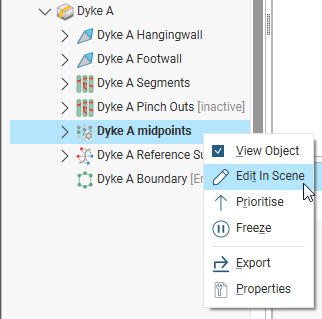
If you manually edit midpoints, you can export the edits for use in other veins and models in the current project or in other projects. The edits are exported in a text file. See the Exporting and Importing Vein Edits topic for more information.
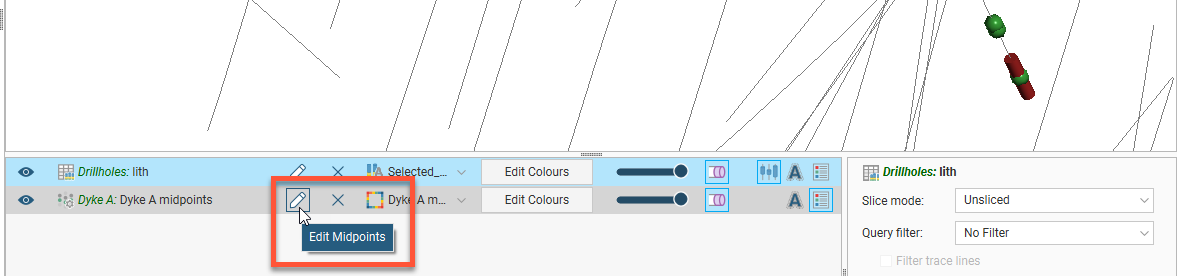
If the vein midpoints object is already in the scene, you can edit it by clicking the Edit button ( ) in the shape list:
The Vein Segment Midpoints window will appear, along with a set of tools for selecting midpoints in the scene:
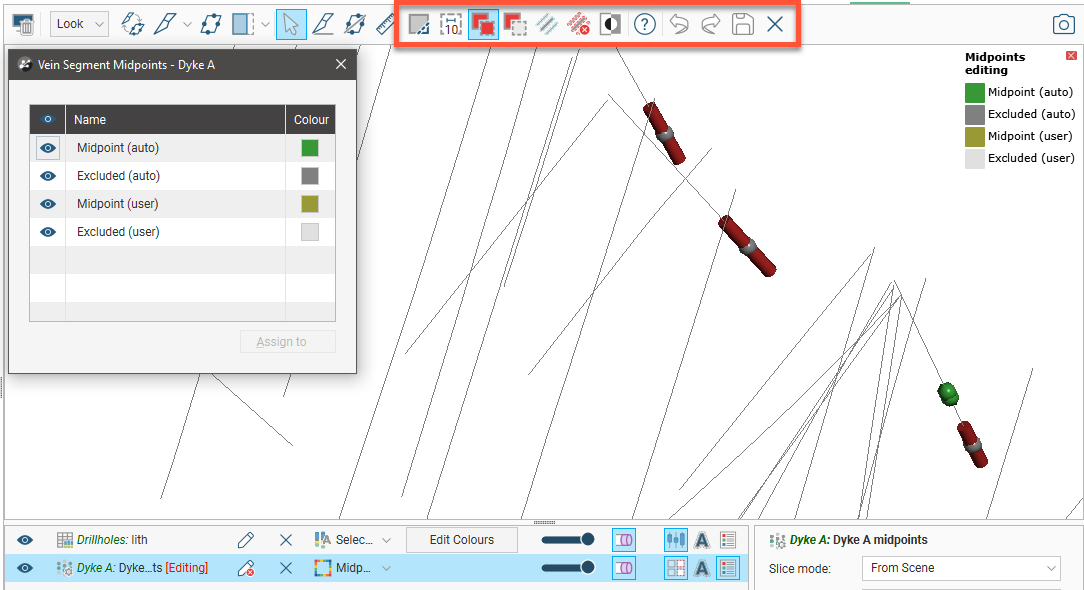
The process is similar to editing vein segments, as described in the Editing Vein Segments topic. The categories shown for midpoints are:
- Midpoint (auto) and Excluded (auto). These are the categories Leapfrog Energy assigned midpoints to when the vein was created. If Include mid points at the ends of holes is disabled, some midpoints may be automatically categorised as Excluded (auto), which is the case for three of the midpoints shown above.
- Midpoint (user) and Excluded (user). Midpoints assigned to these categories have been manually assigned to these categories. These are the categories you can assign selected points to.
Assigning a midpoint to the Auto category sets it to the category Leapfrog Energy automatically assigned it to when the vein was created, which has the effect of undoing any edits made previously.