
Configuring columns
BlockSync columns represent the individual attributes or fields within a block model that store geological data, metadata and system-generated information for every block. While a BlockSync model’s grid definition is fixed at the first version, you can add, remove, or rename columns over the life of the model, and team members can check out specific attribute subsets to target their updates to only the data that needs to change.
This topic describes configuring columns in the BlockSync port. It is divided into:
Choosing what columns to include when importing or updating a block model is discussed in the separate Importing block models topic.
Viewing block model columns
In the BlockSync portal, the Columns tab for each block model is for viewing and managing the columns on the latest version of the block model. Columns can be category columns or numeric columns.
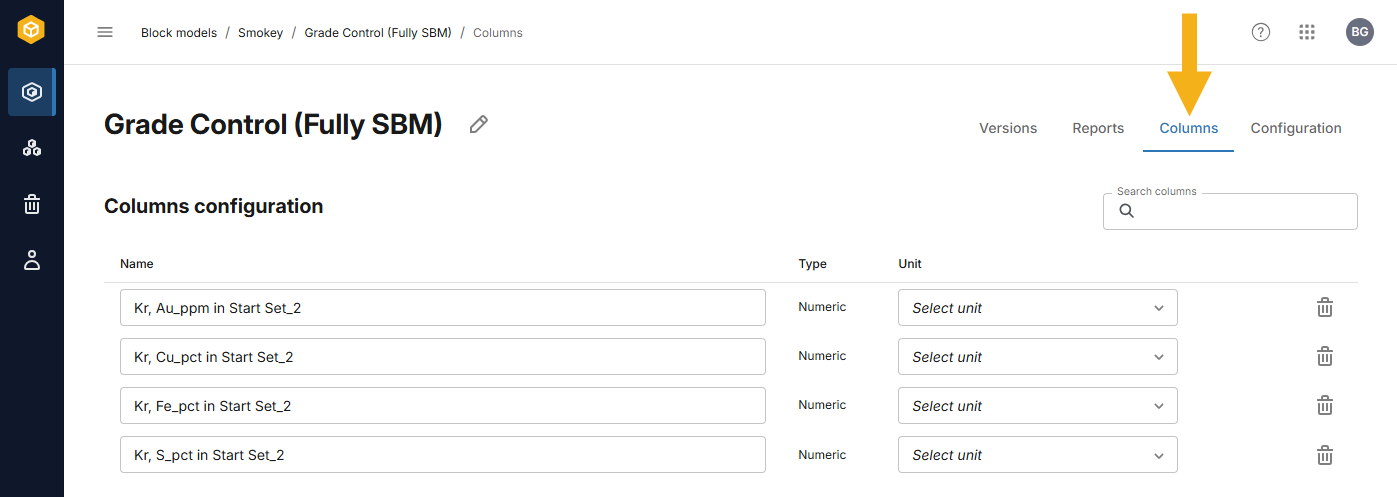
Unlike when importing a block model, only the data columns are visible in the Columns tab. A block model’s grid definition cannot be changed once it has been imported.
The columns listed are those for the latest version of the model. It is not possible to view deleted block model columns in BlockSync, although records of these are maintained in prior versions.
Editing columns
When you edit columns, you can:
- Change the column name
- For numeric columns, set a Unit for the column
- Delete columns
Editing columns will result in a new version of the block model, so rather than making and saving changes one at a time, the editing process involves:
- Making the required changes
- Entering a comment on the new version
- Saving the changes
When you make a change to a column, an Update label will appear:
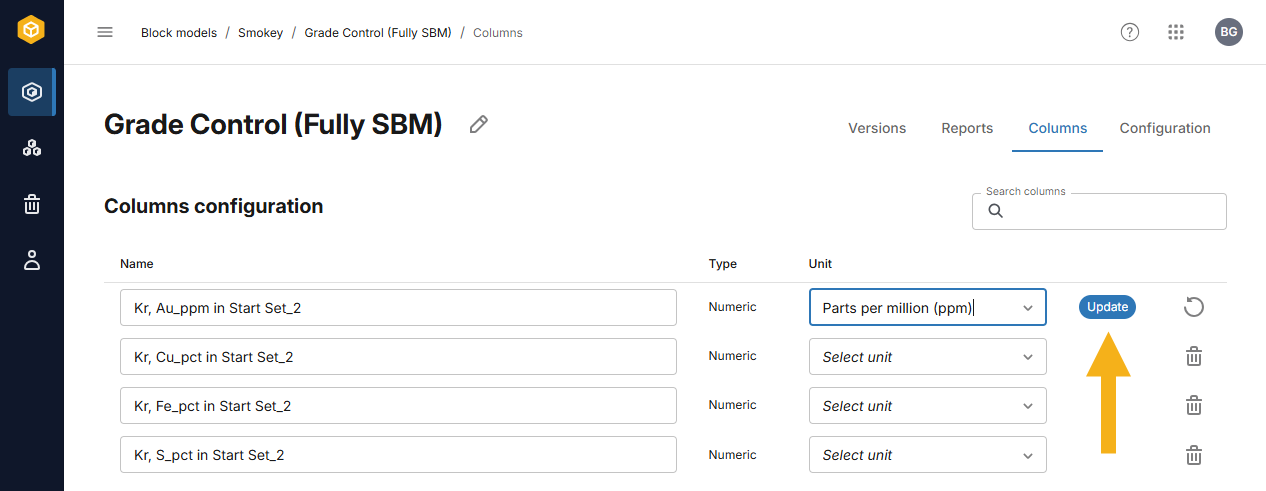
When you are making multiple changes to columns, this label is useful for scrolling through the columns to see what changes will be made once the Save button is clicked.
You can undo any change before saving the block model by clicking its Undo button ( ).
Once you have finished making all the required changes, click Save.
You will be prompted to enter a comment for the update:
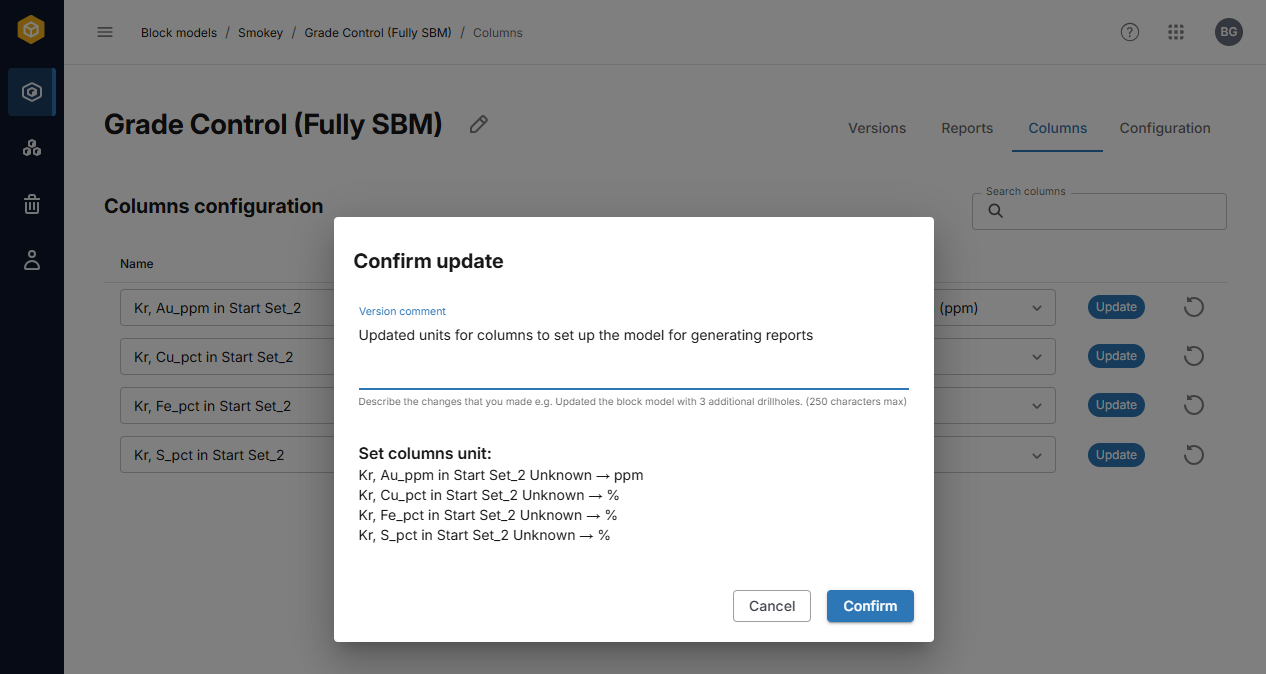
The update to the model will then be processed and a new version created.
Editing column groups
With column groups, columns can be nested up to four levels deep. The top level column group is referred to as a parent group.
When a block model contains one or more column groups, there will be an Update policy (A) column in the Columns tab, as shown here, where the parent group (B) has two column groups, with one marked as hidden (C):
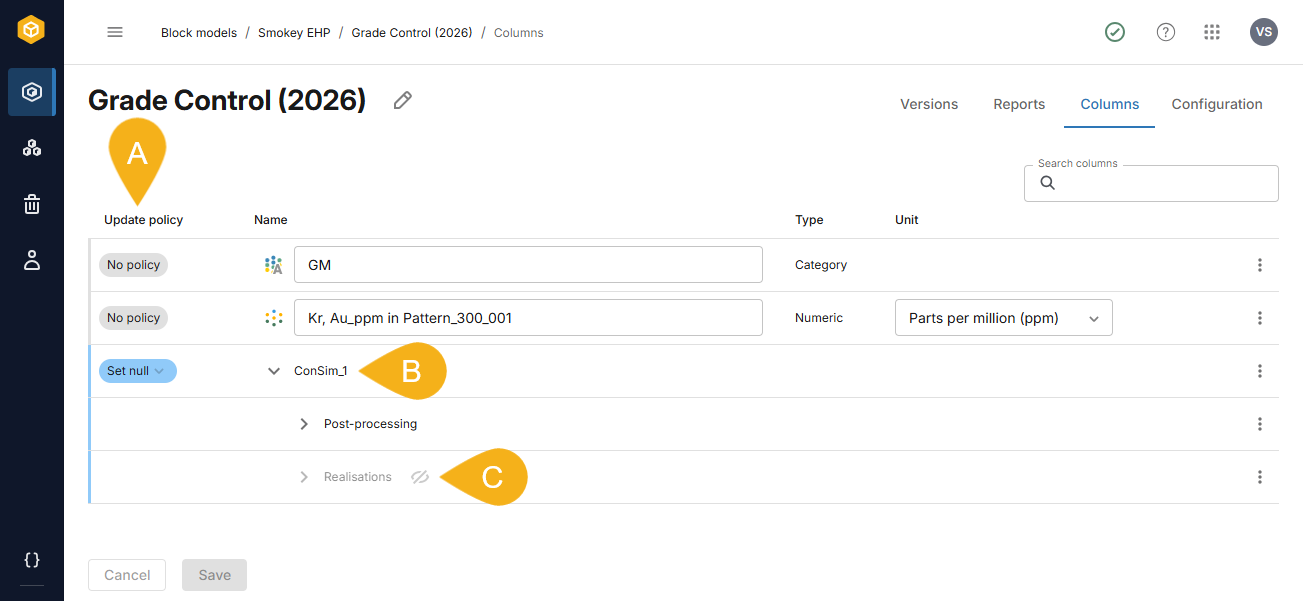
The options for editing individual columns in a column group are the same as for ungrouped columns.
Column groups can only be deleted if they contain no columns.
Hidden column groups
Setting a column group to be hidden is a way of reducing the number of columns displayed in some circumstances. This includes when:
- Downloading the model file from the BlockSync portal. Hidden column groups are not included in the downloaded file, which results in a smaller download.
- Creating report templates. Hidden column groups will not be included in the lists of columns to add to the template, which can make creating templates for models with many columns easier.
Setting column groups as hidden is a way of reducing the information overload that can arise when working with large numbers of attributes. Hidden groups remain accessible, as making them visible once again is straightforward.
To hide a column group, click on the overflow menu for the column group and choose Edit group. Tick the box to hide the column group.
Individual columns in a column group cannot be hidden on a column-by-column basis.
Column group update policy
When an update to a block model is published that is a spatial or attribute subset, columns will be missing for that version. The update policy determines how those missing columns are handled:
- Use previous. Any columns missing from the update will use the values from the previous version.
- Reject. The entire update request will be rejected. This policy can be used as a “safety” for critical datasets where all columns must be updated together to remain valid.
- Set null. The value of any missing column will be set to null in all updated blocks. This policy can be used for diagnostic or simulation columns as a means of ensuring that stale data from previous runs doesn’t persist if it wasn’t pre-estimated.
- No policy. The group inherits its update policy from its parent group. If its parent group is set to No policy, Use previous will be applied.
To change the policy for the parent group, choose the policy you wish to use from the Update policy list or choose Edit group from the parent group’s overflow menu.
To change the policy for a column group, choose Edit group from its overflow menu.