
Comparing report versions
Once you have more than one version of a report, you can generate a report comparing two versions:
To start, open one of the versions of a report and click the Compare button. In the window that appears, you can choose the versions you will compare. BlockSync suggests a comparison, based on the report you have open at the time. If you have the most recent version open, BlockSync will suggest comparing the report with the next most recent version. That is the case here, where the latest version is open (A), and BlockSync suggests comparing it against Version 6 (B):
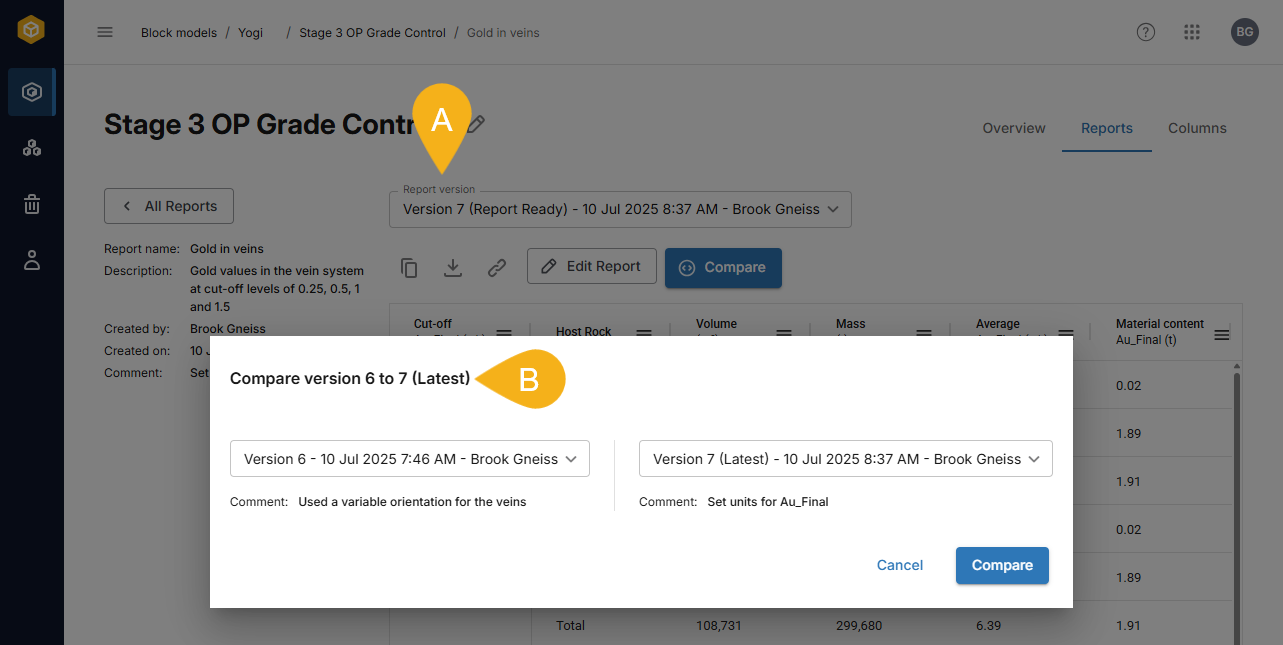
If the version open is not the latest version, BlockSync will suggest a comparison between the open version and the latest version.
Once you have chosen the versions you wish to compare, click the Compare button.
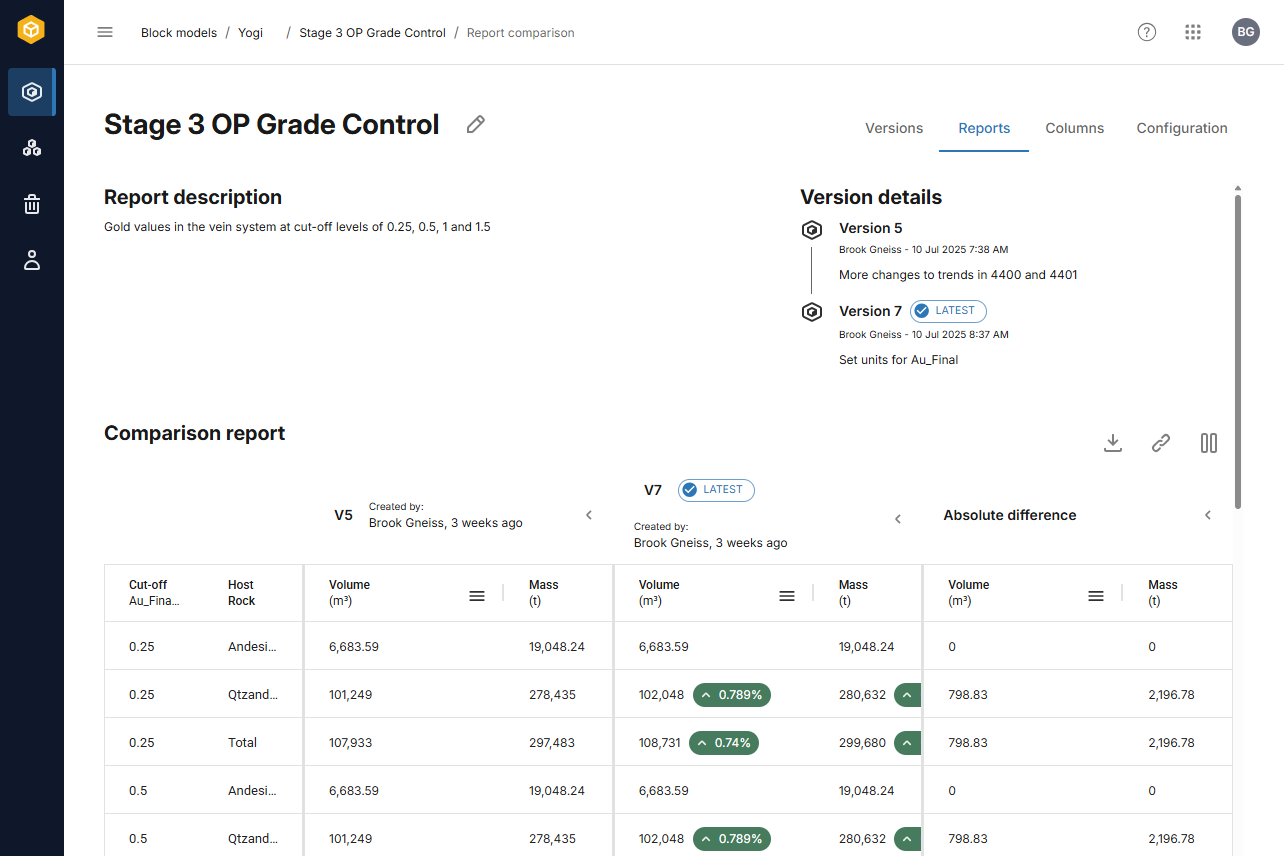
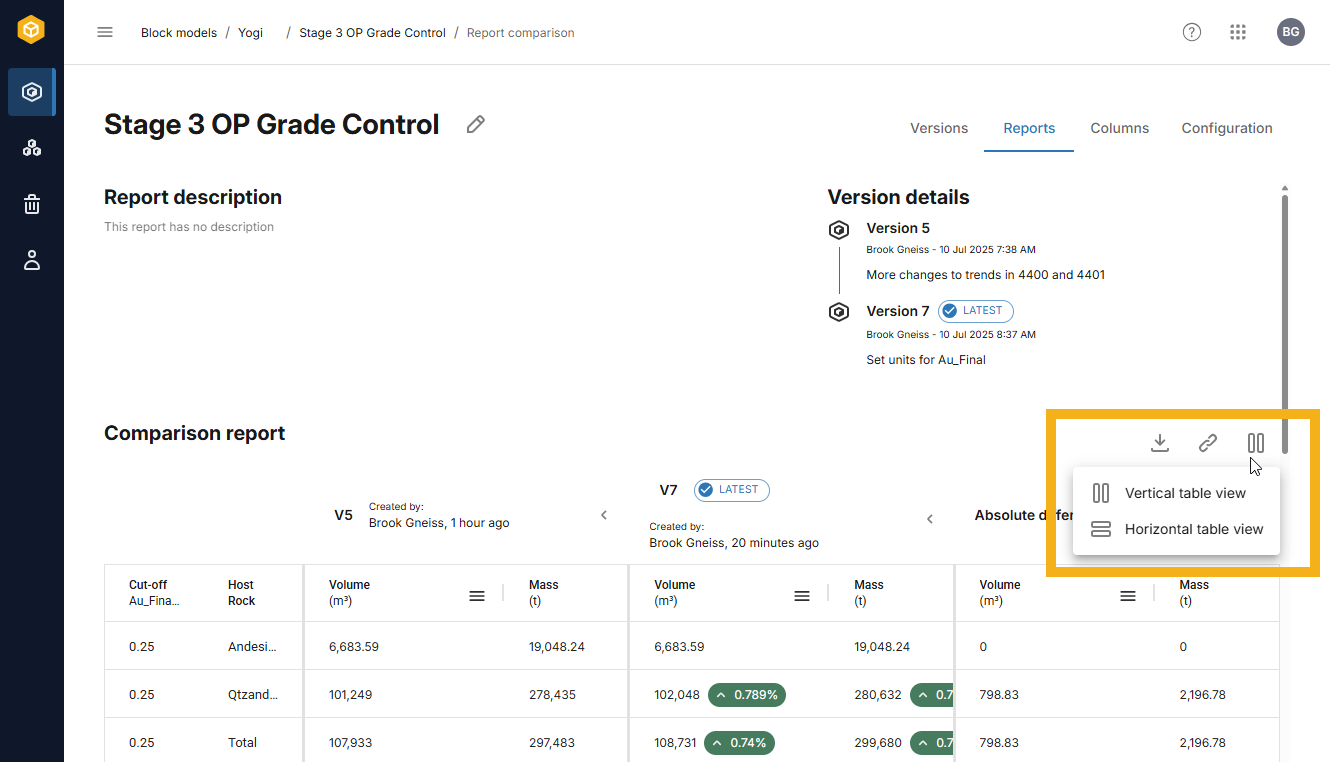
In the window that appears, there are two ways to view the table, vertically, which is the default, or horizontally:
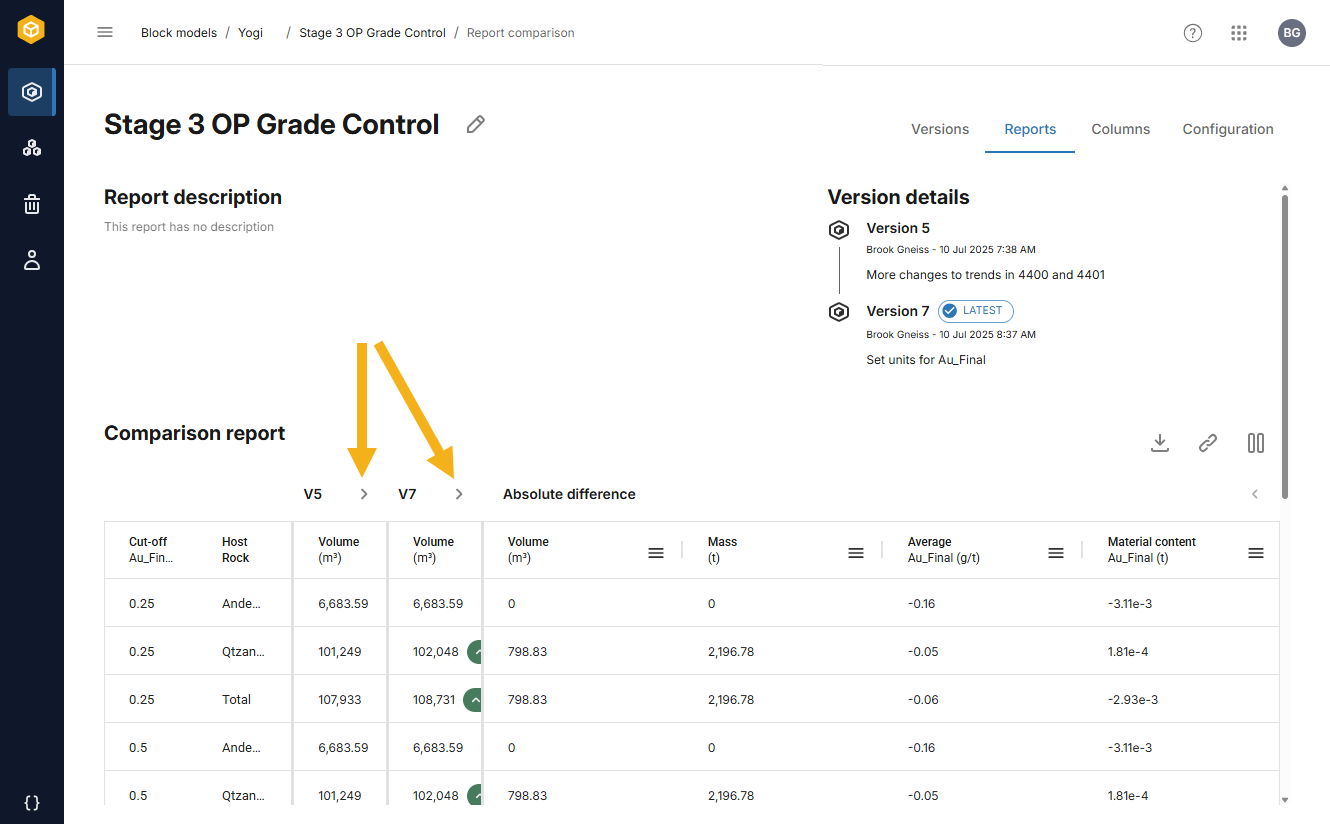
In the vertical view, use the header arrows to expand and collapse the version information and absolute difference groups:
In both views, you can copy data from each version group and from the absolute difference group to your computer’s clipboard for pasting into another application. To do this, click the copy button ( ) for one of the groups.
You can also:
- Download a copy of the full report (
 ) in Excel *.xlsx format. The file will be saved to your browser’s download location.
 - Copy a link to the comparison (
 ). This copies a link to your clipboard so you can share the comparison with other members of your team.