Importing a BlockSync Model
This topic describes the process of importing a BlockSync block model. It is divided into:
- Starting the Import Process
- Setting Spatial Extents and Choosing Columns
- Viewing Information About the Imported Version
The Understanding Subsets and Update Boundaries topic provides detailed information on working with block model subsets.
Starting the Import Process
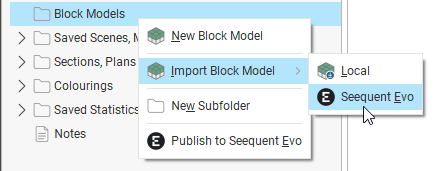
To start, right-click on the Block Models folder and select Import from Seequent Evo.
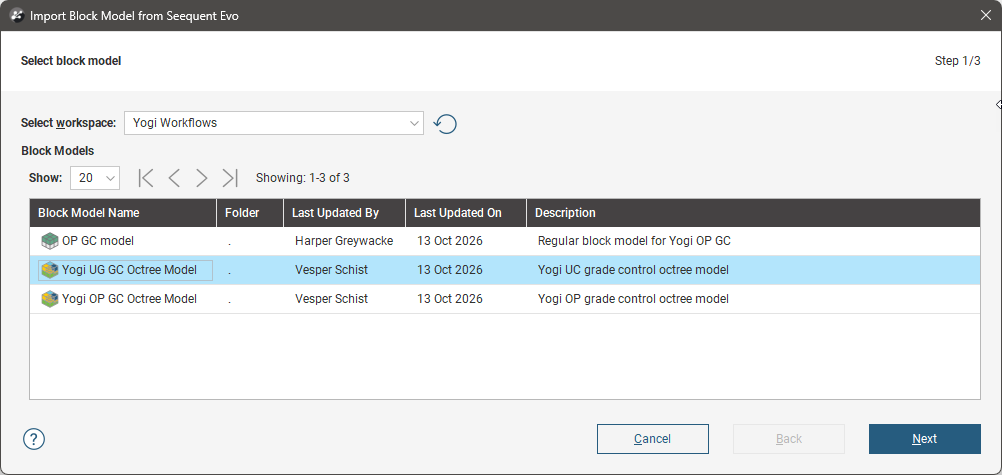
In the window that appears, choose the workspace that contains the block model you wish to import and click Next.
The available versions of the block model will be displayed, along with information about the block model type:
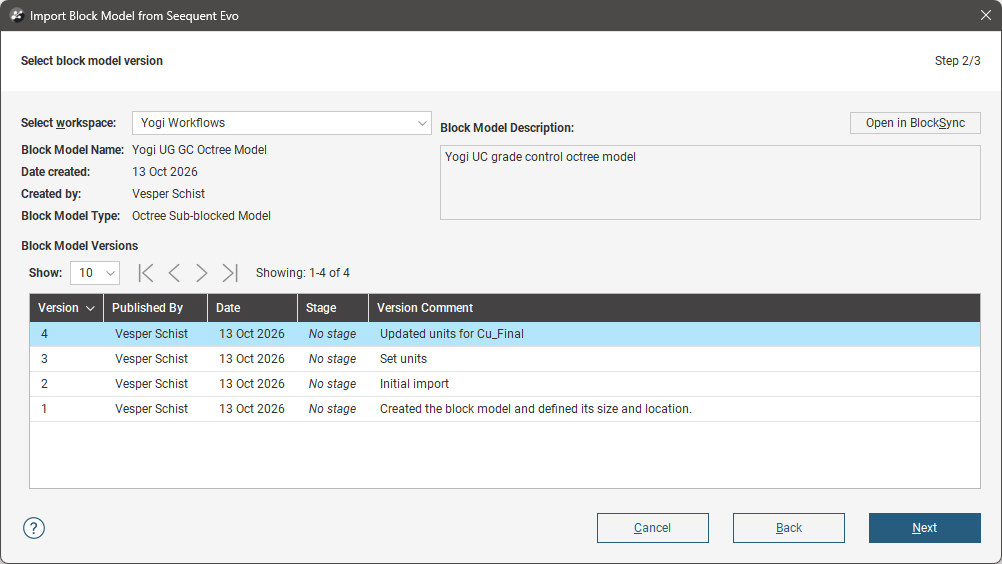
Once you have decided which version you wish to import, click Next to move on to selecting how much of the model to import and what columns you will import.
Setting Spatial Extents and Choosing Columns
The last part of importing a BlockSync model is to choose:
- Whether you will import the entire block model or only part of it (A) (its extents)
- The columns you will import (B)
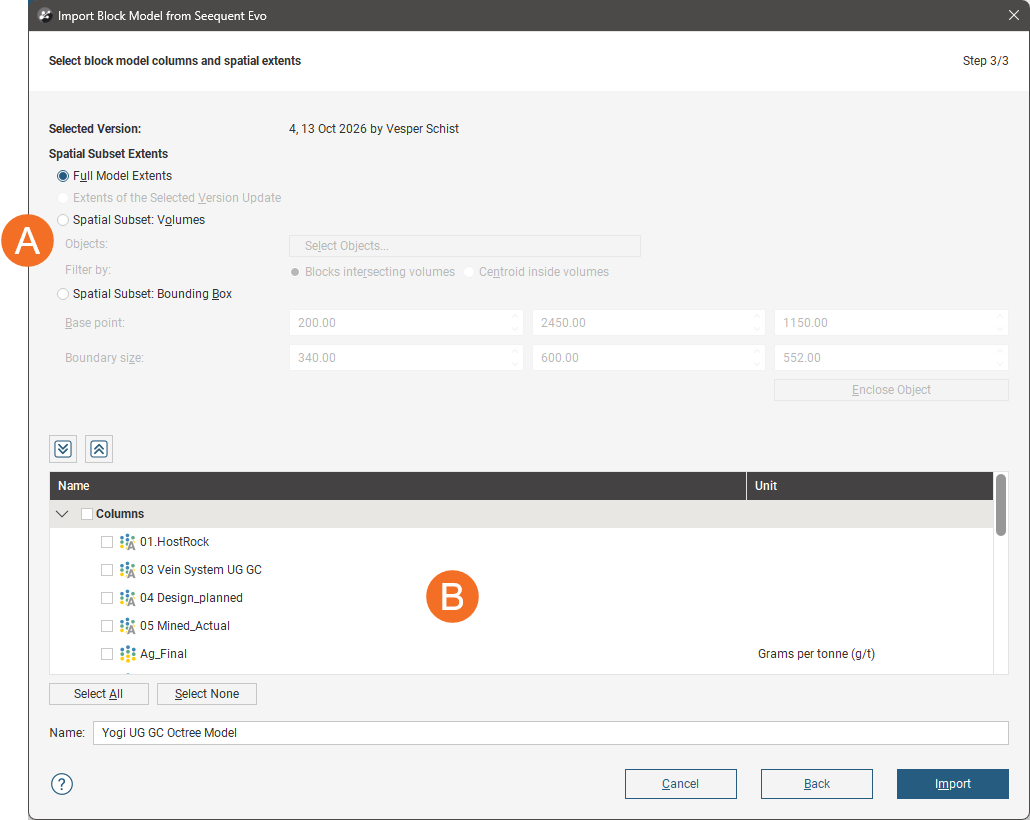
The spatial extents options are:
- Full Model Extents. This imports all blocks stored in BlockSync.
- Extents of the Selected Version Update. This imports only the blocks from the version you have selected.
- Spatial Subset: Volumes. This imports only the blocks that are bounded by the volume defined by the objects selected. There are two options for filtering blocks that lie along the subset’s boundary that are explained in the Understanding Subsets and Update Boundaries topic.
- Spatial Subset: Bounding Box imports a subset of blocks defined by a bounding box you define. You can use the handles in the scene to set the subset’s extents or you can use the Enclose Objects list to set the extents based on objects in the project.
The Columns list shows all columns available in the selected version of the BlockSync model. Choose the columns you will be updating and any that are needed for context.
BlockSync metadata columns are columns created by BlockSync to track information such as the published version. BlockSync metadata columns can be useful for seeing what version resulted in updates to parts of the model, which is described later in this topic.
It is not necessary to choose all columns, and if you later need to include more columns, you can reload the model and import additional columns.
Click Import to add the model to the project.
Once the model has been imported, you can map local columns to the imported BlockSync columns, as described in the Mapping Local Models and Calculations to BlockSync Columns topic.
Viewing Information About the Imported Version
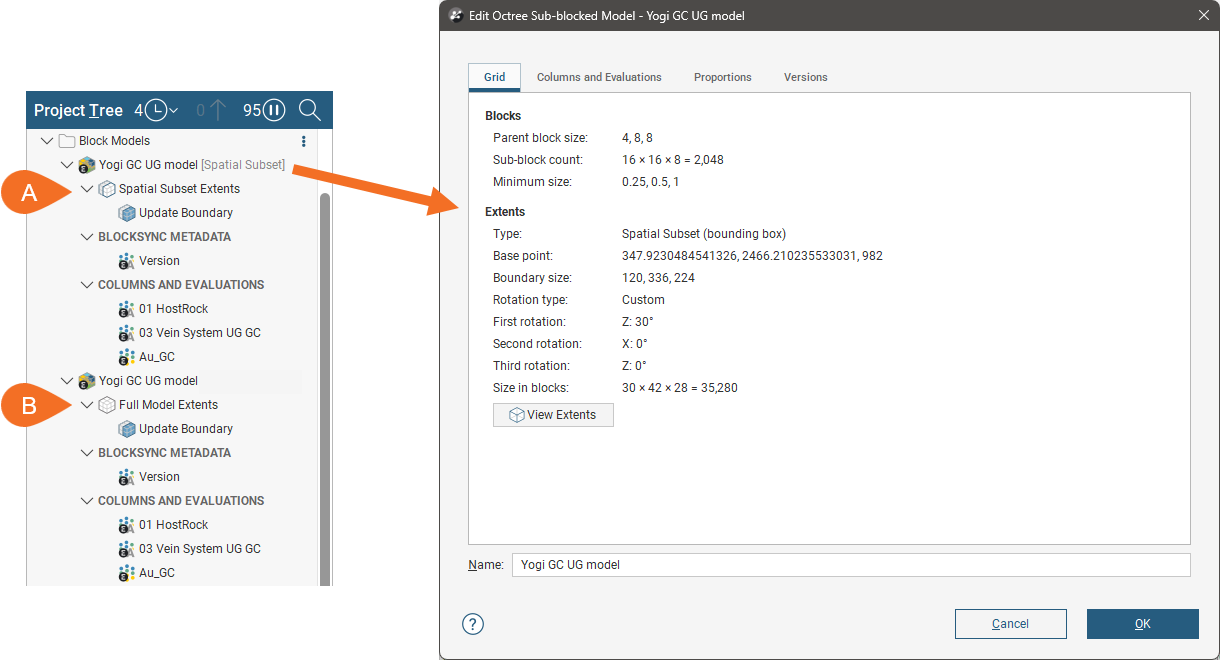
Once a BlockSync model has been imported into Leapfrog Geo, you can see whether it’s the full model or a spatial subset in the project tree, as [Spatial Subset] will be appended to the name of a local model that is a subset of its parent BlockSync model.
Here we have two imports of a BlockSync model, and from the project tree we can see that for the first one, a spatial subset was imported, whereas for the second, the full extents were imported. Double-clicking on the first model opens its Grid tab:
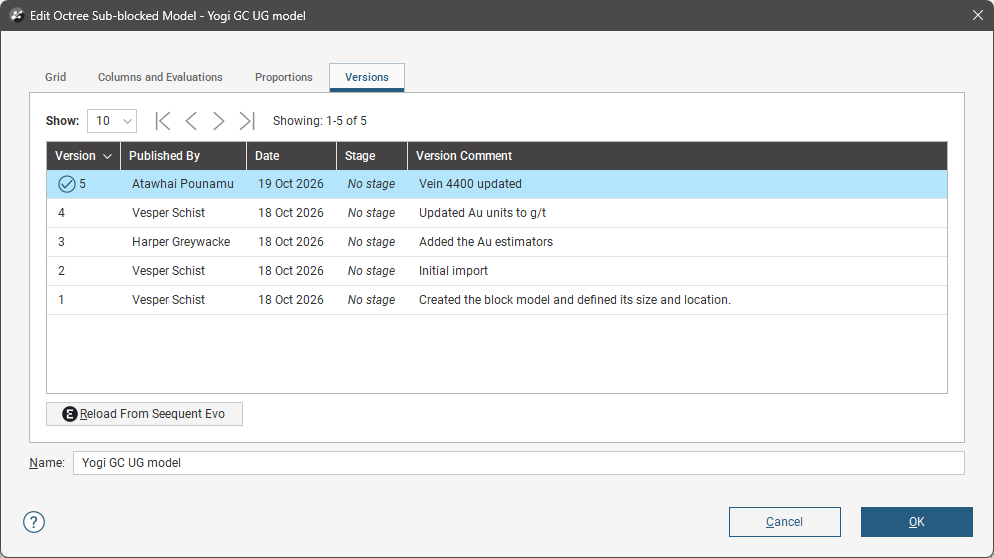
The Versions tab shows the full version history, and when a newer version is published than that in the project, the information in this tab will be updated.