
BlockSync Integration
BlockSync is the Seequent Evo service for managing block models in a team environment. The Leapfrog Geo/BlockSync integration provides a centralised, version-controlled environment where team members can work on subsets of a block model without the overhead of processing the entire model. When a local update is complete, the changes are published to the BlockSync parent model, creating a new version that is immediately available to other collaborators. BlockSync maintains a complete history of every modification made that can be viewed in the BlockSync portal.
The rest of this topic is a broad overview of working with BlockSync block models in Leapfrog Geo. It is divided into:
- What is a BlockSync Block Model?
- BlockSync Models, Local Copies and Spatial Subsets
- Mapping Local Models and Calculations to BlockSync Columns
- Viewing the BlockSync Model’s History
- Visualising Local Updates Against the BlockSync Model
- Setting the Update Boundary and Publishing to BlockSync
What is a BlockSync Block Model?
A BlockSync block model is a cloud-hosted, version-controlled geoscience object stored in a Seequent Evo workspace. It serves as a “system of record” that allows multiple team members to collaboratively update, validate and merge changes against the BlockSync model, creating a shared master record. Team members can check out and work in spatial subsets of BlockSync models, publishing updates back to the model that are targeted only to the area they have checked out.
A BlockSync model’s grid size and rotation together with its parent block size and count are set in the model when the BlockSync model is first created. For sub-blocked models, adding local triggers can result in changes in sub-block geometry; however, the geometry of the underlying parent blocks cannot be changed.
For sub-blocked BlockSync models, updates to spatial subsets can result in previously undivided parent blocks being divided into sub-blocks. For example, here parts of two versions of the same model are illustrated, with the grey line representing the edge of the second version’s update boundary.
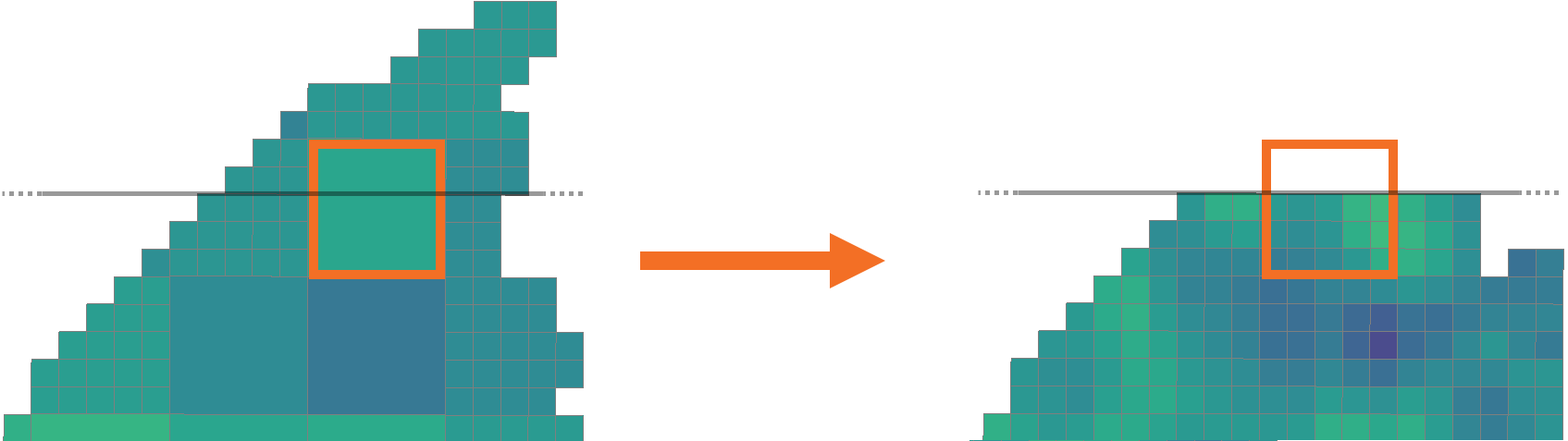
The boundary cuts through one of the undivided blocks in the first version. In the new version, the parent block is now sub-blocked, but the update contains no information on what data should be applied to the new sub-blocks that fall outside the update boundary.
With sub-block infilling, values from the previous version’s parent block will be used for assigning values to the new sub-blocks, depending on the units used for each column:
- For absolute units such as mass or volume, the value from the original parent block will be divided among the new sub-blocks.
- For relative units such as mass per mass (g/t, ct/t), mass per volume (kg/m3, t/m3), or value per mass ($/t, $/tn), the value from the original parent block will be used for each sub-block.
Sub-block infilling is automatically enabled for new block models created in Leapfrog Geo 2026.2. For BlockSync models published from earlier versions of Leapfrog Geo, you will need to enable sub-block infilling in the BlockSync portal. For more information, see the Sub-block infilling topic in the BlockSync section of the Seequent Evo help.
BlockSync Models, Local Copies and Spatial Subsets
Copies of BlockSync block models imported into a Leapfrog Geo project are referred to as local copies of the BlockSync model. Updates made to local copies remain local until you are ready to publish to BlockSync. Upon publication, BlockSync merges the updates into the BlockSync model, creating a new version that becomes part of the permanent record. The previous version remains available in BlockSync and in Leapfrog Geo you can reload to that version at any time.
Working with local copies of BlockSync models in Leapfrog Geo is similar to working with local-only block models. There are some important differences, however, which we will step through in the rest of this topic.
Here we have a local copy of a BlockSync model (A) and a local-only block model (B), both expanded in the project tree in order to start comparing them. The BlockSync model’s Edit window has been opened and in its Grid tab, we can see that the grid cannot be edited.
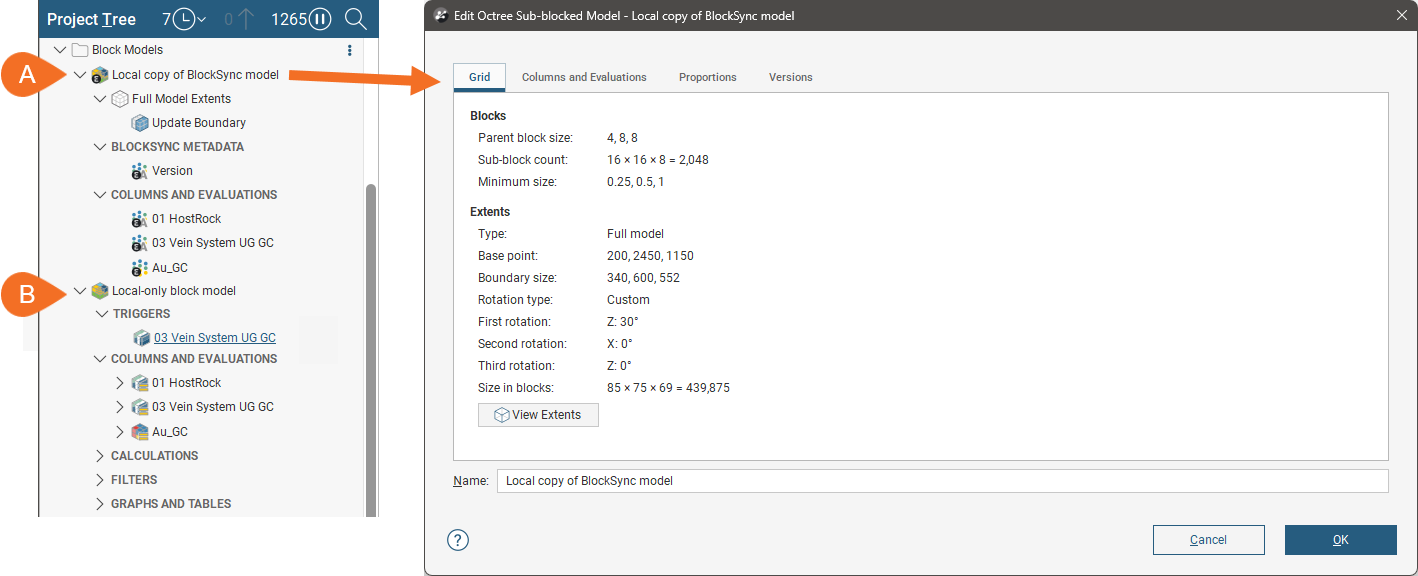
This tab is view-only because grid definition is fixed when a BlockSync model is first created.
In the project tree, a local copy’s Full Model Extents object (C) and the Update Boundary (D) represent two important parts of the Leapfrog Geo/BlockSync integration, providing the ability to import and work in subsets of a block model without the overhead of processing and publishing the entire model.
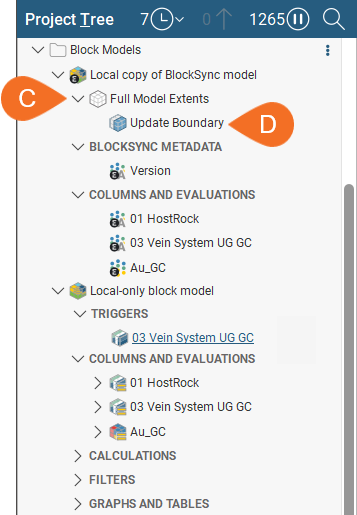
Together, the extents and the update boundary help in streamlining your work in updating the BlockSync model and protecting the integrity of the shared model.
- The block model’s Extents represents how much of the BlockSync model has been imported into the Leapfrog Geo project. This will be called Full Model Extents if the entire model was imported from BlockSync or Spatial Subset Extents if only part of the model was imported. These extents can only be changed by reloading the model from BlockSync.
- The Update Boundary represents where local processing for non-triggering evaluations and calculations takes place and what part of the local version will be published to the BlockSync model in Seequent Evo. The update boundary can be constrained in various ways, including setting the boundary in the scene or choosing volumes in the project.
See the separate Understanding Subsets and Update Boundaries topic for more information on choosing how much of the BlockSync model to import and setting the update boundary.
Mapping Local Models and Calculations to BlockSync Columns
While the columns of local-only block models are derived from evaluations of models from the Leapfrog Geo project and calculations on the block model, a newly-imported BlockSync model has only the columns that have been imported from the BlockSync model (E). These imported columns are not linked to local models or calculations, as they would be for a local-only block model (F). The BlockSync model’s Columns and Evaluations tab is open (G), showing that no local models or calculations are mapped to these imported columns:
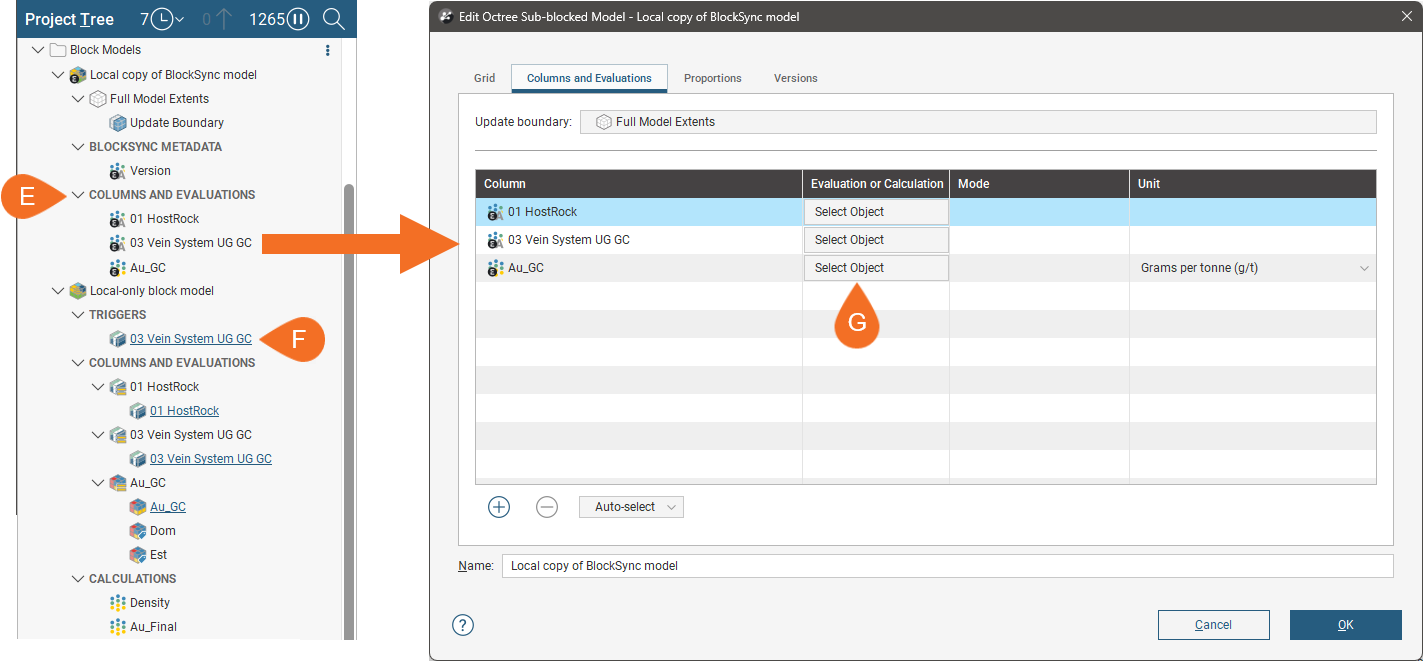
How local data is mapped and evaluated is discussed in more detail in the separate Mapping Models and Calculations to BlockSync Columns topic.
Calculations, filters and reports are created in Leapfrog Geo and are not imported as part of BlockSync models. They can, however, be created for BlockSync models. Calculations, in particular, are an important part of making updates to BlockSync models. Your team may have a set of standard calculations that are used on specific block models, in which case the calculations on one block model can be exported for use in other block models. See Copying, Importing and Exporting Calculations and Filters in the Defining Calculations and Filters topic for more information.
Viewing the BlockSync Model’s History
In the Versions tab, we can see the block model’s history:
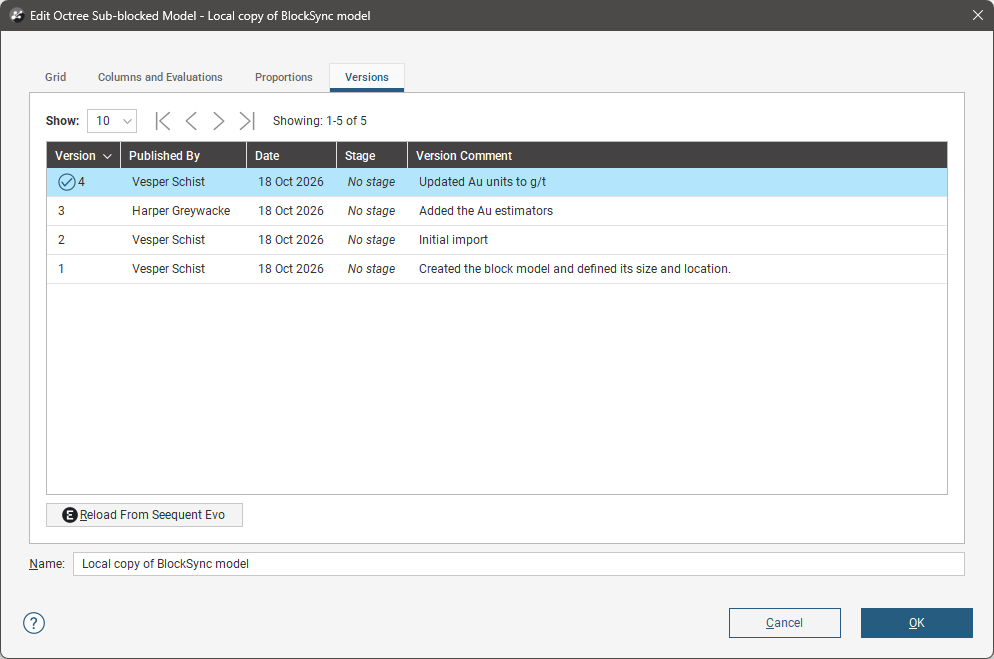
When newer versions are available and you decide you want to update to that version, you can start the reload process from this tab.
Reloading is discussed in the separate Reloading From BlockSync topic.
Visualising Local Updates Against the BlockSync Model
When local columns have been mapped to a local copy of a BlockSync model, tools for visualising these differences are added to the project tree:
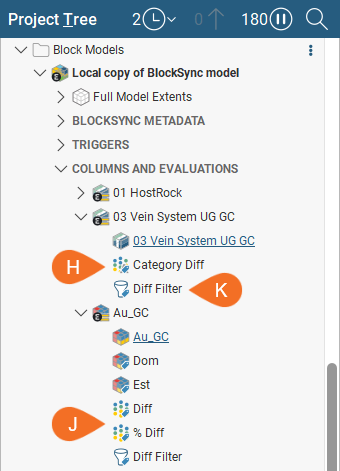
They are:
- Diff columns (H and J), which are attributes that can be displayed in the scene.
- The Diff Filter (K) acts as a query filter on the block model and can be used in visualising data in the scene and, later, used when publishing your changes to BlockSync.
In this example, we have the percentage difference for a numeric data column displayed on a 2D slice. Blocks with increased values are displayed in red, those with decreased values are in blue and unchanged blocks are in green:
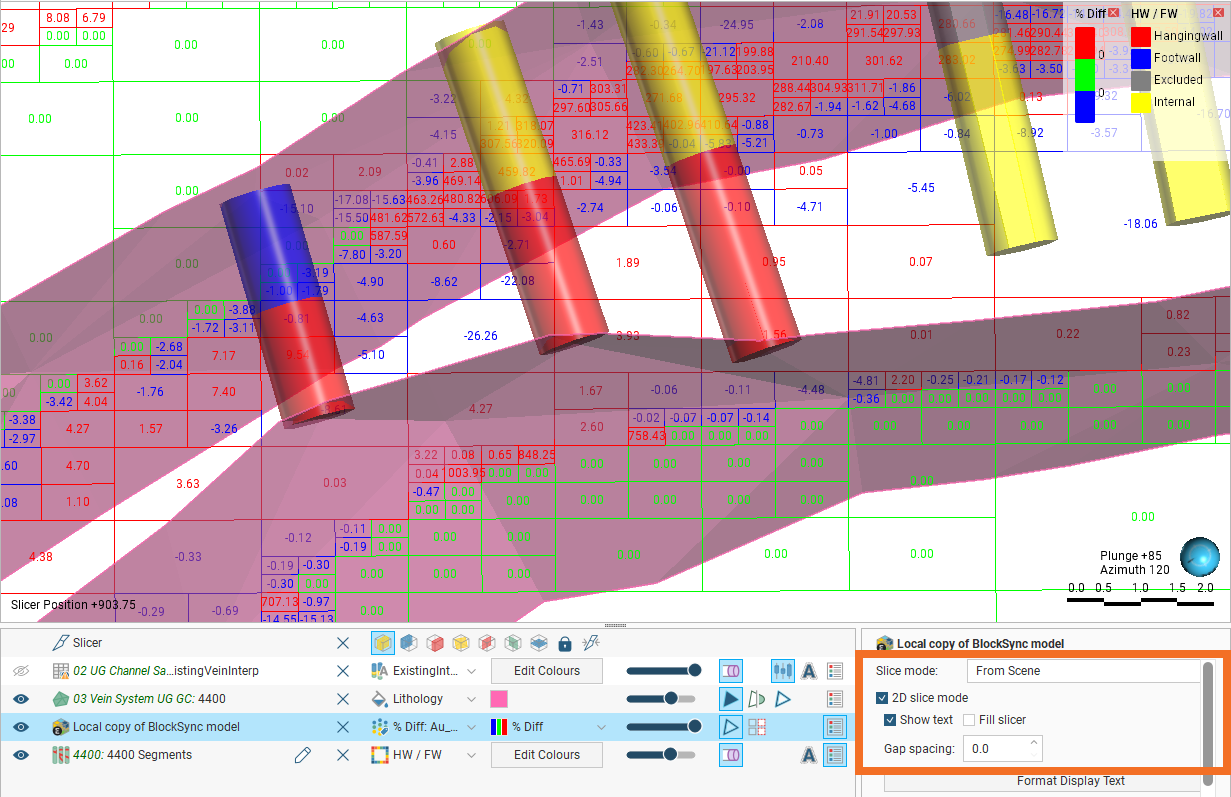
Using 2D slice mode with Show text enabled, we can see the percentage by which the data has changed for each block.
Comparing block model versions is discussed in more detail in the separate Comparing Local Columns and BlockSync Columns topic.
Setting the Update Boundary and Publishing to BlockSync
Importing a spatial subset of a BlockSync model allows you to work with sufficient context to make updates to the model without the overhead of processing the whole model. Setting the Update Boundary can further reduce the processing time required as you work. Later, when you are ready to publish, you can visualise changes in the scene and set the update boundary to the specific area where your work has changed the model.
The model’s Update Boundary can be constrained by other volumes in the project or by setting a custom bounding box in the scene.
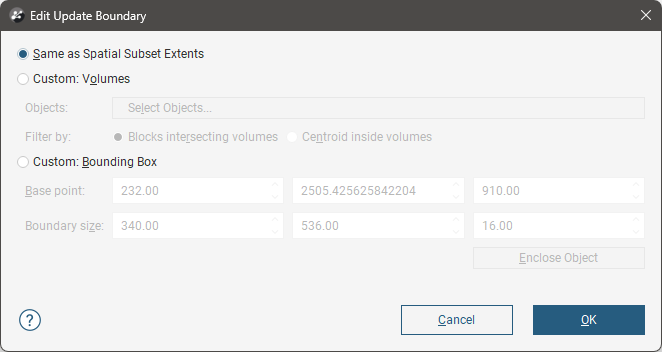
Start the publishing process by right-clicking on the block model and selecting Publish to Seequent Evo. In the window that opens, the block model will be selected, along with the workspace the model will be published to. Click Next to move on to the final step, where you can apply a query filter and choose the columns to publish.
Setting the update boundary is discussed in more detail in the separate Understanding Subsets and Update Boundaries topic, and publishing using a filter is discussed in the Publishing Updates to BlockSync topic.