
Publishing Updates to BlockSync
Your work in Leapfrog Geo remains local until you publish an update to Evo. Your update will create a new version of the parent block model in BlockSync that others on your team can use in their work. BlockSync maintains a complete history of every published update to a BlockSync model; these versions can be viewed in the BlockSync portal.
This topic describes how to publish updates to a local BlockSync model. It is divided into:
- Staging an Update
- Choosing What to Publish
- Choosing Columns
- Resolving Column Conflicts
- Publishing the Update
Publishing a local block model to BlockSync for the first time is covered in a separate topic, Publishing to BlockSync for the First Time.
For an introduction to the publishing generally, see the Publishing Data to Seequent Evo topic.
Staging an Update
When you have made changes to the block model and are ready to publish those changes to the wider team, right-click on the block model and select Publish to Seequent Evo. In the window that opens, the block model will be selected, along with the workspace the model will be published to.
If you want to view the block model in the BlockSync portal once it has been published, enable the option for opening the published model in Evo.
Click Next to move on to the next part of the publishing process, which involves:
- Choosing which part of the model you will publish
- Adding a version comment
- Choosing what columns you will include
- Setting units for any new numeric columns you wish to publish
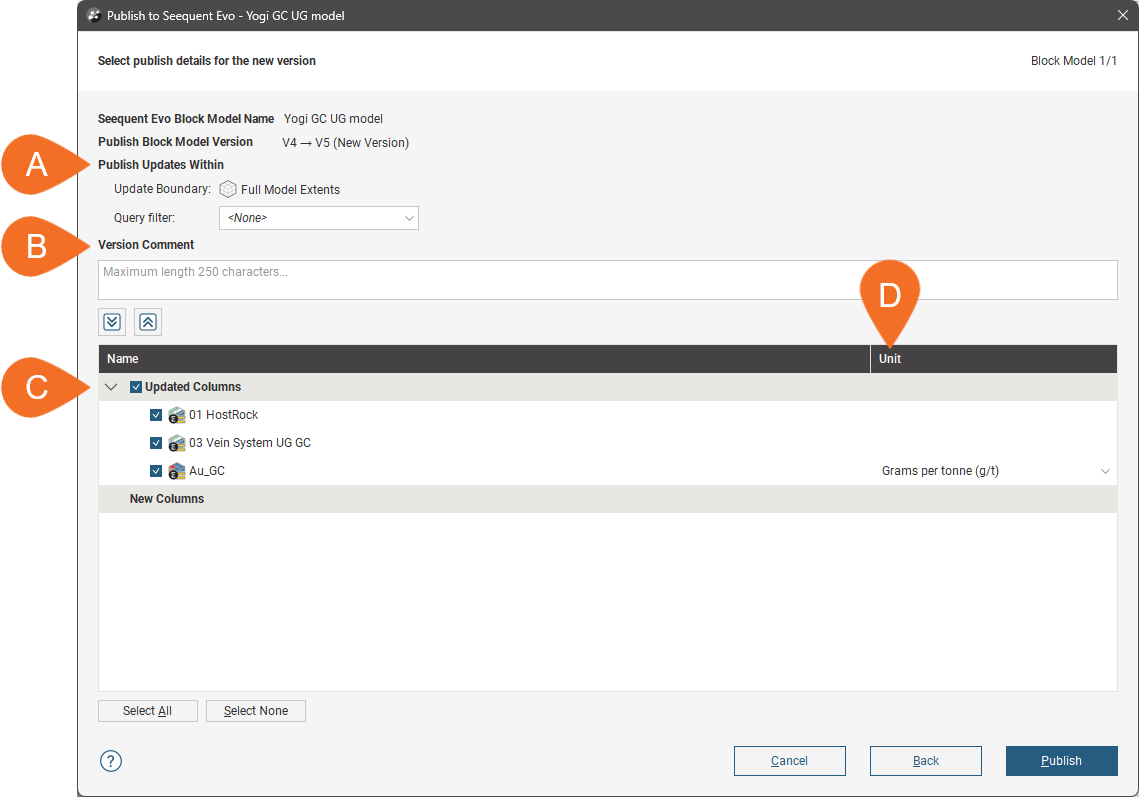
When this window first opens, Leapfrog Geo connects to BlockSync in order to retrieve the latest information on the BlockSync model and display what version your update will be. Enter a version comment that summarises the changes you have made.
Choosing What to Publish
The update boundary determines which part of the model will be published to the BlockSync model. If you have set an update boundary that is a subset of the imported extents, that will be reflected in the publishing window.
Setting the update boundary is a separate step that needs to be carried out before starting the publish process. See Setting the Update Boundary in the Understanding Subsets and Update Boundaries topic for more information.
As part of the publishing process, you can use a query filter to further constrain what part of the model you publish:
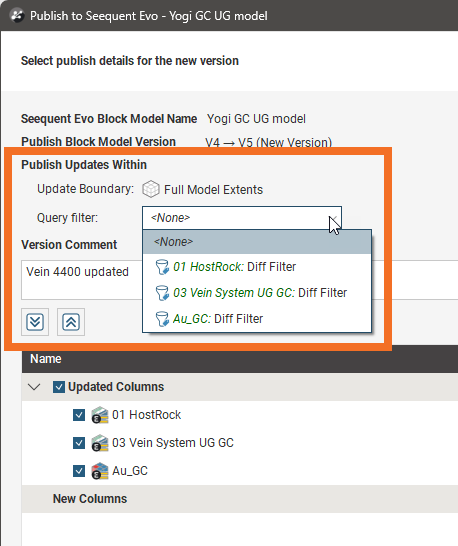
The Query filter list will include any filters you have defined for the block model, plus the diff filters available for each column on the model. See the Comparing Local Columns and BlockSync Columns topic for more information about diff filters.
If you want to use one of the diff filters, choose the one that best represents the purpose of your update and the most restrictive set of changes you want to publish. For example, if your updates relate primarily to updating vein geometry, then applying the diff filter for the vein system geological model to the update might make more sense than applying one of the other filters.
If you wanted to publish changes captured by more than one diff filter, you can do this by:
- Setting an update boundary that encloses all changed blocks
- Creating a filter in the block model’s calculations
Choosing Columns
Next, choose which columns you will publish.
- The Updated Columns list shows all columns already represented in the parent block model that have changed as the result of your work on the block model.
- The New Columns list is any new models you have evaluated onto the local copy, along with any calculations.
Unchanged columns that are unmapped BlockSync columns are not displayed in this window.
If you choose a new column and a column of the same name already exists in the BlockSync model, you will be prompted to rename the new column. BlockSync requires unique column names.
If you want the data in the new column to be added to the BlockSync column of the same name, you need to cancel publishing, then reload from BlockSync and import that BlockSync column. You can then map the local column to the existing BlockSync column.
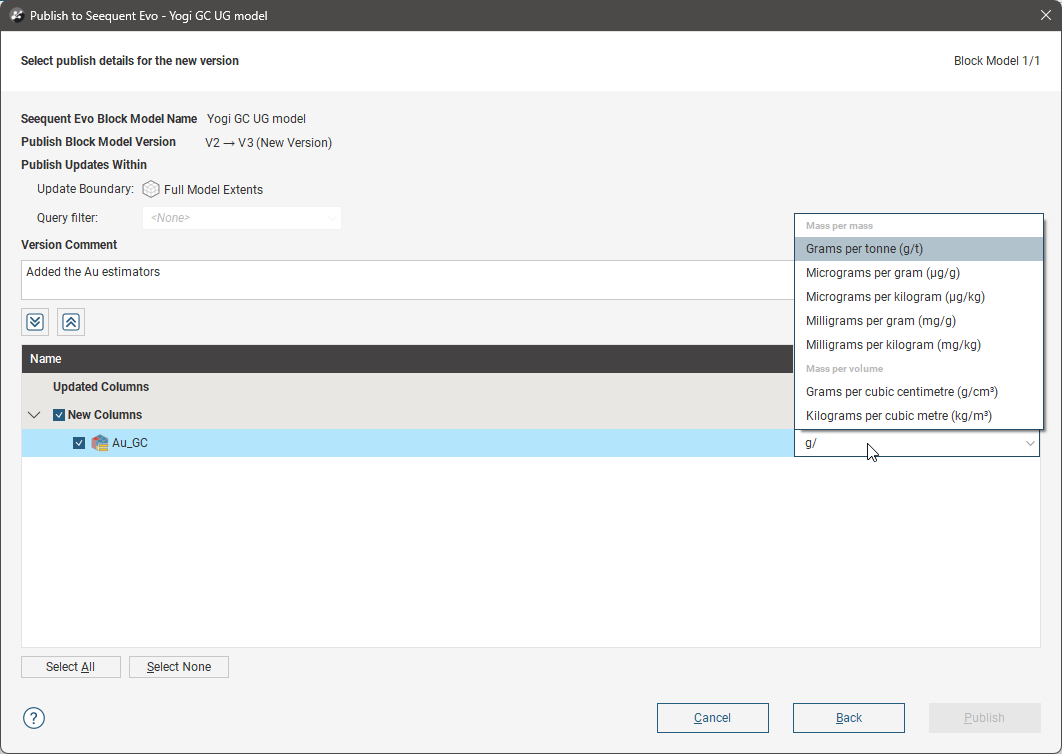
For new numeric columns, you will need to set the units before the column can be published. To do this, click the dropdown list for the undefined unit and choose from those available. You can also start typing to narrow down the list of units until you find the one you want:
Resolving Column Conflicts
The BlockSync version history supports a linear series of changes only. When multiple teams members are working on a BlockSync model at the same time, conflicting changes can result. If, when preparing to publish an update, you get an error message saying there is a conflict, it may be prudent to discuss the proposed conflicting changes with the team member who submitted the conflicting version before proceeding with publishing your update.
Publishing the Update
When you are ready, click Publish. Once the model has been published, it will be opened in its Evo workspace, if you enabled the option to do so.
Otherwise, you can view the model in the Evo portal by right-clicking on it in the project tree and choosing Open in BlockSync.
In Leapfrog Geo, any mapped columns will now display no differences as the local blocks will be the same as the BlockSync blocks.