Sample Lists
Sample lists are the building blocks for logging and dispatching samples, and importing lab results. Your MX Deposit account will have your sample lists pre-configured, but you can enter new values if you need to. New values can be entered in MX Deposit or imported from a *.csv file. For some lists you can also import from a library managed by MX Deposit.
There are nine fundamental lists for sampling configuration. To see these, click on Site Settings > Sampling.
This topic provides a brief overview of these nine lists and how they are used in MX Deposit:
- Analytes
- Analytical Methods
- Sample Decomposition
- Sample Types
- Units of Measure
- Lab Services
- Method Details
- Reference Material
- Certified Results
Analytes
This list contains the elements and any sample properties that will be returned as a numerical result from the lab. The analytes list is part of a picklist in the method details sample list which is used for importing lab certificates. Examples are:
- Elements from the periodic table - Au, Cu, Pb, etc
- Loss on ignition
- Values such as sample weight or instrument sequence number
Additional analytes can be added manually by selecting an empty row and adding a new list item, or they can be imported with a csv file.
Analytical Methods
These are the instruments and techniques used by the lab in its analysis of the samples. The analytical methods list is available as a picklist in the lab services list. Examples are:
- Atomic absorption spectroscopy (AAS)
- Inductively coupled plasma - mass spectrometry (ICP-MS)
- X-ray fluorescence (XRF)
Additional analytical methods can be added manually by selecting an empty row and adding a new list item, or they can be imported with a csv file.
Sample Decomposition
Sample decomposition list items refer to the methods used to prepare the sample for subsequent analysis. The sample decomposition list is available as a picklist in the lab services list. Examples are:
- Fire assay (FA)
- Acid digestion (1A)
Additional sample decompositions can be added manually by selecting an empty row and adding a new list item, or they can be imported with a csv file.
Sample Types
This list contains the values of what samples are logged as. For example, you may want loggers to collect an original sample (Original), a duplicate sample for redundancy (FieldDup), and prepare a standard (Control) to send to the lab.
The sample types list is used in three areas of MX Deposit:
- As fields to add in the sampling step of the activity configurations. Sample types that are added will then display for the logger as options on a picklist in the samples table. See Adding Sample and Control Types in the Creating a New Activity topic for more information on this.
- As part of a picklist in the lab services list.
- As a mapping tool in the Sample Analysis Workflow in the Certificate Import step when QAQC samples are mapped for the lab certificate import.
Examples of sample type list items are:
- Standard (Control)
- Original sample (Original)
- Field duplicate (FieldDup)
- Lab control (Lab control)
Additional sample types can be added manually by selecting an empty row and adding a new list item, or they can be imported with a csv file.
Do not change the control sample type or the lab sample type in this list. MX Deposit relies on having these codes in place when selecting control types and when importing lab certificates.
Units of Measure
This list contains the units that are used when importing laboratory results. Examples are:
- Parts per million (ppm)
- Gram (g)
- Percent (%)
- Not applicable (NA).
It is important not to add a new unit of measure to this list if you are using ranked columns. If a unit of measure you wish to use is not available, submit a support request.
Lab Services
The Lab Services list outlines the details of the protocols used by laboratories to analyse samples. Each lab service will have associated entries in the Method Details list to specify units and detection limits for each analyte in a given lab service protocol. Together, Lab Services and Method Details are used to create Sample Analysis Workflows that will be used to import laboratory certificates.
Lab Service protocols can be entered manually from information found in the relevant laboratory literature. Alternatively, lab services can be imported from the MX Deposit library, which contains the most common labs and services.
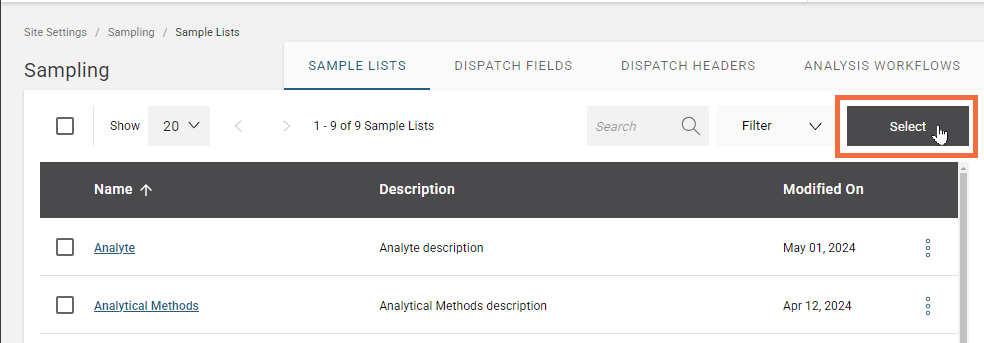
To import lab service protocols, go to Sample Lists and click on Select.
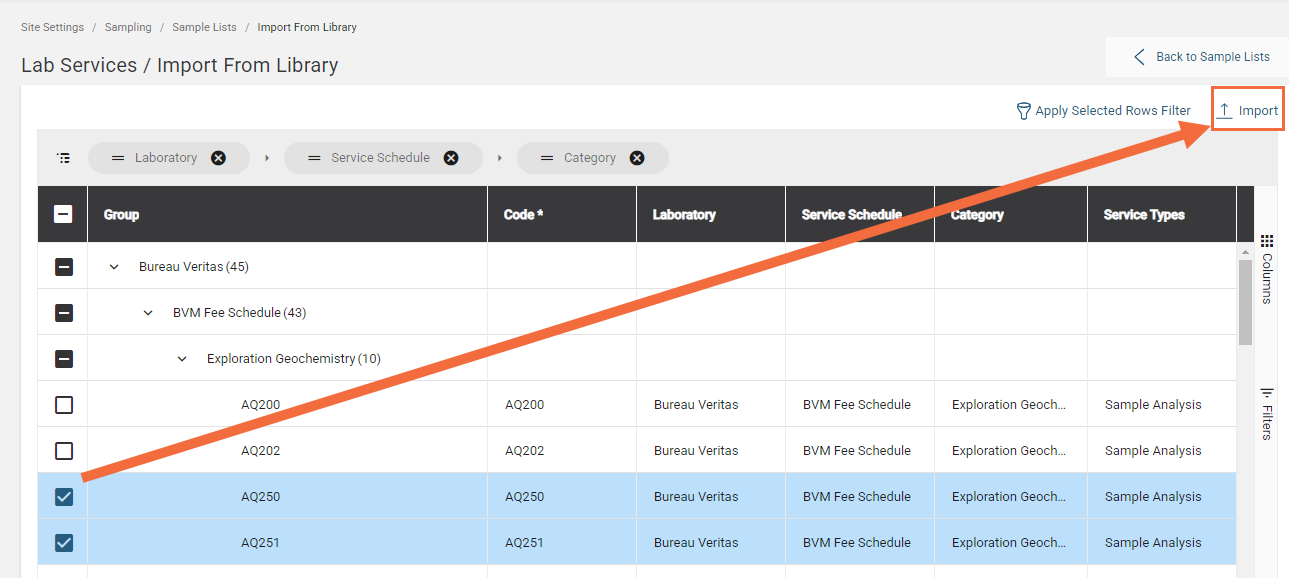
This will take you to Import from Library where you can select the codes to Import.
The most effective Lab Service protocol will depend upon the analyte and the type of exploration being conducted, which will determine the appropriate detection limits for the given analyte.
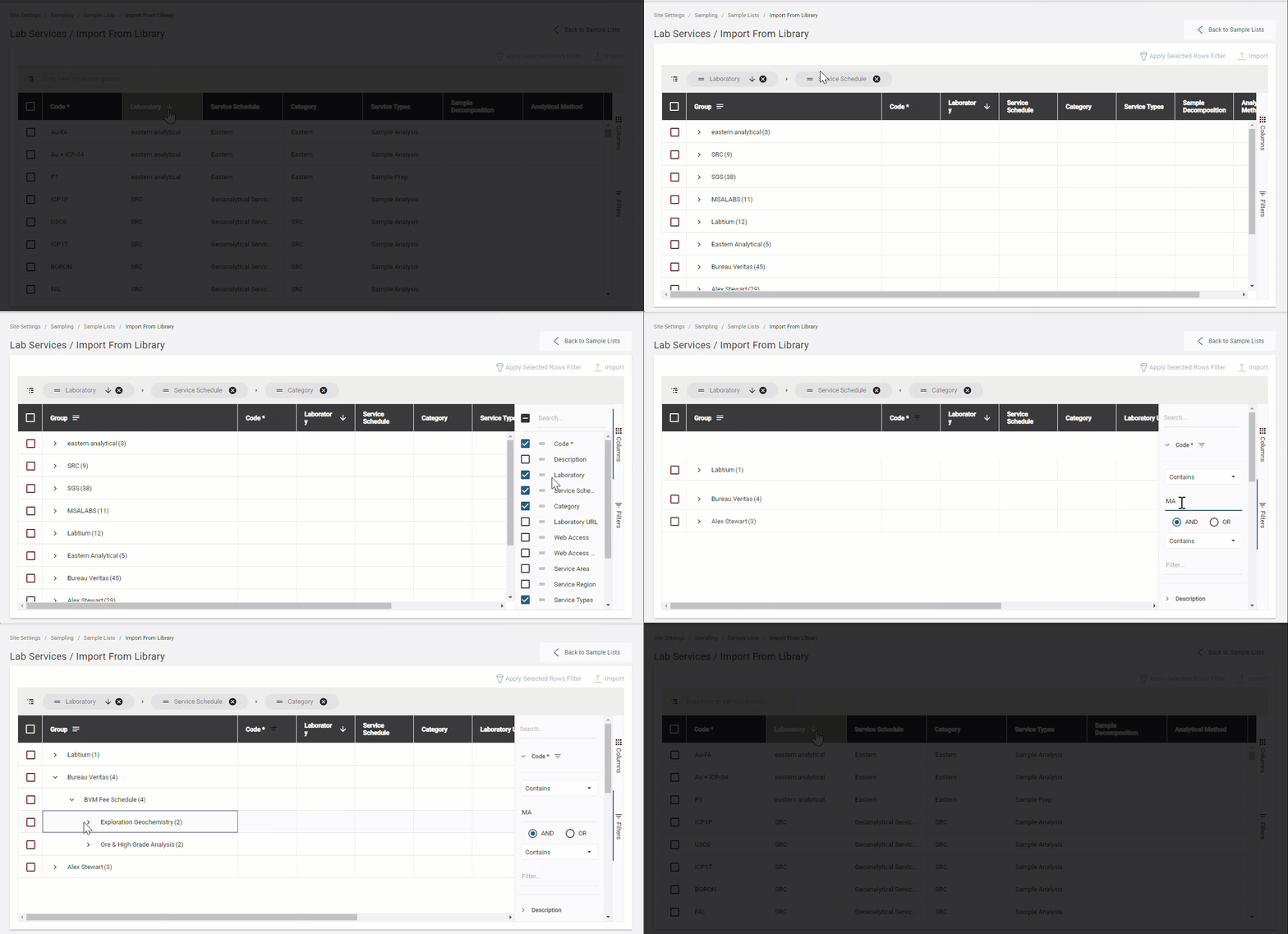
You can group codes by columns to change the way your Import From Library table is displayed. You can also choose which columns to display as well as filter by rows:
For manual entry of lab service codes, certain fields must be populated in order to be used in a sample analysis workflow. Important fields to complete are:
- Code: This is the lab services code.
- Laboratory: The laboratory used for the sample analysis.
- Service Schedule: The schedule name provided by the laboratory.
- Category : Describes the analysis at a high level, such as precious metals or whole rock analysis.
- Service Types: Choose either Sample Prep or Sample Analysis.
- Sample Decomposition: If your service type is Sample Analysis then this field must be populated.
- Analytical Method: If your service type is Sample Analysis then this field must be populated.
If you would like to remove an entry from your Lab Services list, you must first delete all associated rows in the Method Details list.
The rest of the columns are meta data and are for information purposes but are not required by the system.
It is not possible to change any of the column names on the Lab Services list as MX Deposit uses these column names in the import from library process.
Method Details
This list is linked to the lab services list, and when lab services codes are imported, so are the method details automatically populated.
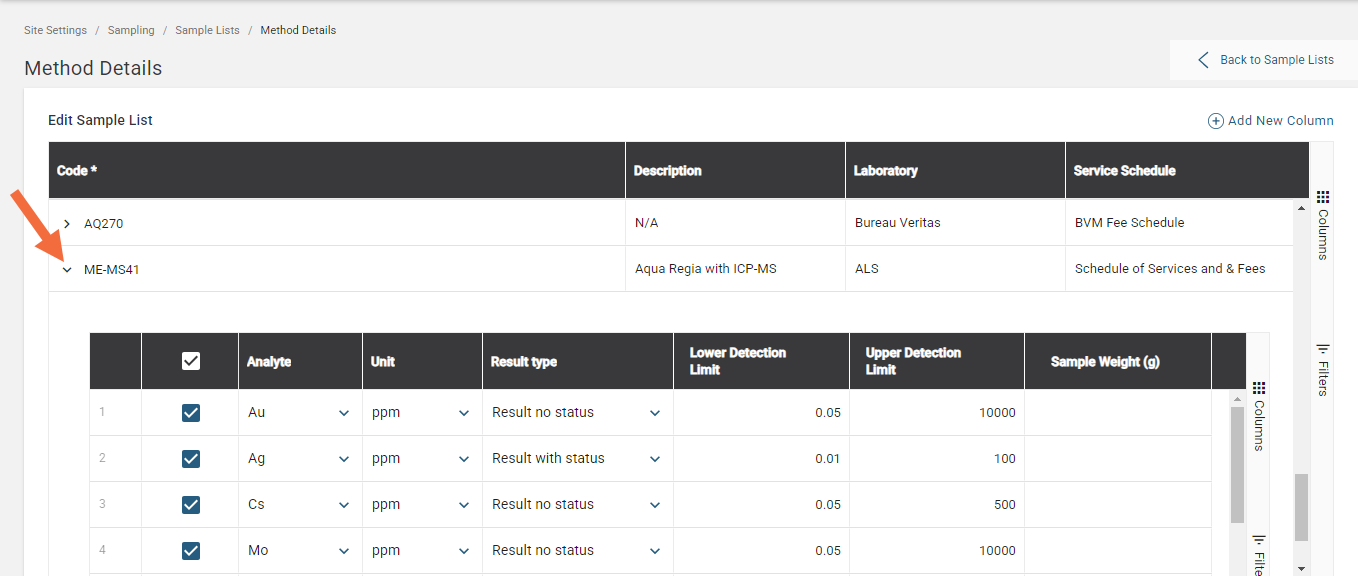
The method details list contains the analyte, unit, and the detection limits for each lab service code. It also determines how you want the lab service codes to be treated when they are imported.
Each method detail has a result type column of which there are three:
- Result with status means we want to validate the pass, warning, fail status of any QAQC materials in our certificates.
- Result no status means we want to import the data and treat it as a result that can be released to the drill hole or point sample, but that we do not want to validate that specific result column for QAQC status.
- Information means we want to be able to import the data in that column but that it will stay in the certificate only and will not be released as a result; in other words we’re not going to plot it or try to export it and use it downstream.
Expand the method details code to display all the analytes using that code.
Reference Material
The reference materials list will contain all of the standards and blanks, that is, the certified reference materials (CRMs) that are used in logging your drill hole and point samples.
Your chosen CRM provider can provide you with the relevant laboratory literature to determine the most appropriate standards and blanks that are recommended to ensure quality control of results.
Additional reference material can be added manually by selecting an empty row and adding a new list item, or they can be imported with a csv file. You can add additional information to the list items such as the supplier, the certified date, category, mineralization style, the certificate file and anything else that is relevant.
Certified Results
This list is linked to the Reference Materials list. It contains the pass, warning and fail statuses of standards and blanks used for importing lab certificates. These are also known as the validations.
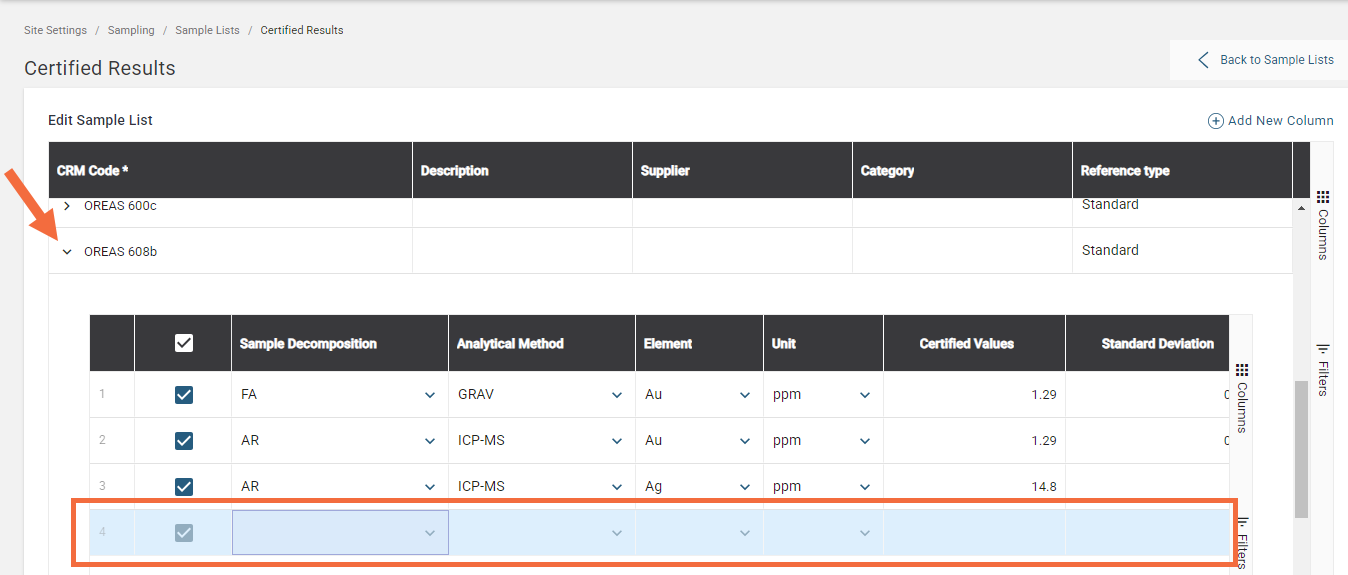
To define the certified results expand the CRM code you wish to set validations for, then choose the appropriate sample decomposition and analytical method value along with the element and unit to match the lab service code that is in your certificate. Once all these have been chosen enter the values, where necessary, for the rest of the columns.