
Map Window
In Oasis montaj, maps represent individual graphics files containing drawings and images. When you create or open a map, the system automatically opens a Map window with a title bar, control buttons, and a working area. For a new map, the window is initially empty. For an existing map, all map elements are displayed when the window opens. Maps have a corresponding map file (*.MAP) with the same name as shown in the title bar. For example, if you open a map called "mag_BG", the system creates the file "mag_BG.map". You can open or close this file, and whenever you add or delete a grid, image, or graphics element as an overlay, the system updates the file.
Map windows provide interactive functionality for visualising and analysing your data. At a basic level, they enable you to view and edit multiple grid, image and/or plot files together on the screen, and allow you to display and work with multiple maps within a single project.
The Map window displays all the features included in a Geosoft Map file including images, map surround, grids, text, shapes, and symbols.
The working area provides a complete environment for creating, editing, or visualizing maps. The working area has both an active and an inactive part. The active part is any area where a map is displayed. The inactive part is the white background outside of the active map area.
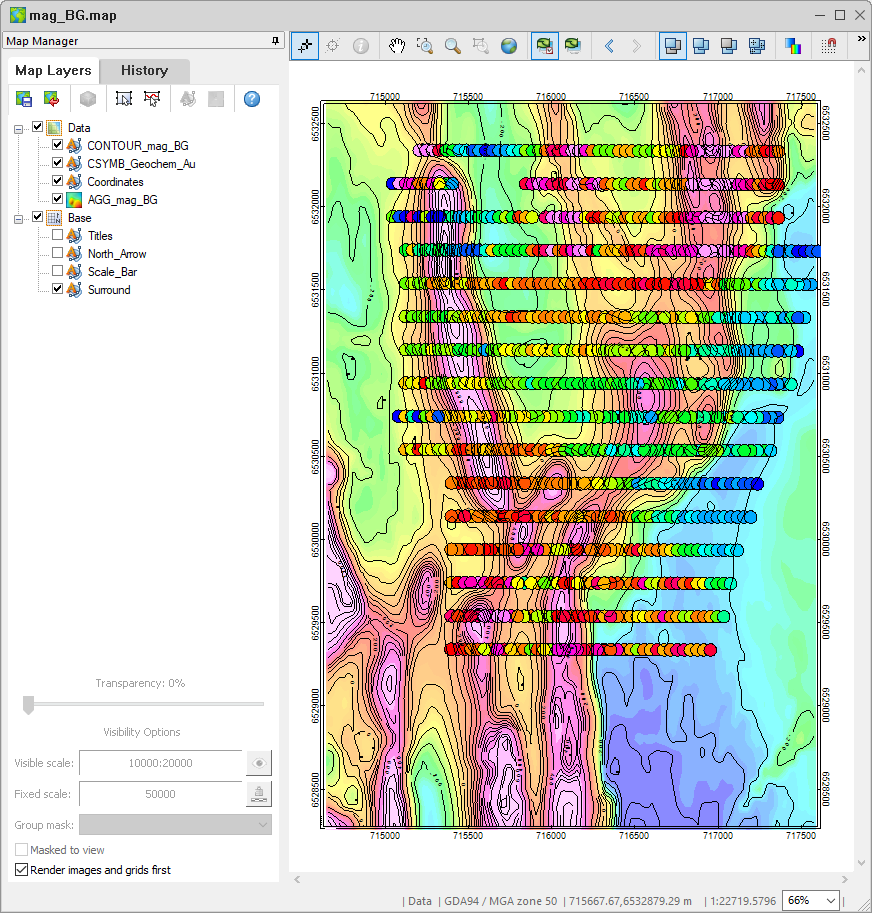
The active or inactive area controls the options that are available to you.
For instance, if you press the Select Group Mode button in the Map Manager toolbar and click in the active area, the system displays a rectangular box with sizing handles around the perimetre. If you click the right mouse button, you see the map editing options menu. Select Edit Vector Group or Colour Tool from the menu to edit the selected group.
If you right-click outside of the map (inactive area), you will see the Map display options context menu instead.
Depending on the map you have opened, the Map Navigation Toolbar becomes enabled, and if you enable Group Edit or Polygon Edit, the respective toolbar becomes enabled in the Map window.
Got a question? Visit the Seequent forums or Seequent support
Copyright (c) 2026 Bentley Systems, Incorporated. All rights reserved.
Privacy | Terms of Use