
Importing and Exporting Borehole Planning Groups
This topic describes the options for importing and exporting planned borehole groups. It is divided into:
See Borehole Planning Groups for an overview of working with borehole groups in Leapfrog Works.
Planned borehole groups can also be imported from and published to Seequent Evo. See the Seequent Evo Drilling Campaigns topic for more information.
Importing Planned Boreholes
Leapfrog Works can import planned boreholes from files in CSV format. The columns expected are:
- A borehole identifier
- X-Y-Z coordinates for the planned borehole
- Azimuth
- Dip
- Distance
- Extension
- Target Depth
- Comment
When importing planned boreholes, you can import them into a new group or into an existing group. To import planned boreholes, right-click on the Planned Boreholes folder or on a group and select Import Planned Boreholes. If the IDs in the file are already in the project, you will be prompted to resolve the conflict:
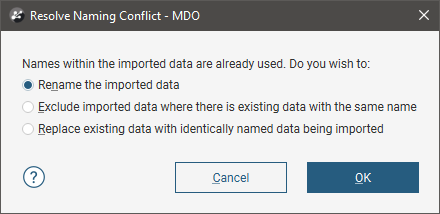
You can:
- Rename the imported boreholes. Leapfrog Works will automatically assign new names and import the planned boreholes.
- Exclude planned boreholes that already exist in the project. Planned boreholes will only be imported if they have an identifier that does not already exist in the project.
- Replace existing planned boreholes with the imported boreholes. Use this option if you are importing information previously exported from the project and subsequently updated in an external application.
Click OK to process the file.
If there are no conflicts, the planned boreholes will be added to the project.
Exporting Planned Boreholes
There are three options for exporting planned boreholes as files:
Whichever option you choose, you can use a filter to limit the set of boreholes exported.
Exporting Planned Borehole Parameters
Exporting planned borehole parameters exports the boreholes as a *.csv file.
To export parameters for planned boreholes, right-click on a borehole group and select Export Parameters. In the window that appears, select the boreholes you want to export. The total length will be updated as you add or remove boreholes.
You can constrain the list of boreholes to be exported using an existing Query Filter.
In Leapfrog Works, positive dip points down for planned boreholes. To invert the dip for exported planned boreholes so that negative dip points down, tick the box for Invert dip on export.
Click Export. Navigate to where you wish to save the file, then click Save.
Exporting as Polylines
Planned boreholes can be exported as polylines in the following formats:
- Leapfrog Polylines (*.lfpl)
- Leapfrog Mining Polylines (*.csv)
- Drawing Interchange Polylines Files (*.dxf)
- Surpac String Polyline Files (*.str)
- Gocad Polylines Files (*.pl *.ts)
- MineSight Polylines Files (*.srg)
- Datamine Polylines Files (*.asc)
- Micromine Polylines Files (*.str *.asc)
- AutoCAD Drawing Files (2013/LT2013) (*.dwg)
- Bentley Drawing Files (v8) (*.dgn)
To export planned boreholes as polylines, right-click on a borehole group and select Export as Polylines. In the window that appears, select where you wish to save the file, enter a file name, select the file type from the Save as type options, and then click Save.
Exporting as Interval Tables
In order to export planned boreholes as interval tables, you must first evaluate at least one model on the borehole group. Once you have done this, right-click on a borehole group and select Export as Interval Tables.
Select the evaluations you wish to include, then click Export. In the Export Planned Boreholes window, the files that will be created are listed, one each for the collar and survey table and one for each selected evaluation. Change the Base file name, if required, choose a folder in