Borehole Planning Groups
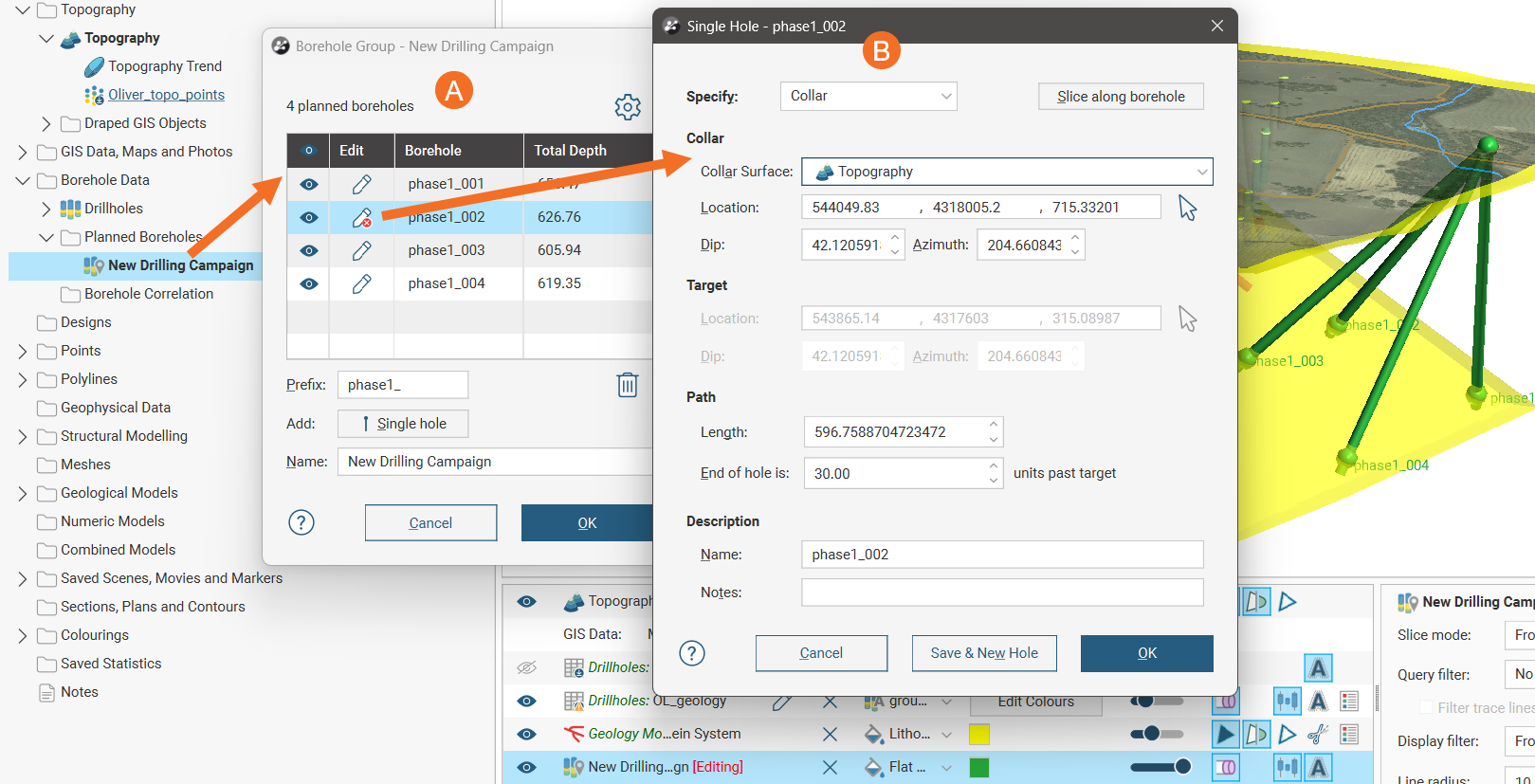
In Leapfrog Works, a borehole group acts as a container for planned boreholes in a drilling campaign. For example, here a borehole group shows planned boreholes (A), with one borehole open for editing, its parameters shown in the Single Hole window (B).
The advantage of organising planned boreholes into groups is that:
- Default values for the naming prefix and path can be used to quickly plan boreholes in bulk.
- Models can be evaluated on the group for viewing drilling prognoses, instead of evaluating models onto boreholes one-by-one.
- A group can be displayed in the scene as a single object.
- A group can be exported, rather than exporting multiple boreholes one-by-one.
Filters can be defined for selecting subsets of holes, which is useful when:
- Displaying the group in the scene
- Using the planned boreholes elsewhere in the project
- Exporting the group
This topic describes working with borehole groups in Leapfrog Works. It is divided into:
- Creating a New Borehole Group
- Borehole Planning Groups
- Evaluating Models on Planned Boreholes
- Defining Filters for Planned Boreholes
- Displaying Planned Boreholes
- Moving Planned Boreholes to Another Group
A separate topic, Adding Planned Boreholes to a Borehole Group, describes how to add boreholes to the group. Other topics describe:
- Viewing Drilling Prognoses
- Importing and Exporting Borehole Planning Groups
- Seequent Evo Drilling Campaigns
Creating a New Borehole Group
To create a new borehole group, right-click on the Planned Boreholes folder and select New Borehole Group. This opens a Borehole Group window, which serves as the container for all boreholes in the group, even if there will be just one.
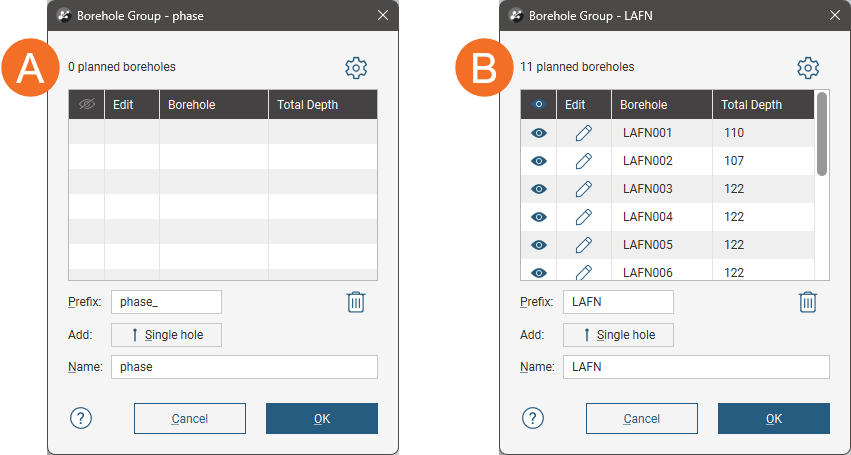
A new borehole group (A) will be empty; once boreholes have been added, they will be listed in the group (B):
The Single hole button opens a window in which you can define a single borehole, with the option to continue adding more boreholes offset from the current borehole by the offset values set as the borehole planning defaults. How to use this window to define planned boreholes is described in the Adding Planned Boreholes to a Borehole Group topic.
To change the planning defaults, click the settings button ( ) near the top of the Borehole Group window. See the Changing Borehole Planning Defaults topic.
You can edit existing planned boreholes from the Borehole Group window by clicking the Edit button ( ) for a borehole. The window for editing a single borehole is identical to that for adding a new single borehole.
The Prefix will be used in naming each borehole that will be added to the group.
Over time, you can change the prefix to reflect different drilling campaigns; changing the prefix does not affect the names of boreholes already defined.
When the borehole group is open, its contents will be displayed in the scene. You can hide some or all boreholes by using the visibility button ( ).
To delete a borehole, click on it in the list, then click the Delete button ( ). You can select multiple boreholes and delete them at once.
Evaluating Models on Planned Boreholes
Any model in the project can be evaluated on a borehole group. Evaluating models onto a borehole group is required for:
- Viewing drilling prognoses. See the Viewing Drilling Prognoses topic.
- Exporting the borehole group as interval tables. See the Importing and Exporting Borehole Planning Groups topic.
Evaluated models are also included with the borehole group when it is published to Seequent Evo. See Publishing to Seequent Evo in the Seequent Evo Drilling Campaigns topic.
Right-click on a boreholes object in the project tree, then select Evaluations. In the Select Models to Evaluate window, move model data columns you want to evaluate onto the boreholes from the Available list to the Selected list.
Defining Filters for Planned Boreholes
Defining a filter for a borehole group makes it easier to select a subset of the boreholes:
- When the group is displayed in the scene
- When the group is used elsewhere in the project, e.g. in a section layout
To define a filter, right-click on the group and select New Filter. Select which boreholes to include in the filter and enter a name for it. The filter will be saved in the project tree as part of the group.
Displaying Planned Boreholes
Once there are planned boreholes in the group, you can display the group in the scene. Do this by dragging the group from the project tree into the scene. To control what boreholes are displayed in the scene, open the group and use the show/hide buttons (A):
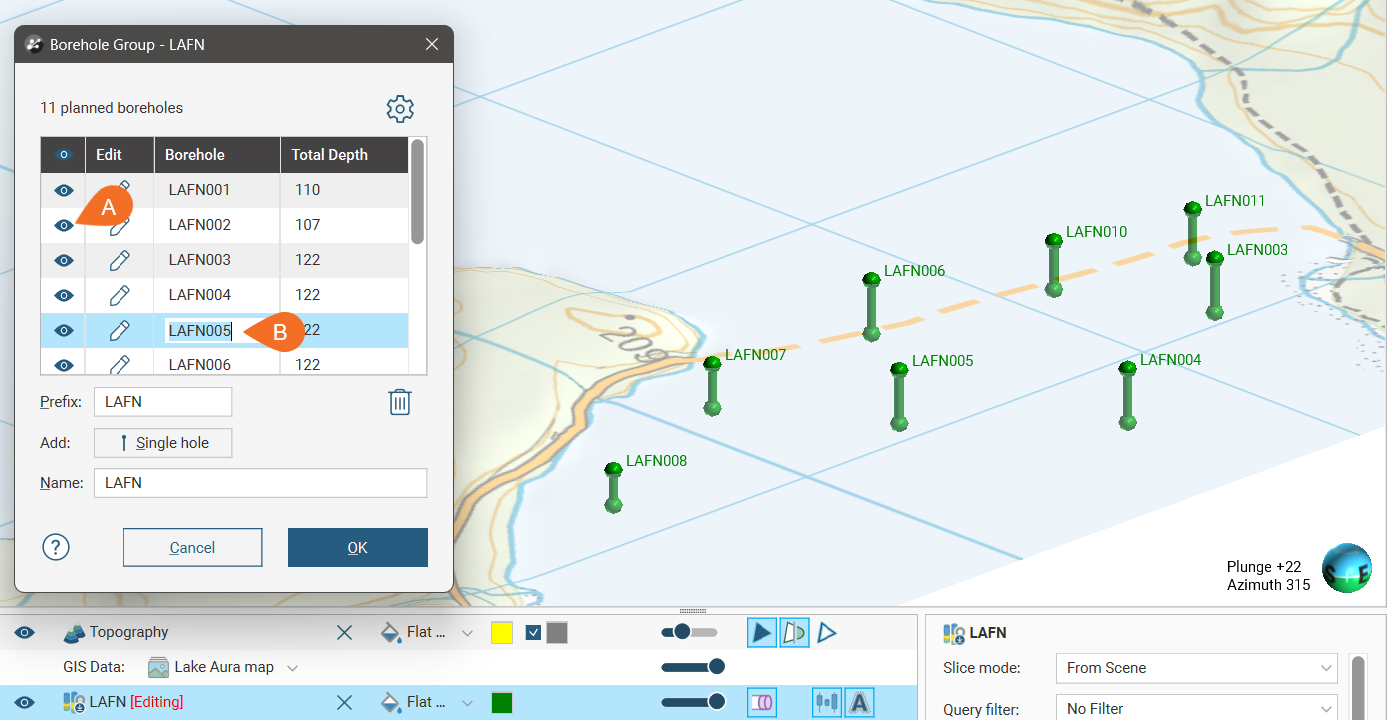
You can edit a borehole‘s name in this window by double-clicking on it (B).
Search for planned boreholes in the list by pressing Ctrl-F. A Find window will appear that you can use to search the list.
To update a borehole, click its Edit button.
Moving Planned Boreholes to Another Group
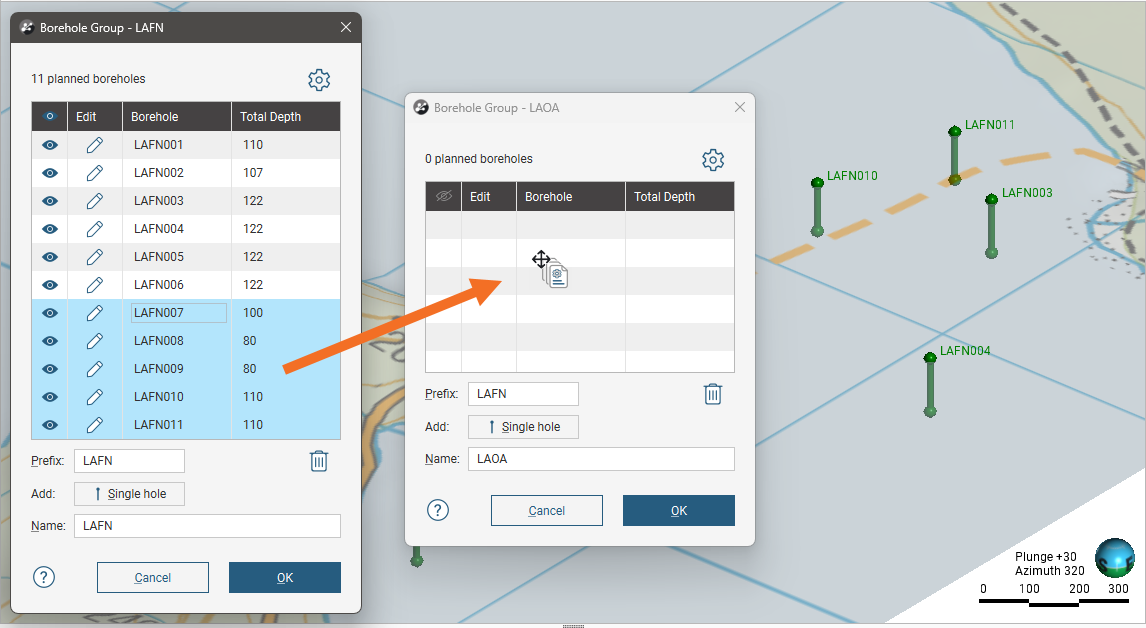
You can ‘move’ planned boreholes to a different group by opening both groups and copying boreholes from one group to the other.
To move planned boreholes to a different group:
- Open both groups.
- Select the boreholes you wish to move to the other group.
- Drag the boreholes to the other group.
- Delete the copied boreholes from the original group.
For example, here the boreholes selected in the first group are being copied into a second group that is empty: