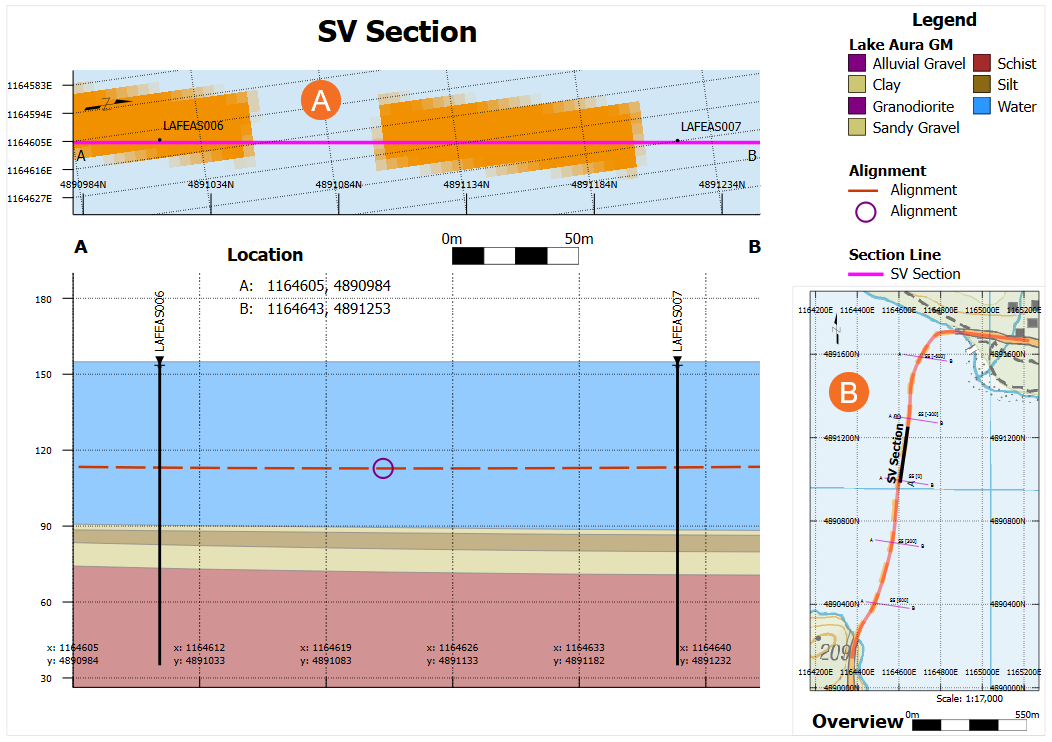
Plan Views
Plan views are special horizontal sections that provide a wide contextual overview for the positioning of other sections and objects projected onto those sections.
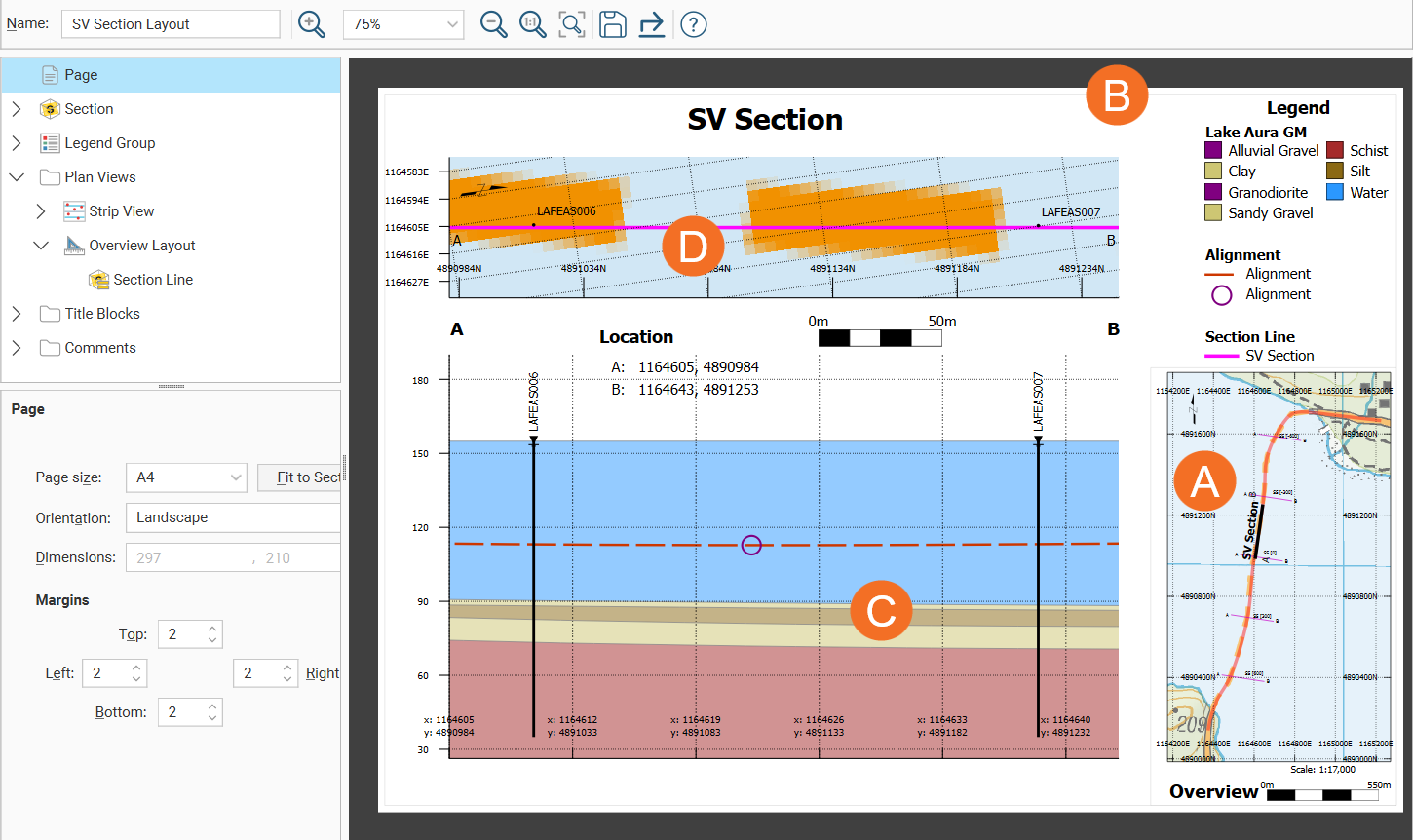
Plan views need to be created in the Sections, Plans and Contours folder in the project tree. Then create a plan view layout, which can then be applied (A) to a section layout (B) in the section editor along with a section (C). You can define more than one plan layout for each plan view, as you may wish to use the plan view in different ways on different section layouts. Note: a plan view is distinct from a strip view (D).
This topic is divided into:
- Creating a Plan View
- Plan View Layouts for Plan Views
- Displaying a Plan View
- Using a Plan View Layout on a Section
- Exporting a Plan View
- Strip Views
Creating a Plan View
To create a plan view, first add a model to the scene to aid in positioning the plan view. Next, right-click on the Sections, Plans and Contours folder and select New Plan View. The New Plan View window will appear, together with a section plane and controls in the scene that let you adjust the position of the plan view plane:
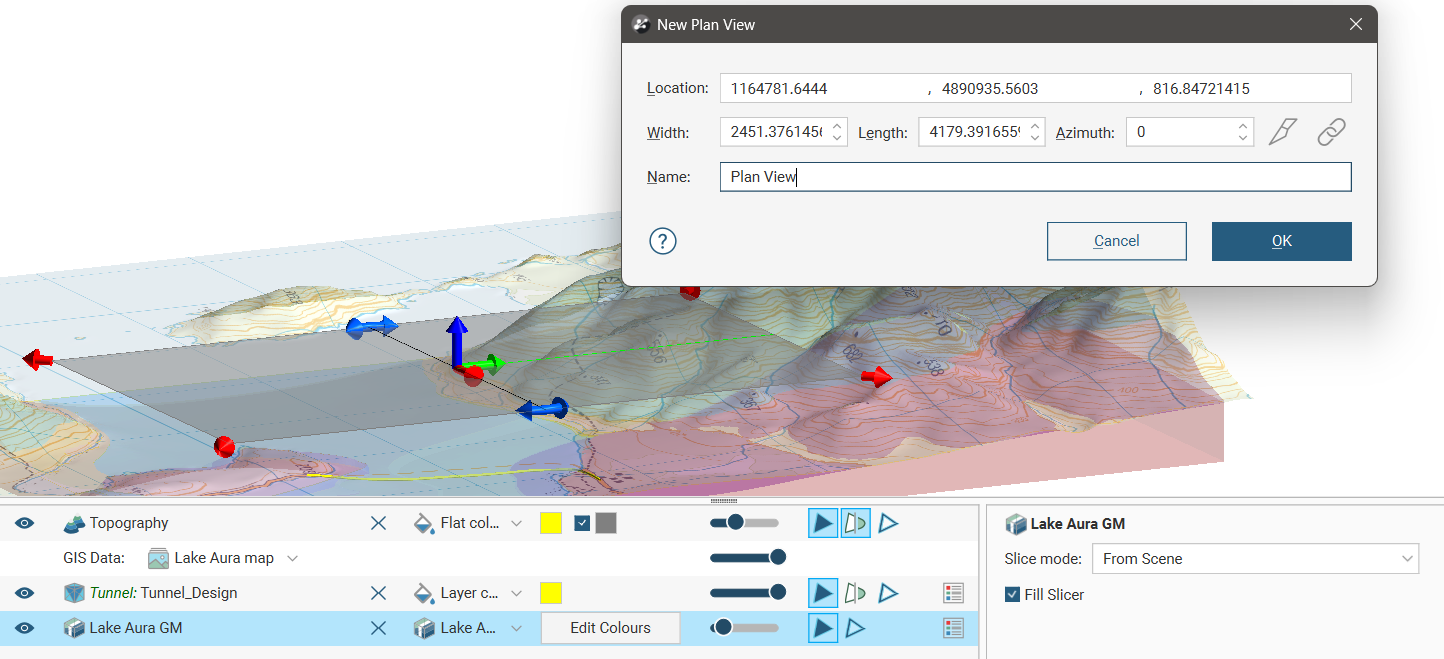
Use the handles in the scene to position the section plane. The handles work in the same manner as the moving plane controls, as described in The Moving Plane. Note that there are no handles to adjust the dip of the plan view, as a plan view section must be horizontal.
If you want to use the slicer to aid in creating a plan view, add the slicer to the scene, then change the slicer’s Dip to 0 in the properties panel, as the slicer controls are locked out unless the dip is zero. The Lock section to slicer button ( ) is enabled when it is highlighted in blue. When it is enabled, any changes to the plan view orientation will also change the slicer orientation. When disabled, the plan view orientation and position can be adjusted without changing the slicer. Click the Set section to slicer button (
 ) in the New Plan View window to snap the cross section orientation back to the slicer.
Once the plan view section plane is positioned as required, click OK to create the new plan view, which will appear in the Sections, Plans and Contours folder.
Plan View Layouts for Plan Views
Create the plan view layout for the plan view, adding objects such as:
- Geological models
- Interpolants
- Distance functions
- Surfaces
- Design lines
- Alignment lines
- GIS lines
- Polylines
Right-click on the plan view in the project tree and select New Layout. Use the section layout editor to design the plan view layout and communicate the information you need to convey.
To learn how to evaluate models onto a plan view, see Plan View Layouts.
Displaying a Plan View
You can add a plan view object to the scene by dragging it into the scene from the project tree or selecting View Object from the right-click menu. In the shape list, you can select the evaluation that will be used in the scene, including a plan view layout, if available.
If you add a plan view layout to the scene, it will add the plan view section to the scene and set the evaluation used in the shape list to the plan view layout you selected.
Using a Plan View Layout on a Section
Once a plan view layout has been created, it can be added to a section layout using the section layout editor.
For details, see the Plan Views topic.
Exporting a Plan View
Unlike other sections, plan views cannot be exported as DXF, DWG, DGN or IFC files. You can export a plan view layout, which includes not just the plan view but also the page layout around it, as a PDF, SVG, PNG, or TIFF file. For more information on exporting a plan view layout, see Exporting Plan View Layouts in the Plan View Layouts topic.
Strip Views
Strip views (A) are distinct from plan views (B). They are another way of providing context for the positioning of the section and objects projected onto the section, but directly relate to a region either side of a section line and can only appear directly above a section on a layout. They are added to a section layout directly using the section layout editor. For more information on strip views, see Strip Views.