
Defining the grid
When uploading a new block model to BlockSync, the second step in the process involves specifying information about the block model, such as the workspace it should be saved in, its coordinate reference system (CRS) and what type of block model it is. You also need to define the grid as part of this step.
This topic describes:
- Entering a name and description
- Choosing the block model type, units and CRS
- Entering the block model’s parameters
- Checking the block model’s parameters (Datamine files)
Once a block model has been uploaded to BlockSync, you cannot change:
- The workspace the block model is saved in. Evo data objects cannot be moved to different workspaces.
- The grid definition. Once a block model has been uploaded to BlockSync, its grid definition cannot be changed. If you later need to upload a version of the model that has a different grid definition, you will need to upload it as a new model.
Entering a name and description
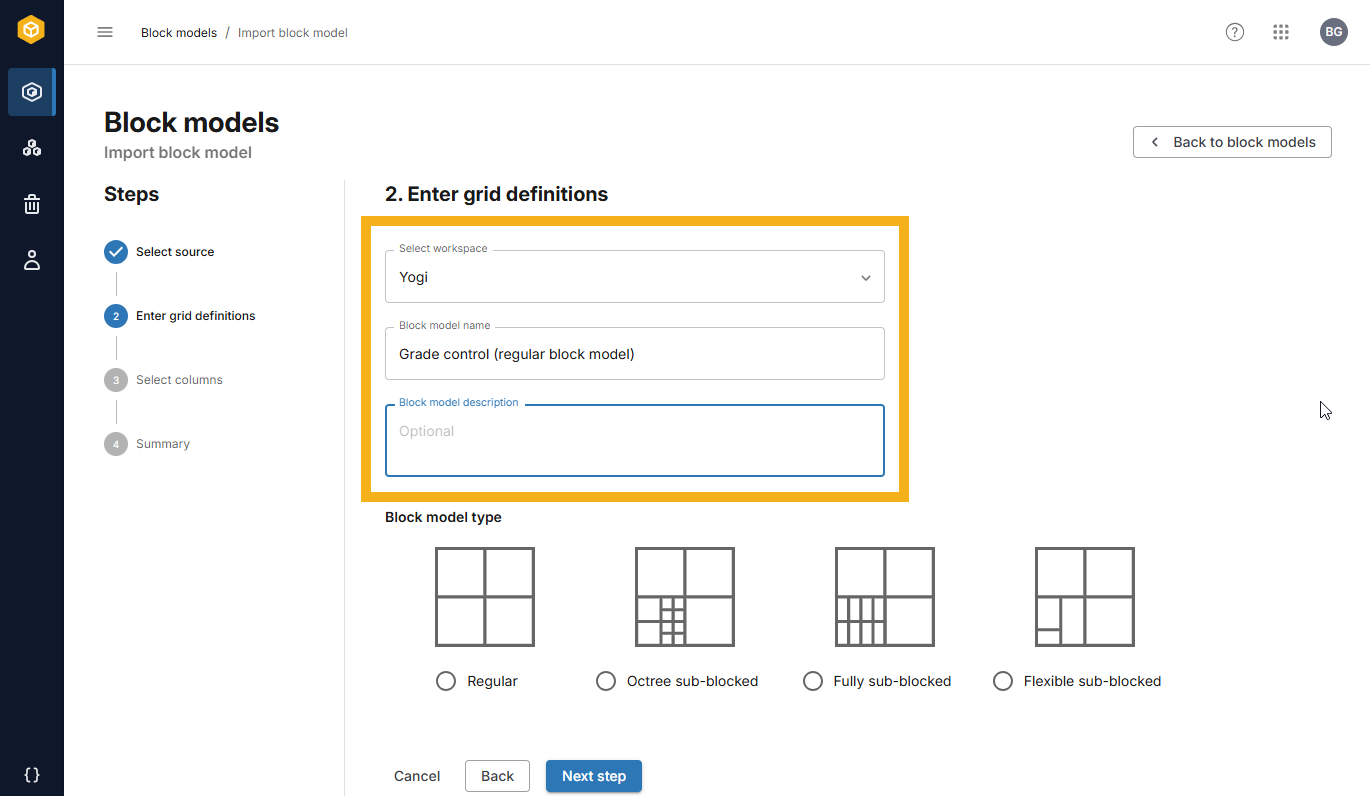
Choose a workspace for the block model, then enter a name and description.
Choosing the block model type, units and CRS
Select the block model type. This will display a set of fields later in this window for entering grid definition information.
Specify the block size unit, in metres or feet.
For the CRS, if the workspace has a CRS specified, that will be used for the block model, unless you change it in this window.
Entering the block model’s parameters
Scroll to the bottom of this window to enter the block model’s parameters.
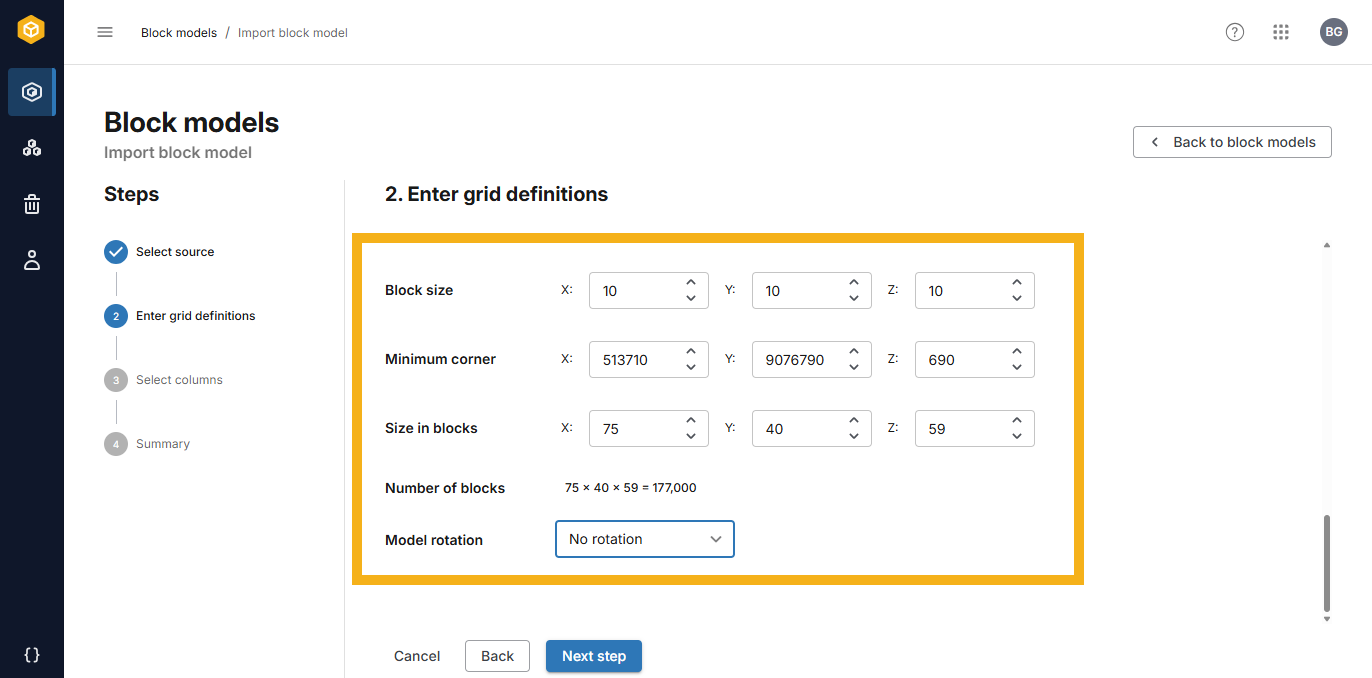
The fields displayed depend on the type of block model selected earlier in this window.
Enter the information required. You can use the Tab key on your keyboard to tab through the fields. It may be useful to have the file open in a text editor to ensure the details match those you enter here.
The model rotations supported are:
- No rotation
- Custom rotation, listed in the order in which the rotation is applied to the block model. Clockwise is positive.
- Leapfrog rotation, expressed in azimuth, dip and pitch
- Vulcan rotation, expressed in bearing, dip and rake
Once you have finished defining the grid, click Next step to view the attributes in the file and choose which ones you wish to import. That part of the process is described in the Selecting columns topic.
Checking the block model’s parameters (Datamine files)
If you are uploading a Datamine block model and it was parsed in the previous window, the block model type and all parameters will automatically be set. As the grid definition cannot be changed once the block model has been uploaded to BlockSync, carefully review the information before moving on to selecting columns.