
Selecting columns
When uploading a new block model to BlockSync, the third step is to map the columns in the source file to columns in BlockSync. This process involves reading the columns in the source file and determining how each column will be handled in BlockSync.
At this stage, you are required to enter a comment for this version of the block model. For information on block model versions in BlockSync, see Block model version numbering in the Uploading block models to BlockSync topic.
The rest of this topic describes:
Column mapping
When mapping columns, there are two factors to consider, column categories and import actions.
Column categories
BlockSync regards columns in files being imported as falling into one of two categories:
- Grid definition columns. These columns are for defining characteristics of the block model such as centroid coordinates, block sizes and parent block indexes.
- Data columns. For *.parquet files, the data type will be read from the file and cannot be changed. For other file formats, data columns can be text or numeric, and if BlockSync has detected the column type incorrectly, you can change it in this window.
Import actions
On import, BlockSync applies actions to each column in the file. BlockSync autodetects the most likely action for each source file column based on its name and contents. These actions are:
- The Grid definition action is assigned to columns that have a name that matches terminology often used in grid definition. These are columns BlockSync requires in order to validate and import the grid. You cannot change these column names, but you can change which source file columns are mapped to the different grid definition columns.
- The New column action is for data columns, which will be marked as text or numeric, depending on their contents. You can change the names of these columns; each name must be unique and cannot be the name of one of the grid definition columns.
- The Don’t import action is for columns you do not wish to import.
Using the columns table
The table in the Select columns window displays each column from the file (A), along with the actions (B) that will be applied to each column when BlockSync validates and imports the file. The table also shows the column name used in BlockSync (C) and its Data type (D), if the column is not a grid definition column.
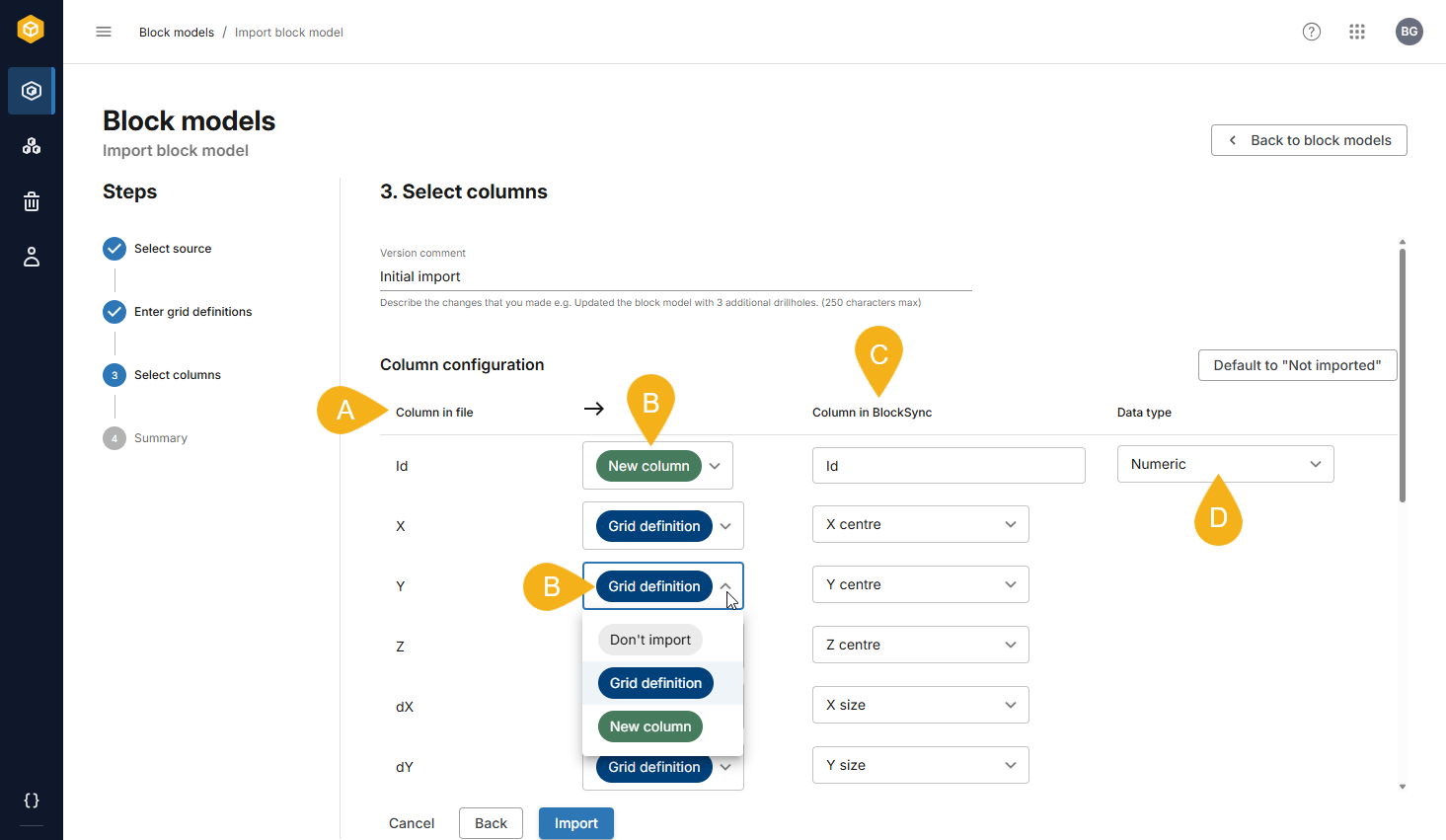
By default, BlockSync will assign an action to all columns in the file, and so initially, no columns will be assigned the Don’t import action.
The Default to “Not imported” button near the top of the window marks all columns as Don’t import, which means that you will then need to map each column one-by-one, including the grid definition columns.
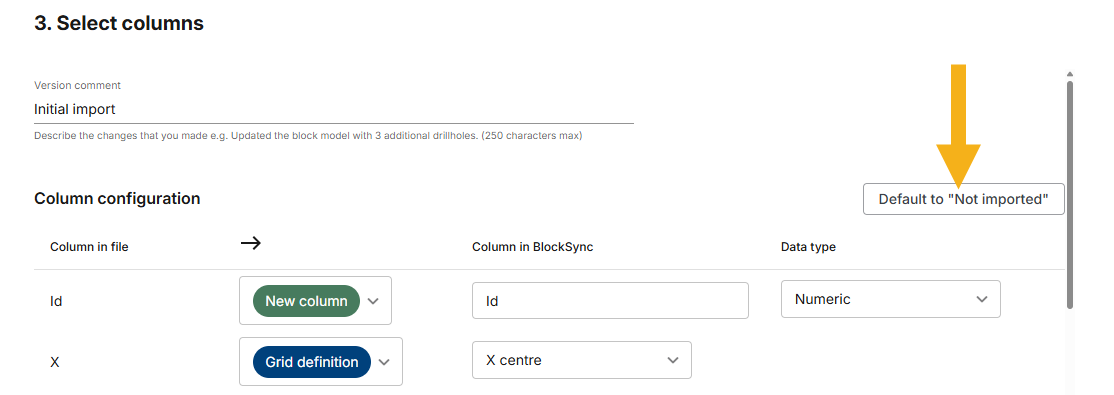
Beware that clicking the Default to “Not imported” button cannot be reversed. You will then need to map every column one-by-one, and it may, in fact, be more practical to set each unneeded column to Don’t import instead of having to remap all columns in the file.
Here we can see some of the data columns that have been assigned the New column action (E). Each column has been autodetected as a Text column (F), but if we can see from the file itself that it contains numeric data, we can change it using the dropdown list.
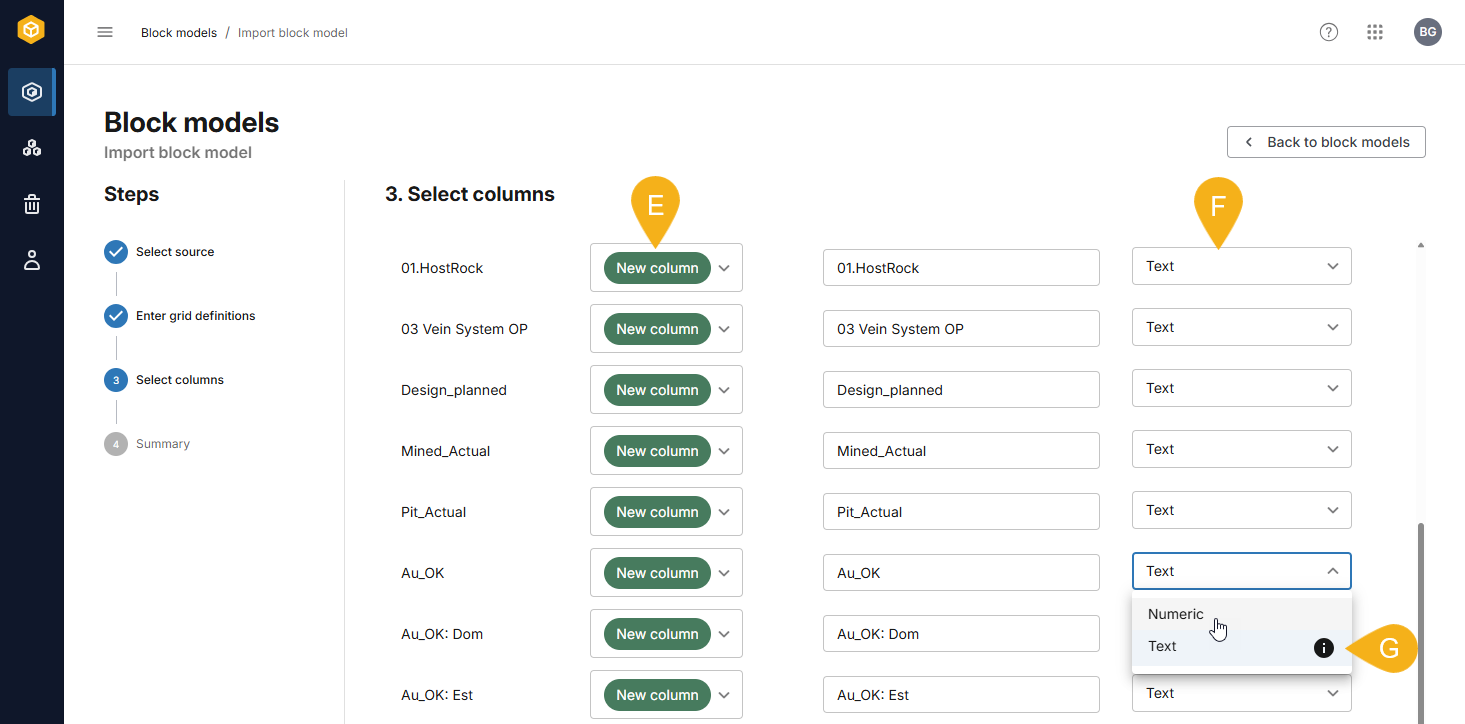
The icon next to Text in the dropdown list (G) indicates that this is the setting BlockSync autodetected.
Note that the Data type cannot be changed for *.parquet files.
Once you have finished mapping columns, click Next step to validate and import the model. That part of the process is described in the Finalising the block model import topic.
Update options for fully sub-blocked models
If you are uploading a fully sub-blocked model, there will be an option for sub-block infilling that determines how the block model will be updated when new sub-blocks are created for which there is no data:
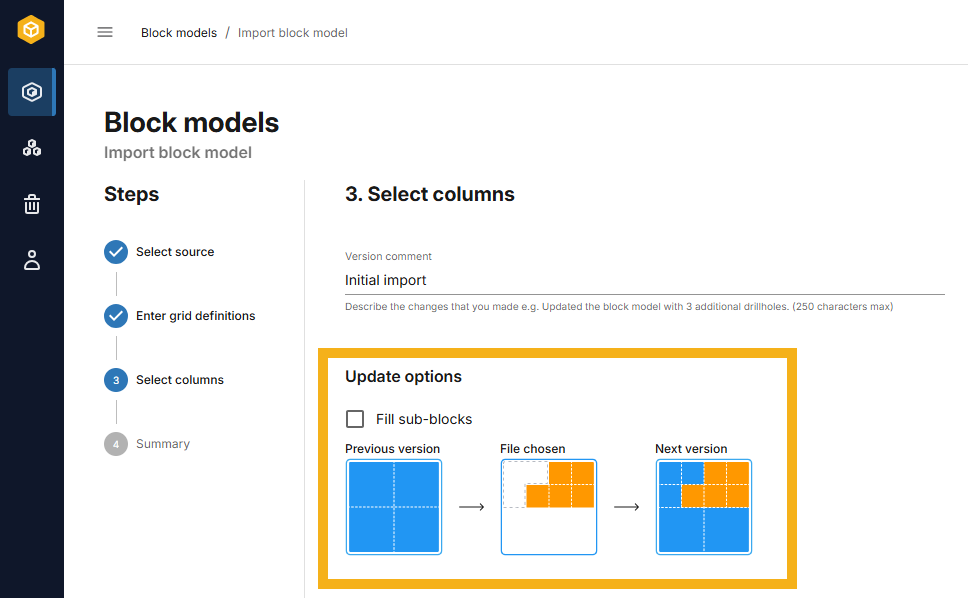
See the Sub-block infilling topic for more information on this setting. If you need to change this setting after the block model has been uploaded, you can do so in the block model’s Configuration tab, which is described in the Viewing and editing block model information topic.