
Viewing and editing block model information
In BlockSync, block model information is organised into tabs.
- The Versions tab shows the block model’s history. Click on a version to view information about it, such as what columns changed compared to the previous version. You can also download each version of the block model from this tab.
- The Reports tab is for creating and viewing resource reports and creating charts.
- The Columns tab is for viewing and managing what columns are included in the model, changing column type and setting the units for numeric columns.
- The Configuration tab shows grid information and includes settings such as the block model’s CRS and time zone and the units it uses.
The rest of this topic describes how to view and edit information for block models stored in BlockSync. It is divided into:
- Downloading block model versions
- Setting the model’s units
- Setting the model’s CRS
- Changing the sub-block infilling setting
- Editing columns
Reports tab options are described in the separate Reporting topic.
Downloading block model versions
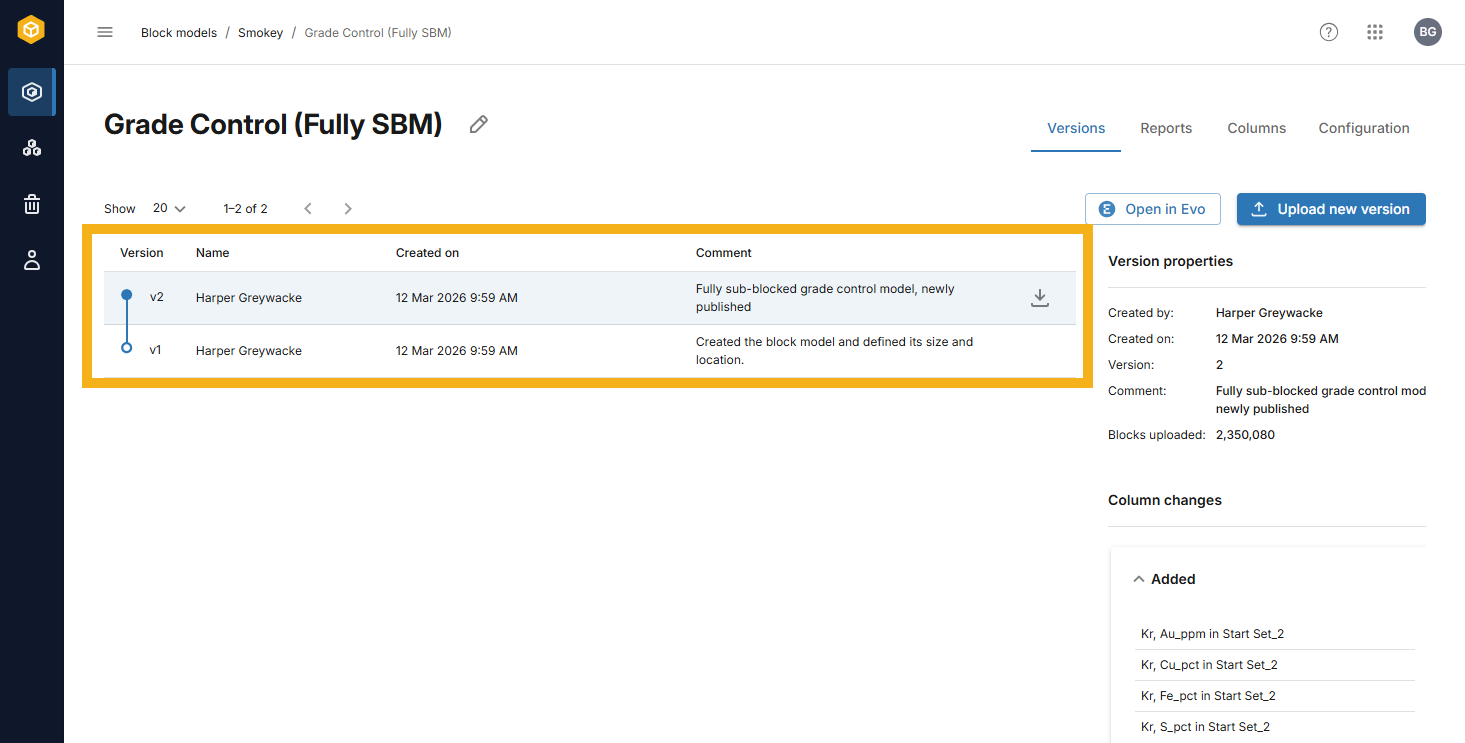
When you first open a BlockSync block model, its Versions tab will be displayed, showing the model’s history. Click on a version to view information about it, such as what columns changed since the previous version.
A newly uploaded model will have two versions, the initial creation of the block model and its first publish:
Change the model’s name by clicking the edit button ( ) next to it.
You can download the different versions of the block model from the Versions tab. Do this by clicking on the download button for the version you wish to download. You can download models in *.csv or *.parquet format. The options available depend on the type of block model.
Setting the model’s units
In the Configuration tab, you can change the units the model uses with the Block size unit setting.
This setting determines how block sizes are interpreted when generating reports. A unit must be set before any reports can be generated. See the Reporting topic for more information.
Setting the model’s CRS
In the Configuration tab, you can change the coordinate reference system (CRS) the model uses.
Note that once a CRS has been set for a block model, it cannot be removed; you can only change the CRS to a different one.
Changing the sub-block infilling setting
For fully sub-blocked models, there is a setting for sub-block infilling in the Configuration tab:
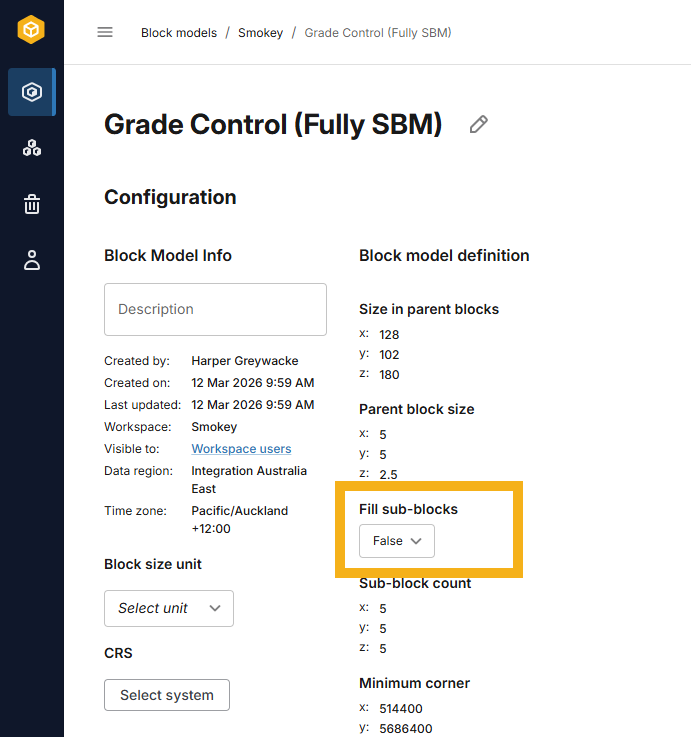
Note that disabling this setting does not change updates already made to the block model.
See the Sub-block infilling topic for more information on this setting.
Editing columns
Click on the Columns tab to view and edit the model’s columns:
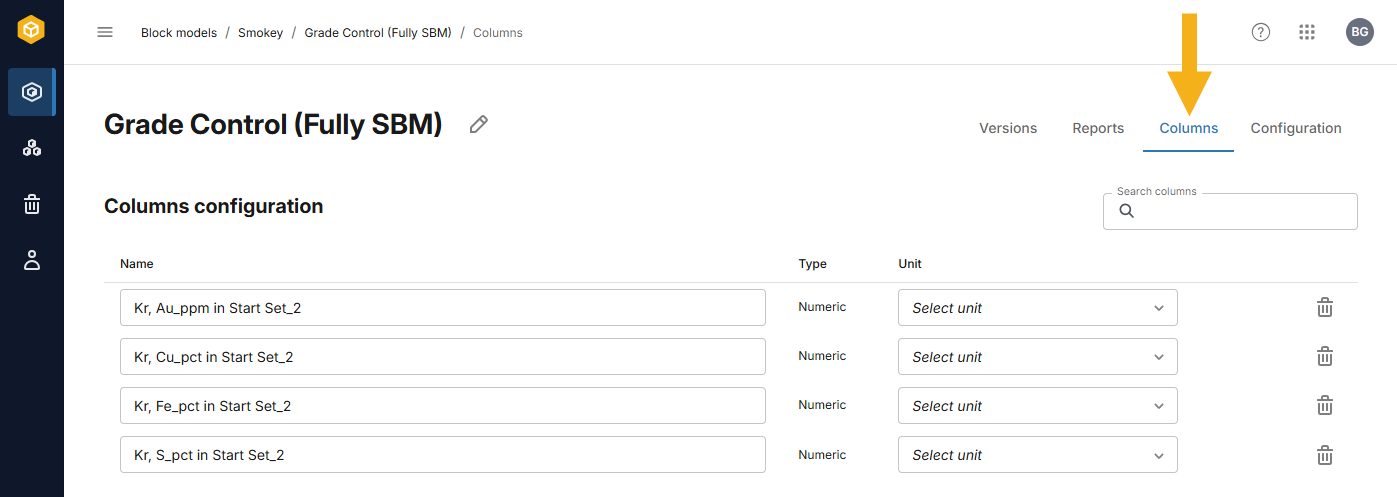
Unlike when importing a block model, only the data columns are visible in the Columns tab. A block model’s grid definition cannot be changed once it has been imported.
The columns listed are those for the latest version of the model. It is not possible to view deleted block model columns in BlockSync, although records of these are maintained in prior versions.
When you edit columns, you can:
- Change the column name
- For numeric columns, set a Unit for the column
- Delete columns
Editing columns will result in a new version of the block model, so rather than making and saving changes one at a time, the editing process involves:
- Making the required changes
- Entering a comment on the new version
- Saving the changes
When you make a change to a column, an Update label will appear:
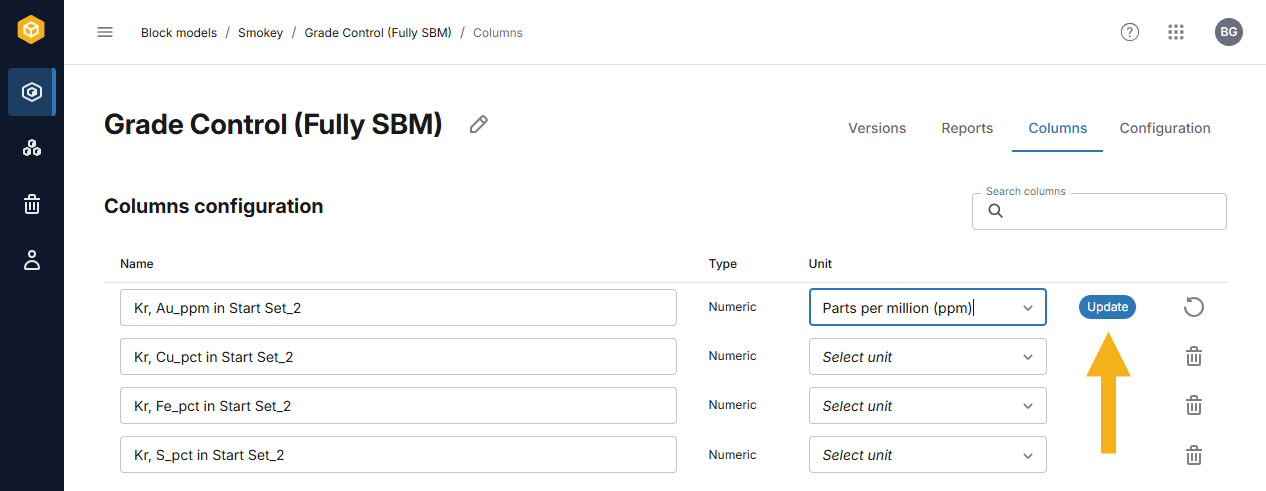
When you are making multiple changes to columns, this label is useful for scrolling through the columns to see what changes will be made once the Save button is clicked.
You can undo any change before saving the block model by clicking its Undo button ( ).
).
Once you have finished making all the required changes, click Save.
You will be prompted to enter a comment for the update:
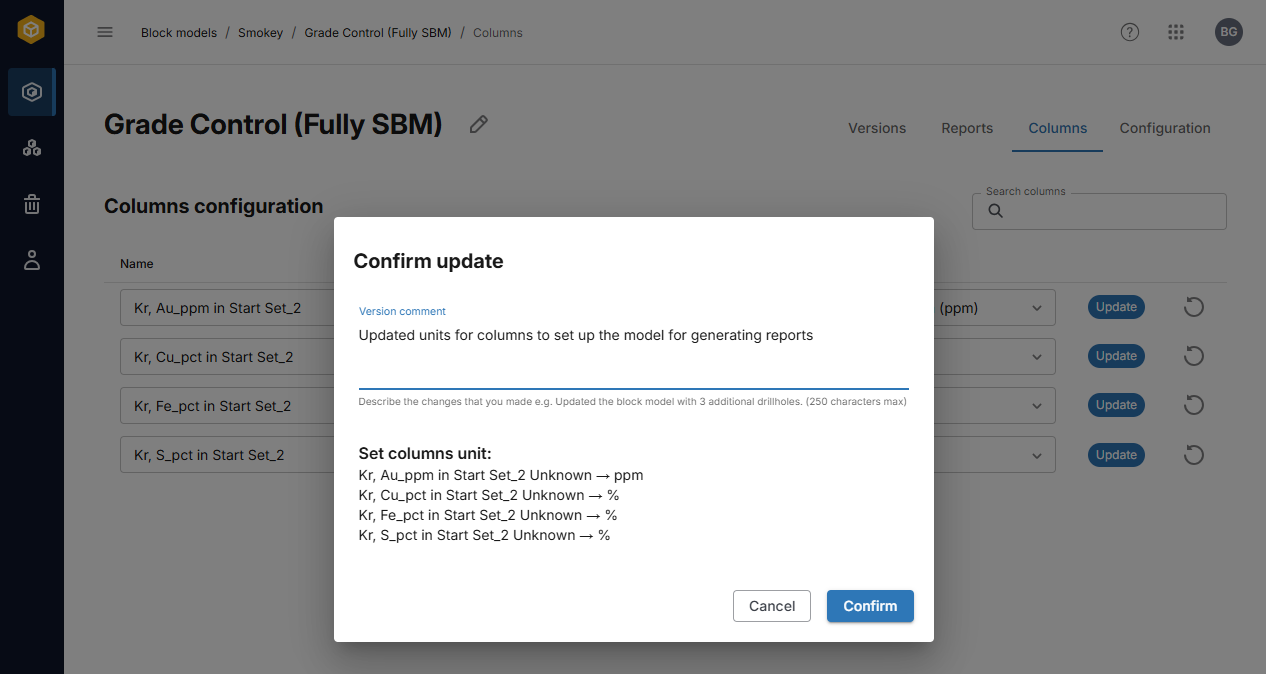
The update to the model will then be processed and a new version created.