
Machine Learning in Imago
Imago's machine learning models power the Image Analysis and AutoCrop tools. These proprietary neural network models run on Seequent's scalable compute infrastructure and are specifically designed to recognize core and core-tray features. In particular, Imago's AutoCrop and Image Analysis tools automatically crop core tray images and calculate downhole datasets for rock colour, fracture count and RQD.
Image Analysis features are only available if you have Image Analysis added to your Imago instance.
This guide discusses image quality and layout considerations for using Imago’s machine learning models. It is divided into:
- Image Quality and Layout Considerations
- Examples of Core Tray Image Layouts
- Imagery Type Considerations
Separate topics describe how to use AutoCrop and Image Analysis. See:
Image Quality and Layout Considerations
In order for AutoCrop and Image Analysis to run effectively, images must meet basic quality and layout standards, which are outlined below. The section that follows, Examples of Core Tray Image Layouts, illustrates some common core tray image capture problems that can affect the application of Imago’s machine learning models.
Orientation
Core trays images should be in landscape orientation. Although AutoCrop and Image Analysis will function on portrait images in which core rows run horizontally, portrait orientation is not recommended as it does not make the best use of image resolution and dimensions.
Resolution
Image resolution be at least 512 pixels in horizontal and vertical axes and works best with full frame digital camera imagery of 60 megapixels or more.
Skew and Rotation
Small amounts of skew and rotation can be accommodated but better results are achieved with images that have straight lines and no perspective shifts. When there is some rotation and/or distortion, edges may be identified incorrectly.
Shadows, Lighting and Focus
If the images were poorly lit, areas of core that are masked by deep shadows may be omitted. Best results are achieved with images captured using directly overhead or multi-source diffused lighting. Images must have sharp focus for best results.
Number of Core Trays/Rows
The image must contain at least one complete core tray. Although rows in multiple complete core trays will be detected, the trays must be stacked evenly, with minimal gaps. Small gaps can be accommodated and adjusted for, but processing may fail if the gap is more than one row in height.
Up to 20 rows in an image can be recognised, although the best performance is achieved when there are only one or two core trays and fewer than 10 rows in an image.
Incomplete Core Trays
Imago’s machine learning algorithms are designed to ignore incomplete core trays. This is based on the assumption that a partial core tray in an image is actually the subject of another image; were the algorithm to capture rows in partial core trays, those might be undesired duplicates.
Edited Images
Imago’s machine learning algorithms work well with original images that have not been pre-cropped to remove the background. When the background is included, the algorithms are better able to distinguish between core tray content and surrounding objects, resulting in a more accurate results.
Core Markings
Make sure that core markings are visible, high contrast mark ups with a colour that contrasts well with your rock. For best results, core markings should also use a different colour that what is used for other markings. Additionally, veins can look similar to white marks, so an unnatural shade of green, blue or yellow works well.
Other considerations for markings are:
- Mechanical break markings. When there is a mechanical break on the core use an X mark up on either side of the break to indicate it as a mechanical break. Markings on natural breaks are not required.
- Depth registration markings. Use a vertical line with the depth next to it.
- Other markings. If other types of markings are used, e.g. orientation lines or assay locations, it is best to use different colours.
Examples of Core Tray Image Layouts
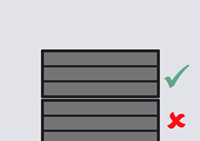
These images illustrate how the image layout principles described above can be applied to ensure the best results.
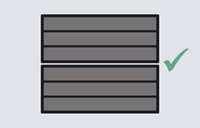
|
Core trays are vertically aligned and the gap between trays is minimal. |
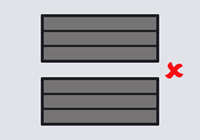
|
Although the core trays are vertically aligned, the gap between them is too large. |
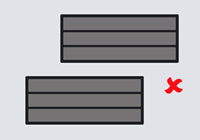
|
Core trays are not vertically aligned and the gap between trays is too large. |
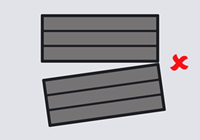
|
Although the first tray is aligned correctly, the skew on the second tray is too great and boundary and row detection will fail. |
|
The first tray will be identified and cropped, but the second tray will not, as only part of the tray is included in the image. Note that Imago’s machine learning algorithms are intended to ignore partial core trays in images, so a ‘failure’ on the second tray may be acceptable, as long as the partial tray is captured in full in a different image. |
Imagery Type Considerations
Before using either AutoCrop or Image Analysis there are some imagery type considerations to set up. These are done from the Admin Portal in Data Definitions > Imagery Types.
For imagery types that have Image Content set to coretray there is an AutoCrop setting available. Select it if you wish to enable AutoCrop.
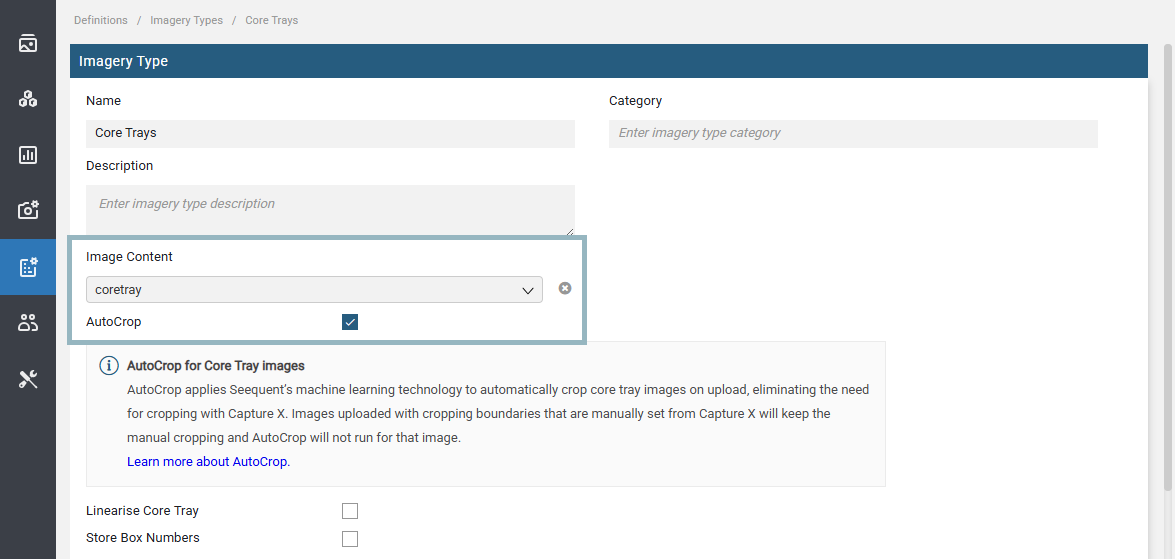
If you have Image Analysis added to your Imago instance, it is not necessary to enable this selection. This is because AutoCrop is, by default, part of the Image Preparation step in Image Analysis.
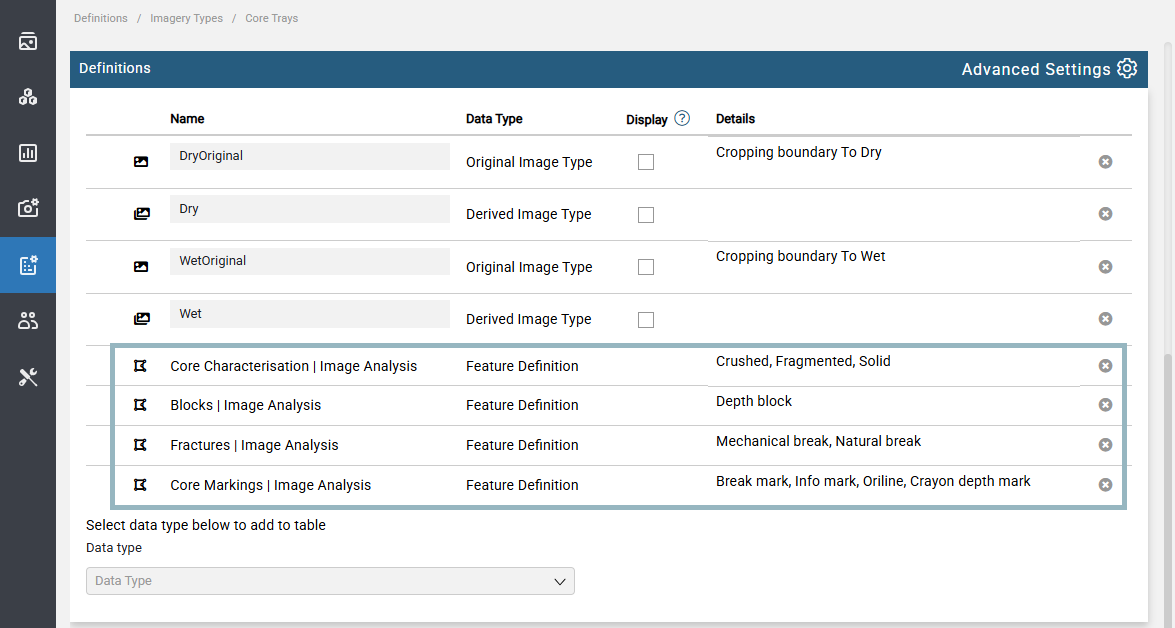
If you will be capturing or uploading new images that you wish to use Image Analysis on, add the following definitions to the Definitions list:
- An Original Image Type, which is for the captured/uploaded image that AutoCrop or Image Analysis will be run on
- A Derived Image Type, which is where the image will be saved
If you have Image Analysis. some feature definitions are added by default:
If you will be capturing or uploading new images that you wish to use AutoCrop on, add the following definitions to the Definitions list:
- An Original Image Type, which is for the captured/uploaded image that AutoCrop or Image Analysis will be run on
- A Derived Image Type, which is where the image will be saved
- A Feature Definition that includes boundary and row definitions, e.g. the Linearization feature definition:
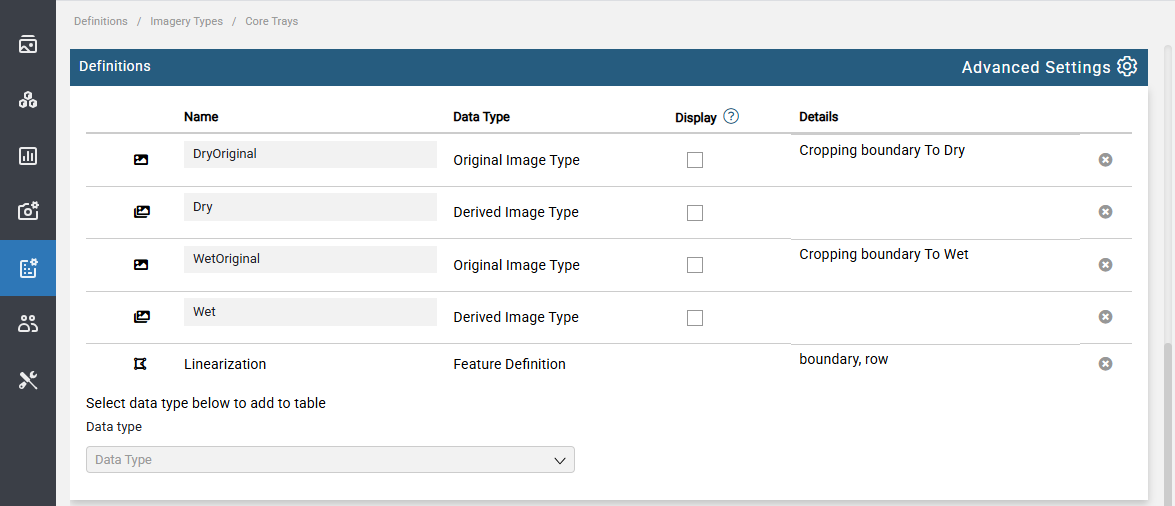
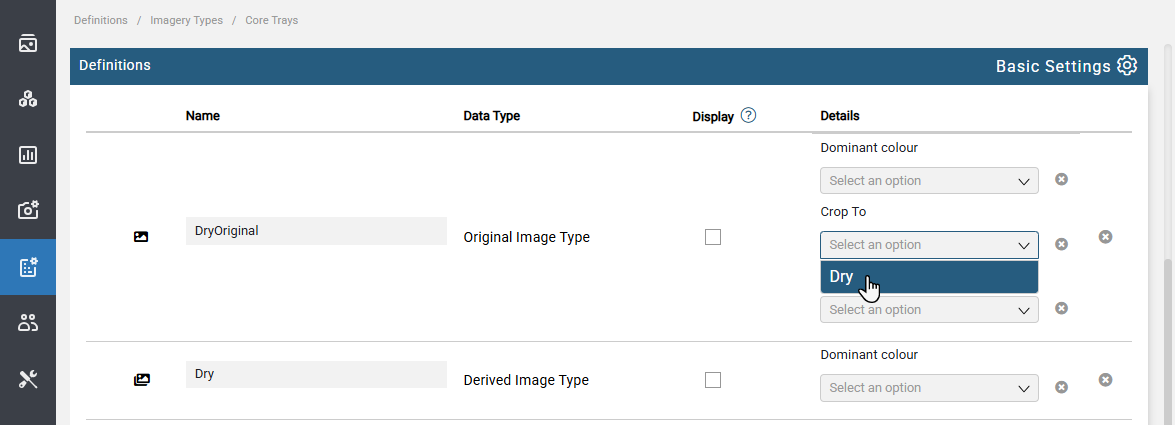
Click on Advanced Settings. For the Original Image Type, map the Crop To setting to the derived image type. Here there is an Original Image Type for the captured images, called DryOriginal, and a Derived Image Type for the cropped and analysed images, called Dry. For DryOriginal, Crop To is set to Dry:
If you already have uncropped images stored in Imago, it is not necessary to enable AutoCrop for the imagery type those images belong to. However, you do need to ensure that the original image type is mapped to a derived image type.
Got a question? Visit the Seequent forums or Seequent support
© 2025 Seequent, The Bentley Subsurface Company