
Managing BlockSync models
In the BlockSync portal, block model information is organised into tabs.
- The Versions tab shows the block model’s history. Click on a version to view information about it, such as what columns changed compared to the previous version. You can also download each version of the block model from this tab.
- The Reports tab is for creating and viewing resource reports and creating charts.
- The Columns tab is for viewing and managing what columns are included in the model, changing column type and setting the units for numeric columns.
- The Configuration tab shows grid information and includes settings such as the block model’s CRS and time zone and the units it uses.
The rest of this topic describes:
- Viewing a block model’s history
- Setting the model’s units
- Setting the model’s CRS
- Changing the sub-block infilling setting
- Recycling and restoring block models
Reports tab options are described in the separate Reporting topic.
Columns tab options are described in the separate Configuring columns topic.
Viewing a block model’s history
When you first open a BlockSync block model, its Versions tab will be displayed, showing the model’s history. Click on a version to view information about it, such as what columns changed since the previous version.
A newly uploaded model will have two versions, the initial creation of the block model and its first publish:
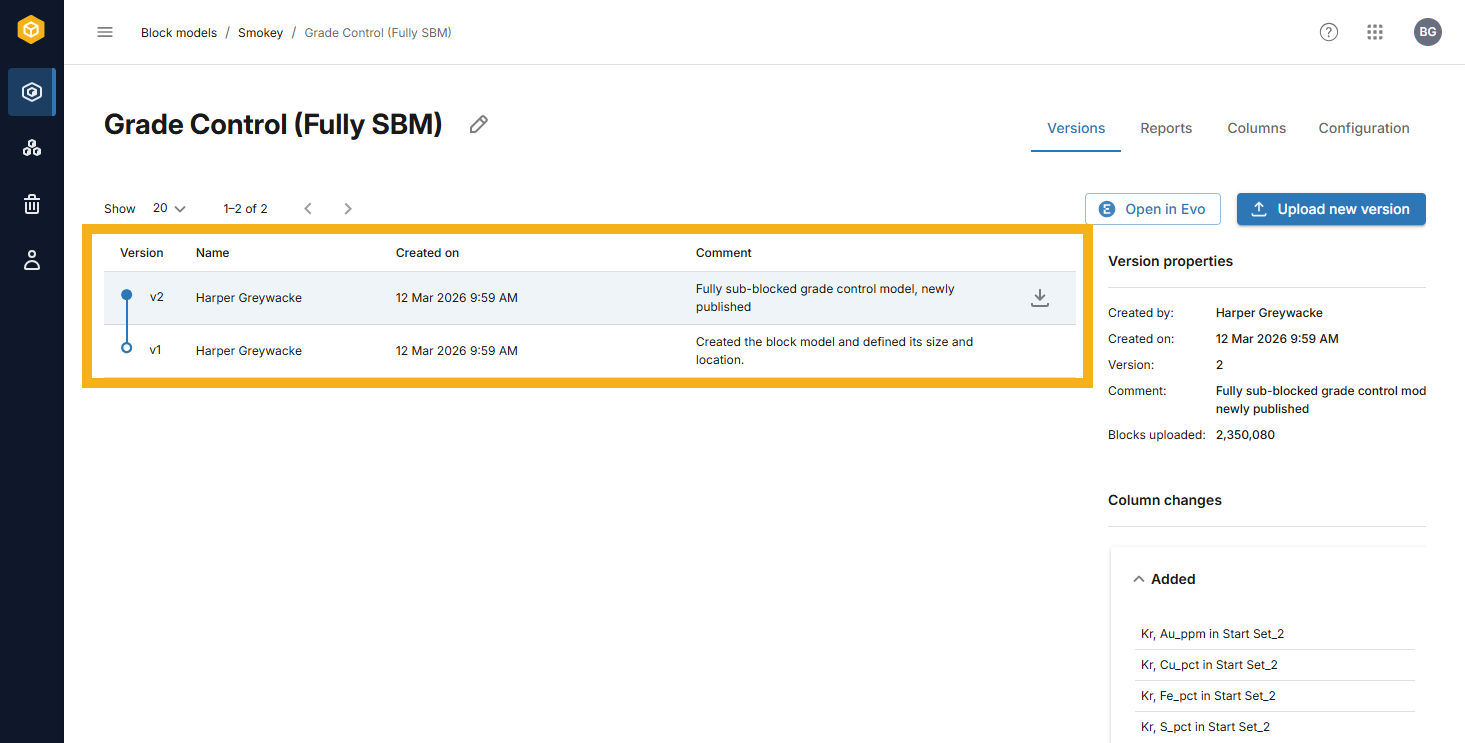
Change the model’s name by clicking the edit button ( ) next to it.
You can download the different versions of the block model from the Versions tab. Do this by clicking on the download button for the version you wish to download. You can download models in *.csv or *.parquet format. The options available depend on the type of block model.
Setting the model’s units
In the Configuration tab, you can change the units the model uses with the Block size unit setting.
This setting determines how block sizes are interpreted when generating reports. A unit must be set before any reports can be generated. See the topic for more information.
Setting the model’s CRS
In the Configuration tab, you can change the coordinate reference system (CRS) the model uses.
Note that once a CRS has been set for a block model, it cannot be removed; you can only change the CRS to a different one.
Changing the sub-block infilling setting
For fully sub-blocked models, there is a setting for sub-block infilling in the Configuration tab:
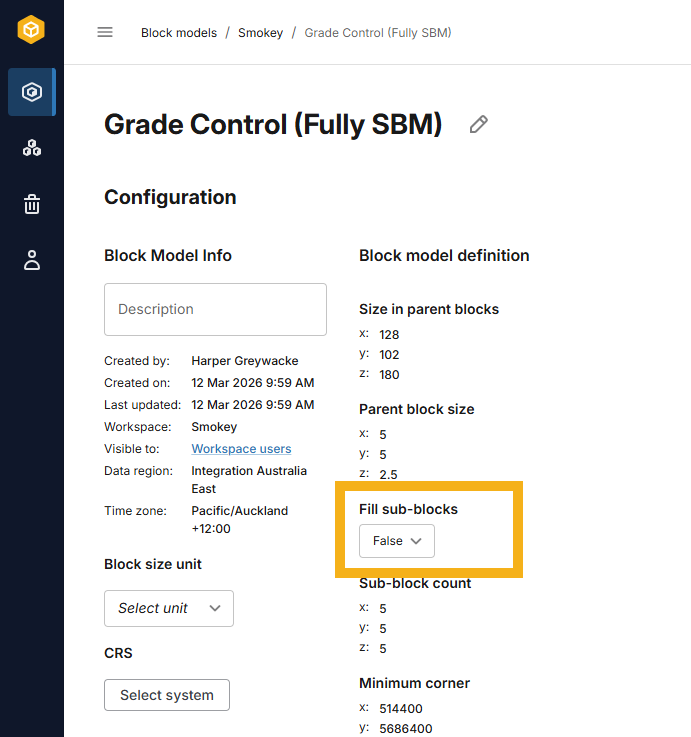
Note that disabling this setting does not change updates already made to the block model.
See the Sub-block infilling topic for more information on this setting.
Recycling and restoring block models
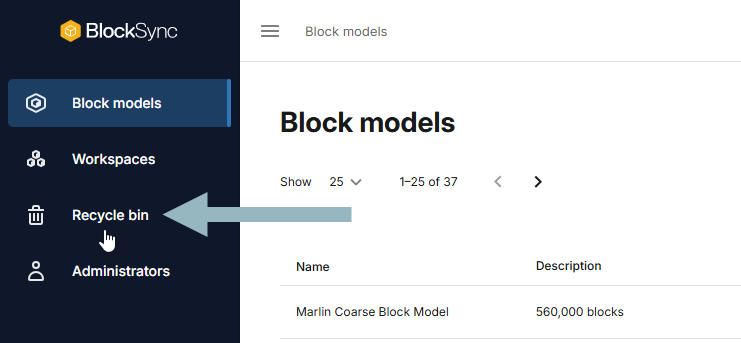
BlockSync has a recycle bin for block models that are no longer being used by the team. Open the recycle bin by clicking on it in the sidebar:
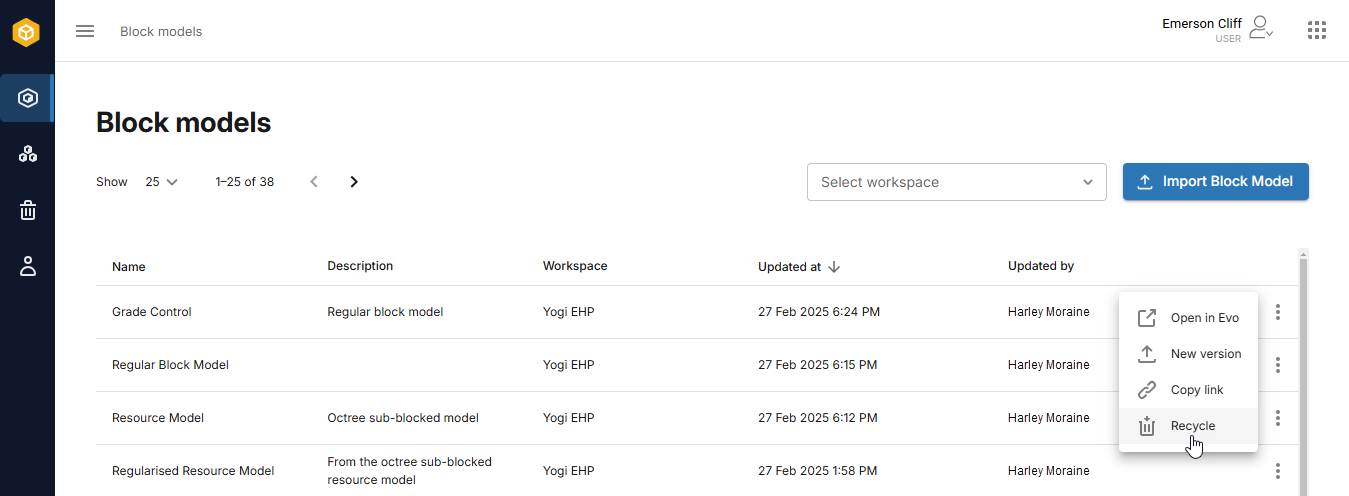
To send a block model to the recycle bin, choose Recycle from the block model’s overflow menu:
If you need to restore a recycled block model, open BlockSync’s recycle bin and click the Restore button ( ) for the block model you wish to restore:
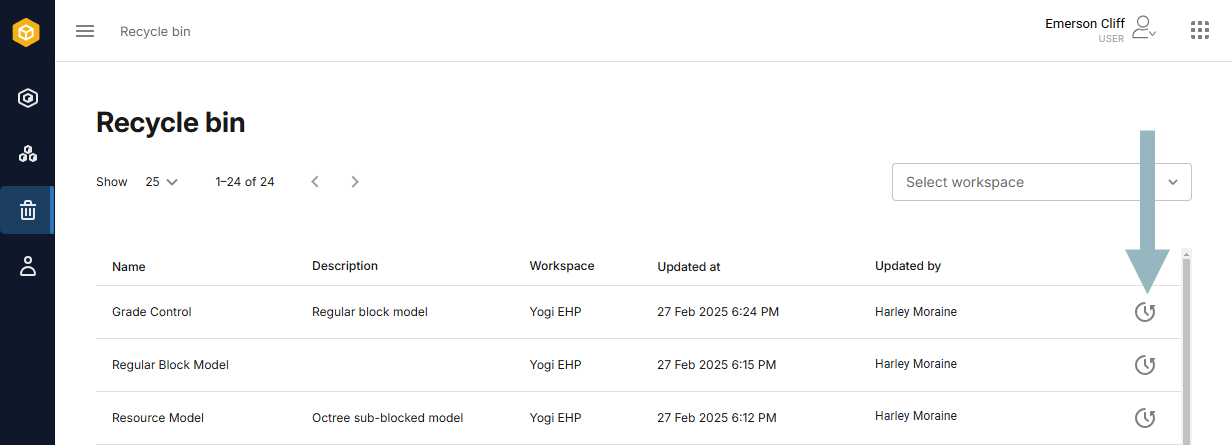
You will be asked to confirm your choice.