
Importing a new block model
Importing a new block model is a four-part process. This topic describes the first part of the upload process and is divided into:
- Selecting the block model file
- Previewing the file data
- Parsing the grid definition (Datamine files)
The later steps are described in separate topics:
Once a block model has been uploaded to BlockSync, its grid definition cannot be changed. If you later need to upload a version of the model that has a different grid definition, you will need to upload it as a new model.
To start uploading a block model, click the Import Block Model button in either the block models list or in a workspace.
Selecting the block model file
In the window that appears, click the Upload file button to select a file, or simply drop the file onto the designated space:
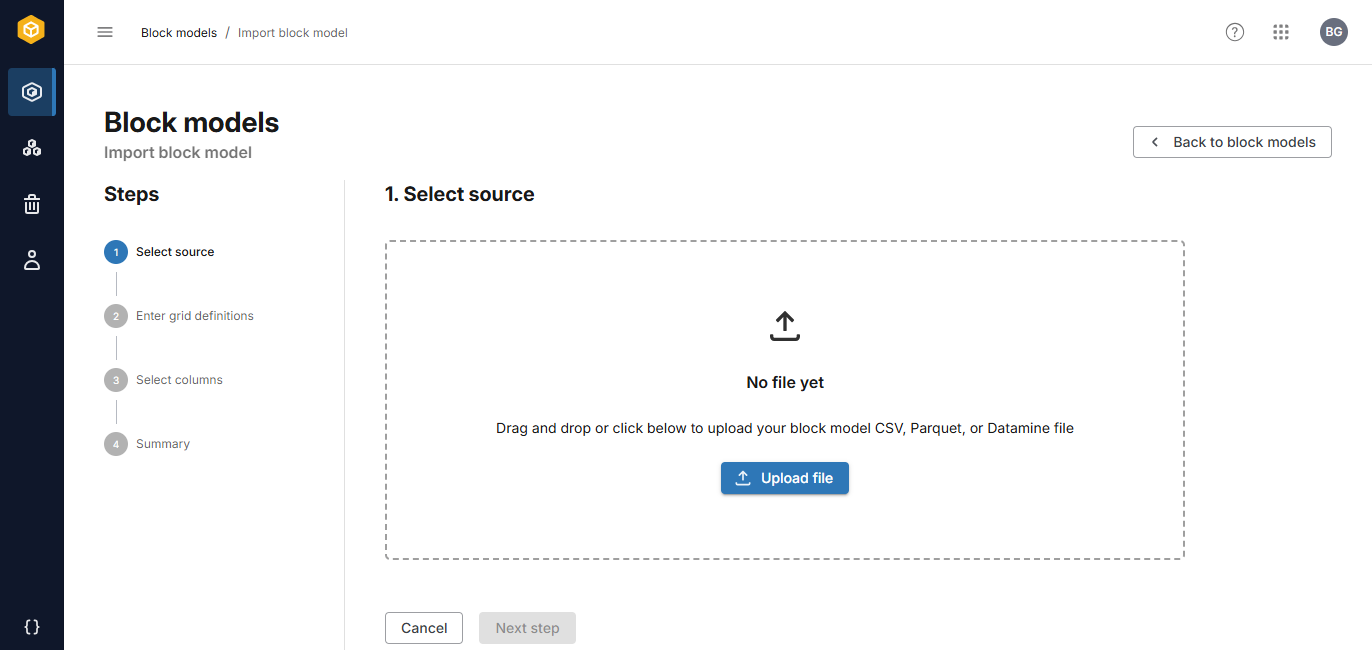
Once you select a file for upload in the first step, the time required to move on to the second step depends on the file size.
Previewing the file data
Once the file has been uploaded, the data in it will be previewed:
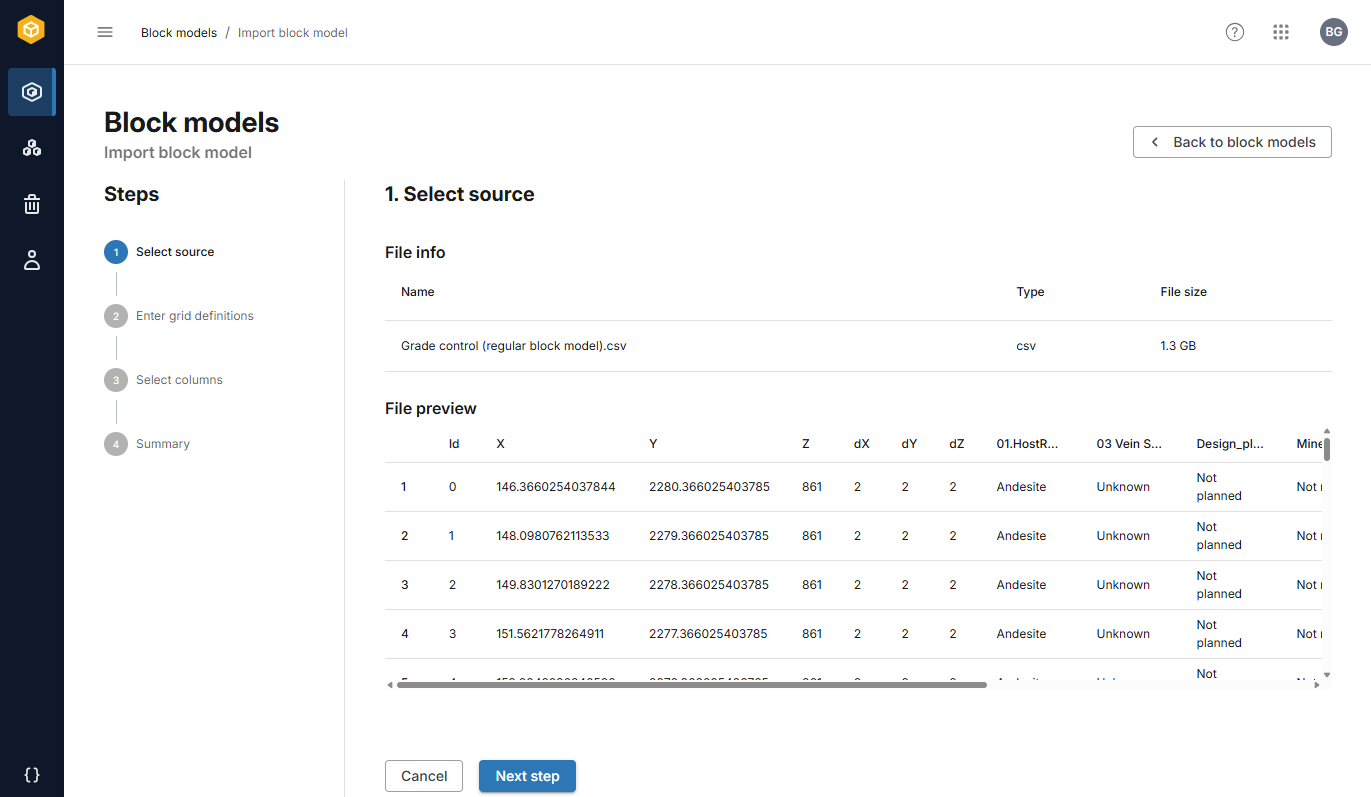
Check the preview carefully, especially the first few lines. If there is a notification regarding skipped rows, follow the prompts to verify that you wish to skip those rows.
Once you have checked the preview, click Next step to define the grid. That part of the process is described in the Defining the grid topic.
Parsing the grid definition (Datamine files)
When importing block models in Datamine (*.dm) format, once you click Next step, the file will be parsed to extract the grid definition. Progress is displayed at the bottom of the window:
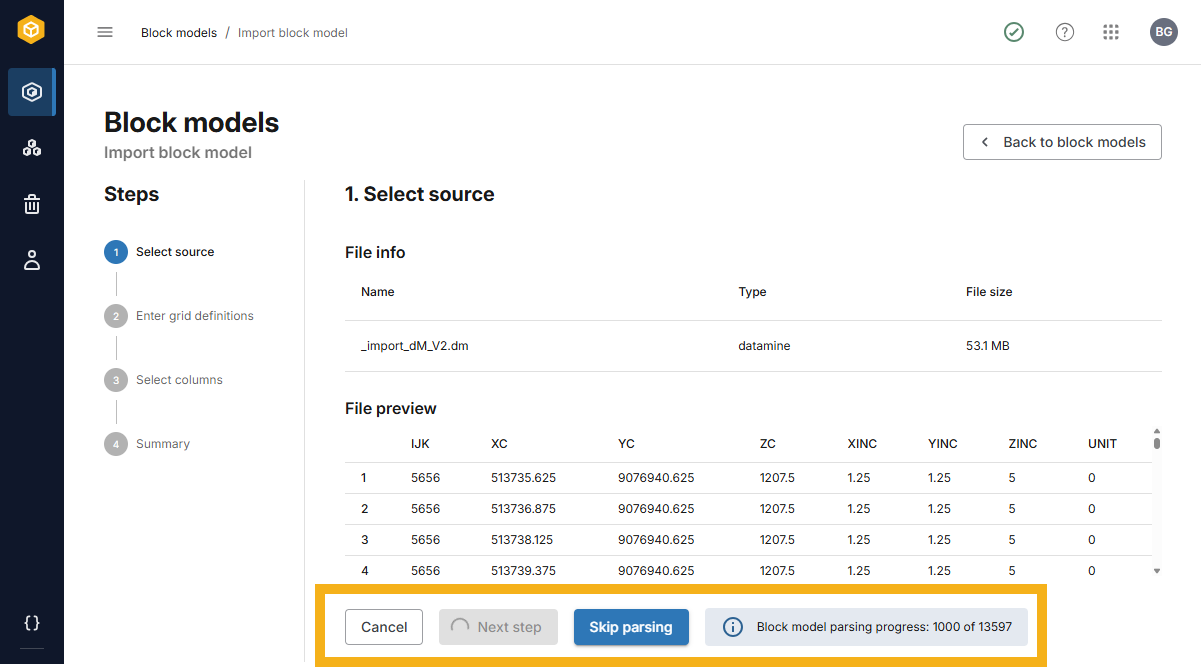
If you want to enter the grid definition manually, you can move on to that step by clicking the Skip parsing button.