
Seequent Evo Settings
Open the Seequent Evo Settings dialog from the Seequent Evo menu in the top-right corner of the menu bar to select a Seequent Evo instance and connect to its available workspaces. Once connected, you'll be able to:
-
Import geoscience data from connected workspaces
-
Publish geoscience data from your current project to any workspace within the selected instance
After closing the dialog, hover over the Seequent Evo menu icon  to view details about the connected instance.
This option is unavailable if you are not signed in with your Bentley account or if your subscription does not include Seequent Evo entitlements. For more details, see Oasis montaj Integration with Seequent Evo.
Seequent Evo Settings - dialog options
The dialog displays the available instances within your Seequent Evo regions (hubs), along with the workspaces to which you have access.
Select an Instance |
|
Filter your selection by instance name, region, or connection state: |
|
|
Filter By: |
The list contains all instances and their hubs, sorted in alphanumeric order. You can filter the selection by:
|
|
Search |
Enter a keyword or search term based on the selected filter. The list updates dynamically as you type. Changing the Filter By option dynamically refreshes the results based on your search term. |
|
Select instance |
Click an instance to highlight and select it. |
View Workspaces in the Selected Instance |
|
|
A second list appears, showing your workspaces within the currently selected instance, sorted in alphanumeric order. Any workspaces shared by other users in the same instance are also included. Click a column header to sort the list in ascending or descending order. |
|
Filter your selection by workspace name, permission level, creation date, or creator name: |
|
|
Filter By: |
Select a filter based on the available parameters:
|
|
Search |
Enter a keyword or search term based on the selected filter. The list updates dynamically as you type. Changing the Filter By option dynamically refreshes the results based on your search term. |
|
|
|
|
Go to Seequent Evo to create a new workspace. |
To create a new workspace within the currently selected instance, click the new workspace link to launch the Seequent Evo portal. If you are signed in,
Any new workspace you create will be added to the currently selected instance. If you're not signed in, refer to the Application Notes below for further instructions.
To learn more about Seequent Evo workspaces—including creating one and inviting team members—refer to the Evo help topics: |
|
[OK] |
Click OK to close the dialog and connect to the selected instance. To confirm you are connected, hover over the Seequent Evo icon Once connected, you can Import from Seequent Evo and Publish to Seequent Evo within the workspaces of the selected instance.
Your selection will be retained when reopening the dialog within the same project. |

Application Notes
Go to Seequent Evo to Create a New Workspace
When you click the new workspace link, if you are not signed in, you will be redirected to the evo.seequent.com/login page. Click Sign in and log in with your Bentley account.
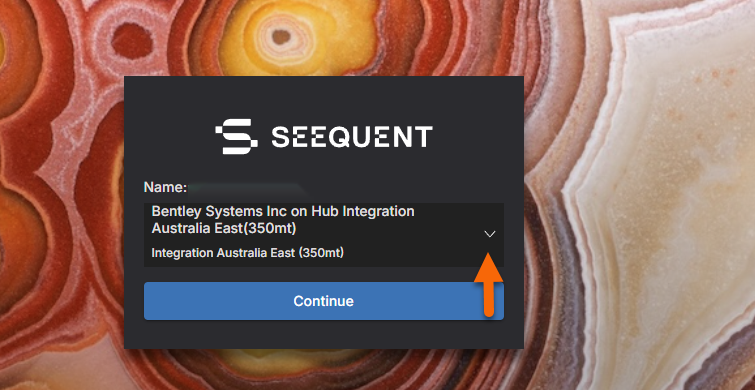
A prompt will appear confirming your current instance (name and hub/region). Click Continue to proceed. To switch instances, expand the dropdown and select an option from the available list.
Got a question? Visit the Seequent forums or Seequent support
Copyright (c) 2025 Bentley Systems, Incorporated. All rights reserved.
Privacy | Terms of Use